
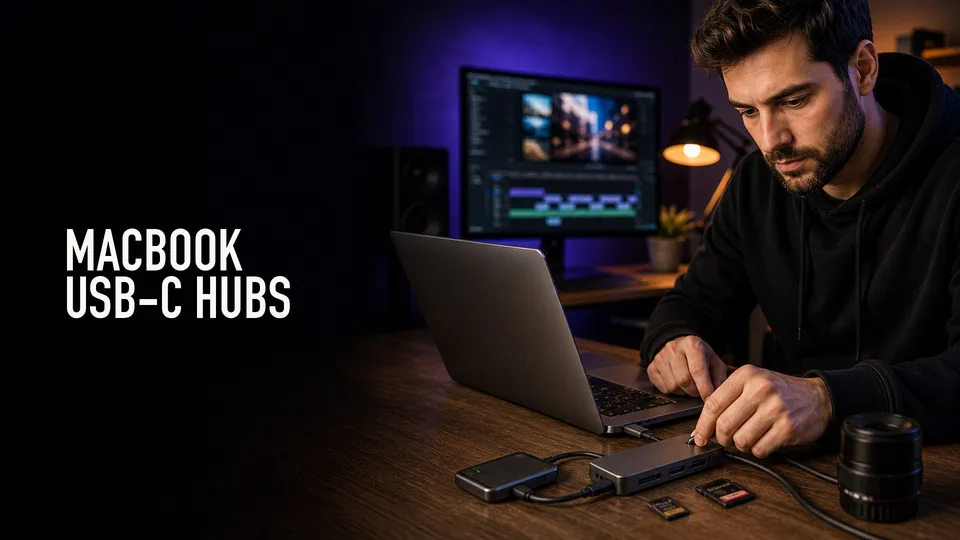
A USB-C hub can make or break a MacBook editing setup. The wrong one creates dropped drives, slow card transfers, display limits, and cable clutter right when you need reliability.
Quick Answer
Use a compact USB-C hub if you mostly need SD cards, HDMI, a few USB ports, and power pass-through on the road. Use a proper Thunderbolt dock if your desk setup includes fast storage, Ethernet, audio gear, and multiple displays.
Mac display support varies by chip and dock. Check your MacBook model before assuming one dock will run every monitor layout.
Affiliate disclosure: This page contains affiliate links. I may earn a commission if you buy through them, at no extra cost to you.
Shop the shortlist
For video editors, prioritize card readers, power delivery, reliable external display support, fast USB ports, and Ethernet before decorative port counts.
Ports That Matter
For video editors, the important ports are SD or microSD, USB-C for SSDs, USB-A for older gear, HDMI or DisplayPort, Ethernet, and enough power delivery to charge the MacBook under load.
A hub with ten weak ports is worse than a dock with fewer reliable ones. Editing work punishes cheap hubs because drives, card readers, and displays often run at the same time.
Desk Dock vs Travel Hub
A desk dock should be boring and permanent. One cable into the MacBook, external display, Ethernet, audio interface, storage, keyboard, and power all connected.
A travel hub should be small, replaceable, and simple: card reader, HDMI, USB-A, USB-C power, and maybe Ethernet. Do not rely on a tiny hub for your entire studio if you constantly move large media.
MacBook Display Caveats
Some Apple silicon MacBooks support fewer external displays than people expect. Dock marketing may show a broad capability, but the Mac model still matters.
Before buying, check the dock’s display notes and your exact MacBook generation. This is especially important for editors with two-monitor desks.
What I Would Buy First
For a permanent editing desk, I would compare CalDigit, OWC, Satechi, and other reputable Thunderbolt docks first. For travel, I would choose a compact hub with SD, HDMI, USB-A, USB-C power, and a short integrated cable.
Product searches to compare
Common Hub And Dock Mistakes
The most common mistake is buying from the port count alone. A dock with many ports is not useful if the card reader is slow, the display output is unreliable, or the power delivery is too weak for your MacBook.
Another mistake is treating every USB-C port as equal. Some ports carry display, power, and fast data. Others are only useful for accessories. Read the dock notes before trusting it with active media drives.
For desk setups, avoid constantly unplugging and replugging the entire edit station. A stable dock should make your MacBook easier to use, not introduce a new troubleshooting ritual.
Shortlist Notes
CalDigit TS4 is the kind of dock to compare for a serious desk setup with Ethernet, displays, card readers, audio, and many peripherals. It is more dock than most travelers need, but it fits a permanent editing station.
OWC-style travel docks are better for bags: card reader, HDMI, USB, and power pass-through in a small body. Satechi and Anker hubs are worth comparing when you need a middle ground between travel simplicity and desk convenience.
Before ordering, confirm display support against your exact MacBook chip. That one compatibility detail matters more than most port-list marketing.
Compare the current hub and dock shortlist
Use the buying criteria above, then compare current listings for the shortlist before choosing.
FAQ
Do video editors need a Thunderbolt dock?
Not always. A Thunderbolt dock is best for a permanent editing desk with displays, fast storage, Ethernet, and several peripherals. A simpler USB-C hub can be enough for travel.
What ports should a MacBook video editor prioritize?
Prioritize SD card reading, fast USB-C for SSDs, HDMI or DisplayPort, Ethernet, USB-A for older devices, and enough power delivery for your MacBook.
Can one dock run two monitors on every MacBook?
No. External display support depends on the MacBook model, chip, and dock implementation. Check compatibility before buying.
About the Author
Joseph Nilo is a video producer and technical creator who writes practical software, creator-workflow, and production gear guides from hands-on experience.