
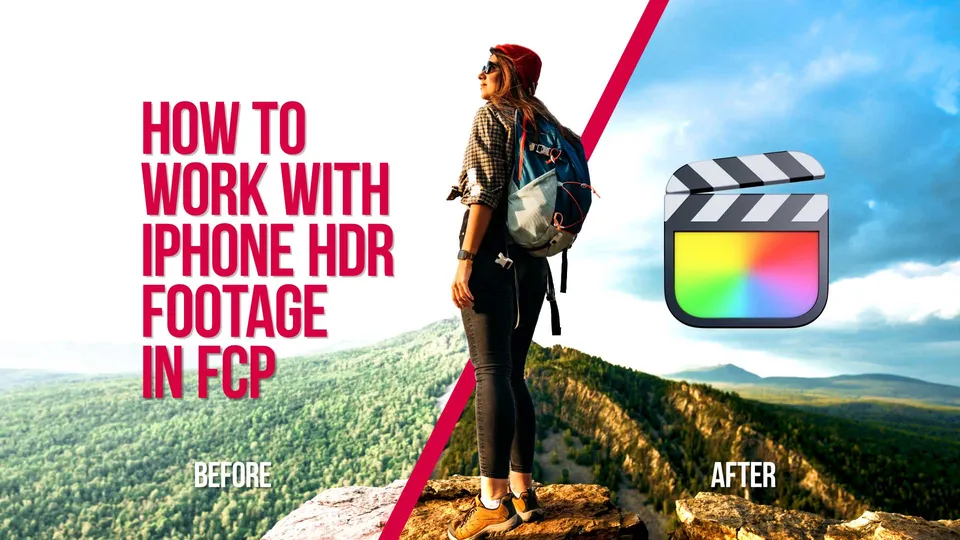
iPhone HDR footage can look excellent in Final Cut Pro, but only if the library, project, color processing, display, and export settings agree. The mistake is treating HDR clips like normal SDR footage and then wondering why highlights, graphics, or YouTube exports look wrong.
After the HDR or SDR master is correct, use the compression guide to separate YouTube compression from a color-management problem.
Quick Answer
Updated June 2, 2026: If you want the final video to stay HDR, work in a wide-gamut HDR Final Cut Pro workflow and export as HDR. If the final video should be SDR, convert or tone-map the iPhone HDR footage before delivery so highlights, contrast, and graphics look intentional on normal displays.
The practical rule
HDR deliverable: keep the workflow HDR from library to export, and monitor on a display that can show HDR accurately.
SDR deliverable: use an SDR project or tone mapping path, then review the export on a normal SDR screen before sending it out.
Watch the Workflow
This page started as a practical Final Cut Pro workflow video. The transcript-style article below has been updated with current Apple support references and a cleaner decision path for HDR vs SDR delivery.
Why iPhone HDR Footage Looks Wrong
Modern iPhones can record HDR video, and supported models can also record ProRes. That gives you more highlight and color information, but it also means the clip carries assumptions about color space and brightness that SDR timelines do not share.
If you drop HDR footage into the wrong workflow, the image may look blown out, clipped, flat, or strangely saturated. The video file is not necessarily broken; the project may simply be interpreting it through the wrong delivery path.
Choose HDR or SDR Before Editing
The first decision is not which slider to adjust. It is whether the final video should be HDR or SDR.
| Delivery goal | Use this workflow | Watch for |
|---|---|---|
| HDR YouTube or HDR master | Wide-gamut HDR library/project and HDR export settings. | Accurate monitoring, correct metadata, and HDR-compatible graphics. |
| Standard YouTube, client review, or social post | SDR project or HDR-to-SDR tone mapping before export. | Highlight rolloff, skin tones, text overlays, and display consistency. |
| Mixed HDR footage with SDR graphics | Decide whether the timeline is HDR or SDR before designing graphics. | Pure whites, brand colors, and titles can look too bright in HDR. |
Do not wait until export to make this decision. The earlier you choose the delivery target, the easier it is to keep the image consistent.
Final Cut Pro Setup
Apple's Final Cut Pro user guide documents wide color gamut and HDR workflows. The key idea is that HDR is not just a brighter export preset; it affects how the library, project, scopes, monitoring, and export interpret the footage.
For a clean HDR workflow, set up the project for wide-gamut HDR, check your scopes, and monitor on a display that can show the range you are grading. For an SDR workflow, use a conversion path that gives you a normal-looking Rec.709 result instead of a clipped or washed-out image.
When editing iPhone ProRes or HDR footage, also think about storage. ProRes and high-quality HDR exports can grow quickly, so use fast external storage if your internal drive is tight.
Graphics and Titles
Graphics are where many iPhone HDR edits fall apart. White text, logos, lower thirds, and screen captures that look normal in SDR can feel harsh or over-bright in an HDR project.
If your final video is HDR, design titles while viewing the HDR result and keep brightness under control. If your final video is SDR, convert the footage first, then build titles in the same SDR space the audience will actually see.
This matters for YouTube tutorials, product explainers, and client work because viewers may watch on phones, laptops, TVs, or non-HDR displays. The title should remain legible without becoming the brightest object in the frame.
Exporting for YouTube
For HDR delivery, export as HDR and follow YouTube's HDR upload recommendations for the resolution and frame rate. For SDR delivery, finish the HDR-to-SDR conversion first, then use the normal SDR upload settings.
YouTube has separate SDR and HDR bitrate recommendations. For example, YouTube recommends higher bitrates for HDR than SDR at the same resolution, and it does not list HDR support for 480p or 360p uploads.
For detailed bitrate tables, use the refreshed YouTube bitrate settings guide. If you are choosing between constant and variable bitrate, see CBR or VBR for YouTube.
Sources Checked
Workflow references were checked on June 2, 2026 against Apple support and user-guide pages for iPhone HDR video recording, iPhone ProRes recording, Final Cut Pro wide-gamut HDR workflows, and the current Final Cut Pro user guide. YouTube export notes were checked against YouTube recommended upload encoding settings.
FAQ
Why does iPhone HDR footage look blown out in Final Cut Pro?
It usually means the clip, project, display, or export path is not handling wide-gamut HDR correctly. Choose an HDR workflow for HDR delivery, or convert/tone-map the footage for SDR delivery.
Should I edit iPhone HDR footage in an HDR or SDR library?
Edit in HDR if the final video should stay HDR. Edit or convert for SDR if the final video is for normal client review, standard YouTube delivery, or social platforms where you need predictable SDR viewing.
Can Final Cut Pro edit iPhone ProRes footage?
Yes, supported iPhones can record ProRes and Final Cut Pro can be used for ProRes workflows. Check current iPhone support and storage requirements before planning a ProRes-heavy project.
How should I export iPhone HDR footage for YouTube?
Export with correct HDR settings if the video should remain HDR, then use YouTube's HDR bitrate recommendations. For SDR delivery, convert the timeline to SDR first and use the SDR recommendations.