

Quick answer: A beginner can launch a site with Skystra, but the host does not remove the need to understand the domain, DNS, WordPress login, SSL, backups, updates, and recovery. Take the setup one layer at a time and do not point a live domain at the new account until a temporary copy works.
Checked August 10, 2026. I reviewed Skystra's current setup, SSL, security, backup, and staging help pages. The dashboard and plan details can change.
Hosting is easier when you know which account controls each part.
Your registrar owns the domain registration, DNS tells visitors where to go, the hosting account runs the site, WordPress manages the content, and backups give you a way back.
Disclosure: This guide contains sponsored links to Skystra web hosting. If you buy through one, I may earn a commission at no extra cost to you.
First things first-- this page has affiliate links. But we only promote products and services we believe in.
⭐⭐⭐⭐⭐
If you'd like to support this blog and get the best deal on Skystra Web Hosting packages, use our link.
Learn More About Skystra
Table of contents
- Quick answer
- Before you buy
- Setup order
- DNS and email
- Dashboard
- Performance
- Security
- Support
- Cost
- Backups
- Staging
- Launch checklist
- FAQ
- Bottom line

Before you buy or move anything
Write down who controls the domain, current DNS, website files, database, email, analytics, forms, and backups. If a developer or former employee owns an account, fix that before migration.
Read Skystra's getting-started documentation and compare the current plan with the site's storage, traffic, email, software, and support needs. Check Skystra's current offer only after you know the renewal-year total and what is included.
| Account or system | What to record |
|---|---|
| Domain registrar | Owner, renewal, lock, and transfer access |
| DNS | Current records and email-related entries |
| Hosting | Plan, limits, login, billing, and support |
| WordPress | Administrator, plugins, theme, and PHP needs |
| Provider and DNS records that must remain | |
| Backups | Location, date, contents, and restore method |

Use a safe setup order
- Create the hosting account under a business-controlled email.
- Add or migrate the website without changing public DNS.
- Open the temporary or preview version and test it.
- Confirm SSL, forms, email delivery, logins, images, and important transactions.
- Copy all existing DNS records before changing nameservers or records.
- Point the domain only when the replacement is ready.
- Keep the old hosting and backup until the new site has been stable.
This order gives you a rollback path. Changing DNS first can turn an ordinary setup problem into public downtime.
- Visit the Skystra website.
- Click on the ‘Get Started’ button.
- Choose a hosting plan that suits your needs.
- Register your domain.
- Finalize the transaction.
Be careful with DNS and email
DNS changes can affect the website and email. Preserve MX, SPF, DKIM, verification, subdomain, and other existing records unless you understand why each one should change.
DNS updates also take time to reach different networks. During that window, some visitors may reach the old server and others the new one. Avoid simultaneous edits, orders, or form submissions on two separate copies if the site stores live data.
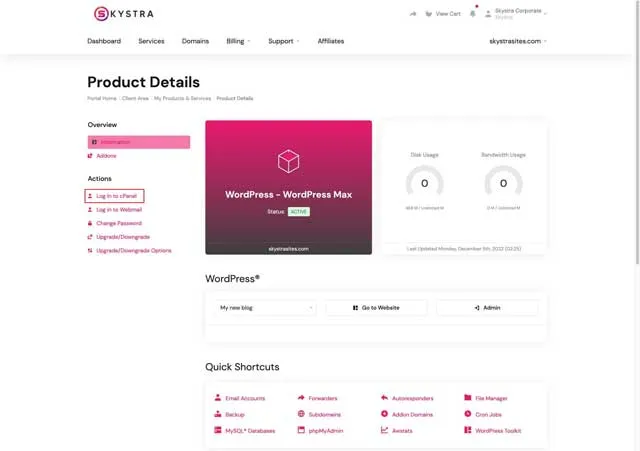
Learn the dashboard by completing real tasks
Do not try to memorize every icon. Find where to manage the site, domain, DNS, SSL, backups, staging, billing, users, and support. Then document those paths in plain language.
Open Skystra's current hosting workflow and practice locating the controls before an emergency. Keep the business owner as the primary account holder even when a developer helps.

Start with a working site, then measure performance
Use appropriately sized images, a reasonable theme, current plugins, and caching that does not break forms or checkout. Test the homepage and the slowest important action.
Hosting affects speed, but so do design, scripts, fonts, plugins, database work, visitors' locations, and third-party services. I would not promise that Skystra will make every site fast without measuring the actual site on the actual plan.

Set up the security basics
Skystra explains how to check SSL status and documents an optional advanced security service. Confirm what your plan includes rather than assuming every help-page feature is bundled.
Use unique passwords, limit administrator accounts, enable two-factor authentication where available, update WordPress and plugins, remove unused software, and know who responds to malware. Review Skystra's current security options alongside those responsibilities.

Ask support beginner questions before launch
- Where do I find the temporary site URL?
- How do I preserve email when DNS changes?
- Which SSL, backup, security, and staging features are included?
- Who handles WordPress or plugin problems?
- How do I restore the site or roll back a migration?
- How do I download everything and leave?
Save useful answers with the site's account records. The goal is not to avoid learning; it is to know where the hosting provider's job ends.

Understand the cost after the first term
Check renewal pricing, billing period, taxes, domain cost, email, backups, security add-ons, migrations, resource upgrades, and developer help. A beginner-friendly dashboard can still become expensive if basic operational needs are separate purchases.
Compare Skystra's current plans using the same yearly checklist you use for other hosts, not only the promotional monthly equivalent.

Make a backup before and after launch
Skystra documents a daily-backup product. Confirm inclusion, retention, restore access, and cost. Keep an independent copy outside the hosting account and test that it can be opened or restored.
Use staging for risky changes
Skystra also documents a staging workflow. Use it for plugin, theme, PHP, caching, checkout, and major content changes. Be careful pushing a staging database onto a live store or membership site because it can erase newer transactions.
Beginner launch checklist
- Site loads on HTTPS without warnings.
- Forms arrive at the right inbox.
- Email DNS records still work.
- Images, navigation, logins, search, and transactions work.
- Analytics and consent tools load as intended.
- Backups exist inside and outside the host.
- The old service remains available during the rollback window.
Skystra beginner FAQ
Do I need to understand DNS to use Skystra?
You should understand that DNS connects the domain to hosting and email. You do not need to become an expert, but copy existing records and ask before deleting anything.
Should I change nameservers immediately?
No. Prepare and test the replacement site first, then make the DNS change with a rollback plan.
Does hosting include a domain and email?
Do not assume it does. Confirm the current plan and keep track of which provider controls each service.
Does Skystra include backups?
Skystra documents a daily-backup product. Confirm whether it is included, the retention period, restore access, and price.
Is SSL the same as website security?
No. SSL protects data in transit. Accounts, updates, plugins, monitoring, backups, and incident response still matter.
What should I test before launch?
Test HTTPS, navigation, forms, email, logins, transactions, analytics, backups, performance, and the rollback process.
My bottom line
Skystra can give a beginner a workable hosting environment, but the safest setup is methodical: keep control of the accounts, build before changing DNS, test the real site, understand the paid extras, and keep a backup somewhere else.
For more detail, see my Skystra WordPress hosting checklist and security and scaling guide.

About the Author
Joseph Nilo is an experienced web developer, specializing in Python and Django development and SEO.
He's been creating websites, content, podcasts, and videos for the web for over 25 years.
Skystra Web Hosting Related Posts:
Affordable WordPress Hosting with Skystra
Fast and Reliable Web Hosting Services by Skystra
Secure and Scalable Hosting Solutions with Skystra
Secure and Scalable Hosting Solutions with Skystra
Skystra Web Hosting for Beginners: A Comprehensive Guide
Skystra: Best Hosting Provider for E-commerce Websites
Table of contents
- Quick answer
- Before you buy
- Setup order
- DNS and email
- Dashboard
- Performance
- Security
- Support
- Cost
- Backups
- Staging
- Launch checklist
- FAQ
- Bottom line
Skystra Web Hosting Related Posts:
Affordable WordPress Hosting with Skystra
Fast and Reliable Web Hosting Services by Skystra
Secure and Scalable Hosting Solutions with Skystra
Secure and Scalable Hosting Solutions with Skystra
Skystra Web Hosting for Beginners: A Comprehensive Guide
Skystra: Best Hosting Provider for E-commerce Websites