
Adobe Firefly Video Editor is a browser-based beta that combines a multitrack timeline with Quick Cut, transcript editing, AI video generation, audio cleanup, basic finishing, and MP4 export.
This review evaluates the currently documented feature set rather than claiming a hands-on performance test. The product looks useful for AI-first social videos and fast rough cuts, but its limits matter just as much as its feature list.
Quick verdict
| Best for | AI-first social videos, talking-head rough cuts, concept reels, product spots, and quick browser-based edits. |
|---|---|
| Choose Premiere instead for | Complex timelines, multicam, managed color, advanced audio, motion graphics, professional masters, and interchange. |
| Standout tools | Quick Cut, transcript editing, integrated AI models, Enhance Audio, generated sound effects, and 4K MP4 export. |
| Main caution | The editor remains beta, and an exported 4K file does not make every generated clip native 4K. |
This page may include affiliate links.
I only recommend software I would seriously evaluate for real creator or production workflows.
⭐⭐⭐⭐⭐
I pay for Adobe Creative Cloud and have used it every day in my 20-year career as a video editor, producer, and colorist.
Use the Adobe link below to check the current Creative Cloud offer. It can support this site and helps me keep these guides updated. Check current Adobe Creative Cloud offer.
Get Adobe Creative Cloud Now!What Adobe Firefly Video Editor Is
Firefly Video Editor is a full browser timeline for video, audio, images, text, and graphics. It can combine uploaded media, Adobe cloud assets, Generation History, Adobe Stock, and newly generated material in one project.
The product is separate from Firefly AI Assistant. The assistant plans and orchestrates a workflow; the Video Editor is where clips are cut, layered, adjusted, and exported.
It is also separate from Adobe's newer unified generation-and-editing experience, which remains a private beta. That distinction prevents preview features from being mistaken for tools in the currently documented editor.
Browser and System Requirements
Adobe documents the complete editor for desktop Chrome and Edge on macOS and Windows. Safari and Firefox may be missing features, making browser choice a practical requirement rather than a footnote.
Individual files must be under 20GB and four hours, and imported video or images are limited to 4096 by 4096 pixels. Animated GIF and WebP files display only their first frame.
The supported import set centers on MOV and MP4 video, common still formats, and MP3, M4A, WAV, and AIFF audio. Check the current technical-requirements page before building a workflow around a less common camera or delivery format.
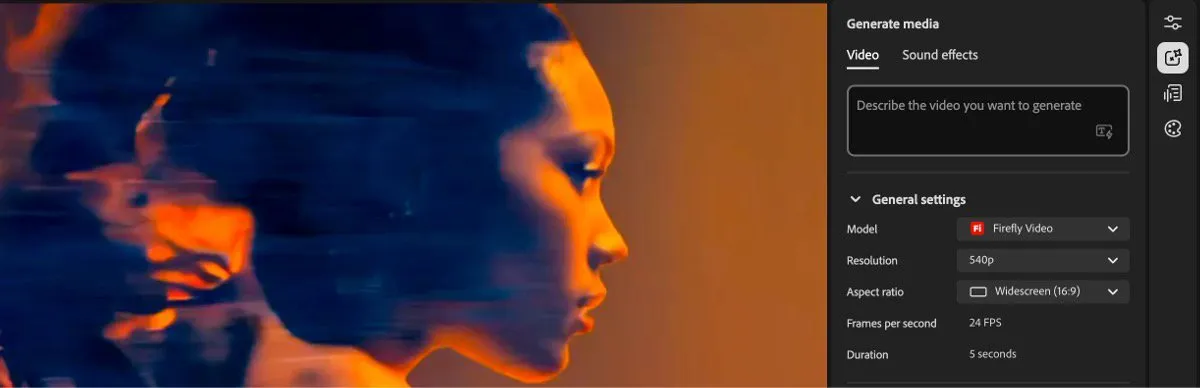
The Generate Media panel exposes model and output controls without leaving the Firefly editing workspace. Source: Adobe HelpX. Interface shown during beta and may change.
Timeline and Media Organization
The multitrack timeline supports cutting, trimming, splitting, layering, positioning, scaling, rotation, opacity, speed, and volume. That is enough for many short-form assemblies without opening a desktop editor.
Media can come from the local device, Adobe cloud storage, Firefly Generation History, and Adobe Stock. Integrated generation is the main differentiator: a missing visual can be created without leaving the edit.
The timeline is still aimed at accessible browser production. Do not assume that familiar tracks automatically bring Premiere-level multicam, timecode, proxy, conform, or interchange workflows.
Quick Cut and Transcript-Based Editing
Quick Cut can assemble a preliminary edit from dialogue-driven or visual-only material. Controls include mood, pacing, aspect ratio, and duration; generated B-roll is currently limited to dialogue-driven Quick Cuts.
Text-based editing lets users search a transcript, rearrange passages, label speakers, remove filler words, and delete text with the associated frames. Adobe currently lists ten supported languages.
That combination is attractive for interviews, tutorials, and product explainers. Treat the result as a rough cut: check jump cuts, context, cadence, reaction timing, and whether removed words create awkward audio or visual edits.
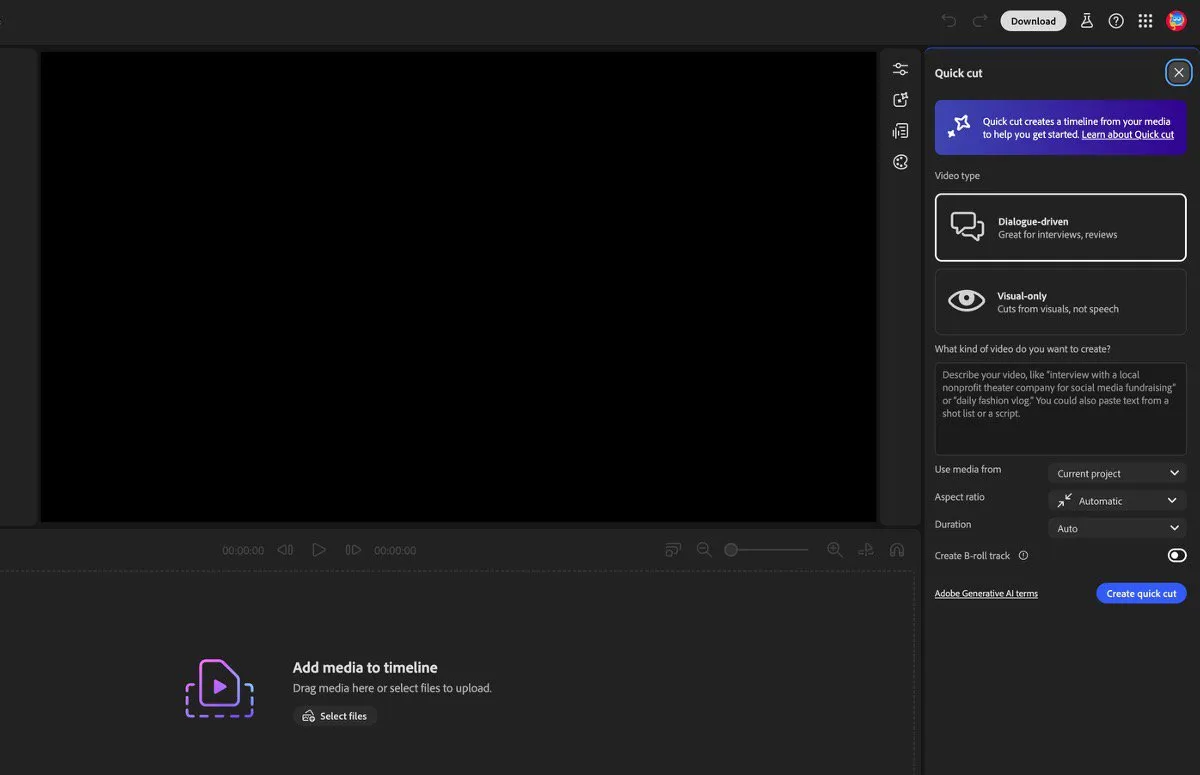
Quick Cut offers dialogue-driven and visual-only starting points plus controls for aspect ratio, duration, and optional B-roll. Source: Adobe HelpX. Interface shown during beta and may change.
Integrated AI Video Models
Adobe documents its own Firefly Video model alongside selected partner models from Google, Luma, OpenAI, Runway, and Kling. Available controls, clip length, resolution, aspect ratio, and audio behavior differ by model.
Model availability can also vary by plan, account, region, and date. An evergreen guide should explain the decision criteria—control, consistency, style, speed, terms, and credit cost—rather than promise one permanent model roster.
Adobe's commercial-safety positioning applies specifically to Adobe Firefly models. Creators choosing a partner model remain responsible for deciding whether its terms and output fit the project.
Audio, Color, Titles, and Motion
Audio tools include speech enhancement, separate controls for speech, music, effects, and ambience, plus generated sound effects. Enhance Audio currently accepts clips up to 30 minutes.
For the audio-generation controls themselves, see the Firefly Sound Effects guide. The Firefly mobile app guide covers capturing image, video, and sound ideas away from the browser editor.
Basic finishing includes Looks, exposure and color sliders, text templates, blend modes, automatic scene splitting, and motion presets. The current transition selection is notably narrow, with Dissolve and Fade documented.
These tools are enough to make a short piece coherent. They are not a substitute for managed log or HDR color, detailed keyframing, multichannel mixing, or an After Effects motion-graphics pipeline.
Export Quality and Known Limits
Firefly Video Editor exports a flattened MP4 at 720p, 1080p, or 4K with three quality choices. Adobe does not document ProRes, XML, AAF, OMF, EDL, or similar professional delivery and interchange from this editor.
A 4K export option describes the output frame, not the native resolution of every generated source clip. Upscaling or placing a smaller generated clip in a 4K sequence does not add missing source detail.
Transparent generated video is not fully supported, and the product's beta status means limits can change. Keep source assets and avoid making a browser project the only archived version of important work.
Firefly Video Editor vs Premiere Pro
Firefly Video Editor is the browser workspace. If you want to generate a new clip or sound effect directly inside a desktop Premiere sequence, see the Premiere Generative Media Tool guide.
| Production need | Better choice | Why |
|---|---|---|
| Fast AI-first social video | Firefly | Generation, Quick Cut, transcript editing, and browser access are integrated. |
| Talking-head rough cut | Firefly | Transcript cleanup and Enhance Audio can accelerate the first assembly. |
| Long or complex sequence | Premiere Pro | Deeper timeline, media-management, proxy, and finishing controls. |
| Multicamera or timecode work | Premiere Pro | Dedicated multicam and synchronization workflows. |
| RAW, log, HDR, or managed color | Premiere Pro | Professional color management and grading controls. |
| Motion graphics and After Effects | Premiere Pro | Dynamic Link and Motion Graphics templates support finishing workflows. |
| Professional masters or interchange | Premiere Pro | Far broader export and project-exchange support. |
The Workflow I Would Recommend
Use Firefly to generate or locate material, build a first assembly, clean a transcript, and test a short-form concept. Then move individual assets into Premiere for detailed editing and finishing.
Adobe documents importing generated Firefly assets into Premiere, but not a complete editable Firefly Video Editor timeline migration. Plan for asset handoff rather than assuming every edit, transition, and timing decision will round-trip.
For a wider view of Firefly generation in post-production, see Adobe Firefly for video editors and my Firefly versus Runway comparison.
Plans, Credits, and Commercial-Use Checks
Free accounts receive limited generation access, while premium video, audio, and partner-model operations consume generative credits. Temporary offers and credit costs can change, so use the current Firefly pricing and credit guide for the broader plan decision.
Before publishing generated material, confirm the model used, the source-asset rights, any client restrictions, and the destination platform's rules. Adobe's guidance for its own Firefly models does not automatically govern every partner model.
My verdict: Firefly Video Editor is a useful new front end for fast AI-assisted assembly. Premiere Pro remains the safer finishing room.
Official Sources
- Adobe Firefly Video Editor overview
- Firefly Video Editor technical requirements
- Adobe Quick Cut documentation
- Adobe export documentation
- Adobe known limitations
Frequently Asked Questions
Is Adobe Firefly Video Editor free?
A free Firefly account provides limited generation access, while premium video, audio, and partner-model operations use generative credits. Current access and plan limits should be checked on Adobe's Firefly plans page.
Is Firefly Video Editor still in beta?
Yes. The current browser editor is a beta product, and Adobe separately describes a newer unified generation-and-editing workspace as a private beta.
Can Firefly Video Editor replace Premiere Pro?
Not for demanding professional post-production. Firefly is strongest for AI-first social videos, talking-head rough cuts, concept reels, and quick browser edits. Premiere remains better for complex timelines, multicam, managed color, detailed audio, motion graphics, and professional delivery.
Can Firefly Video Editor export 4K?
The editor can export a flattened MP4 at 720p, 1080p, or 4K. A 4K export setting does not mean every AI model generated native 4K footage.
Can Firefly edit video from a transcript?
Yes. Its text-based workflow supports transcript search, rearrangement, speaker labels, filler-word cleanup, and deletions that remove the associated frames.
What does Quick Cut do?
Quick Cut creates a preliminary edit from dialogue-driven or visual material. You can guide mood, pacing, aspect ratio, and duration, but the result still needs human review and often benefits from further finishing.
Which AI video models are available?
Adobe documents its own Firefly Video model alongside selected partner models such as Google Veo, Luma Ray, OpenAI Sora, Runway, and Kling. Availability can vary by plan, account, region, and date.
Can I transfer a Firefly timeline to Premiere Pro?
Adobe documents importing generated Firefly assets into Premiere, not a complete editable Firefly Video Editor timeline migration. Plan on transferring individual media and rebuilding or finishing the sequence in Premiere.
What are the biggest Firefly Video Editor limitations?
The current beta has a narrow transition selection, MP4-only export, limited professional interchange, browser requirements, and format or resolution limits. It is designed for speed and accessibility rather than every finishing workflow.

About the Author
Joseph Nilo has been working professionally in all aspects of audio and video production for over twenty years. His day-to-day work finds him working as a video editor, 2D and 3D motion graphics designer, voiceover artist and audio engineer, and colorist for corporate projects and feature films.