
Checked August 3, 2026
The Adobe Firefly mobile app is no longer just a small companion for image prompts. Adobe now documents image generation, text-to-video, image-to-video, Generative Fill, image expansion and removal, sound-effect generation, recent files, and sharing across iOS and Android.
That makes Firefly mobile useful for creators who need to capture an idea, make a pickup, or test a visual while away from a desktop. It does not remove the need for finishing. This guide focuses on where the app saves real production time, how credits and models affect the workflow, and what to inspect before a mobile result reaches a client or public channel.
Quick answer
Use Firefly mobile for ideation, fast image edits, short video experiments, and timed sound-effect concepts. Finish important work on a calibrated display with proper audio monitoring, file inspection, rights review, and project backups.
If you already pay for Firefly or Creative Cloud, sign in with that account first so the app can show the correct models, plan access, and generative-credit balance.
This page may include affiliate links.
I only recommend software I would seriously evaluate for real creator or production workflows.
⭐⭐⭐⭐⭐
I pay for Adobe Creative Cloud and have used it every day in my 20-year career as a video editor, producer, and colorist.
Use the Adobe link below to check the current Creative Cloud offer. It can support this site and helps me keep these guides updated. Check current Adobe Creative Cloud offer.
Get Adobe Creative Cloud Now!What the Firefly mobile app includes
Adobe's current mobile overview groups Firefly into four practical jobs: generate images, generate video, edit images, and create sound effects. The workspace also gives you access to recent generations and files, so a concept started on mobile can remain connected to the signed-in account.
On iOS and Android, the exact model list or button position can change, but the production pattern is consistent. Choose a task, select an available Adobe or partner model, describe the result, generate variations, refine, and save or share the selected output. The useful part is not the novelty of prompting on a phone. It is the ability to move from an idea or camera-roll image to a reviewable asset without waiting for a desktop session.
Keep the app's role narrow. It is excellent for a director's reference, social pickup, thumbnail option, location concept, rough insert, or sound-design note. It is a poor place to approve subtle color, tiny typography, complex masks, audio loudness, or a high-value commercial license without another review surface.
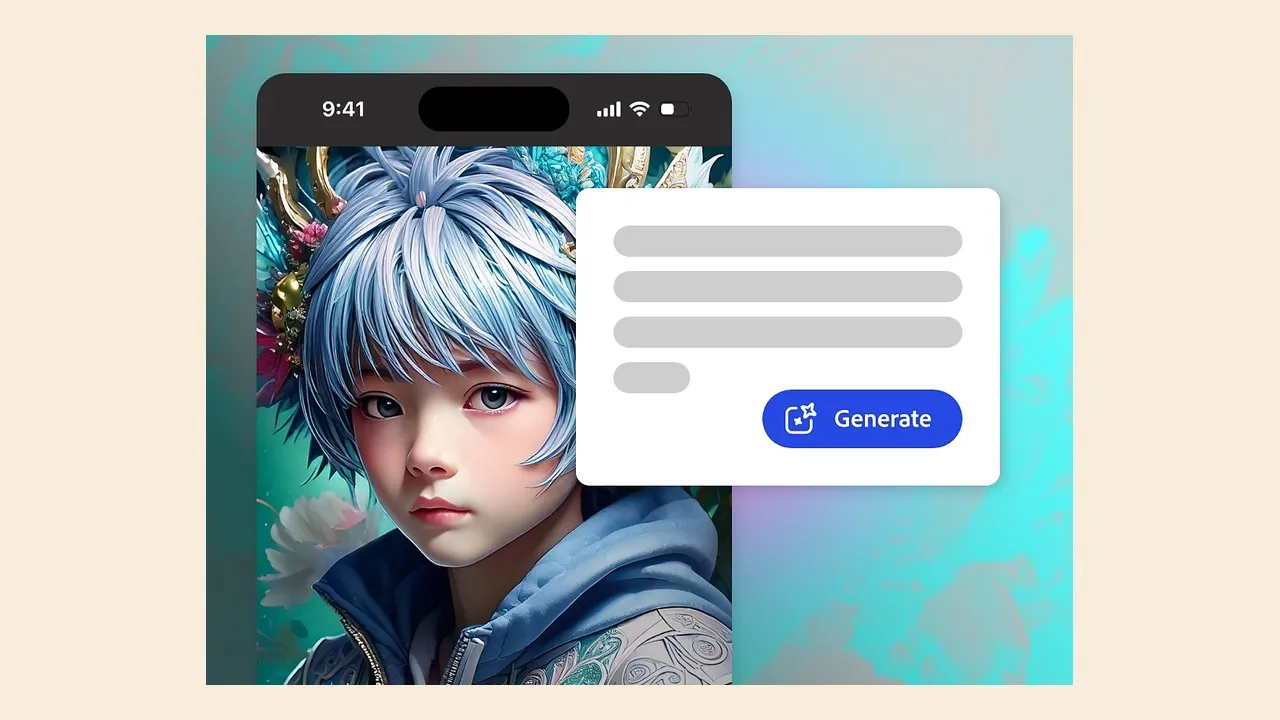
Adobe's Firefly mobile overview shows the Text to Image workspace and prompt-led generation flow. Source: Adobe. Interface shown as documented by Adobe and may change.
Image generation and editing on mobile
Text to Image is the fastest starting point. Describe subject, setting, composition, light, camera viewpoint, and constraints in plain language. Generate a small group, choose the strongest structure, then change one variable at a time. Rewriting every part of the prompt makes it difficult to learn why a result improved.
Firefly mobile also supports Generative Fill and related edits that can add, replace, remove, or expand parts of an image. These tools are especially practical when the source photo is already on the phone. Duplicate the original before editing. Zoom into boundaries, hands, reflections, shadows, repeated patterns, labels, and any area where generated texture meets real detail.
For client work, export a candidate and inspect it at the final pixel dimensions. A result that looks convincing on a phone can reveal soft edges, garbled text, inconsistent light, or invented detail on a larger display. Save the prompt and generation history with the project so another editor can reproduce the decision trail.
My Adobe Firefly AI Assistant guide covers the broader prompt-and-edit direction, while Firefly Boards is a better surface for comparing and arranging multiple concepts.
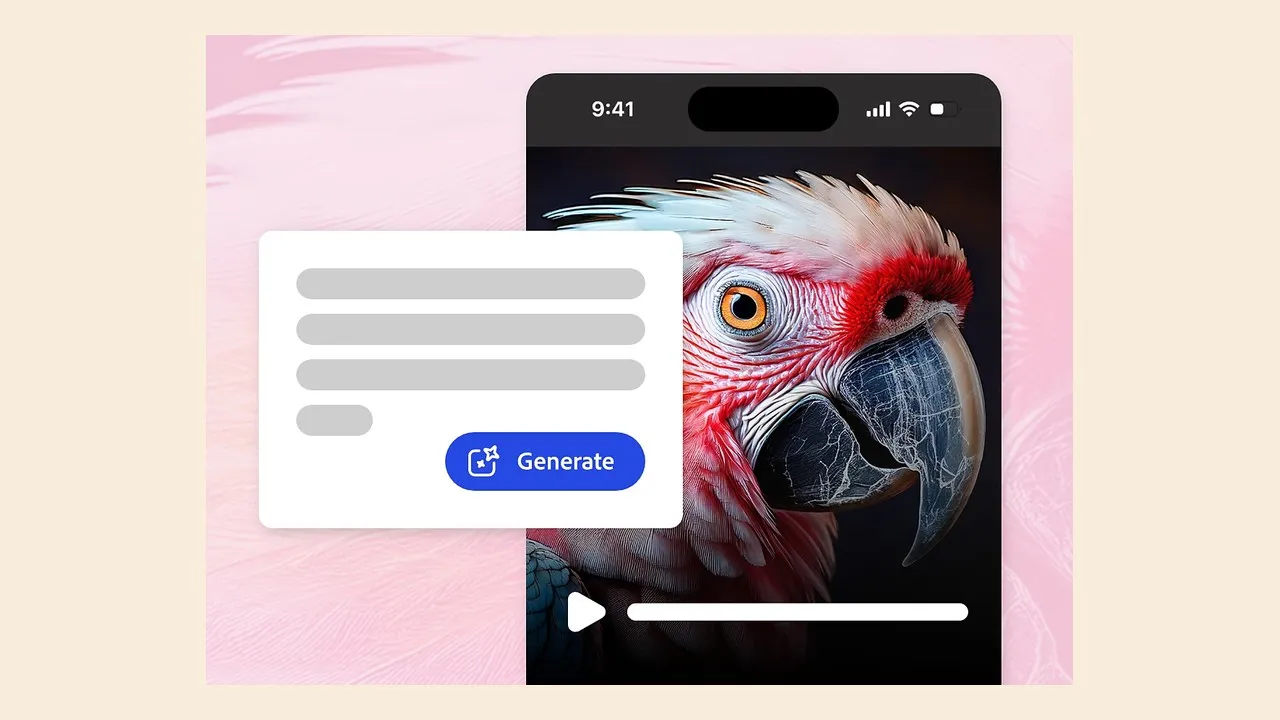
Firefly mobile includes Text to Video alongside image-led video generation controls. Source: Adobe. Interface shown as documented by Adobe and may change.
Text to Video and Image to Video
Adobe documents both Text to Video and Image to Video in the mobile app. Text to Video is useful when motion, framing, and atmosphere matter more than a specific starting frame. Image to Video is better when a product shot, illustration, or approved keyframe must anchor the clip.
Write motion prompts like a shot instruction: identify the subject, the action, the camera move, the environment, and the intended pace. Avoid stacking several unrelated events into a short generation. For image-led clips, protect the important identity and ask for modest, physically plausible movement before attempting a complex transformation.
Review the first and last frames, temporal consistency, faces and hands, object permanence, camera path, and unwanted morphing. Then export and test the file in the actual editor. Confirm dimensions, frame rate, duration, codec, color behavior, and whether a watermark or plan restriction applies. The dedicated Adobe Firefly Video Editor guide explains how generated clips fit a longer timeline, and Firefly for video editors covers production-oriented use cases.
Mobile video generation is a creative pickup tool, not a replacement for editorial control. Plan handles, alternate versions, music and narration timing, captions, and final sound outside the generated shot.
Generate sound effects from a phone
Firefly mobile includes Generate Sound Effects, which turns a written description into short audio candidates. That is useful when you can describe an unusual transition or texture faster than you can search a library: a soft metallic bloom, a compressed sci-fi door, a paper logo unfolding, or a stylized environmental accent.
Describe both material and action. "Metal impact" is broad; "small hollow aluminum case closes once, short ring, quiet studio" gives the model more production information. Generate several options, audition against the picture, and layer sounds rather than expecting one clip to carry every frequency and story beat.
A phone speaker is not a reliable final monitor. Use headphones for the first review, then check on studio monitors or the real delivery device. Listen for clicks, sudden noise-floor changes, harsh high frequencies, unwanted voices, or tails that end too abruptly. The companion Firefly Sound Effects guide covers voice timing, the Video Editor workflow, and when a curated stock library remains the better choice.

Adobe documents sound-effect generation as part of the Firefly mobile creator workspace. Source: Adobe. Interface shown as documented by Adobe and may change.
Plans, partner models, and generative credits
Firefly mobile is tied to the signed-in Adobe account. Available models, premium features, generation speed, and credit consumption can vary by plan and by task. A video generation is not economically equivalent to a simple image edit, and a partner model can have different access rules from an Adobe model.
Before a batch, open the account's usage display and record the starting balance. Generate one representative image, video, and audio result, then compare the remaining balance. That small test gives you a current cost signal without relying on an older article or promotional page.
If credits drive the buying decision, use my Adobe Firefly pricing and generative credits guide. Do not upgrade only because the mobile interface makes generation easy. Upgrade when a repeatable production workflow consumes the current allowance and the saved time or delivered work justifies the next tier.
A practical mobile-to-desktop workflow
- Define the deliverable. Write the platform, aspect ratio, duration, resolution, and review deadline before opening a model.
- Collect approved inputs. Duplicate source photos and keep releases, client references, and brand restrictions outside the generation prompt.
- Generate narrowly. Solve one visual or audio problem per pass and save the promising result.
- Export early. Move one candidate into Photoshop, Premiere Pro, After Effects, or the actual delivery app before generating a large batch.
- Inspect technically. Check pixels, frames, audio peaks, color, metadata, and license context.
- Preserve provenance. Save prompt notes, account generation history, source files, exports, and the final approval.
This workflow keeps the phone fast without making it the only copy of the work. It also separates creative approval from technical and rights approval, which becomes more important as mobile results look increasingly finished.
Where Firefly mobile still needs a second pass
Small screens hide defects. Text can be misspelled, straight edges can wobble, repeated objects can merge, and a five-second clip can drift after the moment you watched. Audio can sound clean through a phone but become harsh or thin on headphones. Always inspect at delivery scale.
Connectivity and generation queues can also make a mobile plan less predictable on location. Save important inputs locally, avoid depending on a last-minute generation, and carry an approved fallback. If a model or feature disappears from the menu, do not change the creative brief just to fit the available button.
Finally, model output is not an automatic rights clearance. Review Adobe's current terms, do not upload confidential client material without permission, avoid prompts that imitate protected characters or recognizable living artists, and document the final human decisions. Vendor descriptions should be separated from your own measured result.
Who should use Firefly mobile
Firefly mobile is a strong fit for creators already using Adobe tools, social teams working in the field, editors who need quick inserts, designers collecting directions, and small teams that want one account history across devices. It is also a low-friction way to test whether Firefly solves a real task before buying a larger plan.
Skip it as the primary finishing surface when the work depends on exact typography, brand color, complex masks, long-form timelines, multitrack mixing, color-managed delivery, or sensitive rights review. Use it to shorten the distance between idea and candidate—then finish with the tools and checks the deliverable deserves.
Official sources
Frequently Asked Questions
Is Adobe Firefly available as a mobile app?
Yes. Adobe documents Firefly on both iOS and Android. The mobile app supports image and video generation, Generative Fill, sound-effect generation, access to recent work, and sharing or downloading supported results.
Is the Firefly mobile app free?
The app can be downloaded and tested with an Adobe account, but generative features use the credits and limits attached to the account's current Firefly or Creative Cloud plan. Check the live usage counter and plan page before beginning a large batch.
Does Firefly mobile use the same generative credits as the web app?
Adobe ties generation access to the signed-in account, so mobile work draws from the plan and credit rules available to that account. Model choice and feature type can affect consumption. Verify the live counter because credit rules can change.
Can Firefly mobile generate video?
Yes. Adobe documents both Text to Video and Image to Video on mobile, including prompt controls and supported camera or style options. Generation time, resolution, duration, model availability, and credit cost can vary.
Can I edit a real photo in Firefly mobile?
Yes. Generative Fill can add, replace, or remove elements, and related tools can expand an image. Review the result at full size and preserve the original because generated edges, hands, text, reflections, and branded details can still fail.
Can Firefly mobile generate sound effects?
Yes. Adobe documents text-based sound-effect generation on mobile. It is useful for quick editorial experiments, but you should still listen on good headphones, check timing against the picture, and keep project-specific licensing records.
Is Firefly mobile good enough for professional work?
It is useful for ideation, pickups, rough concepts, and fast social production. A professional delivery still needs review on a calibrated display, file and color checks, audio monitoring, source backups, rights review, and often finishing in a desktop editor.
What should I test first in Firefly mobile?
Use one real deliverable: create an image, make a short video variation, perform one Generative Fill edit, generate one sound effect, export everything, and inspect the files in the app that will finish the project. That reveals practical friction better than browsing demos.

About the Author
Joseph Nilo has been working professionally in all aspects of audio and video production for over twenty years. His day-to-day work finds him working as a video editor, 2D and 3D motion graphics designer, voiceover artist and audio engineer, and colorist for corporate projects and feature films.