
Adobe's Generative Media Tool brings AI video and custom sound-effect generation into a selected range of the Premiere timeline. It is available in Premiere (beta), where editors can prompt a new clip, choose a supported model, add visual references, check the estimated credit cost, and keep editing when the result arrives.
This is a fact-checked first look based on Adobe's July 2026 documentation, not a hands-on quality review. The useful question is not whether Premiere can generate media; it is where that capability fits a real edit without confusing a beta experiment with dependable production footage.
Quick answer
| Availability | Premiere (beta), installed through Creative Cloud's Beta apps section. |
|---|---|
| Creates | New video clips, standalone sound effects, and model-dependent audio with generated video. |
| Inputs | Text prompts, optional sequence reference frames, and optional voice guidance for sound-effect timing and intensity. |
| Models | Adobe Firefly plus supported partner models; access varies by plan, account type, and region. |
| Cost | Generative credits. Premiere displays an estimate before generation because the amount varies by model and settings. |
| Best first use | A low-risk missing cutaway, establishing shot, ambience layer, or temp effect that will receive editorial and legal review. |
This page may include affiliate links.
I only recommend software I would seriously evaluate for real creator or production workflows.
⭐⭐⭐⭐⭐
I pay for Adobe Creative Cloud and have used it every day in my 20-year career as a video editor, producer, and colorist.
Use the Adobe link below to check the current Creative Cloud offer. It can support this site and helps me keep these guides updated. Check current Adobe Creative Cloud offer.
Get Adobe Creative Cloud Now!What the Premiere Generative Media Tool Is
The Generative Media Tool is a timeline selection tool paired with a floating generative task bar. Drag across the part of the sequence where media is missing, describe what should exist there, choose a supported model, and generate without exporting to a separate app. The result returns as an editable clip.
That location is the feature's real advantage. A web generator starts with a blank prompt and a separate download. Premiere already knows the selected duration and sequence context, and it can sample reference frames from the edit. Adobe says it chooses the nearest model-supported option to your sequence settings rather than promising a perfect setting-for-setting match.
This is separate from the Premiere Pro AI Assistant, which helps users find features and complete editing tasks through natural-language instructions. It is also separate from the browser-based Adobe Firefly Video Editor. Generative Media is the in-Premiere beta workflow for creating a new video or sound-effect clip inside a sequence.
Adobe's official Generative Media Tool overview shows the current tool and task-bar interface.
How to Install and Test Premiere Beta Safely
Open the Creative Cloud desktop app, go to the Beta apps section, and install Premiere (beta). Adobe allows beta and release builds to run side by side, which is the safest arrangement for an editor who wants to explore without moving a production pipeline wholesale.
Treat the beta as a separate test environment. Duplicate the project, keep original media untouched, label generated assets clearly, and export a disposable review file before considering client work. Adobe's beta-app guidance warns that features can be incomplete, contain bugs, or disrupt workflows.
The release build remains the fallback. A generated clip can be exported or consolidated like other media, but project compatibility and beta-only metadata deserve a controlled test before anyone depends on them. If a job has a fixed delivery date, approval chain, or archival requirement, experiment in a copy rather than making the beta the only working project.
How to Generate Video in the Premiere Timeline
- Choose the Generative Media Tool from the Premiere beta Tools panel.
- Drag across an empty or targeted timeline range to establish the duration and location.
- Describe the required shot in a concrete text prompt: subject, action, environment, camera behavior, lighting, and intended editorial role.
- Select an available AI model.
- Adjust model-dependent settings such as resolution, aspect ratio, frame rate, seed, and duration when those controls are available.
- Add reference frames if continuity matters.
- Review the estimated generative credit usage, generate, and inspect the result in context.
Prompt for the cut, not merely for a pretty image. “Wide establishing shot of a quiet coastal workshop before sunrise, locked camera, cool natural light, no people” gives the model a clearer editorial job than “cinematic workshop.” Match screen direction, lens feel, lighting, motion, and negative space to the surrounding shots.
For supported models, an Audio control can generate audio with the video. That is model-dependent, so do not build a workflow around synchronized audio until the selected model and current account show the option.
Adobe's live step-by-step tutorial is the safest place to view the current beta controls because the interface can change faster than a static article.
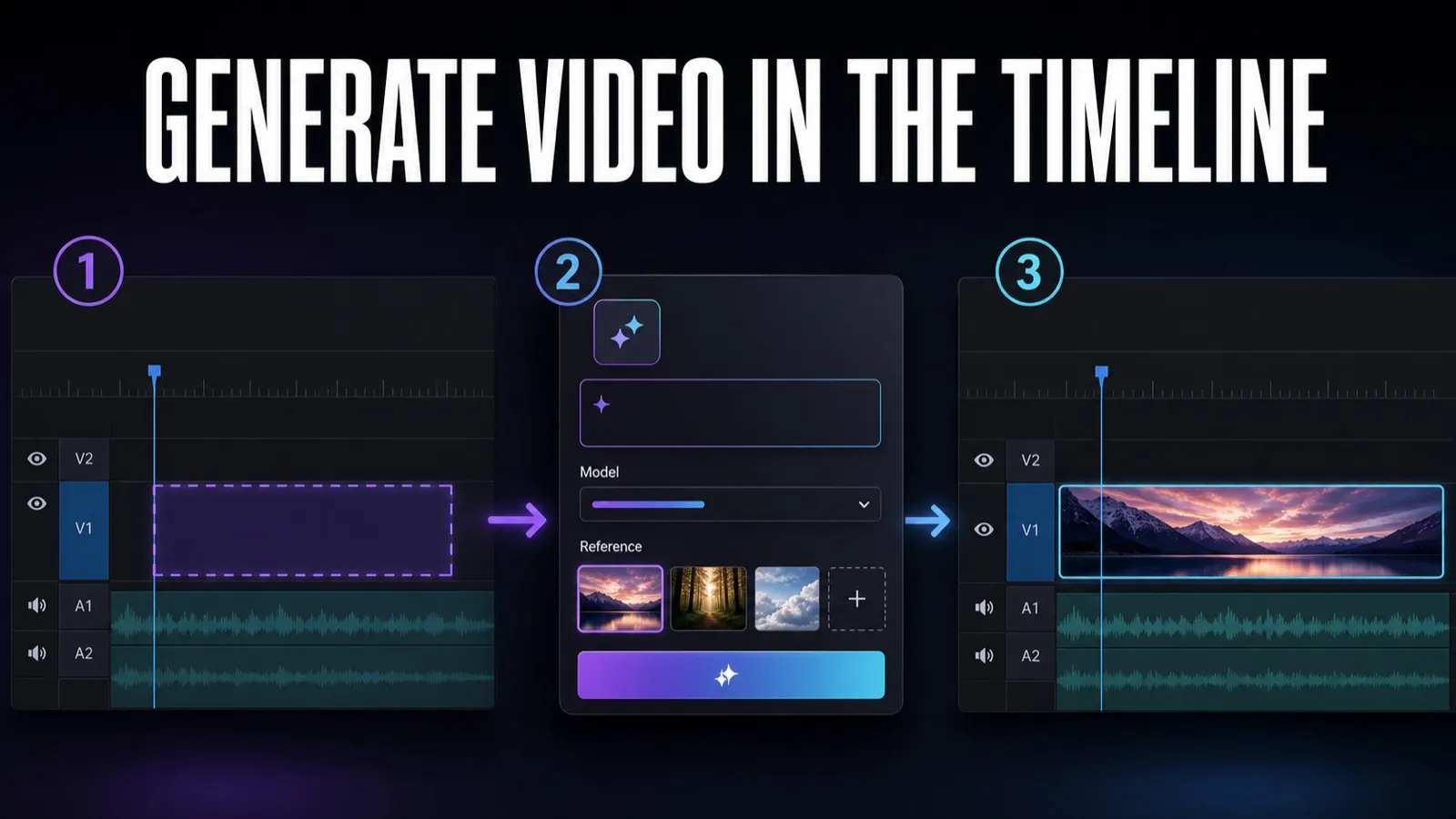
Original editorial illustration: select a range, configure the generation, and review the new clip in the timeline. It is not a Premiere product screenshot.
First, Last, and Multiple Reference Frames
Reference frames give the model visual context from the sequence. A first frame can anchor the start of a generated shot. First and last frames can guide a transition-oriented generation between two states. Multiple sequence frames can communicate style, palette, subject, or location without forcing a specific opening frame.
References improve direction, but they do not guarantee continuity. Inspect faces, hands, logos, text, object positions, perspective, and movement at full resolution. Watch the generated shot repeatedly in the cut and compare its first and last frames with adjacent clips. A result can look persuasive in isolation and still fail at the edit point.
Keep the reference set intentional. A few frames that agree on subject and style are more useful than a crowded collection with conflicting lighting or composition. If continuity is critical, simplify the request and solve one change at a time.
Generate Sound Effects with Text or Voice Guidance
The same tool can target an audio range and create a custom sound effect. Describe the sound in words, then optionally use your voice to guide its timing and intensity. The voice is a performance cue rather than a literal voice replacement: a quick “whoosh—impact—tail” can communicate when the energy should rise and land.
This is useful when library search takes longer than describing the event. Examples include a tailored interface movement, a mechanical transition, room tone for a short gap, a stylized pass-by, or an impact matched to picture. Premiere can produce variations, letting the editor audition the timing against the cut rather than importing a pile of unrelated candidates.
Generated sound still needs normal audio judgment. Check transients, looping artifacts, stereo image, noise, loudness, and whether the effect masks dialogue or music. A close fit can be layered with recorded or licensed material rather than treated as an all-or-nothing replacement.
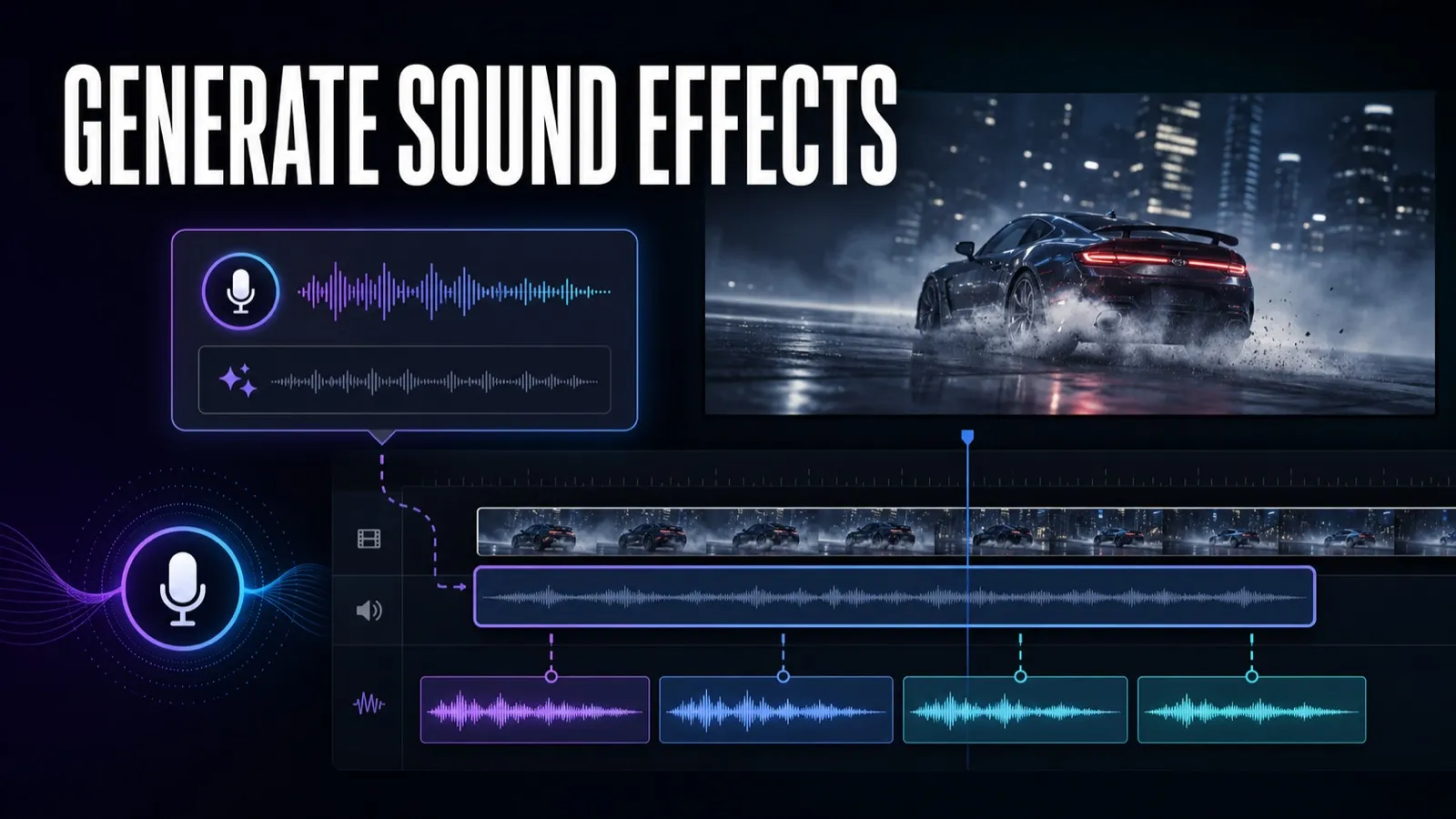
Original editorial illustration: voice guidance can describe timing and intensity while Premiere generates sound-effect variations. It is not a Premiere product screenshot.
Firefly, Veo, Kling, Luma, and Model-Specific Settings
Adobe says video generation can use Firefly and supported partner models, naming Google Veo, Kling, and Luma as examples. That is not a permanent roster. Exact models and versions can change, and availability can differ by region, subscription, individual or business account, and product update.
Controls also vary. Resolution, aspect ratio, frame rate, seed, duration, reference inputs, and audio generation may appear for one model and not another. Premiere's task bar is the source of truth for the model currently available to the signed-in account.
The practical approach is to choose by job. Compare two models on the same short, low-risk gap with the same reference frame and prompt. Evaluate continuity, usable duration, motion, artifacts, turnaround time, and credits—not the reputation of the model name alone.
Firefly and partner models do not carry identical training, commercial-use, or indemnification considerations. Adobe describes Firefly as commercially safe; that description should not be automatically transferred to every partner model.
Where Generated Clips, Prompts, and History Go
Generated results arrive as editable clips in the sequence. Adobe says the assets are also kept in a generation folder associated with the project and organized in the Generation history bin.
An AI badge on a generated clip can reopen the generative task bar with the original prompt and reference data loaded. That makes iteration less fragile than copying prompt text into notes, but it does not replace production documentation. Rename approved assets, preserve the selected model and date in project notes, and record why a generated shot was accepted.
A clear naming convention matters when several variations exist. Identify the scene, purpose, model, and revision without putting sensitive prompt text in a filename. Keep rejected generations out of final turnover folders so collaborators can distinguish approved media from experiments.
Generative Credits and Plan Access
Every generation consumes Adobe generative credits. There is no durable universal price for “one Premiere clip” because usage changes with the model and settings. The generative task bar shows the estimated amount before generation; use that live estimate rather than an old rate table.
Supported partner models use the Adobe account and available Adobe credits. A separate Veo, Kling, or Luma subscription does not apply inside Adobe apps, and no separate partner login is required for supported access.
Some partner models may be limited to individual accounts while Adobe completes additional reviews for business plans. Region and plan can also affect access. Before promising a workflow to a team, open the beta under the account that will actually perform the work and confirm both the model and credit estimate.
Read my broader Adobe Firefly pricing and generative credits guide for the plan-level context, then verify the current amount in Premiere. Adobe's generative credits FAQ remains the authoritative policy source.
Cloud Processing, Privacy, and Content Credentials
The Generative Media Tool requires an internet connection and performs generation in the cloud. The necessary prompt, media, and reference inputs are sent to the selected Adobe or partner model provider to produce the result.
Adobe says those prompts, uploaded media, and reference frames are not used to train Adobe or partner generative models. That statement is reassuring, but cloud processing still makes client policy relevant. Do not upload confidential footage, unreleased products, personally identifiable material, or contract-restricted assets unless the project rules permit the selected service.
Adobe says Premiere applies configured Content Credentials preferences during export. Keep those preferences visible in the handoff process and avoid stripping provenance unintentionally. Content Credentials support transparency; it does not perform creative approval, clear trademarks, confirm likeness rights, or guarantee that an output is unique.
For commercial work, distinguish Firefly from partner-model terms and review the current product description. Beta status can also affect indemnification. When rights are material, document the chosen model and have the output reviewed under the project's legal and client standards.
Generative Media Tool vs Generative Extend
| Question | Generative Media Tool | Generative Extend |
|---|---|---|
| What does it create? | A new video clip or sound-effect clip in a selected range. | Additional frames at the edge of an existing video or audio clip. |
| Starting point | An empty or targeted timeline range, a prompt, and optional references. | An existing clip edge that needs more duration. |
| Typical job | Cutaway, establishing shot, transition concept, ambience, or a custom effect. | Hold a shot longer, cover a small edit gap, or extend room tone. |
| Current context | Documented in Premiere (beta) as of July 2026. | An established Firefly-powered Premiere feature with its own supported limits. |
Use Generative Extend when the existing clip is right but ends too early. Use Generative Media when the sequence needs a new piece of media. For a broader map of Adobe's editing features, see my Premiere Pro AI features guide.
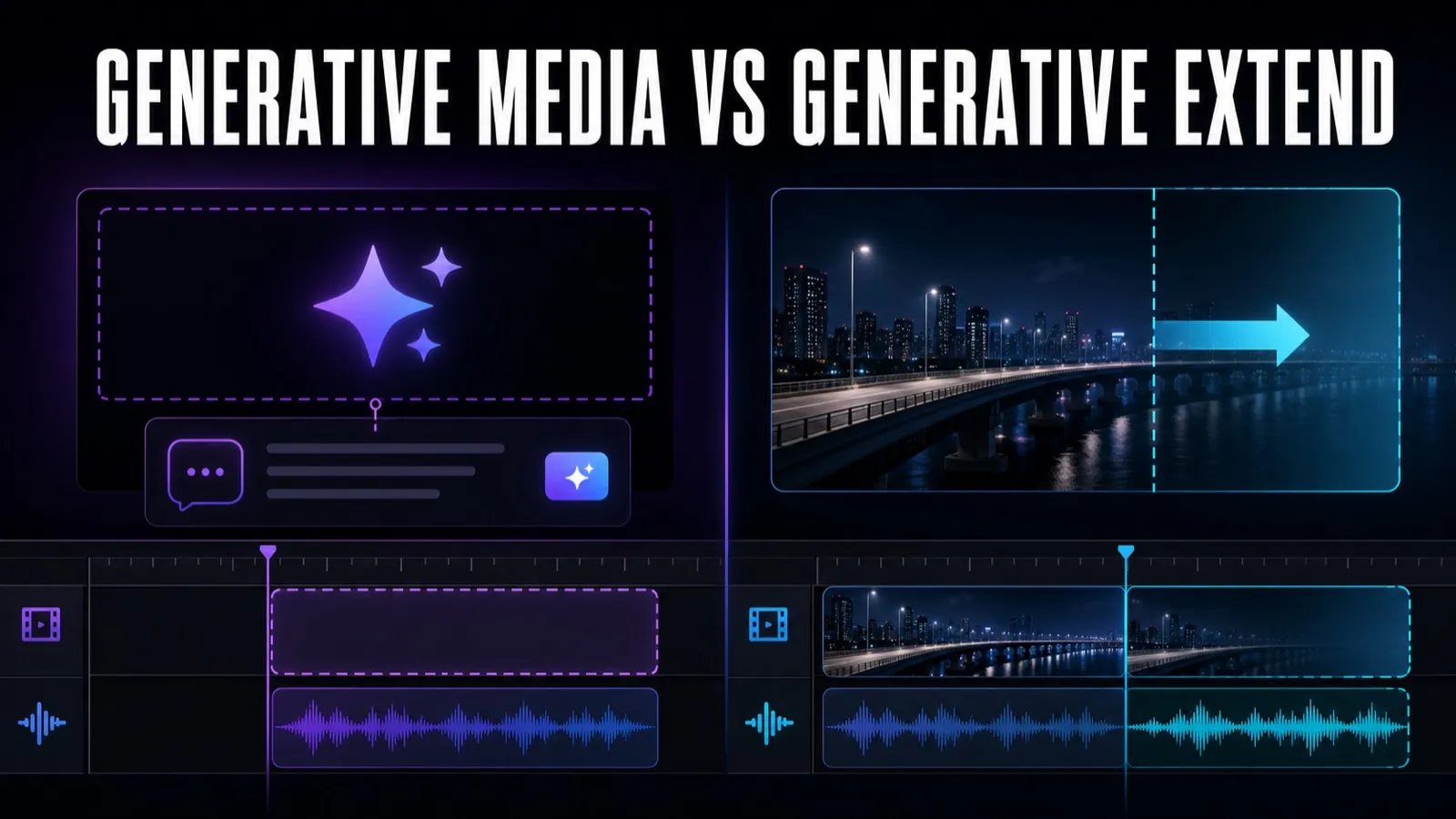
Original editorial illustration: Generative Media creates a new clip, while Generative Extend adds frames at an existing clip edge. It is not a Premiere product screenshot.
Five Practical Editor Workflows
1. Fill a missing establishing shot
Generate a short exterior or location bridge when the story needs orientation. Keep the request generic enough to avoid inventing a real property, logo, or identifiable person.
2. Build a temporary cutaway
Create a clearly labeled temp visual to test pacing while production decides whether to license stock, schedule a pickup, or approve the generated version.
3. Design sound to picture
Select the exact duration of a movement and use text plus voice timing to audition tailored effects. Preserve headroom and compare the result against a known library option.
4. Explore a transition between visual states
Use first and last references to explore how one state could become another. Treat the generation as a shot requiring frame-by-frame review, not as a conventional transition preset.
5. Produce concept variants for an internal review
Generate a few options before a team commits to a pickup, stock purchase, or motion-design build. Label every concept so no one mistakes it for approved final footage.
The strongest workflow is often hybrid. AI can create the specific missing element; editing, sound design, color, compositing, licensing judgment, and client approval still determine whether it belongs in the finished program.
Current Beta Limits and Risks
- Beta reliability: the feature can change, fail, or affect project behavior. Keep a release-build fallback and duplicate projects.
- Model availability: plan, region, account type, and Adobe updates can change what appears in the menu.
- Nearest settings: Premiere can select the nearest model-supported sequence option, not necessarily an exact resolution or frame-rate match.
- Cloud dependency: generation needs an internet connection and sends the necessary inputs to the selected provider.
- Variable output: continuity, motion, text, anatomy, brands, faces, and physics still require detailed review.
- Dynamic cost: credit usage varies, so an efficient test needs a limit before repeated generations begin.
- Different model terms: partner models should not inherit Firefly's commercial-safety description by association.
The tool does not replace source footage, a stock license, a pickup shoot, a Foley performance, or a visual-effects artist in every case. It adds another option at the edit decision. The lower the tolerance for factual or visual error, the stronger the case for traditional media.
Adobe's current Generative Media Tool FAQ is the best place to check changing availability, storage behavior, privacy language, and credit rules.
A Controlled 30-Minute Test Plan
- Duplicate a non-confidential sequence and open it in Premiere beta.
- Choose one three-to-eight-second gap that has a clear editorial purpose.
- Write one concrete prompt and select one or two representative reference frames.
- Record the displayed model, settings, and estimated credit use.
- Generate one version, then change only one variable for the second attempt.
- Review both versions at full resolution, frame by frame, with the surrounding edit and audio.
- Log generation time, credits, usable seconds, defects, and any cleanup required.
- Compare the result with a stock search, a conventional sound library, or the cost of a pickup.
The goal is evidence, not novelty. If the tool produces a usable editorial element faster and with acceptable risk, it earns a place in the workflow. If it creates more review and repair than it saves, keep it as a concept tool and wait for the beta to mature.
Who Should Try the Generative Media Tool?
Editors who already understand sequence continuity, sound timing, client approval, and media rights are well positioned to test it. They can recognize when a result is merely impressive and when it actually solves the cut.
It is most compelling for low-risk gaps, exploratory variants, tailored sound effects, and situations where in-timeline context saves an export-and-import loop. It is less appropriate as the sole source for factual documentary imagery, regulated claims, confidential productions, recognizable talent, or shots that must match reality precisely.
Premiere's implementation is worth watching because it treats generation as an editing action rather than a separate destination. The beta still deserves a beta workflow: duplicate projects, limited credits, explicit labels, model-aware rights review, and a conventional fallback.
If Premiere is already central to your work, compare current Premiere Pro cost and plan options and Firefly workflows for video editors before deciding how much of the Adobe AI stack belongs in your process.
Official Adobe Sources and Interface Walkthroughs
- Generative Media Tool overview
- Generate video and sound effects in Premiere beta
- Generative Media Tool FAQ
- Adobe generative credits FAQ
Facts were checked against Adobe's current documentation on July 29, 2026. Adobe's beta interface and model availability can change, so the official walkthroughs above—not copied interface captures—are the current visual reference.
Frequently Asked Questions
What is the Generative Media Tool in Premiere?
It is a beta timeline tool that creates new video clips and custom sound effects inside a selected range in an Adobe Premiere sequence.
Is the Generative Media Tool available in the regular Premiere app?
Adobe currently documents the feature for Premiere (beta). Install the beta through the Creative Cloud desktop app and test it on duplicate projects rather than assuming release-version stability.
Can Premiere generate both video and audio?
Yes. The tool can generate video and standalone sound effects. Some supported video models can also generate audio with the video, but availability depends on the selected model.
Which AI models work in Premiere's Generative Media Tool?
Adobe Firefly and supported partner models are available for video generation. Adobe names Veo, Kling, and Luma as examples, but the exact roster varies by region, plan, account type, and product update.
Can I use frames from my sequence as references?
Yes. You can guide video generation with a first frame, first and last frames, or multiple reference frames sampled from your sequence.
How many generative credits does it use?
There is no single fixed cost for every generation. Usage changes with the selected model and settings, and Premiere shows an estimate in the generative task bar before you generate.
Do I need separate Veo, Kling, or Luma subscriptions?
No. Supported partner models inside Premiere use your Adobe account and Adobe generative credits. Separate subscriptions with those providers do not transfer into Adobe apps.
Does Adobe train its AI on my clips or prompts?
Adobe says prompts, uploaded media, and reference frames are used to produce the requested result and are not used to train Adobe or partner generative models. Cloud processing still requires sending the necessary inputs to the selected provider.
Is Generative Media the same as Generative Extend?
No. Generative Media creates a new video or sound-effect clip in a selected timeline range. Generative Extend adds frames to the edge of an existing video or audio clip.
Can I use generated clips in commercial work?
Adobe permits Firefly beta outputs in commercial projects unless a product says otherwise, but beta indemnification and partner-model terms differ. Review the selected model's current terms and the output itself before client delivery.

About the Author
Joseph Nilo has been working professionally in all aspects of audio and video production for over twenty years. His day-to-day work finds him working as a video editor, 2D and 3D motion graphics designer, voiceover artist and audio engineer, and colorist for corporate projects and feature films.