
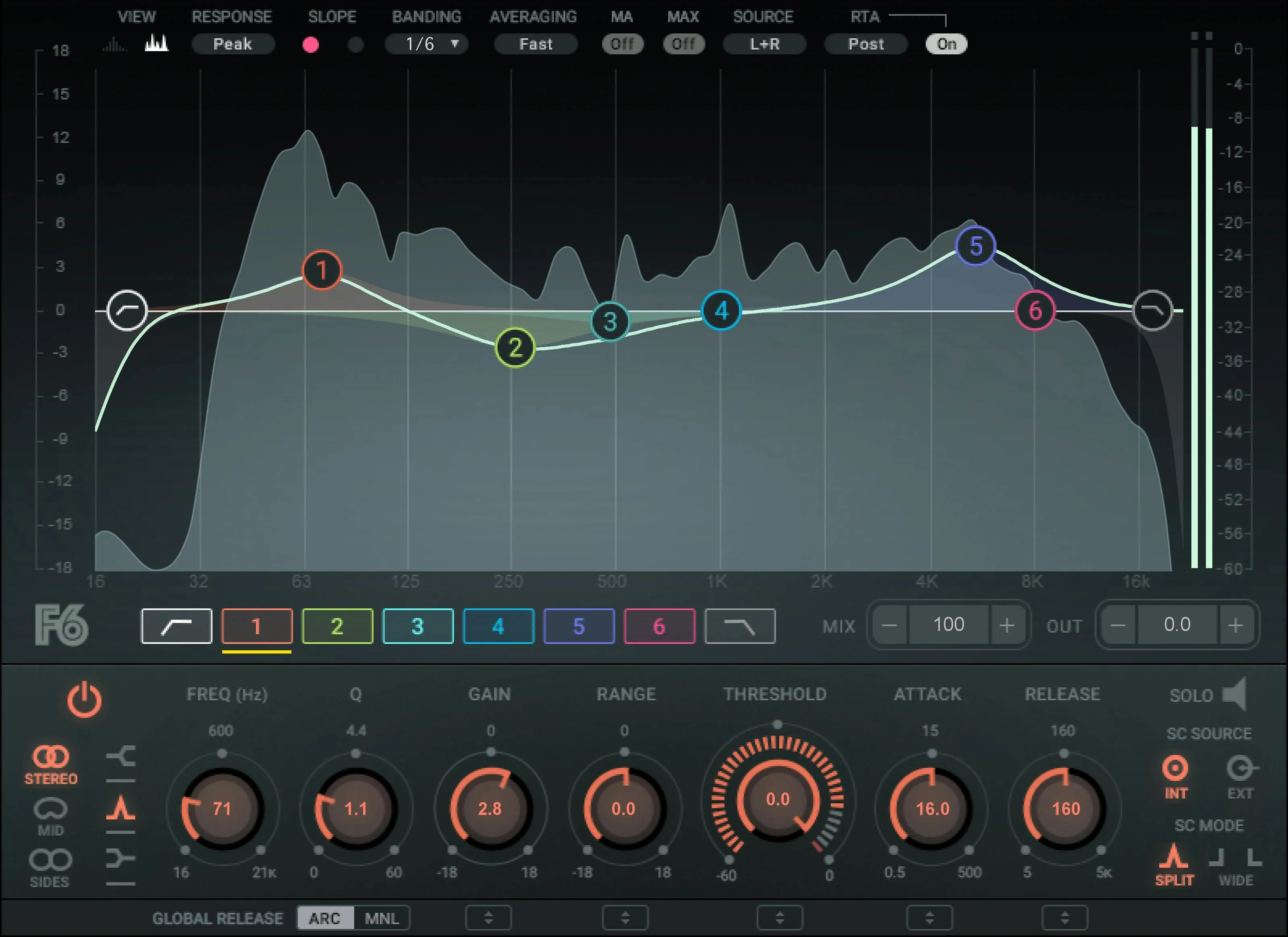
Waves F6 is a dynamic EQ: its six freely positioned bands can make a static tonal change and can also compress or expand a selected frequency region when a detector crosses a threshold. Each band has its own frequency, shape, width, gain, dynamic range and timing.
Separate high- and low-pass filters remove extremes. Mono and stereo components are available with or without a real-time analyzer (RTA).
Use F6 when a sound needs a frequency-specific change only during certain notes or moments—for example, a vocal that becomes strident only on louder phrases. A static EQ is simpler if the problem is always present. A de-esser is often faster for S/Sh consonants. The analyzer helps locate energy but does not tell you whether a change sounds better.
About this guide: a documentation-based explanation, not a new listening test or product-performance ranking. The cover is an AI-generated editorial illustration; the interface image is official Waves artwork.
A sensible first pass
- Select Mono, Mono RTA, Stereo or Stereo RTA for the track and desired display. Start from a known neutral state, not an inherited preset. The stereo component alone offers ST/M/S band assignment.
- Listen for the particular problem, then select one of the six bands. Set Frequency and Q around the area; choose Bell or a shelf to match how broadly the correction should act. A static Gain change affects that band continually.
- Set a negative Range for dynamic reduction or a positive Range for dynamic increase. Lower Threshold while watching the sidechain input meter and total curve until action occurs on the intended moments. Set Attack and Release by listening to the passage; the manual gives no universal values.
- If one source should trigger processing of another, route it in the host and choose External SC Source for that band. Select Split or Wide according to whether filtered or full-range detector audio should drive the change. Use SC Solo briefly to hear the trigger, then switch it off.
- Compare at similar perceived output level using the host bypass. Set Mix/Out and inspect the output meter. Recheck the whole passage, especially if several bands are acting at once.
This is a conceptual workflow, not a report of an audio test or a guarantee that a particular frequency solves a particular mix.
The six bands: static shape and dynamic action
Band selection, On/Off and graph
Each numbered graph marker selects a band; the band-selector row does the same and shows its controls. Double-click a marker or selector to toggle that band On/Off.
Drag bands 1–6 across frequency and gain on the graph. The frequency axis runs horizontally, amplitude vertically; the Total Curve summarizes EQ and dynamic action.
The manual also documents Command-click to switch filter type, Alt-horizontal drag to change Q, and Ctrl-drag to lock movement to one axis. These gestures are shortcuts, not extra processing modes.
The graph is a display, not a loudness meter.
Band Mode and Type
In Stereo, Band Mode chooses ST, M or S: affect the stereo signal, mid (center) or side information. Mono has no Band Mode switch.
Do not confuse this with the RTA's L/R display source. Band Type chooses Low shelf, Bell or High shelf.
Shelves affect a broad side of the selected frequency; Bell centers a bounded region. A shelf with a broad detector may be too blunt when a narrow resonance is the only issue.
Frequency and Q
Frequency places a band from 16 to 21,000 Hz. Q runs 0.4 to 60: lower is broader; higher is narrower. A very narrow band can target a resonant note but may miss a problem that moves with performance or pitch. Frequency and Q define where processing applies, not when it acts.
Gain, Range and Threshold
Gain is the band's static EQ level, −18 to +18 dB. Range is the maximum dynamic movement, −18 to +18 dB: negative for compression/cut, positive for expansion/boost.
Threshold is −60 to 0 dB and sets when dynamic action begins. The meter around the Threshold knob shows sidechain input over −60 to 0 dB.
Watch the relationship between that meter and the threshold; a nonzero Range alone does not guarantee audible action. Avoid calling Range a ratio: F6 does not expose a ratio knob in this interface.
Attack, Release and Global Release
Attack ranges 0.5–500 ms and controls how quickly the band's dynamic action starts. Release ranges 5–5000 ms.
Waves cautions that actual release depends on the amount of reduction/expansion; stronger processing can take longer than the displayed setting. Global Release switches between Manual and ARC.
In ARC, the engine calculates a signal-dependent release shorter than the band's Release setting. These timings affect dynamics, not the static Gain curve.
Sidechain Source, Mode and Solo
Each band has Internal/External SC Source. External requires a host-sidechain route; selecting it alone cannot create that route. Split SC Mode feeds filtered audio to the detector; Wide feeds full-range audio.
This changes the trigger, not the EQ filter's placement. SC Solo is On/Off and auditions the chosen band's detector; selecting a different band turns it off. The manual also documents right-click-and-hold on a marker for temporary solo and dragging while held to audition other frequencies.
Return to normal playback before making a final tonal decision.
Global arrows
The up/down arrows adjust the same parameter across all six bands for Gain, Range, Threshold, Attack or Release, regardless of selected band. Their effective range depends on the target control. Use them deliberately: a small global move can change several independently tuned bands, even if only one is visible in the detailed control row.
High- and low-pass filters
F6 also has HP and LP filters. Each can be On/Off, set between 16 and 21,000 Hz, and assigned to Stereo/Mid/Side in the Stereo component.
The manual labels their steepness selector Q, but its options are 6, 12, 18 or 24 dB per octave—a slope choice, not the 0.4–60 band-Q value. Each has an On/Off Solo.
Their graph markers move horizontally only. These filters remove low or high extremes continuously; they are not two extra dynamic bands.
Output and component choices
Mix runs from 0 unprocessed to 100 fully processed for parallel blending. Out is −18 to +18 output gain (the manual does not print a unit in that table; do not treat it as a limiter ceiling). The manual specifies an output-meter range of −40 to 0 dBFS, but Waves' Graphic Library image visibly marks its meter down to −60 dBFS.
Treat that scale as version/interface-dependent until checked in the installed plugin. Neither source establishes integrated loudness or true-peak metering.
Compare bypass at matched perceived level, especially after static Gain or several positive Ranges.
F6 has Mono, Mono RTA, Stereo and Stereo RTA components. The RTA is a display feature of the RTA variants, not a separate sound-shaping band. The mono interface omits Band Mode. The manual describes F6 as zero-latency, but this package did not measure a host instance or test every format/version.
Reading the real-time analyzer
The RTA is an FFT display. View chooses Filled or Bar; Response Peak or RMS; Slope Pink (equal energy per octave) or White (per frequency). Banding sets bar resolution to 1/24, 1/12, 1/6, 1/3 or one octave; Averaging offers Fast, Medium, Slow and Slowest. MA draws a moving-average line; MAX a peak curve. In Stereo RTA, Source chooses L only, R only, L+R/Mid or Sides/L−R.
The RTA state cycles Pre EQ, Post EQ, Side Chain and Off; the separate RTA On/Off hides/disables analysis. Coordinates report cursor frequency/note and RTA dB. These display settings do not alter audio processing.
Do not confuse RTA Source with a band SC Source or stereo Band Mode.
Shared WaveSystem toolbar
The top bar handles presets, A/B, Undo/Redo and resizing, not another EQ band. About identifies the plugin; preset name/menu, previous/next arrows and Save manage presets; Setup A/B compares two settings states and Copy duplicates one to the other; the menu opens guides and window options. The V15 WaveSystem guide specifies up to 32 Undo steps.
The V17 preset browser update documents search, Factory/User/Favorite filters, keyboard browsing, Save, Copy, Paste, Reset to Default and Detach. Their appearance can differ in an installed version.
Host bypass and automation are separate.
Best for, and skip if
F6 is useful when a resonance or tonal competition appears only during part of a performance, or when an external source should trigger a frequency-specific opening in a stereo bus. Its independent bands also permit static EQ plus level-dependent moves in one window.
More flexibility means more ways to overprocess: solo the detector, change one band at a time and compare the whole mix.
Skip the dynamic section if a static cut solves the issue. Use a dedicated de-esser for a straightforward consonant problem, or a full-band compressor for broad level control. The manufacturer's feature claims do not substitute for a listening evaluation of your material.
Related plugins
- Q10 Equalizer is a static EQ alternative when the cut or boost should remain constant.
- C6 Multiband Compressor offers a crossover-based dynamics approach rather than F6's movable EQ bands.
- Waves DeEsser is more focused when repeated S/Sh consonants are the only issue.
Bottom line
In F6, a band has a place (Frequency/Q/Type), a constant move (Gain), and an optional level-triggered move (Range/Threshold/Attack/Release). Sidechain settings decide what triggers it, while Mix and Out govern the combined result. The RTA can guide your attention, but it cannot certify the sound or the delivery level.
Sources: F6 User Guide, product page, Graphic Library and reuse condition, WaveSystem V15 guide, V17 preset update.
Frequently Asked Questions
When should you use F6 instead of a static EQ?
Use F6 when a frequency problem should change only after the signal crosses a threshold. A static EQ is simpler when the same cut or boost should remain active all the time.
What do positive and negative Range values do in Waves F6?
A negative Range sets dynamic compression or cut for the selected band, while a positive Range sets dynamic expansion or boost. Range limits the band's dynamic movement; it is not a ratio control.
What is the difference between Split and Wide sidechain modes in F6?
Split feeds filtered audio to the selected band's detector. Wide feeds full-range audio to the detector; this changes what triggers the dynamics, not the EQ band's frequency placement.
Which F6 component includes the real-time analyzer?
Choose Mono RTA or Stereo RTA when you need the analyzer display. The plain Mono and Stereo components provide the processing without the RTA, and the analyzer itself does not certify that a setting sounds better.
Can F6 process only the middle or sides of a stereo signal?
Yes. The Stereo component's Band Mode can assign a band to stereo, mid, or side processing; the Mono component does not include that switch.
Are F6's high-pass and low-pass filters two extra dynamic bands?
No. They are separate continuous high-pass and low-pass filters with frequency and slope controls, while the six numbered bands provide the documented dynamic controls.

About the Author
Joseph Nilo has been working professionally in all aspects of audio and video production for over twenty years. His day-to-day work finds him working as a video editor, 2D and 3D motion graphics designer, voiceover artist and audio engineer, and colorist for corporate projects and feature films.