

Renaissance Compressor, or RComp, is a compressor and expander with threshold, ratio, attack and release controls plus three behavior choices: ARC or manual release, Electro or Opto response, and Warm or Smooth character. Its Mix control blends processed and unprocessed sound.
Output Gain feeds a built-in 0 dBFS limiter, while the separate Trim sits after that limiter. Those last two controls are not interchangeable.
Use RComp when you want to shape the movement of a vocal, bass, drum, instrument or bus rather than merely cap peaks. Its manual explains the controls; this article does not claim a new listening test or a preferred setting for every source.
About this guide: a documentation-based explanation, not a new listening test or product-performance ranking. The cover is an AI-generated editorial illustration; the interface image is official Waves artwork.
A practical first pass
- Insert the component appropriate to your track and start from a known state, not an inherited preset. Set ARC/Manual, Electro/Opto and Warm/Smooth before fine-tuning the dynamics, as the Waves guide suggests.
- Play a representative loud and quiet passage. Lower Threshold until gain change occurs where wanted, then choose Ratio for the amount of compression. Ratios below 1:1 are expansion, not gentler compression.
- Set Attack for how much transient gets through. Set Release for recovery: in Manual it is a direct time; with ARC it scales the adaptive release. Watch the gain-change meter and listen for pumping or dull attacks.
- Use Mix for parallel processing if appropriate. Adjust Output Gain while watching the limiter light and output meters. Use the post-limiter Trim only for final output-level adjustment.
- Compare at a similar perceived level with the host's bypass. The output meter and limiter light are not a substitute for final loudness and true-peak measurements.
Every RComp control and readout
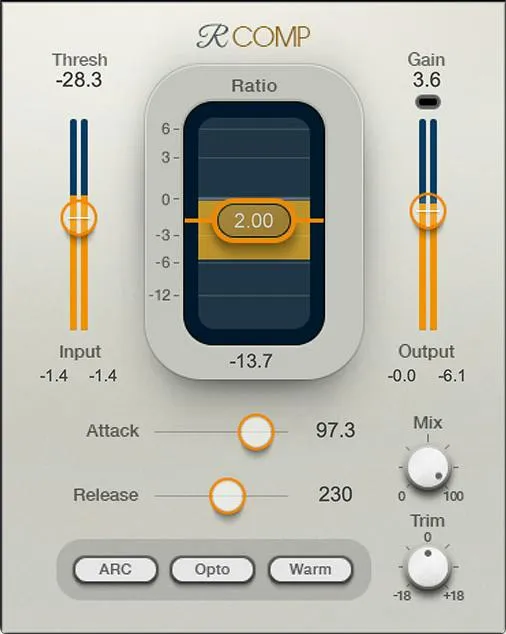
Threshold: where the dynamics start
Threshold sets the input level around which compression or expansion becomes significant. It sits in the input meter so you can see signal level against the setting.
The documented range is -60 to 0 dBFS, default 0 dB. RComp has a soft knee: action begins about 6 dB below the threshold, so the visible line is not a hard switch.
Use track gain in the host to change input level; Threshold is not an input-gain control.
Ratio: compression or expansion
Ratio sets the strength and direction of the dynamics. The documented span is 0.5 to 50.0, default 1.0: above 1:1 compresses, below 1:1 expands, and 1:1 is neutral. The fader is built into the gain-change display. A below-unity setting can make transient contrast more apparent, but it is not upward compression of quiet sounds.
Attack: how quickly action begins
Attack spans 0.5–500 ms, default 16 ms. Shorter times catch transients sooner; longer times allow more of a drum hit or consonant onset to pass. A faster setting is not automatically cleaner—judge the whole phrase, not just the loudest hit.
Release: how quickly action recovers
Release spans 5–5000 ms, default 160 ms. In Manual mode it directly sets recovery time. With ARC engaged it is an overall scale for the adaptive release, not a fixed release duration. Too-fast recovery can make the level between events pump; too-slow recovery can hold down the following note or word.
Release Mode: ARC or Manual
ARC adapts release to the input; Manual follows the Release setting directly. The manual recommends ARC for most uses but allows manual timing when a deliberate response is wanted. Switching modes changes how the same Release value is interpreted, so reassess it after switching. The manual does not state a factory default for this selector.
Behavior: Electro or Opto
Electro recovers faster as gain reduction approaches zero below about 3 dB, while its recovery slows above that region. Opto does the reverse: it slows near zero and recovers faster with greater reduction. These are release behaviors, not labels promising a particular source will sound “vintage” or “modern.” The manual gives no factory default for the selector.
Character: Warm or Smooth
Warm adds low-frequency harmonics as compression deepens and can cause more gain reduction. Smooth does not add those harmonics. Try them at comparable output level; a larger gain-change reading after switching Warm is part of the mode's behavior, not necessarily an accidental Threshold change. No factory default is specified.
Mix: processed and unprocessed blend
Mix spans 0–100% in 0.1% increments, default 100%. At full wet you hear the processed path; lower settings blend in the original. Parallel blending can retain transient definition while keeping some compression. Match levels before deciding that a blend is better simply because it is louder.
Output Gain: level into the built-in limiter
Output Gain spans -30 to +30 dB, default 0 dB. Its position affects the built-in output limiter, whose threshold and ceiling are fixed at 0 dBFS. Adding Output Gain can drive that limiter harder. It is not the same as the separate post-limiter Trim, and the fixed 0 dBFS ceiling should not be mistaken for a modern true-peak delivery target.
Trim: level after limiting
Trim spans -18 to +18 dB in 0.1 dB steps; the guide gives initial and reset values of 0 dB. It is post-limiter. Positive Trim can raise the final output after protection, so do not use it to assume a safe final ceiling. Use it for final level matching and check the host's downstream meters.
Input, gain-change and output meters
The input meter gives context for Threshold. The gain-change meter points downward for compression and upward for expansion; the manual describes negative compression values and positive expansion values.
The output meters are full-scale meters with held peak numbers under each channel. Click an output meter to clear its peak hold before checking a new passage.
These displays report level and action, not LUFS or inter-sample true peak.
Limiter light
The built-in limiter activates when output would exceed 0 dBFS. Its light turns yellow when limiting begins and red with heavy limiting, described as approximately 6 dB or more.
At that point the gain-change meter includes compressor and limiter reduction. If the light stays active more than intended, revisit Output Gain and the compression itself; Trim does not undo limiter action.
Skins and shared toolbar
The Skins menu offers Light, Dark and Legacy appearances with identical controls and preserved settings. The current instance's skin sets the view for new instances.
The shared WaveSystem toolbar handles About, Undo/Redo, preset selection and save, previous/next presets, A/B settings, copy between A and B, and window size/help. These are workflow controls, not extra compressor parameters.
The WaveSystem V15 guide documents the classic toolbar; Waves' V17 preset update changes preset browsing, so the menu can look different in a newer installation. Host bypass and automation belong to the host, not RComp.
Best for—and skip if
Best for a track or bus where you want to decide both how much level changes and how the gain recovers. It can address music dynamics and dialogue consistency, provided the source is already reasonably clean. Use Mix when a parallel blend serves the arrangement.
Skip it as the only final-delivery safety check. Its built-in limiter has a fixed sample-level 0 dBFS ceiling, while positive post-limiter Trim and later processing can change the result.
If the task is a specified final loudness or true-peak limit, measure the rendered file with dedicated tools. If a single phrase is too low, clip gain or automation may be more precise than track-wide compression.
Related plugins
- Renaissance Vox is a simpler vocal dynamics choice when RComp's timing and character controls are unnecessary.
- C1 Compressor is another configurable dynamics processor; RComp's manual explicitly names its technology lineage, not identical behavior.
- H-Comp Hybrid Compressor offers a different compression control set for producers needing more options.
Bottom line
Set Threshold and Ratio for the amount of change; Attack, Release and the ARC/Electro/Opto choices for its motion; Warm/Smooth for character; Mix for blend. Keep Output Gain and post-limiter Trim distinct. This is a documentation-led control guide, not a listening review.
Sources: Renaissance Compressor User Guide, official product page, WaveSystem V15 guide, V17 preset update, image-use condition.
Frequently Asked Questions
Is RComp Threshold the same as input gain?
No. Threshold sets the level around which compression or expansion becomes significant, while input level is adjusted in the host. RComp uses a soft knee, so gain change begins about 6 dB below the threshold.
What happens when RComp Ratio is set below 1:1?
A ratio below 1:1 makes RComp expand rather than compress. A 1:1 setting is neutral, while ratios above 1:1 apply compression.
How does ARC change RComp's Release control?
In Manual mode, Release directly sets the recovery time. With ARC on, the Release value becomes an overall scale while RComp adapts recovery to the incoming signal.
What is the difference between RComp Electro and Opto modes?
Electro releases faster near zero gain reduction below about 3 dB, then slows when reduction is greater. Opto does the reverse, slowing near zero and releasing faster when gain reduction is greater.
What do RComp Warm and Smooth modes change?
Warm adds low-frequency harmonics as compression becomes deeper and can produce more gain reduction. Smooth does not add those harmonics, so compare the modes at a similar output level.
Are RComp Output Gain and Trim interchangeable?
No. Output Gain feeds the built-in limiter, while Trim is after the limiter and can raise the final output again. The limiter's 0 dBFS sample ceiling is not a true-peak delivery guarantee, so check the rendered file with appropriate meters.

About the Author
Joseph Nilo has been working professionally in all aspects of audio and video production for over twenty years. His day-to-day work finds him working as a video editor, 2D and 3D motion graphics designer, voiceover artist and audio engineer, and colorist for corporate projects and feature films.