
Waves Sibilance is a de-esser for vocals and other single-source recordings. It identifies sibilant sounds such as S and Sh, then reduces the detected component rather than simply turning down all high frequencies continuously. Detection Width determines what counts as a sibilant; Threshold determines when processing begins; Range caps reduction; and Mode determines whether that reduction spans the detected sound or concentrates above 4 kHz.
This is a focused tool, not a repair for every bright or distorted recording. Edit an isolated bad consonant if one event is the whole problem. If harshness persists across vowels, a dynamic EQ may be a better fit. Waves recommends Sibilance primarily on individual voices or instruments, not a dense mix.
About this guide: a documentation-based explanation, not a new listening test or product-performance ranking. The cover is an AI-generated editorial illustration; the interface image is official Waves artwork.
A sensible first pass
- Choose Sibilance Mono or Stereo to match the track. Use Sibilance-Live Mono or Stereo when zero plugin latency is needed; Live has no Lookahead switch.
- Play phrases containing both S and Sh, plus ordinary consonants. Adjust Detection Width while watching the detected regions on the graph. Narrower is a reasonable starting direction for S; wider may capture Sh. These are tendencies, not fixed settings.
- Turn Monitor on briefly to hear the detected material alone. If normal words or breaths dominate, revisit detection before asking for more reduction. Turn Monitor off for the actual processed signal.
- Lower Threshold until the intended consonants trigger processing. Set Range only as deep as needed. Compare with the host bypass at similar perceived level, listening for lisps or dull diction.
- Set Mode toward Wide if the whole detected sound needs control, or toward Split if you want attenuation concentrated above 4 kHz. Recheck in the full voice or music context.
This is a documented-control workflow, not a claim that we listened to a particular recording or found a universal preset.
Every Sibilance control and readout
Detection Width: decide what is detected
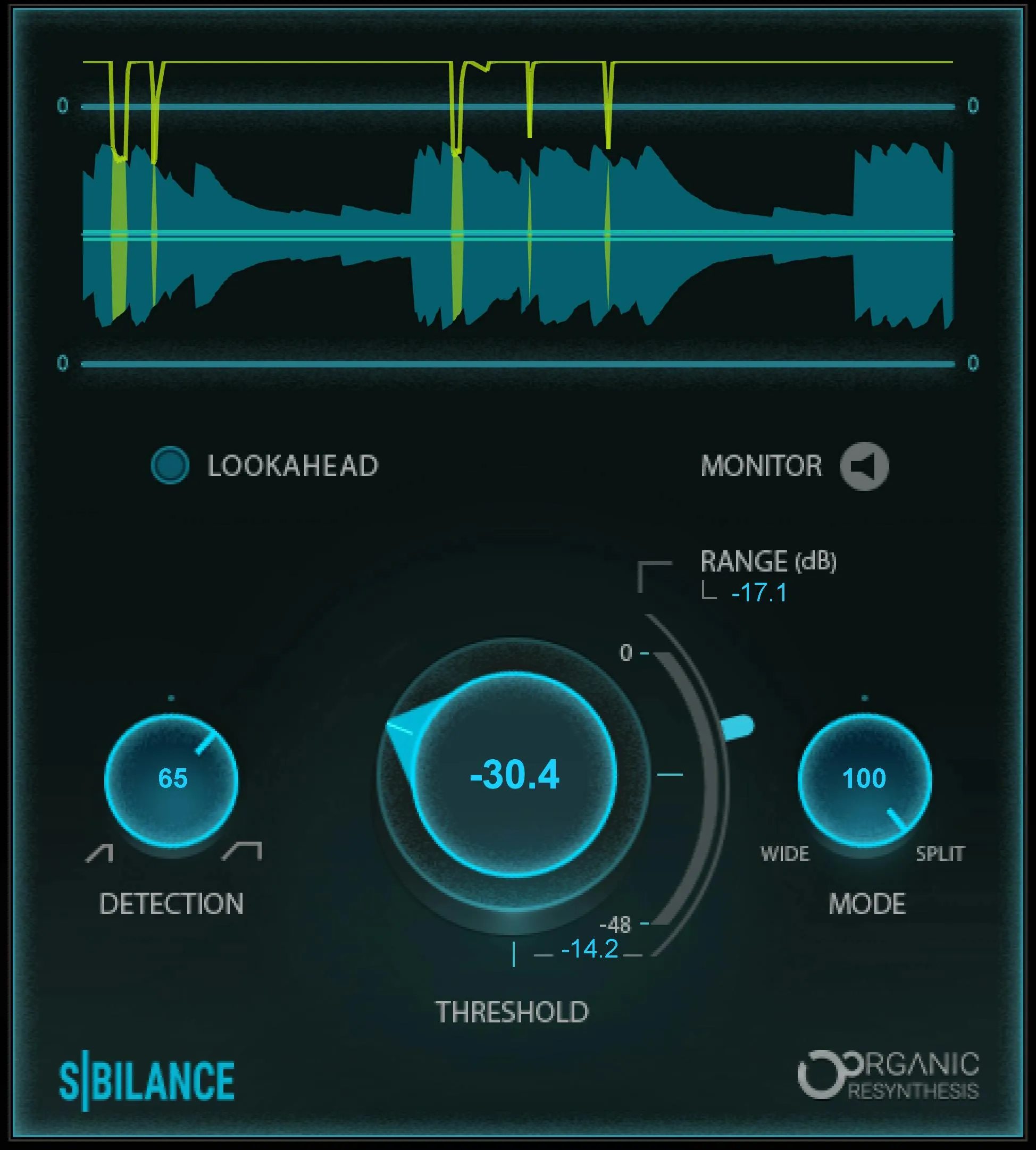
The left control widens or narrows the frequency span the detector considers. Its documented range is 0 (Narrow) to 100 (Wide); the manual lists 50% for both default and reset.
Narrow can suit a short S, while a wider setting can include more of an Sh. Too narrow may miss the consonant; too wide may catch wanted non-sibilant material.
Watch the detected-sound trace and confirm with Monitor rather than treating the graph as the final listening judgment.
Lookahead: detection timing and latency
The standard Mono and Stereo components offer Lookahead On/Off, default and reset Off. Waves says it improves detection and adds about 12 ms of latency.
Its table specifies 529 samples at 44.1/48 kHz and 1152 samples at 88.2/96 kHz when on; off is 0 samples at those rates. The Sibilance-Live components omit Lookahead and are specified as zero latency.
Do not assume a number for an unlisted sample rate, and check alignment if mixing a processed parallel path.
Monitor: hear the detected sound
Monitor is On/Off, default and reset Off. On auditions only the detected sibilant material; Off returns the entire processed signal. This is a diagnostic switch, not a “make the effect stronger” switch. Always turn it off before judging the finished voice.
Threshold: choose when reduction begins
Threshold ranges from −80 to 0 dB. The manual distinguishes its −12.5 dB default from its 0 dB reset value. Two graph lines indicate the threshold. Lowering it admits quieter events to detection, so check that ordinary consonants are not being hit. The threshold is not an output-volume control.
Range: cap the attenuation
Range runs from 0 to −48 dB, with −14 dB default and 0 dB reset. It sets the maximum reduction available for a detected sound; it does not promise that every S receives that exact cut. The graph's attenuation trace indicates actual reduction. If consonants start to lisp, a shallower range may be more useful than changing the overall brightness of the track.
Mode: Wide to Split
Mode is a continuous 0 (Wide) to 100 (Split) blend, with 50 default and reset. At Wide, the entire frequency range of a detected sound is attenuated.
At Split, attenuation focuses on frequencies above 4 kHz. Intermediate settings transition between them; they are not extra named modes.
Lower values are often worth trying for Sh, higher ones for a sharp S, but listen to the phrase rather than following a numeric recipe. Mode changes where reduction applies, while Detection Width changes what the detector identifies.
Graph: evidence, not a control
The graph distinguishes detected sounds, the two threshold lines, and actual attenuation against the Range scale. The manual describes yellow and green traces, but the official Graphic Library image uses a different cyan/lime palette; identify these displays by function rather than assuming a color in the installed version.
The graph helps identify a missed consonant or processing on the wrong sound. The manual does not give it an adjustable scale, hold/reset gesture, or loudness specification.
Use ears and the host's output metering for final judgment.
Components and shared toolbar
There are four components: Sibilance Mono, Sibilance Stereo, Sibilance-Live Mono, and Sibilance-Live Stereo. This is one product with channel and latency choices, not four effects. The standard components can use Lookahead; Live cannot.
The shared WaveSystem toolbar saves/loads presets, compares A/B setups, undoes/redoes changes and resizes the window. Its About item identifies the plugin; preset name/menu and previous/next arrows browse settings; A/B selects two setups and Copy copies one to the other; Save stores a user preset; the toolbar menu exposes window and guide options.
The V15 shared guide documents up to 32 Undo actions. The V17 preset update adds a different browser with search, Factory/User/Favorite filters and Save, Copy, Paste, Reset to Default and Detach.
These are shared settings controls, not additional de-essing parameters; installed appearance may differ.
Best for, and skip if
Sibilance is a good candidate when repeated S or Sh sounds jump forward on a single voice, whether in dialogue, voiceover, a podcast or a sung vocal. Its detector and Monitor audition make it possible to check what it is selecting before asking for more attenuation.
The product page describes Organic ReSynthesis, but that manufacturer description is not independent proof of transparency on every source.
Skip it as the sole solution when a microphone overload or a damaged recording needs repair, or when the harshness is a persistent tonal band rather than consonants. For live monitoring, choose the Live component and recognize the Lookahead tradeoff. For one isolated consonant, clip editing may be more precise.
Related plugins
- Waves DeEsser is a conventional de-essing alternative to compare when choosing a detection workflow.
- Renaissance DeEsser is another dedicated Waves vocal de-esser.
- F6 Floating-Band Dynamic EQ is for frequency-specific dynamic control when harshness is not limited to S/Sh events.
Bottom line
Get the detector right first, then set how much it may reduce and where that reduction applies. Monitor and the graph help diagnose selection; the processed phrase in context decides whether it sounds natural. No listening test, measured result or current-version host behavior is claimed here.
Sources: Sibilance User Guide, product page, Graphic Library and reuse condition, WaveSystem V15 guide, V17 preset update.
Frequently Asked Questions
How should Detection Width differ for S and Sh sounds?
A narrower Detection Width often suits S sounds, while Sh sounds may need a wider frequency span. Treat that as a starting direction: too narrow can miss the sibilant, and too wide can detect unrelated sounds.
What does Monitor do in Waves Sibilance?
Monitor auditions only the sounds selected by the detector. Use it briefly to check detection, then turn it off to judge the full processed signal.
What is the difference between Wide and Split mode in Sibilance?
Wide attenuates the full frequency range of a detected sibilant. Split concentrates attenuation above 4 kHz, with intermediate Mode values blending between those behaviors.
How do Threshold and Range differ in Waves Sibilance?
Threshold decides when detected sibilance begins to trigger processing. Range caps the maximum attenuation, so lowering Threshold does not mean every event will receive the full Range value.
When should you use Sibilance-Live instead of the standard component?
Use Sibilance-Live Mono or Stereo when zero plugin latency is required. The standard components can enable Lookahead for improved detection, while the Live components omit Lookahead.
Should Waves Sibilance be used on a full dense mix?
Waves recommends Sibilance primarily for single voices or instruments. On a dense mix, unrelated high-frequency events may complicate detection, so a more targeted track or another frequency-selective tool may be more appropriate.

About the Author
Joseph Nilo has been working professionally in all aspects of audio and video production for over twenty years. His day-to-day work finds him working as a video editor, 2D and 3D motion graphics designer, voiceover artist and audio engineer, and colorist for corporate projects and feature films.