
Waves Vocal Rider automatically moves a gain fader to keep a vocal near a chosen target range. It can also respond to the instrumental mix when that mix is routed into its sidechain. It is a way to create a starting vocal ride, not a compressor, noise remover or loudness-compliance tool. You can let it work internally or write its fader movement into your DAW for editing.
Use it when a vocal wanders in level across phrases and an automatic starting ride would be useful. Skip it as a first fix for clipped audio, noisy gaps, a badly balanced performance or one isolated syllable that clip gain can correct more precisely.
About this guide: a documentation-based explanation, not a new listening test or product-performance ranking. The cover is an AI-generated editorial illustration; the interface image is official Waves artwork.
A practical first pass
- Choose Vocal Rider Mono or Stereo to match the vocal track or group. The separate Live Mono and Live Stereo components add Spill for stage-noise discrimination.
- Place it after the vocal processing whose output you want to ride. Waves' quickstart recommends it as the last plugin on the vocal or vocal-group track.
- To make the ride react to the backing track, send the instrumental mix post-fader to a bus and select that bus as Vocal Rider's sidechain input in the host. Sidechain assignment is a host operation, not a Vocal Rider knob. Without it, Music Sensitivity cannot do the documented instrumental-following job.
- Play representative loud and soft phrases. Set Vocal Sensitivity so the activity display follows actual words rather than noise; choose Attack by observing whether the ride catches starts of words without distracting movement. Position Target near the vocal's displayed range.
- Limit the available motion with Range Min and Max, then set Idle Arrow for the level between detected phrases. Watch the effective-range readout and Rider Fader. Adjust Output after riding, and compare against host bypass at a fair level.
- If you need editable automation, arm the fader and host automation, select Write, record the ride, then switch to Read to play the edited lane. Do not assume selecting Write alone arms the DAW.
These are starting steps from the documentation, not settings proven on a particular recording. Listen for abrupt moves, spill or noise triggering the detector, and a vocal that follows the backing mix too aggressively.
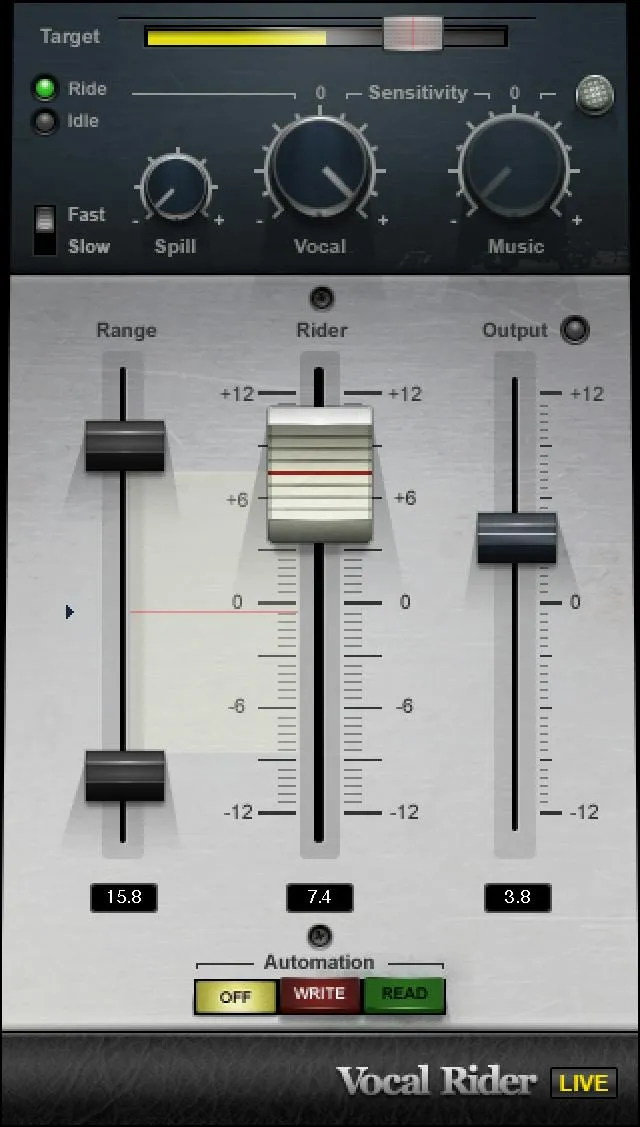
Every Vocal Rider control and display
Target
Target sets the reference range for the vocal's position. Moving it also shifts where the Rider Fader's 0 is calibrated, so it changes the ride's frame of reference rather than simply adding output gain.
The official manual gives 0 to -42 dBFS, default -21 dBFS. Use the vocal range display as a guide, then judge the vocal against the mix.
Do not treat -21 as a universal target for every recording.
Spill: Live components only
Spill helps the detector distinguish intended vocal from ambient stage noise. It appears on Vocal Rider Live Mono and Live Stereo, not the ordinary Mono/Stereo components.
Its documented range is -12 to -48 dBFS, default -48 dBFS. Adjust it if the Live fader moves while no wanted vocal is present; too much rejection could miss quiet words, so verify the activity display.
Do not promise noise removal: Spill affects tracking, not cleanup of recorded sound.
Vocal Sensitivity and activity display
Vocal Sensitivity tunes the vocal detector's separation of words from noise floor, spill and ambience, including word starts and ends. Range -12 to +12 dB, default 0 dB.
The adjacent Vocal Activity Display reports Ride or Idle (default Idle). Watch this readout while adjusting sensitivity: a Ride indication in a pause suggests unwanted triggering; Idle during a soft word suggests missed speech.
The display itself is not another setting.
Attack
Attack chooses Fast or Slow detection, default Slow. It affects both when vocals are detected and how quickly the fader rides. Fast may be useful when word entrances are missed; Slow may avoid conspicuous movement. Waves does not document millisecond times here, so these names are qualitative, not exact timing values.
Music Sensitivity and LED
Music Sensitivity controls how strongly riding adapts to changes in the instrumental mix. Range -12 to +12 dB, default 0 dB.
Its LED goes from soft to bright green as instrumental levels have more influence. Both depend on assigning the instrumental bus to the plugin's sidechain input.
A bright indicator is feedback about influence, not a separate level meter or a guarantee that the vocal is balanced.
Range Min, Range Max and Effective Range
Range Min sets the lower boundary—how much attenuation the automatic Rider Fader can reach. Range -12 to +11 dB, default -6 dB. Range Max sets the upper boundary—how much gain it can add.
Range -11 to +12 dB, default +6 dB. The Effective Range readout shows the total span available between them: 1 to 24 dB, default 12 dB.
The readout is not a third range control. Start with a restrained span if the ride sounds jumpy; expanding a range is not a substitute for fixing false detection.
Idle Arrow
Idle Arrow sets the Rider Fader's position when no vocal activity is detected. Waves lists -12 to +12, default 0, without printing a unit on this row. The manual suggests keeping it near the middle of the allowed range to avoid drastic changes between words. Check the gap-to-word transition: a poor idle position can make the first syllable sound like an abrupt level move.
Rider Fader
This is the moving gain control, -12 to +12 dB, whose default follows the Idle value. Target establishes its zero calibration; Range Min and Max bound its automatic travel.
You can temporarily move it with the mouse; after release, automatic riding resumes. Waves describes a control-surface Manual button for manual override.
Do not mistake a momentary mouse move for a permanent automation edit.
Automation Mode: Off, Write, Read
Off (default) lets the internal engine ride without sending or reading host automation. Write sends Rider Fader moves into the DAW, but the DAW must be in write, touch or latch and the Rider Fader armed. Read plays the host's automation lane instead of the internal riding engine. This distinction matters when comparing results: in Read, edits to detector settings are not driving the fader.
DAW automation controls themselves belong to the host and vary by application.
Output and Clip LED
Output trims gain after automatic riding, from -12 to +12 dB, default 0 dB. The Clip LED signals output clipping. Use Output to keep the next insert from receiving an unnecessarily hot signal and to make before/after comparisons fair. The manual does not specify a clip-light reset gesture or true-peak behavior; Output is not a limiter ceiling.
Components and the shared toolbar
Waves lists four components: Mono, Stereo, Live Mono and Live Stereo. Mono/Stereo describes channel configuration; Live adds the Spill control for unwanted ambient stage noise. They are component choices in the host, not four separate products or a switch within a loaded instance.
The top WaveSystem toolbar is shared Waves UI, not additional Vocal Rider processing. The V15 shared guide documents About (plugin identity), Undo/Redo (up to 32 actions), the preset name/menu and adjacent previous/next preset arrows, Setup A/B and Copy A→B or B→A, Save for user presets, and the toolbar menu for window size and guides.
A/B compares two settings states; it is not host bypass. Factory presets cannot be overwritten.
Waves' V17 preset instructions describe a revised browser with search, Factory/User/Favorite filters, a Favorite star, keyboard navigation and double-Shift opening. Its top bar includes Save, Copy, Paste, Reset to Default, Detach Window and a hamburger menu.
Appearance varies with installed version; these preset actions should not be presented as Vocal Rider audio parameters. Host sidechain, bypass and automation-arm buttons are outside the plugin's own control list.
When to choose something else
Vocal Rider can generate an automatic starting ride, but the result still needs inspection in context. It does not repair spill or room noise, prevent clipping automatically, or enforce a delivery loudness number.
For one bad word, clip gain or manual automation may be more exact. For peak shape or dynamic density, a compressor addresses a different problem.
For final LUFS and true-peak requirements, measure with dedicated downstream tools.
The product page describes real-time native operation as zero-latency; that is not a blanket claim about every platform or signal path. The manual does not specify a tested algorithm version for this article, and no native-host test or listening comparison was performed here.
Related plugins and reading
- MV2 uses upward and downward compression rather than a moving vocal ride.
- Renaissance Vox is a compact vocal compressor/gate choice when dynamics shaping, not fader automation, is the task.
- Bass Rider applies the rider idea to bass; its controls and detection should be checked separately.
Bottom line
Set a sensible target, make the detector follow wanted words, cap the ride with Range Min and Max, and inspect the moving fader. Add a music sidechain only if you want the backing track to influence that ride; use Write and Read when the result needs editable DAW automation. Vocal Rider provides an automatic first pass, not a replacement for checking the mix.
Sources: Vocal Rider manual, product page, WaveSystem V15 guide, V17 preset update, Graphic Library/image-use condition.
Frequently Asked Questions
Is Waves Vocal Rider a compressor?
No. Vocal Rider automatically moves a gain fader to keep the vocal within a chosen target range, rather than shaping peaks with compressor controls.
Does Vocal Rider need a music sidechain?
Only if you want the ride to adapt to the instrumental level. Route the instrumental bus to Vocal Rider's sidechain in the host; without that route, Music Sensitivity cannot perform its documented mix-following function.
What is the difference between Vocal Rider Write and Read modes?
Write sends Rider Fader movement to an armed host automation lane; selecting Write alone does not arm the DAW. Read follows the recorded automation lane and disregards the internal riding engine.
Which Vocal Rider components include the Spill control?
Spill appears only in Vocal Rider Live Mono and Live Stereo. It helps the detector distinguish wanted vocal from ambient stage noise, but it does not remove noise from the recording.
How do Range Min and Range Max differ from Target in Vocal Rider?
Target sets the vocal reference range and the Rider Fader's zero calibration. Range Min and Range Max limit how far the automatic fader can attenuate or boost, so they constrain movement rather than choosing the target level.
Does Vocal Rider prevent output clipping or set final loudness?
No. Its Output control is a post-ride trim, and the Clip LED only indicates output clipping; the documented controls do not include a limiter ceiling or loudness target.

About the Author
Joseph Nilo has been working professionally in all aspects of audio and video production for over twenty years. His day-to-day work finds him working as a video editor, 2D and 3D motion graphics designer, voiceover artist and audio engineer, and colorist for corporate projects and feature films.