
Updated August 5, 2026
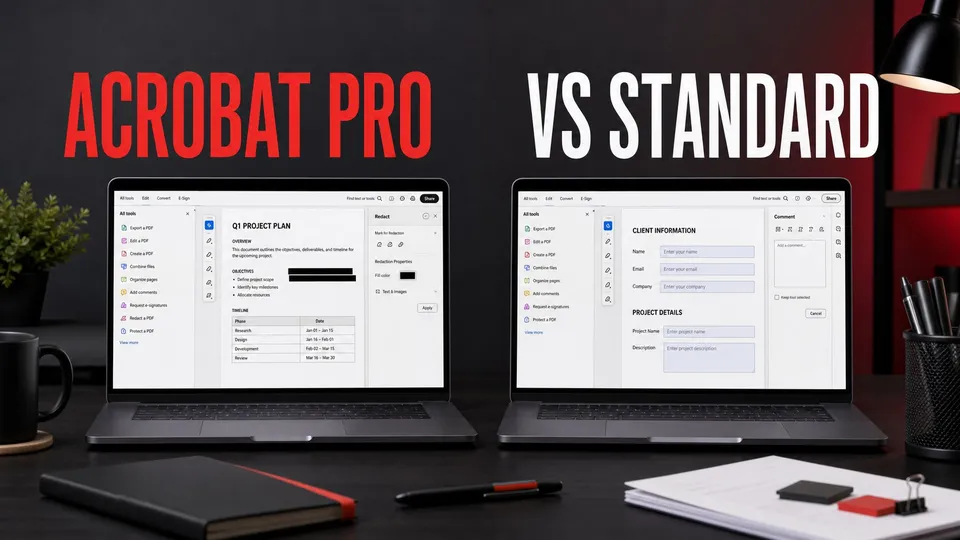
Adobe Acrobat Standard and Acrobat Pro both aim to make PDFs editable, convertible, signable, and easier to share. The practical difference is not a feature checklist in isolation: it is whether your work ever crosses into sensitive content, repeatable business workflows, or document control where a missing capability becomes expensive.
For a person correcting contracts, converting Office files, filling forms, combining PDFs, or making occasional text edits, Standard can cover the everyday document job. Pro is the stronger choice when PDF work includes redaction and sanitization, higher-stakes review, advanced document preparation, or workflows that need to hold up across teams and operating systems. Adobe's plan names and entitlements change, so this guide focuses on a durable buying decision rather than a temporary sale price.
Test the handoff, not just the feature
A PDF workflow includes the person who receives the document. Before committing a client, team, or sensitive process to a plan, send a non-sensitive sample to the actual recipient. Check that it opens correctly, that fonts and page breaks survive, that annotations are visible, and that the recipient can complete the intended action without a paid-account surprise. This short rehearsal catches attachment limits, permissions, and naming confusion long before a deadline.
When a source file may be revised, keep the editable original separate from the PDF delivery copy. Acrobat is excellent for packaging and controlling the PDF; it should not become the only remaining source for an important design, proposal, or contract.
Quick answer
Choose Acrobat Standard when PDF editing is a personal, routine task. It is for creating, converting, editing, combining, organizing, filling, signing, and sharing documents without building a more controlled document process.
Choose Acrobat Pro when PDFs can contain sensitive information or become a recurring business system. Pro is the safer lane for redaction and sanitization, more demanding review and preparation work, and teams that need to avoid discovering a limitation halfway through a real document.
What Acrobat plan names mean now
This guide compares Acrobat Standard with Acrobat Pro. Adobe also offers free Acrobat Reader and Acrobat Studio, a separate bundle that combines Pro’s PDF tools with PDF Spaces, Acrobat AI Assistant and Adobe Express Premium.
Acrobat AI Assistant Plus is a separate add-on—not another name for Pro. Adobe lists AI Assistant, PDF Spaces and Adobe Express Premium among its features and currently describes it as available worldwide in English for free and paid individual Acrobat plans.
Choose Standard or Pro for the PDF tools you need; don’t assume a Pro subscription by itself includes Studio’s bundle. Before buying another plan or add-on, check what you already have and the applicable terms. Studio, AI Assistant Plus, enterprise licensing and regional pricing are outside this Standard-versus-Pro comparison.
Acrobat Pro vs Standard: the workflow comparison
| Decision area | Acrobat Standard | Acrobat Pro |
|---|---|---|
| Everyday PDF work | Create, convert, edit, combine, organize, fill, sign, and share routine documents. | Includes the everyday PDF foundation while adding headroom for complex work. |
| Editing and OCR | A practical choice for correcting text, adding content, and working with common PDF conversions. | Better fit when edits are part of a repeatable professional document process. |
| Protecting sensitive information | Not the plan to choose if reliable redaction and hidden-data cleanup are core requirements. | Adobe documents redaction and sanitization in Acrobat Pro for permanently removing sensitive visible and hidden content. |
| Platform and handoff | Check exact platform availability in the current offer before buying. | Adobe's current technical requirements cover Pro on Windows and macOS; confirm your plan and account entitlement. |
| Business risk | Good when a document mistake is easy to correct before sending. | Better when an omission, disclosure, or process gap would be costly to fix later. |
This is deliberately a decision table rather than an exhaustive entitlement table. Adobe can alter individual services, so a buyer should test the exact files and actions they need during a trial or within a return window. Do not choose a plan based solely on an old blog post that promises a precise feature or price forever.
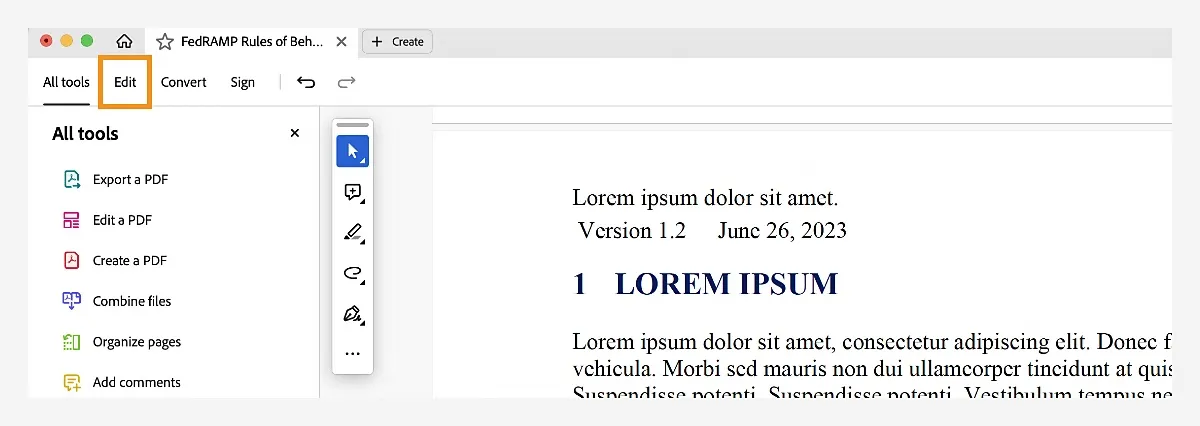
Adobe's desktop editing guide shows the Edit workspace used to select and change PDF text. Source: Adobe. Interface shown as documented by Adobe and may change.
The PDF work both plans are meant to cover
Most people shopping between Standard and Pro begin with the same jobs: turn a Word document or image into a PDF, reorder pages, merge source files, reduce clutter, fill a form, add a signature, export a copy, and send it to someone else. Editing text is possible when the document and available fonts support it; Acrobat's own guidance notes that PDF text can behave differently from the flowing text in a word processor.
That matters because a PDF is primarily a delivery format. It preserves layout, but it is not always a friendly source document. Before subscribing, open one representative PDF: a scan, a contract, a presentation, a client proof, or a form. Try the exact edit, conversion, review, and export you expect to repeat. This is more valuable than comparing icons in a plan grid.
For scans, test the quality of the source and the resulting OCR. For forms, test the whole fill-and-sign path. For conversion, open the converted output and check tables, typography, links, page breaks, and accessibility—not just whether a file was produced.
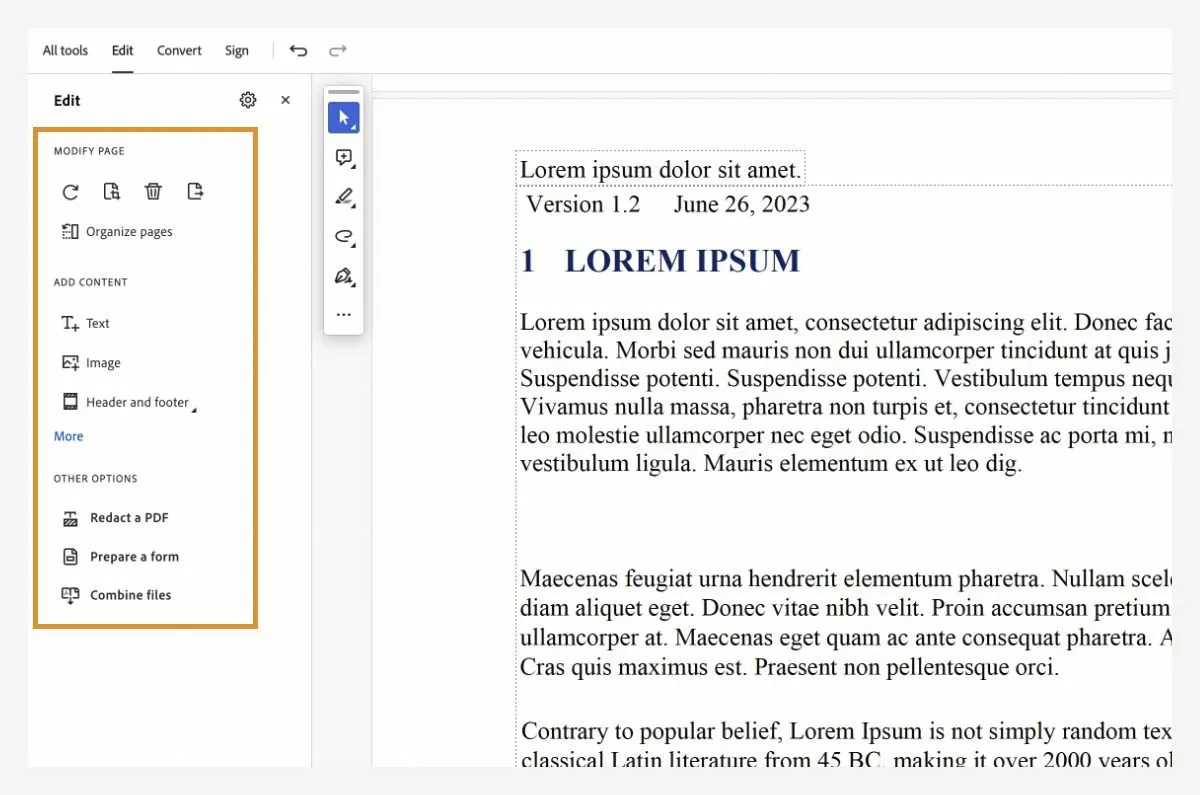
Adobe documents the Edit panel for changing text, formatting, and adding content in a PDF. Source: Adobe. Interface shown as documented by Adobe and may change.
When Acrobat Pro is the safer choice
Acrobat Pro earns its price when the document is more than a casual attachment. The clearest dividing line is redaction. Adobe describes redaction as permanently hiding sensitive text or graphics, while sanitization removes hidden data such as metadata, embedded content, and scripts. Covering text with a black shape or deleting a visible sentence is not the same thing as a safe redaction workflow.
Use Pro for documents that may contain personal information, confidential client details, legal or regulated material, internal financial information, or information that must be removed before distribution. Then build a review habit around the process: duplicate the source, mark the exact content, apply the redaction, choose sanitization when appropriate, save a controlled output, reopen it, search for the removed terms, and have another person verify sensitive releases when the stakes justify it.
Pro is also the sensible choice when a person repeatedly prepares packets, standardizes documents, reviews marked-up PDFs, or becomes the person colleagues depend on for PDF cleanup. Buying the narrower plan and improvising around its limitations creates a fragile workflow. Pro is not a guarantee of compliance, but it is the more appropriate starting point when document control is part of the job.
When Acrobat Standard is enough
Standard is a good fit when you own the PDFs you are changing and the work is straightforward: correct a typo, combine a few statements, convert a proposal, add a signature, rearrange a presentation, create a form, or export a clean copy. The point is not that the work is unimportant; it is that it does not depend on advanced protection or a complex recurring process.
A freelancer, student, household organizer, or small business owner can often start here if they regularly perform those core tasks and do not need Pro-specific protection features. Keep the original file, save an editable source when one exists, and name exports clearly. A predictable file process avoids many of the problems people try to solve with a more expensive plan.
Do not choose Standard just because a single feature sounds plausible. Confirm that the current plan actually supports your operating system, devices, e-signing needs, and document types. Adobe's own release notes say feature access depends on plan and some capabilities roll out in phases.
Teams, reviews, and controlled documents
A team should make the plan choice from the most demanding legitimate workflow, not from the least expensive individual use case. Map the path a document takes: who creates it, who edits it, where it is stored, who can comment, who signs, who exports it, and who verifies that confidential material was removed. A plan is only one part of that system.
For routine collaboration, establish file names, a source-of-truth folder, review roles, and a final-export check. For sensitive documents, document the redaction procedure and decide who has authority to approve the final version. Acrobat can help execute a workflow; it cannot replace the review policy around it.
If your work also involves Creative Cloud design files, keep the ownership boundary clear. Use Illustrator, InDesign, Photoshop, or Adobe Express to create the source when appropriate; use Acrobat to package, review, protect, sign, and deliver the PDF. That separation keeps the PDF from becoming the only editable copy of important work.
How to choose without falling into a pricing trap
- List the next three real PDF jobs. Include files, devices, collaborators, and the output you must deliver.
- Mark any privacy or control requirement. If the task involves redaction, hidden data, or sensitive release, start with Pro and verify the current feature terms.
- Test a representative file. Edit text, run OCR on a scan, convert a source, fill or sign a form, and reopen the output.
- Check the renewal terms. Review the regular price, commitment, cancellation terms, region, platform support, and current included services in the signed-in Adobe offer.
- Keep source and delivery files separate. Never let a rushed PDF export become the only copy of work that may need revision.
For the broader Adobe buying context, see the Creative Cloud pricing and plans guide and the Acrobat Reader overview. Reader is useful for viewing and basic interaction; it is not a substitute for selecting the paid workflow that your documents actually need.
Official Adobe sources
Frequently Asked Questions
Is Acrobat Pro worth it over Standard?
Pro is worth it when you need redaction and sanitization, more demanding PDF preparation, or a repeatable professional workflow. Standard is often enough for routine editing, conversion, forms, signatures, and organization when those protection requirements are not central.
Can Acrobat Standard edit PDF text?
Acrobat's editing workflow can be used to change, replace, add, or delete text where the PDF and available fonts allow it. Test a representative document because PDF text, scans, and embedded fonts can affect what is editable.
Does Acrobat Pro redact PDFs?
Adobe documents redaction and sanitization in Acrobat Pro. Redaction permanently removes selected visible information, while sanitization helps remove hidden data. Review the final saved PDF carefully before distribution.
Is a black box over text a redaction?
No. A visual cover-up can leave underlying PDF content recoverable. Use Acrobat Pro's redaction and, when appropriate, sanitization workflow for sensitive information.
Which Acrobat plan works on Mac?
Adobe's current technical requirements list Acrobat Pro on Windows and macOS. Confirm current Standard availability and the exact entitlement for your region and account before purchasing.
Do Acrobat features change by plan?
Yes. Adobe says feature access depends on plan and some capabilities are released in phases. Confirm the current signed-in plan comparison before relying on a feature.
Should I buy Acrobat for occasional PDFs?
Buy a plan when routine editing, conversion, form, signature, or organization work saves enough time to justify it. For occasional viewing, Reader may be sufficient; test the exact task before subscribing.
What should I check before sharing a sensitive PDF?
Keep the source separate, use the appropriate redaction and sanitization process, save a controlled output, reopen it, search for removed terms, and have a qualified second reviewer verify the release when the risk warrants it.

About the Author
Joseph Nilo has been working professionally in all aspects of audio and video production for over twenty years. His day-to-day work finds him working as a video editor, 2D and 3D motion graphics designer, voiceover artist and audio engineer, and colorist for corporate projects and feature films.