
Premiere Pro AI features are most useful when they remove friction from an edit: finding footage, trimming a rough cut from a transcript, building captions, cleaning timing problems, and moving AI concept work into a real production timeline.
Related: If you want the dedicated beta workflow page, read Adobe Premiere Pro AI Assistant next.
The mistake is expecting AI to make the edit for you. The better approach is to let Premiere Pro and Adobe Firefly help with the tedious or exploratory work, then keep the editorial decisions in human hands.
This page may include affiliate links.
I only recommend software I would seriously evaluate for real creator or production workflows.
⭐⭐⭐⭐⭐
I pay for Adobe Creative Cloud and have used it every day in my 20-year career as a video editor, producer, and colorist.
Use the Adobe link below to check the current Creative Cloud offer. It can support this site and helps me keep these guides updated. Check current Adobe Creative Cloud offer.
Get Adobe Creative Cloud Now!Use Premiere Pro when AI needs to become a finished edit
If your workflow includes AI concepting, captions, YouTube edits, client revisions, licensed media, and final exports, compare the current Adobe plans before buying a disconnected AI tool stack.
Quick Answer
Updated June 2026: Premiere Pro's strongest AI use cases are timing fixes, transcript-driven rough cuts, captions, translation support, smart media search, and handoffs from Adobe Firefly or Adobe Stock into a controlled editing workflow.
For most creators, the practical value is speed and organization. AI can help you find the right clip, stretch a short moment, search footage by subject, and get captions moving sooner.
It still cannot decide the story. The editor still owns pacing, structure, emotion, client approval, legal review, and whether the finished video feels credible.
What Counts As Premiere Pro AI?
In a real Premiere workflow, "AI" is not one feature. It is a collection of smaller helpers spread across the edit.
Some of those helpers are inside Premiere Pro, such as Generative Extend, Text-Based Editing, Speech to Text, caption workflows, and AI-powered media search. Others sit next to Premiere, such as Adobe Firefly for concept frames or Adobe Stock for licensed media replacements.
The key is to use each tool at the right production stage. Do not make every step generative just because the button exists.
Generative Extend
Important distinction: Generative Extend adds frames at the edge of an existing clip. Adobe's newer beta workflow can create a new video or sound-effect clip in a selected range; see my Premiere Generative Media Tool guide.
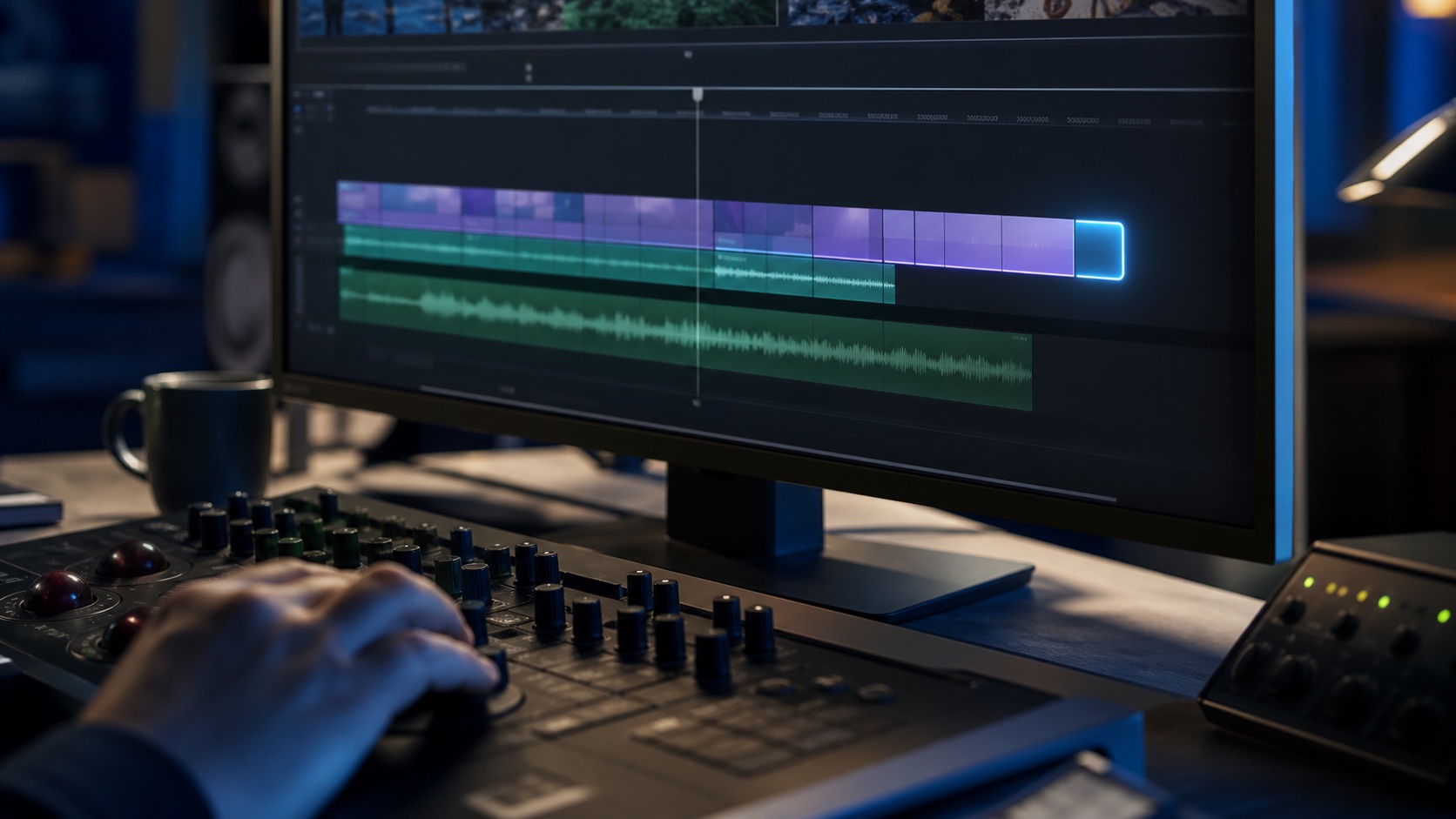
Generative Extend is the AI feature editors will notice first because it solves a familiar timeline problem: a shot, transition, or audio moment is slightly too short.
Use it when you need a little more room at the edge of a clip. That might help a transition breathe, hold a reaction half a beat longer, or avoid a rushed music or ambience edit.
Do not use it to fake missing coverage across an important story beat. If the shot is narratively wrong, extending it will not fix the scene.
| Good use | Risky use | Editor check |
|---|---|---|
| Adding a small handle for a transition | Creating a fake reaction that changes meaning | Watch the cut at full speed |
| Extending ambience or room tone | Hiding an audio edit that should be repaired | Listen on headphones |
| Holding a neutral product or landscape shot | Extending complex motion or faces without review | Check artifacts frame by frame |
Text-Based Editing And Captions
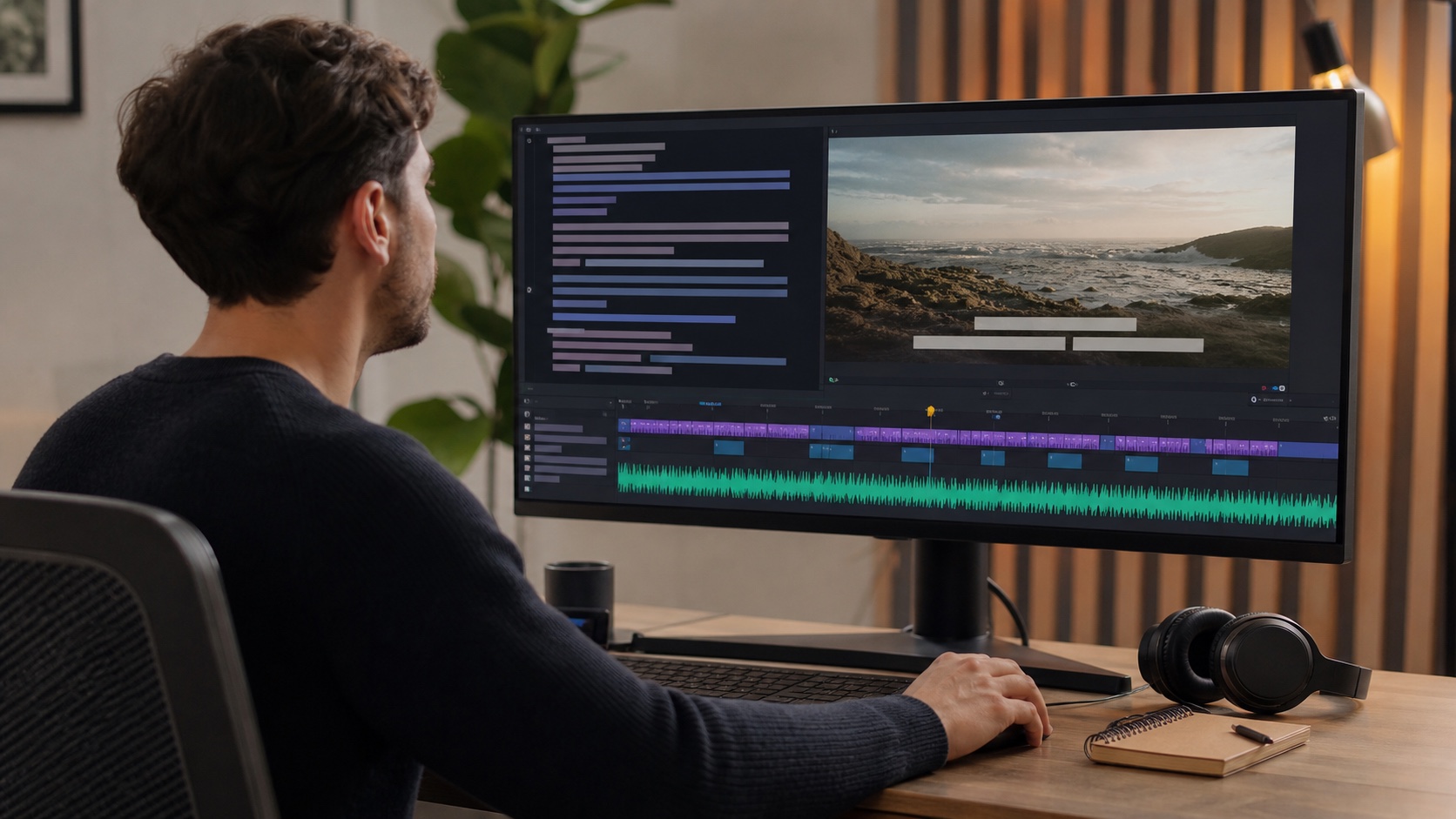
Text-Based Editing is the feature I would use on almost every talking-head, podcast, interview, webinar, or tutorial project. The transcript becomes a faster way to find ideas, remove obvious dead space, and build an early rough cut.
This is especially useful for YouTube creators because the edit starts from meaning instead of waveform hunting. You can find the line, cut the bad take, and get to the timeline faster.
Captions and Speech to Text sit in the same practical bucket. They help you publish clearer videos, repurpose clips, and catch problems in a script before export.
Media Intelligence
Media Intelligence is useful when a project has too much footage and not enough metadata. Instead of scrubbing every clip manually, you can search for the kind of shot, object, or visual moment you need.
That matters for long interviews, event footage, travel videos, client b-roll libraries, and documentary-style projects. Search does not replace logging, but it can make a messy project less punishing.
My rule is simple: let AI help you locate candidates, then review the actual clip yourself. The selected shot still has to match the story, lighting, tone, continuity, and legal context.
Firefly To Premiere Handoff
Firefly is stronger before the edit than inside the edit. Use it for concept frames, visual direction, thumbnail ideas, background exploration, and b-roll planning, then bring the approved direction into Premiere Pro.
For a creator video, that can mean using Firefly to test a thumbnail background before you build the real version in Photoshop or Adobe Express. For a client video, it can mean turning a vague idea into a visual reference the client can approve before production.
If you need a deeper version of that workflow, start with my Adobe Firefly for video editors guide and then use this Premiere guide to bring the idea back into the edit.

Where AI Hurts The Edit
AI hurts the edit when it hides weak thinking. If the structure is unclear, the intro is too slow, or the viewer does not know why they should care, a generated asset will not solve the problem.
It also creates review risk. AI-assisted frames, extended clips, translated captions, and generated concepts should be checked before delivery, especially on client work.
Be careful with faces, hands, products, logos, regulated claims, medical or financial topics, and anything that could mislead the viewer. A small artifact can turn a polished edit into a trust problem.
A Practical Premiere AI Workflow
Start with the story. Build the outline, script, or client brief before you touch any AI feature.
Use Firefly or concept tools only where visual exploration will save time. Use Media Intelligence to find footage candidates. Use Text-Based Editing for rough structure. Use Generative Extend only for small timing problems.
Then finish like a normal editor: watch the full piece, check audio, captions, graphics, licensing, export settings, and client notes.
My practical rule
Use AI to reduce the search, cleanup, and setup work. Do not outsource the judgment that makes the video worth watching.
FAQ
Does Premiere Pro have AI features?
Yes. Premiere Pro includes AI-assisted and automated features such as Generative Extend, Text-Based Editing, Speech to Text, captions, and AI-powered media search workflows. The exact feature set can change, so check Adobe's current Premiere Pro documentation before buying for one specific feature.
Is Generative Extend worth using?
Generative Extend is worth using for small timing fixes at the edge of a clip. It is not a replacement for shooting enough coverage or making a stronger edit decision.
Should YouTubers use Premiere Pro AI tools?
Yes, YouTubers can get real value from transcript editing, captions, media search, and quick timing fixes. The biggest gain is usually faster rough cuts and better organization, not fully automated editing.
How does Firefly fit with Premiere Pro?
Firefly is best used for concepting, visual exploration, and planning. Premiere Pro is where you assemble, refine, caption, and export the finished video.
About the Author
Joseph Nilo is a video producer and technical creator who writes practical software, creator-workflow, and post-production guides from hands-on production experience.