
AI pre-production is most useful when it turns a vague video idea into a clearer brief, storyboard, shot list, b-roll plan, and client approval path before the edit starts.
For video editors, the Adobe workflow is not just "generate a clip." The practical path is to use Adobe Firefly for visual exploration, Adobe Stock for production-safe replacement assets, and Premiere Pro for the actual timeline decisions.
Use Adobe when AI planning needs to become a finished edit
If your pre-production workflow needs concept frames, licensed assets, captions, client revisions, and a real edit timeline, compare the current Adobe plans before building a disconnected AI stack.
Affiliate disclosure: This page contains affiliate links. I may earn a commission if you buy through them, at no extra cost to you.
Quick Answer
Updated June 2026: The best AI pre-production workflow for video editors is brief first, AI concepts second, production plan third, and Premiere Pro last.
Use Firefly to explore mood, shot ideas, storyboard frames, background options, and b-roll direction. Then decide what should be generated, what should be shot, what should be licensed from Adobe Stock, and what should be built in Premiere Pro, After Effects, Photoshop, or Adobe Express.
The goal is not to remove the editor. The goal is to make the edit less blind before the timeline fills up.
The AI Pre-Production Workflow Map
Think of AI pre-production as a sequence of decisions, not a folder of random generated images.
| Stage | AI Helps With | Human Decision |
|---|---|---|
| Brief | Alternate hooks, angles, and audience framing | What is the video actually trying to prove? |
| Visual direction | Moodboards, concept frames, rough storyboard references | Which direction fits the brand, budget, and viewer? |
| Shot list | B-roll ideas, sequence options, missing coverage warnings | What must be shot, licensed, generated, or cut? |
| Client review | Fast visual options before production spend | What is approved, risky, or misleading? |
| Premiere handoff | Organized notes, selects, captions, and asset candidates | What belongs in the final timeline? |
Start With The Brief Before Any Prompt
A weak prompt usually starts with a weak brief. Before opening Firefly, write the video goal, audience, format, deadline, must-show points, and approval constraints.
For a YouTube tutorial, that might mean the exact promise of the video, the viewer's skill level, the screen sections that need coverage, and the moments where b-roll or graphics will prevent a talking-head slog.
For client work, add brand rules, product claims, usage rights, and anything the client has already rejected. This keeps AI exploration from creating beautiful options you cannot use.

Build Visual Direction With Firefly
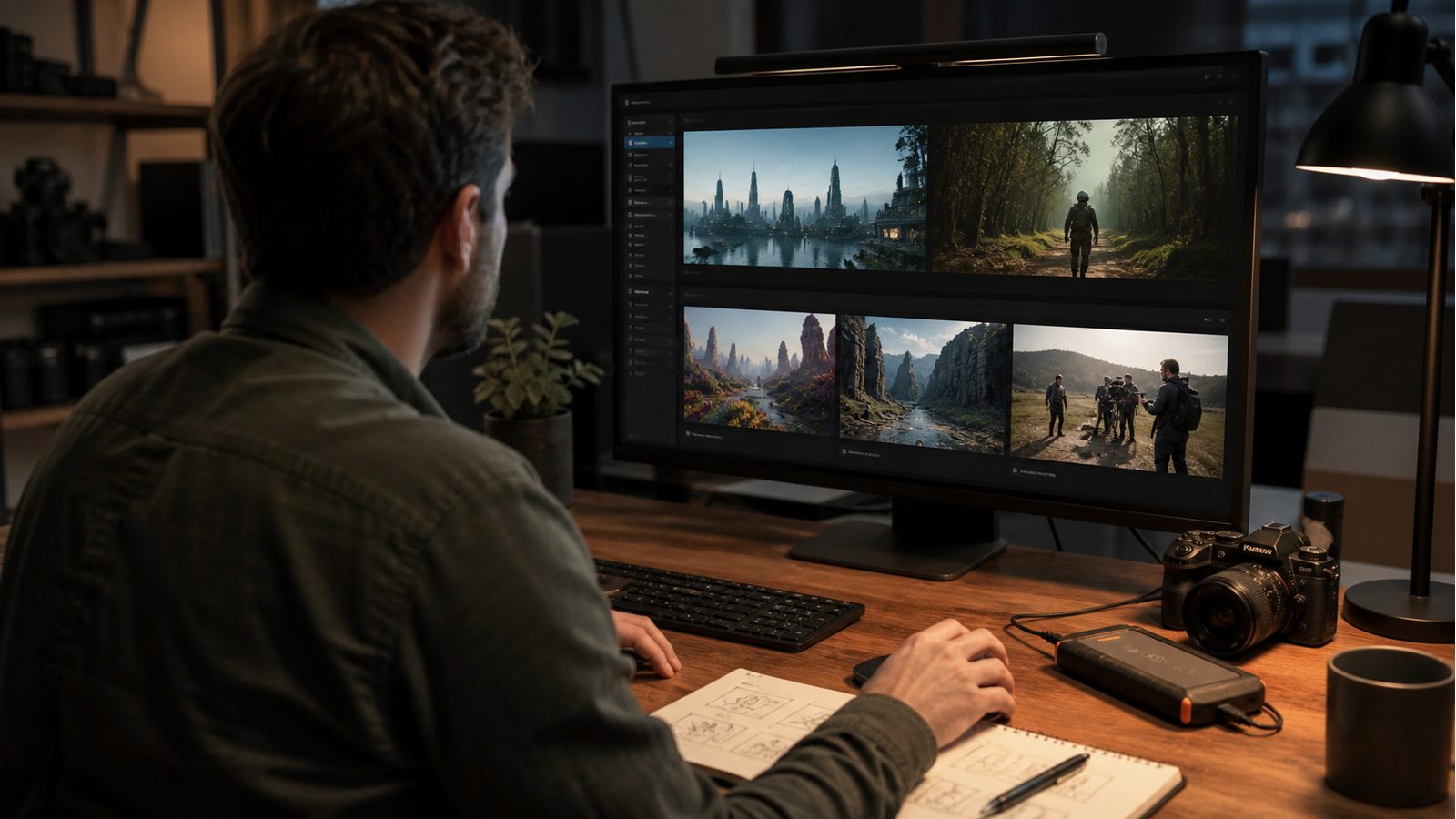
Firefly is strongest early in the process when the output is still a reference. Use it to test visual direction, mood, color, setting, composition, and rough storyboard moments.
This is where AI saves real time. You can compare a clean product-demo style, a cinematic documentary tone, a social-first creator look, or a stylized explainer direction before anyone books a shoot day or buys stock footage.
Keep the prompts specific: subject, camera angle, lens feel, lighting, environment, framing, color, motion idea, and intended use. Save the promising concepts, but do not treat every good-looking frame as final media.
Turn Concepts Into A Shot List
The useful output from AI pre-production is not the prettiest concept frame. It is a better production list.
After a concept pass, mark each moment as shoot, screen-record, license, generate, design, or cut. If a concept cannot survive that routing decision, it should not drive the edit.
For example, a generated city-at-night concept may become an Adobe Stock search, a transition mood reference, or a note to shoot a simpler exterior. A generated software-workflow concept may become a real screen capture plan instead of a fake UI shot.
Plan B-Roll, Stock, And Replacement Assets
AI concepts are often best used as search direction for real assets. If the final video needs legally safer footage, branded product accuracy, or client-approved visuals, use the AI frame to define what to shoot or license.
Adobe Stock fits naturally here because the pre-production idea can become a search for licensed footage, images, music, templates, or motion assets. Firefly can help you explore the look; stock and original production can help you finish with fewer rights questions.
Keep a simple replacement list: the generated idea, the production-safe replacement path, and the final asset source. That list will save time during revisions.
Handoff To Premiere Pro Without Creating A Mess
The handoff into Premiere Pro should be boring and organized. That is a feature, not a flaw.
Create folders for brief, script, selects, AI references, approved stock, generated tests, graphics, music, captions, and exports. Name AI references clearly so they do not get mistaken for final footage.
If the project includes interviews, voiceover, webinars, or tutorial footage, transcript-first editing can speed up the rough cut. Premiere Pro's Text-Based Editing and caption tools are better used once the production plan and media are organized.
Generative Extend belongs later, not at the planning stage. Use it for small timing fixes at the edge of a clip, not as a substitute for missing story coverage.
Client And Legal Review
If the work is for a client, treat AI-assisted pre-production as part of the approval trail. The client should know what is reference-only, what might become final, and what needs licensing or disclosure.
Do not let AI generate claims, product states, faces, logos, regulated visuals, or brand-specific scenes without review. A concept that looks polished can still be wrong, misleading, or unusable.
For higher-risk work, use Firefly for direction and then finish with original footage, Adobe Stock, approved graphics, or clearly documented generated assets.

My rule
Use AI to reduce uncertainty before editing. Do not use it to skip the production decisions that make the final video credible.
Carry the plan into the finished edit
If the Firefly-to-Premiere handoff matches your pre-production process, compare the current Creative Cloud plans before committing. Keep the brief, rights review, and organized handoff as the real workflow.
FAQ
What is AI pre-production for video editors?
AI pre-production is the use of AI tools to clarify a video before editing starts. It can include briefs, concept frames, storyboard references, b-roll planning, thumbnail direction, stock searches, and client approval materials.
Is Adobe Firefly good for video pre-production?
Yes. Adobe Firefly is useful for video pre-production when you use it for visual exploration, concept frames, b-roll ideas, and storyboard direction. It should not replace the editor's production plan or legal review.
Should AI-generated clips go straight into Premiere Pro?
Only after review. Treat AI-generated clips as candidates, not automatic final assets. Check quality, rights, brand fit, disclosure needs, and whether a shot, licensed stock clip, or designed graphic would be better.
How does Adobe Stock fit into an AI video workflow?
Adobe Stock can turn AI concepts into production-safe asset searches. Use generated references to define the kind of footage, image, music, template, or motion asset you need, then choose licensed or original material for the final edit.
About the Author
Joseph Nilo is a video producer and technical creator who writes practical software, creator-workflow, and post-production guides from hands-on production experience.