
Last checked July 8, 2026 against Adobe product, release note, and HelpX pages.
Quick answer
Adobe Media Encoder does not behave like a simple standalone app purchase. Adobe's own Media Encoder page describes it as available only in Creative Cloud, so the practical price question is usually whether you should use Premiere Pro, Creative Cloud, or another export tool for your workflow.
If your work already depends on Premiere Pro, After Effects, proxies, batch exports, watch folders, or multiple deliverables, Media Encoder is usually part of the Adobe workflow worth checking before you shop for a separate transcoder.
Affiliate disclosure: This page may include affiliate links. I may earn a commission if you buy through them, at no extra cost to you.
Adobe Media Encoder Price And Plan Path
The safest way to think about Media Encoder pricing is this: do not look for a normal standalone Media Encoder checkout first. Adobe's current product page says Media Encoder is available only in Creative Cloud.
That means your real buying decision is usually one of these:
- Premiere Pro plan: best if your main work is editing, exporting, proxies, captions, and client deliverables from Premiere.
- Creative Cloud plan: better if you also need After Effects, Audition, Photoshop, Illustrator, Adobe Stock, Express, or broader production tools.
- No Adobe plan: reasonable if you only need occasional H.264/H.265 transcodes and do not work in Premiere or After Effects.
Affiliate disclosure: This link may earn a commission if you buy through it.
Best next step
Check the current Adobe plan options before assuming Media Encoder has a separate standalone price.
Check current Adobe plansHow To Download Adobe Media Encoder Safely
Use Adobe's Creative Cloud app or Adobe's official Media Encoder product/support pages. Avoid random downloader sites, old installers, cracked builds, or codec packs that promise to unlock export formats.
Media Encoder also needs to match the Adobe apps you are using. If Premiere Pro, After Effects, and Media Encoder are on mismatched major versions, you can run into project handoff, Dynamic Link, or export behavior that is harder to troubleshoot.
When Media Encoder Is Worth It
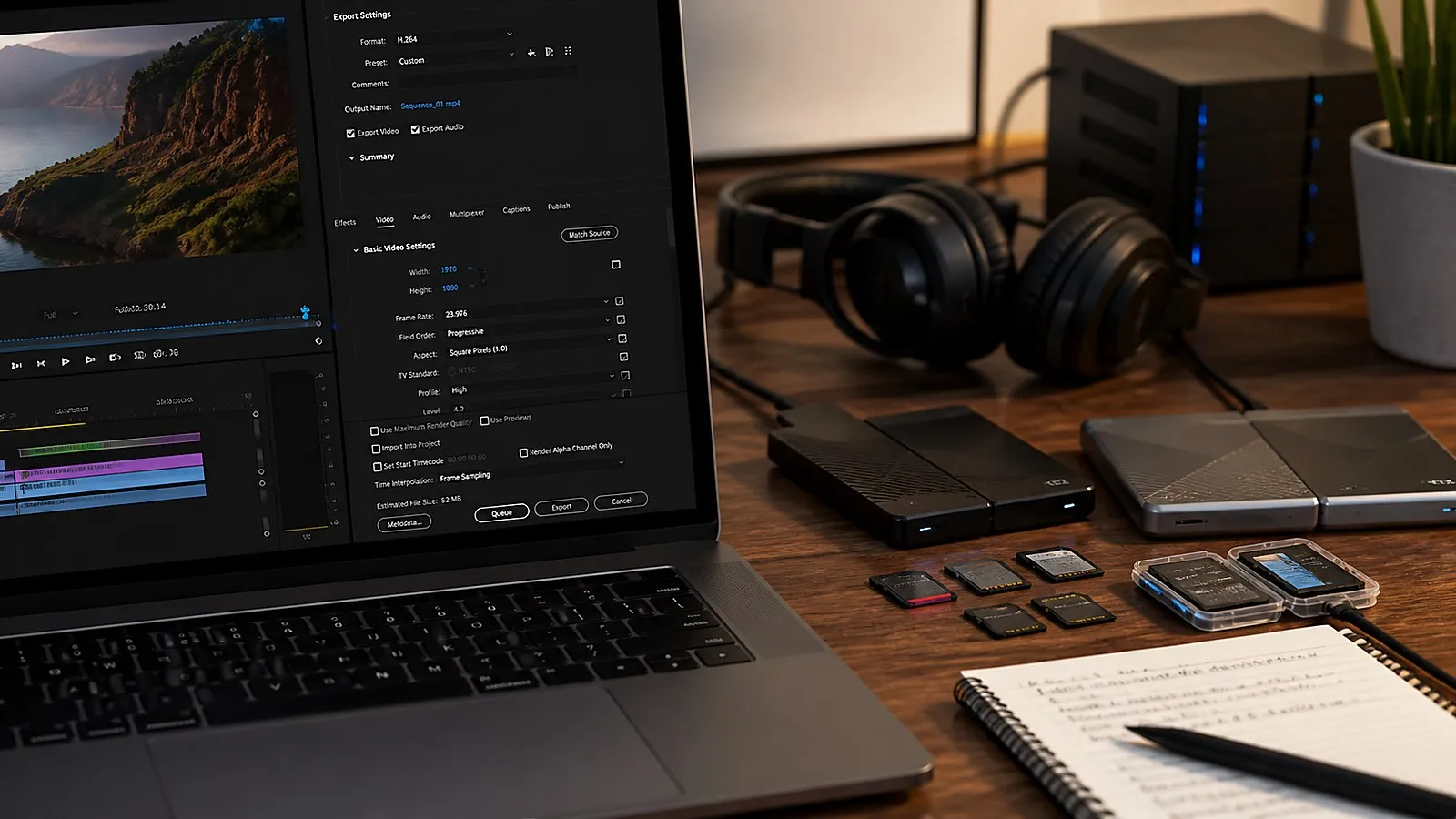
Media Encoder is most useful when export becomes a workflow, not just a final button press. That is common for YouTubers, agencies, educators, corporate video teams, and post-production workflows that need multiple versions from the same project.
Use it when you need to:
- Queue several exports while you keep working.
- Create YouTube, client review, social, archive, and vertical versions from one timeline.
- Build proxies for smoother editing.
- Use presets, watch folders, LUTs, loudness correction, or batch transcoding.
- Hand off exports from Premiere Pro or After Effects without manually rebuilding settings every time.
If your exports are simple and rare, Premiere's built-in export window may be enough. Media Encoder becomes more valuable as your delivery list grows.
Adobe Media Encoder Alternatives To Compare
The right alternative depends on why you were looking for Media Encoder in the first place.
| Option | Best fit | Tradeoff |
|---|---|---|
| Premiere Pro export | One-off exports from active Premiere projects | Less useful for larger batch queues |
| DaVinci Resolve | Editing, color, and delivery in a non-Adobe workflow | Different project ecosystem and learning curve |
| Compressor with Final Cut Pro | Mac/FCP delivery workflows | Best when you already work in Final Cut Pro |
| Shutter Encoder | Utility transcoding and conversion tasks | Less integrated with Adobe project workflows |
| HandBrake | Simple file compression and H.264/H.265 conversion | Not a replacement for Premiere/After Effects handoff |
For Adobe editors, the key question is not whether an alternative can encode a file. It is whether it preserves your project handoff, presets, proxies, review workflow, and repeatable deliverables.
System Requirements And Performance Notes
Adobe's June 2026 Media Encoder system requirements list different minimum and recommended expectations depending on platform and workload. For real video work, pay attention to RAM, GPU support, disk speed, and codec acceleration rather than only the minimum install requirement.
For HD media, 4K projects, camera originals, proxies, and batches, storage speed matters. Keep source media, cache, exports, and archive locations organized so a long export queue does not compete with your edit system for the same slow drive.
Official Sources Checked
- Adobe Media Encoder product page
- Adobe Media Encoder release notes
- Adobe Media Encoder system requirements
- Adobe Media Encoder user guide
- Adobe Premiere Pro product page
Adobe Media Encoder FAQ
How much does Adobe Media Encoder cost?
Adobe does not present Media Encoder as a normal standalone purchase on its Media Encoder product page. The practical buying path is to check the current Premiere Pro or Creative Cloud plan options, then confirm whether Media Encoder is available for the plan you choose.
Can I download Adobe Media Encoder by itself?
Adobe positions Media Encoder as part of the Creative Cloud app family. Use the Creative Cloud desktop app or Adobe account download flow, and avoid unofficial installers.
Is Media Encoder worth using with Premiere Pro?
Yes, if you batch exports, build proxies, create multiple delivery formats, or want exports running outside the main Premiere timeline while you continue working.
What are good Adobe Media Encoder alternatives?
For simple one-off exports, Premiere Pro export may be enough. For non-Adobe workflows, DaVinci Resolve, Final Cut Pro Compressor workflows, Shutter Encoder, and HandBrake can be worth comparing depending on format, batch, and delivery needs.
What computer specs matter most for Media Encoder?
For HD and 4K work, RAM, GPU support, storage speed, and codec hardware acceleration matter. Adobe system requirements should be the final source before buying or upgrading hardware.

About the Author
Joseph Nilo has been working professionally in all aspects of audio and video production for over twenty years. His day-to-day work finds him working as a video editor, 2D and 3D motion graphics designer, voiceover artist and audio engineer, and colorist for corporate projects and feature films.