
Adobe Premiere on iPhone is now a credible mobile editor for rough cuts, short-form delivery, field edits, and projects that need to continue in desktop Premiere.
This review is based on Adobe's current iPhone documentation and plan pages checked August 1, 2026. The important question is not whether a phone can edit video; it is which decisions are efficient on the phone and which should wait for the full desktop environment.
Quick verdict
| Best for | Shorts, social cuts, field assemblies, fast client previews, beat-synced edits, and creators who want an Adobe mobile-to-desktop path. |
|---|---|
| Strongest advantage | A real timeline with auto reframe, keyframes, effects, captions, audio tools, and a handoff into desktop Premiere. |
| Main caution | It is currently an iPhone workflow. Complex audio, color, collaboration, plug-ins, and long-form finishing remain desktop jobs. |
| My recommendation | Use the phone to capture momentum and make reversible editorial decisions; finish demanding work on the desktop. |
This page may include affiliate links.
I only recommend software I would seriously evaluate for real creator or production workflows.
⭐⭐⭐⭐⭐
I pay for Adobe Creative Cloud and have used it every day in my 20-year career as a video editor, producer, and colorist.
Use the Adobe link below to check the current Creative Cloud offer. It can support this site and helps me keep these guides updated. Check current Adobe Creative Cloud offer.
Get Adobe Creative Cloud Now!What Adobe Premiere on iPhone Actually Is
Premiere on iPhone is Adobe's current mobile video editor, not a renamed screen for Premiere Rush. It uses a touch-first timeline and connects mobile creation to the broader Premiere and Creative Cloud workflow.
The app is most useful when the footage already lives on the phone or when speed matters more than a fully engineered post-production session. A creator can select clips, build a sequence, trim, add music and text, adjust color, reframe for a platform, and export without moving media to a computer first.
Adobe's current Premiere plan page describes the individual Premiere subscription as covering Premiere on desktop and iPhone, plus Adobe Express Premium, Frame.io, cloud storage, and generative credits. Check the live plan and App Store listing because account features and offers can change.
What Changed in 2026
Adobe's May 2026 update focused on more reliable SDR and HDR color handling from import through export and added one-tap Auto Reframe. The April release added Beat Detection, more Lightroom looks, additional transitions and effects, and easier text editing inside templates.
February brought timeline keyframes for properties including position, scale, and opacity. Those changes matter because they move the app beyond quick templates: an editor can now shape timing, motion, framing, and music with more intention.
The product still favors compact decisions. It is excellent at getting a shoot into a viewable sequence while the story is fresh, but a phone screen is not the ideal place to diagnose subtle noise, balance a dense mix, or compare color across several reference displays.
Auto Reframe and Social Delivery
Auto Reframe is the practical bridge between a normal camera frame and vertical, square, or other platform-specific delivery. Premiere analyzes the clip and adjusts the framing around the important action.
That saves time, but it is not a final quality decision. Watch the entire reframed shot for sudden subject changes, hands entering the frame, camera moves, graphics near the edge, and cuts where the chosen subject changes.
For a campaign, build one clean editorial sequence first. Duplicate or version it for each aspect ratio, apply Auto Reframe, then review every shot. This protects the original timing and makes platform-specific corrections easier to compare.
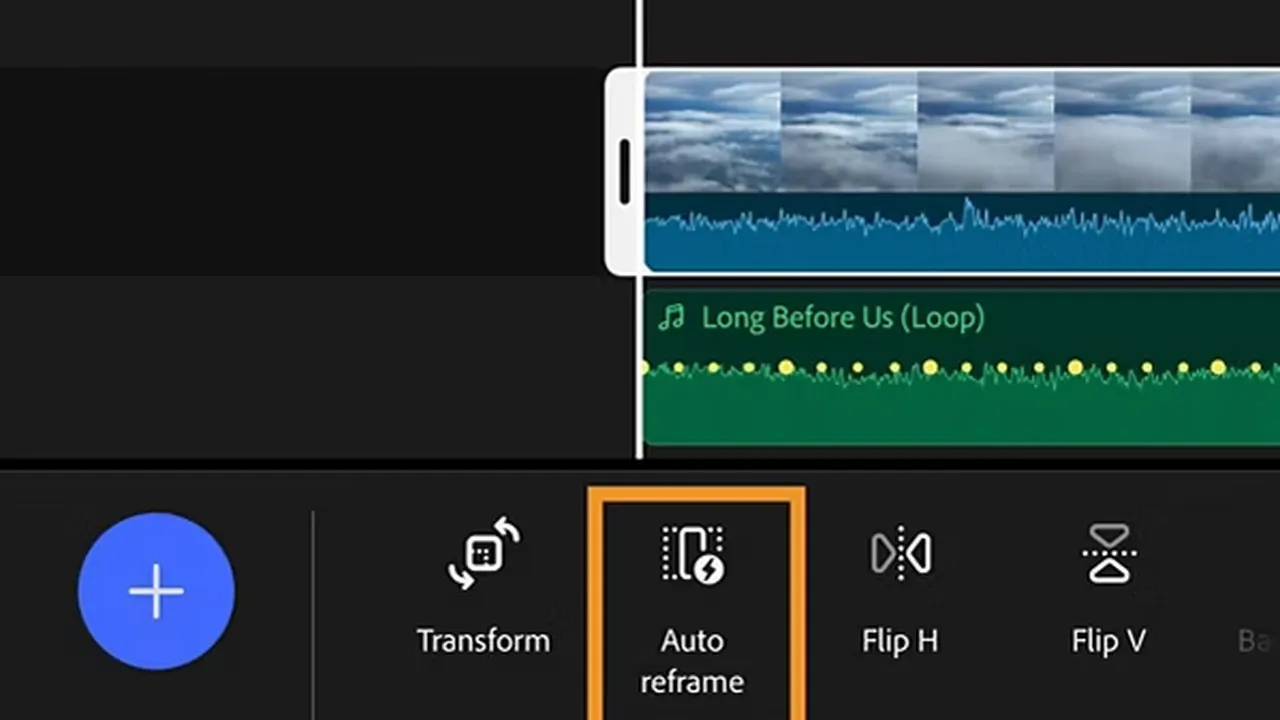
Auto Reframe turns the same source edit toward vertical or square delivery without rebuilding the sequence by hand. Source: Adobe. Interface shown as documented by Adobe and may change.
Timeline Editing and Touch Control
The mobile timeline supports familiar editorial work: selecting, splitting, duplicating, replacing, moving, trimming, and arranging clips. The interface keeps the preview above the timeline and exposes context-sensitive controls below.
Touch is fast for broad timing but less precise for crowded sequences. Zoom the timeline before making a critical trim, use headphones for audio decisions, and replay the transition rather than trusting the waveform or thumbnail alone.
Keep phone projects short enough that the interface remains legible. For a longer piece, organize the source into selects or short assemblies, then send the strongest material to desktop Premiere for the full sequence.
Beat Detection, Music, and Dialogue
Beat Detection analyzes music and places visible markers along the track. The editor can choose fewer, more, or all detected beats, then use those markers as deliberate cut points.
Markers improve rhythm, but cutting on every beat creates mechanical pacing. Use major beats for structural changes, secondary beats for details, and leave room for speech, motion, and the emotional shape of the scene.
Mobile audio is best treated as an editorial mix. Set speech clearly above music, avoid clipping, and confirm the export on headphones and a phone speaker. For repair, dialogue matching, detailed EQ, or a larger mix, move into desktop Premiere, Adobe Audition, or Adobe Podcast.
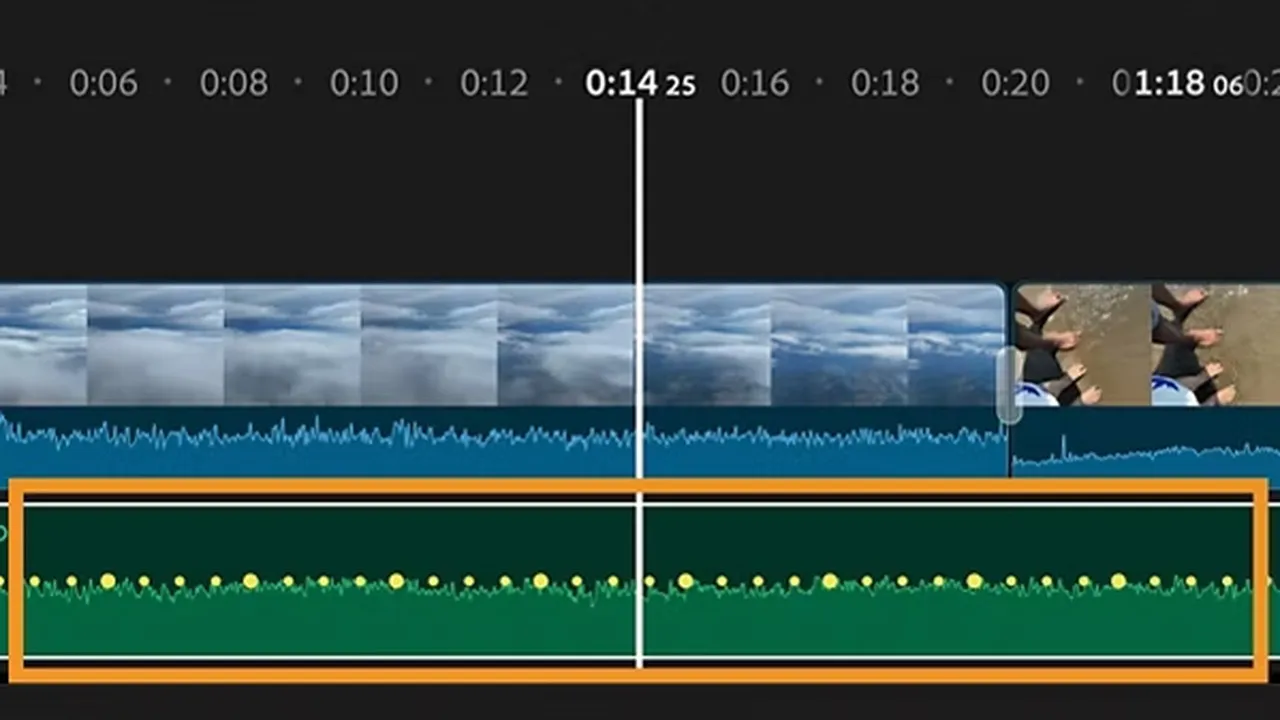
Beat Detection places visible rhythm markers on the music track so cuts can be timed intentionally instead of guessed from the waveform. Source: Adobe. Interface shown as documented by Adobe and may change.
Keyframes and Controlled Motion
Keyframes let Premiere record a property value at one moment and animate toward a different value later. On iPhone, that supports controlled position, scale, opacity, and related motion without relying only on preset transitions.
Use two keyframes for a simple move, then add more only when the motion genuinely changes. Small, slow adjustments usually look more intentional than constant zooming, especially when the source is already handheld.
Keyframes also help repair composition after a vertical crop. Reposition the shot when a speaker moves, scale slightly to hide an edge, or fade an overlay without rebuilding the edit in another app.
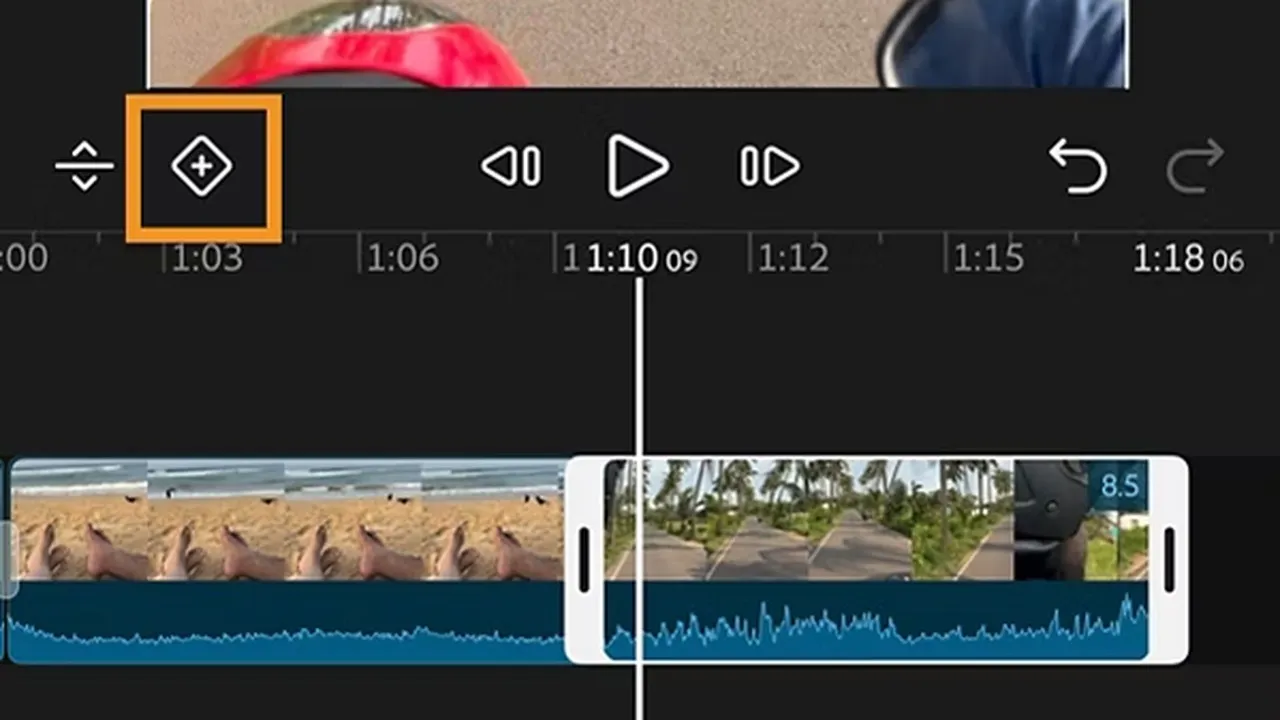
The current iPhone editor can keyframe properties such as position, scale, and opacity directly on the timeline. Source: Adobe. Interface shown as documented by Adobe and may change.
How the Desktop Handoff Should Work
The strongest reason to choose Premiere on iPhone over an isolated mobile editor is continuity. Adobe supports moving supported projects toward desktop Premiere, where the sequence can gain deeper audio, color, graphics, collaboration, and export control.
Treat transfer as a checkpoint. Keep the original phone media until the desktop project opens correctly, verify every clip and font, compare the timeline duration, and test any effect that may behave differently.
Once the project is on the computer, use the same discipline as any other edit: organize bins, confirm sequence settings, relink high-quality originals where appropriate, and create a clean delivery version. My Premiere Pro beginner guide covers that first desktop workflow.
A Practical Mobile-to-Desktop Workflow
- Capture cleanly. Lock exposure and white balance when possible, leave handles around each action, and record usable sound.
- Build selects first. Remove obvious misses before arranging the story.
- Make the rough cut. Solve order, timing, and the primary message before adding decoration.
- Add the editorial mix. Place music, set basic levels, and use Beat Detection selectively.
- Create platform versions. Duplicate the sequence, then use Auto Reframe and review every shot.
- Add restrained motion. Use keyframes only where they clarify focus or improve composition.
- Export a proof. Watch the complete file outside the editor and check text, color, sound, and safe areas.
- Hand off demanding work. Move long-form, collaborative, or high-value projects into desktop Premiere before final delivery.
Limits and Who Should Skip It
Premiere on iPhone does not eliminate the advantages of a large display, calibrated monitoring, keyboard control, fast storage, plug-ins, and a professional audio environment. It narrows the gap between capture and a useful first edit.
Skip it as the main editor when the project needs Android support, multicamera management, many graphics layers, advanced color matching, external control surfaces, large shared storage, or several reviewers working at once.
It is also the wrong tool if the phone is nearly full or the originals have no backup. Mobile convenience should not become a single-device media strategy.
If you are leaving Rush, read the Premiere Rush discontinuation guide and test a real project before moving the archive. If the work already belongs on a Mac, compare the current Premiere plan with the time saved by a full desktop workflow.
Official Sources
- What's new in Premiere on iPhone
- Adobe Premiere plan comparison
- Auto Reframe guide
- Beat Detection guide
- Premiere mobile keyframe guide
Frequently Asked Questions
Is Adobe Premiere available on iPhone?
Yes. Adobe has a dedicated Premiere app for iPhone, and its current Premiere plan page describes the plan as covering Premiere on desktop and iPhone. Feature and account availability can vary, so confirm the current App Store listing and your Adobe plan before relying on a specific premium workflow.
Is Premiere on iPhone the replacement for Premiere Rush?
It is the clearest current Adobe mobile-video path, but it is not simply Rush with a new name. Premiere on iPhone has its own timeline, effects, keyframes, beat detection, auto reframe, and desktop handoff. Existing Rush users should test their real projects instead of assuming every Rush feature or project transfers one-for-one.
Can Premiere on iPhone edit vertical video?
Yes. Adobe documents Auto Reframe for converting footage to vertical or square formats, along with text, templates, effects, transitions, and export controls suited to short-form work.
Does Premiere on iPhone support keyframes?
Yes. The February 2026 release added keyframes for properties such as position, scale, and opacity. That makes the app more useful for deliberate motion and reframing than a template-only mobile editor.
Can I sync Premiere iPhone projects to Premiere Pro?
Adobe supports sending supported projects from iPhone into the desktop Premiere workflow. Treat the transfer as a handoff: verify media, fonts, effects, and sequence settings on the desktop before deleting the phone project or source media.
Is Premiere on iPhone good enough for YouTube?
It is strong for Shorts, social cuts, field edits, rough assemblies, and fast publishing. Long-form projects with extensive audio repair, multicamera work, advanced color, graphics, or delivery versions are still easier to control in desktop Premiere.
Does Premiere on iPhone handle HDR footage?
Adobe's May 2026 update specifically improved SDR and HDR color handling from import through export. You should still test one short file through the complete workflow because display interpretation, export settings, and platform processing can change the result.
Who should skip Premiere on iPhone?
Skip it as your primary editor if you need Android support, complex collaborative post-production, large shared storage, advanced audio mixing, extensive plug-ins, or frame-accurate desktop finishing. It can still be useful as a capture, rough-cut, or social-delivery companion.

About the Author
Joseph Nilo has been working professionally in all aspects of audio and video production for over twenty years. His day-to-day work finds him working as a video editor, 2D and 3D motion graphics designer, voiceover artist and audio engineer, and colorist for corporate projects and feature films.