
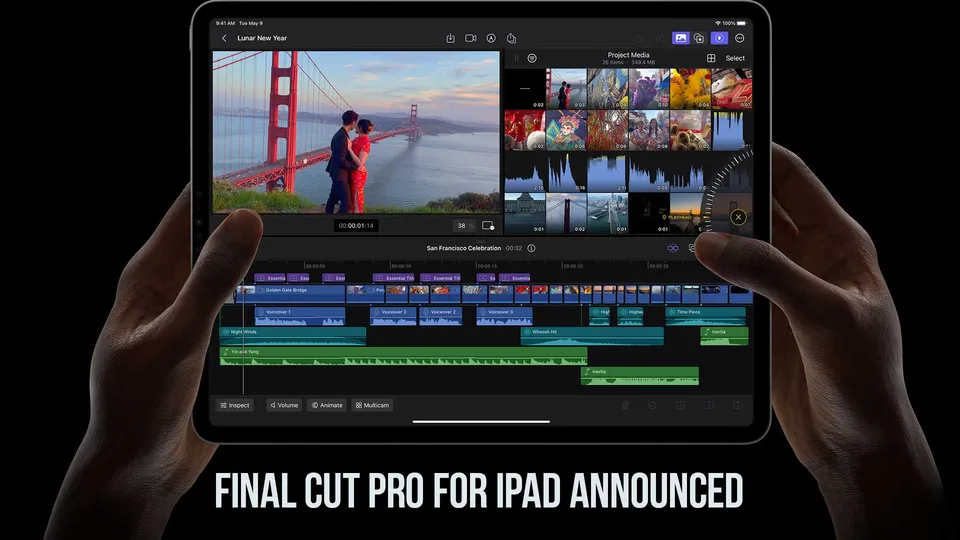
Final Cut Pro for iPad is no longer just a 2023 announcement. It is now part of Apple's current creator-app strategy, and the practical question is whether iPad editing fits your real workflow better than starting and finishing everything on a Mac.
Quick Answer
Updated June 2, 2026: Final Cut Pro for iPad makes the most sense for mobile creators, social video, travel edits, quick selects, rough cuts, and touch-first workflows. It is less compelling if your work depends on a desktop plug-in stack, complex media management, heavy multicam finishing, or final delivery on a calibrated desktop setup.
The practical rule
Use iPad first when you want to shoot, review, sketch, cut, caption, or assemble quickly away from a desk.
Use Mac first when the project needs heavy storage, third-party workflows, detailed color/audio finishing, or repeated client revisions.
If you are new to the app, start with the broader How to Learn Final Cut Pro path first. If you are choosing between Apple and Adobe editing tools, compare Final Cut Pro vs Premiere Pro before buying into either workflow.
What Changed Since the Announcement
When Apple announced Final Cut Pro for iPad, the headline was simple: Final Cut Pro had moved from a Mac-only editor into a touch-first iPad workflow. The original page treated that as a new product moment.
The current story is different. Apple now presents Final Cut Pro on iPad alongside Final Cut Pro on Mac and Apple Creator Studio, so the buying decision is less about novelty and more about how you want to work across devices.
The touch-first tools still matter: Apple Pencil interaction, jog-wheel style timeline control, Live Drawing style markup, and on-device video editing can all make short-form and field work feel faster than a traditional desk setup.

Who Final Cut Pro for iPad Fits
Final Cut Pro for iPad fits creators who already think in quick projects: YouTube Shorts, Reels, vertical client clips, travel recaps, school projects, simple product demos, and mobile-first social posts.
It also fits editors who want to review footage, organize a story, make a first pass, or rough cut outside the studio. That can be useful even if the final polish happens later on a Mac.
It is a weaker fit for editors who depend on specialized Mac-only plug-ins, complex folder-based media handoffs, detailed audio routing, or a large external display environment. Those are not beginner problems, but they are real production constraints.
A Practical iPad Editing Workflow
Use the iPad version as a focused project space. Import a small, well-defined set of clips, mark the best moments, assemble the primary story, add simple titles or captions, and export a review version.
Do not start your first iPad project with a massive camera-card dump. The app is easiest to judge when the project scope is clear and the deliverable is short enough to finish.
For creators who shoot iPhone HDR or iPad footage, color management still matters. If your clips are HDR, review the companion iPhone HDR footage in Final Cut Pro guide before exporting to YouTube or handing the edit to someone else.
Mac vs iPad
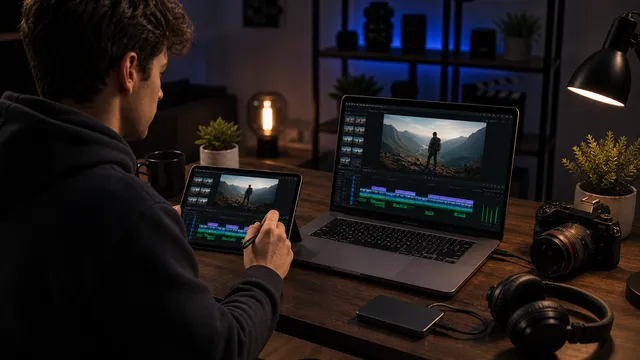
The Mac version remains the better fit for long-form projects, repeat client work, large media libraries, advanced desktop accessories, plug-in-heavy setups, and projects that need Motion or Compressor nearby.
The iPad version wins when direct interaction matters. If you like touching clips, sketching over footage, working with Apple Pencil, or editing from a small mobile kit, the iPad can feel more immediate.
The cleanest answer is not either-or. Use the iPad where portability and speed matter, and use the Mac where repeatable finishing, storage, and collaboration matter.
Pricing and Availability
Apple currently presents Final Cut Pro for iPad through its current Final Cut Pro and Apple Creator Studio pages. Because software pricing and plan packaging can change, check Apple's current page before buying or recommending it to a client or student.
Apple lists device requirements on the current Final Cut Pro page. As of this refresh, Final Cut Pro for iPad requires iPadOS 18.6 or later and a supported iPad model, including iPads with Apple silicon or listed newer iPad models.
If you are eligible for education pricing, compare the current Apple Creator Studio student offer with the standalone Final Cut Pro buying path in the Final Cut Pro student discount guide.
Limits to Understand First
The biggest mistake is assuming the iPad version should behave exactly like the Mac version. It should not. The iPad interface is designed around touch, Apple Pencil, portability, and a smaller screen.
That design can be a strength for quick edits and a limitation for complex finishing. Before moving a recurring workflow to iPad, test project transfer, storage, exports, color handling, captions, and any tools you rely on every week.
If you already own a Mac and are building a professional editing setup, do one paid or trial-size project before deciding the iPad version is the center of your workflow.
Getting Started
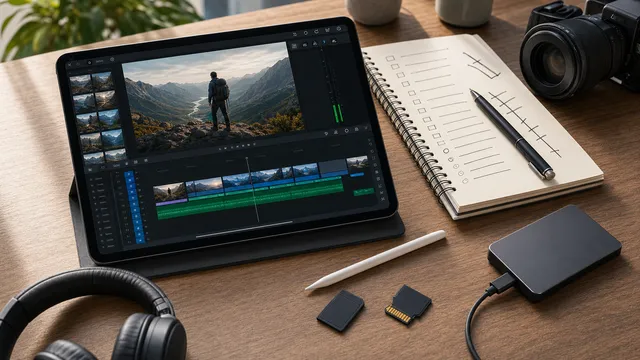
Start with one small project and one delivery target. A 30-second social clip, a 60-second talking-head edit, or a simple travel sequence is enough to test the interface honestly.
Build the edit on iPad, export it, watch it on another device, and write down what slowed you down. Then decide whether the next project should stay on iPad or move to Mac.
For YouTube delivery, use the current YouTube bitrate settings guide after export. iPad editing still ends with the same practical delivery question: does the final file look right where people will actually watch it?
Sources Checked
This refresh checked Apple's current Final Cut Pro page, the Apple Creator Studio page, Apple's Final Cut Pro for iPad Creator Studio guide, and Apple's Final Cut Pro ecosystem page.
Final Cut Pro for iPad FAQ
Is Final Cut Pro for iPad a replacement for Final Cut Pro on Mac?
Not for every editor. It can replace the Mac version for some short-form and mobile-first projects, but the Mac version remains better for large libraries, plug-ins, storage-heavy work, and detailed finishing.
Who should use Final Cut Pro for iPad?
It is best for mobile creators, social video editors, students, travel projects, rough cuts, selects, and creators who want a touch-first editing surface.
Can I use Final Cut Pro for iPad for YouTube videos?
Yes, especially for short and medium projects. For longer YouTube workflows, test export settings, storage, captions, color, and whether you still need Mac finishing.
Does Final Cut Pro for iPad require a subscription?
Apple currently presents Final Cut Pro for iPad through current app and Apple Creator Studio options. Check Apple's current pricing page before buying because plan packaging can change.
What should I test before using it for client work?
Test project transfer, media storage, export quality, color handling, captions, revision workflow, and any Mac-only tools or plug-ins you normally depend on.
About the Author
Joseph Nilo is a video editor, motion designer, and creator-focused educator who works across Final Cut Pro, Premiere Pro, After Effects, and real production workflows for creators and businesses.