
A video looks normal in the editor.
After export, the blacks turn gray and the highlights lose contrast.
Another file goes the opposite direction. Shadows crush and white detail disappears.
The grade may be fine. The signal range may be interpreted twice—or not at all.
Full and limited range use different numeric mappings for black, white, and chroma.
When every stage agrees, both can produce a correct picture.
When one stage guesses wrong, the image changes. This is one of the core causes covered in Why Colors Change After Export.
Quick answer
In a common 8-bit full-range signal, black maps to code value 0 and white to 255.
In a common 8-bit limited-range Y′CbCr signal, nominal black maps to 16 and nominal white to 235. Chroma commonly uses 16–240 with neutral near 128.
For 10-bit limited-range video, the nominal values scale to 64–940 for luma and 64–960 for chroma.
Limited range is also called:
- video range;
- legal range;
- studio range;
- narrow range; or
- TV range.
Full range is also called:
- data range;
- PC range; or
- extended range in some interfaces.
The names vary. The important question is whether the source, codec, metadata, editor, export, player, output device, and display agree on the mapping.
At a glance
| Signal example | Nominal black | Nominal white | Common use |
|---|---|---|---|
| 8-bit full | 0 | 255 | RGB/computer/data workflows |
| 8-bit limited Y′ | 16 | 235 | Conventional video Y′CbCr |
| 10-bit full | 0 | 1023 | High-precision data/full workflows |
| 10-bit limited Y′ | 64 | 940 | Professional and consumer video |
Chroma uses a different nominal range from luma in limited-range Y′CbCr.
These values describe common digital mappings, not one complete delivery specification.
What full range means
Full range uses the available numeric interval from minimum to maximum.
For unsigned 8-bit samples, that is commonly 0–255.
For unsigned 10-bit samples, it is commonly 0–1023.
Full range is common in:
- RGB images;
- computer graphics;
- still-image pipelines;
- screen capture;
- some camera codecs;
- some RAW developments;
- VFX interchange; and
- application-internal processing.
Full range does not mean wider gamut
Range defines how code values map between black and white.
Gamut defines the color primaries and reproducible color volume.
A file can be:
- Rec. 709 full range;
- Rec. 709 limited range;
- Rec. 2020 full range; or
- Rec. 2020 limited range.
Full range does not mean HDR
A full-range Rec. 709 SDR file is still SDR.
HDR depends on transfer function, color space, mastering, metadata, and display behavior.
What limited range means
Limited-range video reserves code values outside the nominal black-to-white interval.
For common 8-bit luma:
- 16 is nominal black;
- 235 is nominal white;
- values below 16 provide footroom; and
- values above 235 provide headroom.
For common 10-bit luma:
- 64 is nominal black;
- 940 is nominal white.
Nominal does not mean the file cannot contain other values
Camera overshoots, processing, filters, and legal headroom can place values outside the nominal range.
Those values may be:
- retained;
- clipped;
- compressed;
- rolled off; or
- rejected by a delivery specification.
Do not assume every value above 100 IRE is useless.
Inspect the image and delivery requirement.
“Legal” is contextual
A broadcaster may impose formal limits for luma, chroma, gamut, and excursions.
A file being marked limited range does not prove it passes every legal-delivery test.
The range flag is one part of compliance.
Why limited range exists
Video range has historical and engineering reasons.
Reserved values provide room for:
- synchronization and legacy signal behavior;
- processing overshoot;
- filter ringing;
- superblack and superwhite excursions;
- conversion tolerance; and
- standardized video-system mapping.
Modern digital video still uses these conventions for compatibility.
Limited range is not “throwing away dynamic range”
The camera’s captured scene range is encoded into the chosen signal mapping.
A limited-range signal uses fewer integer code values between nominal black and white than a full-range signal at the same bit depth.
That does not automatically reduce the sensor’s dynamic range or make the picture visually flatter.
Correctly decoded limited-range black becomes display black. Correctly decoded nominal white becomes display white.
Bit depth, transfer function, noise, and encoding quality determine how well the range is represented.
Luma and chroma use different ranges
Y′CbCr stores a luma-like component plus two color-difference components.
In common 8-bit limited-range video:
- Y′ nominally uses 16–235;
- Cb and Cr nominally use 16–240; and
- neutral chroma is centered near 128.
In common 10-bit limited range:
- Y′ nominally uses 64–940;
- Cb and Cr nominally use 64–960; and
- neutral chroma is centered near 512.
Do not apply the luma white value to chroma, and do not confuse range with chroma subsampling.
RGB and Y′CbCr ranges are not interchangeable labels
A codec can store RGB or Y′CbCr.
The expected mapping depends on:
- pixel format;
- codec specification;
- container metadata;
- application behavior; and
- output path.
The same word—“full”—can appear in an application while referring to a source override, sequence processing mode, export flag, or hardware output mapping.
Read the context.
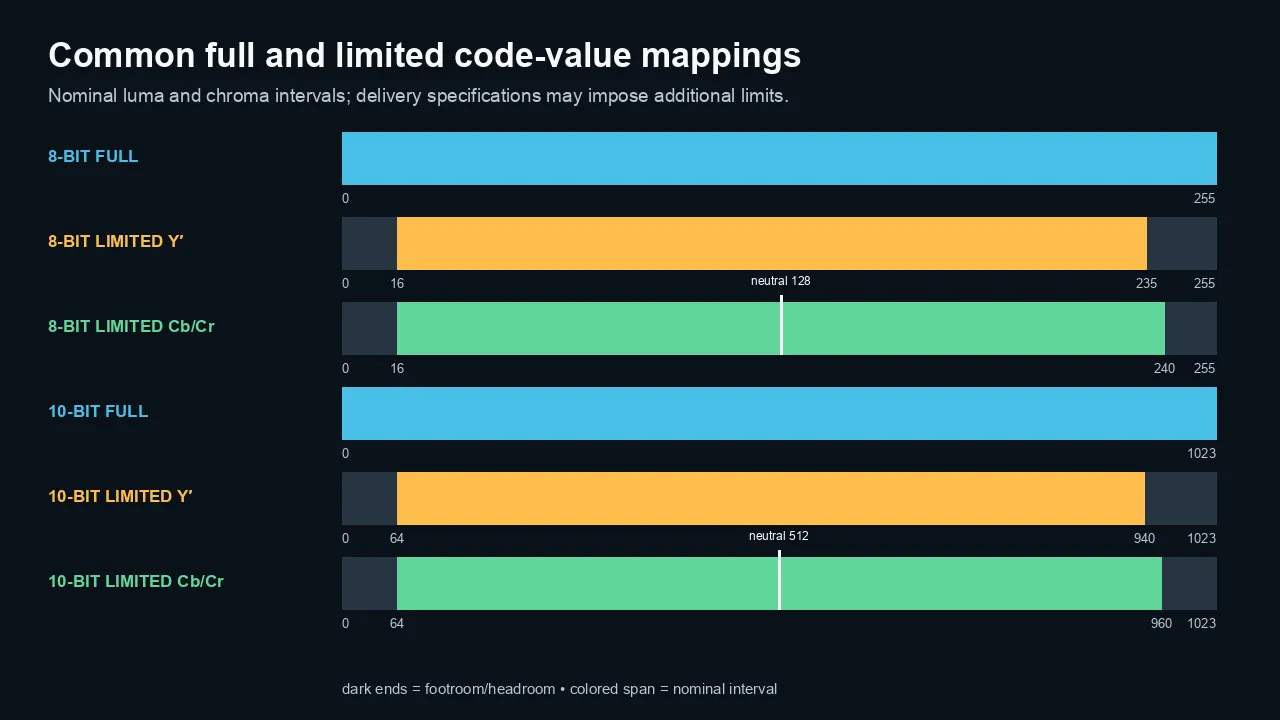
Common nominal full- and limited-range code values for 8-bit and 10-bit luma and chroma.
How range mismatches change the image
A mismatch occurs when values are mapped using the wrong assumption.
Limited-range signal treated as full without proper expansion
Values that were intended to map 16 to black and 235 to white may display as dark gray and light gray inside a 0–255 output interval.
The image looks:
- washed out;
- low contrast;
- lifted in the blacks; and
- weak in highlights.
Full-range signal treated as limited and expanded
Values near 0 and 255 may be interpreted as excursions outside nominal 16–235, then clipped or stretched.
The image can show:
- crushed blacks;
- clipped highlights;
- excessive contrast; and
- lost shadow or highlight detail.
Double expansion
A limited-range signal may be expanded to full once, then expanded again because another stage still believes it is limited.
This creates severe crushing and clipping.
Double compression
A full-range image may be compressed into limited-range values more than once.
Blacks lift and whites dim.
Chroma mismatch
Incorrect range handling can also alter saturation and hue behavior because chroma values are centered and scaled differently.
The error may look like a contrast problem and a color problem at the same time.
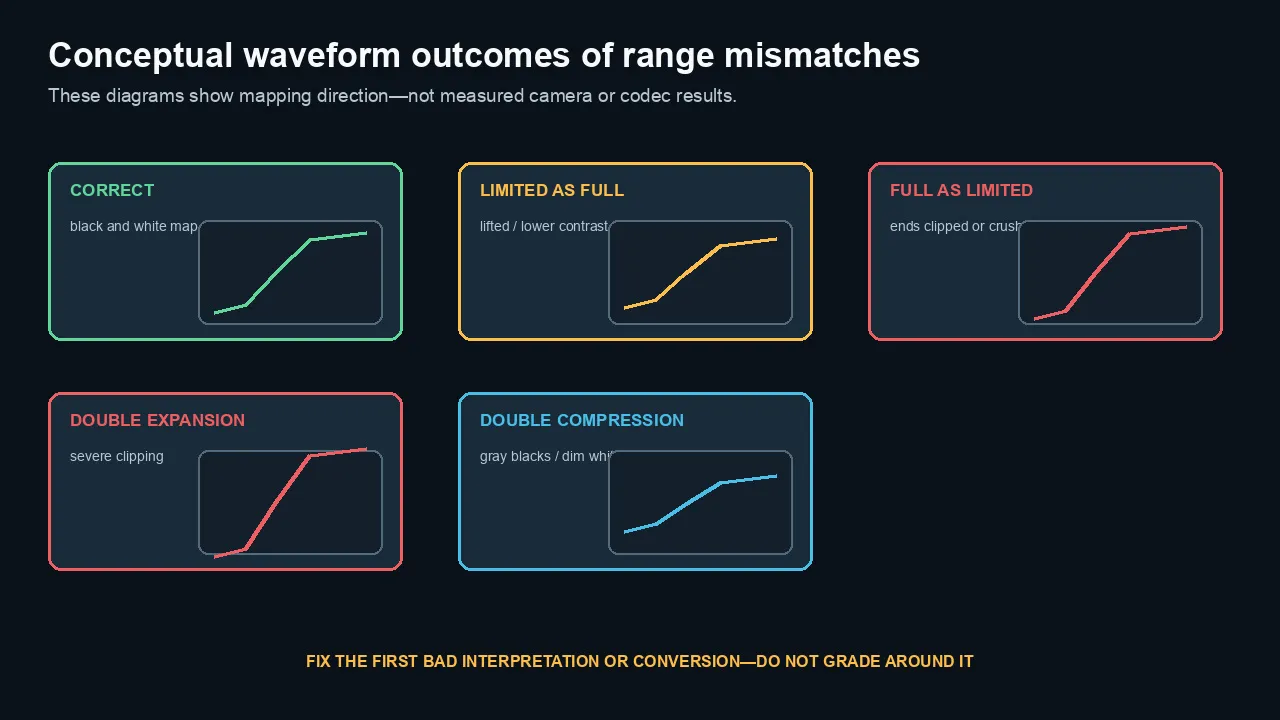
Conceptual mapping outcomes—not measured camera or codec tests—show how range mismatches can lift, crush, expand, or compress an image.
RGB, Y′CbCr, and containers
The filename extension does not reveal the range.
A MOV, MP4, or MXF file can contain several pixel formats and range conventions.
Common pixel-format clues
FFmpeg labels often include:
yuv420p— usually limited-range planar Y′CbCr unless color-range metadata says otherwise;yuvj420p— legacy label associated with full-range JPEG-style Y′CbCr;gbrp— planar RGB;yuv422p10le— 10-bit planar 4:2:2 with range reported separately; andrgb24— packed RGB.
Do not infer range solely from yuv420p.
Inspect color_range and validate behavior.
Container tags can be absent or ignored
A file may contain a full/limited flag.
An application may:
- honor it;
- infer from codec and pixel format;
- override it;
- ignore it; or
- use a format-specific default.
That is why the same file can look different in two players.
Conversion versus retagging
Changing a range flag tells the next stage how to interpret existing values.
A range conversion remaps the values.
If the pixels are full but the flag is wrong, correcting the flag may be enough.
If the pixels were actually scaled into the wrong interval, a mathematical conversion is required.
Do not retag converted values or convert correctly tagged values a second time.
Where range errors enter the pipeline
Camera and recorder
A camera may record:
- legal-range Y′CbCr;
- full-range Y′CbCr;
- RGB;
- RAW; or
- a manufacturer-specific Log implementation.
The setting can vary by codec and output port.
Capture card
HDMI and SDI devices may negotiate RGB or Y′CbCr and full or limited range.
The source, capture card, driver, application, and display must agree.
A mismatch at capture becomes baked into the recorded image if the values are scaled incorrectly.
Screen recording
Desktop capture often begins as full-range RGB.
Conversion to a delivery Y′CbCr codec must map the range once and tag it correctly.
NLE source interpretation
An editor may automatically interpret range from codec metadata.
Manual overrides can fix bad metadata—or create a double conversion.
Sequence and rendering
Many NLEs process internally in floating point or high precision.
The timeline may not be constrained to 16–235 internally.
The range becomes critical at source decoding, monitoring, scopes, render codecs, output hardware, and export.
Export
An export preset chooses:
- codec;
- pixel format;
- bit depth;
- color metadata;
- range mapping; and
- container flags.
A high-quality codec does not protect against a wrong range conversion. A repeatable Adobe Media Encoder workflow can help you isolate export settings from source interpretation.
Player and display
The application, GPU, operating system, HDMI output, television input label, and display range setting can each alter interpretation.
A television may offer settings such as:
- Auto;
- Low/Normal/Limited;
- High/Full;
- PC; or
- Black Level.
Names are not standardized.
Use a known test pattern.
How to diagnose a range problem
Re-import the export
Place the export over the timeline in the same project.
Compare:
- waveform;
- RGB parade;
- vectorscope;
- black point;
- white point; and
- clipped detail.
If the re-import matches but an external player differs, investigate playback and display interpretation.
Inspect metadata with ffprobe
ffprobe -v error \

  -select_streams v:0 \

  -show_entries stream=codec_name,pix_fmt,color_range,color_space,color_transfer,color_primaries \

  -of default=noprint_wrappers=1 \

  "input.mov"
Common color_range results include:
tv— limited/video range;pc— full/data range; orunknown.
Unknown does not prove the file is wrong. The codec may define a default or the application may infer one.
Use a proper range chart
Include:
- code-value patches below nominal black;
- nominal black;
- near-black steps;
- midgray;
- near-white steps;
- nominal white;
- headroom values; and
- chroma patches.
Check the chart through the entire output path.
Watch the scopes’ scale
A waveform may display:
- 0–100 IRE;
- 0–255;
- 16–235;
- 0–1023;
- 64–940; or
- floating-point values.
The display scale does not necessarily reveal the underlying file-range flag.
Know what the scope is normalizing.
Compare one stage at a time
- Source file in a trusted inspector
- Source decoded in the NLE
- Timeline before effects
- Timeline after grade
- Render or preview file
- Export re-imported
- External player
- Hardware output
- Display
The first stage where values change identifies the problem area.
How to correct it safely
Correct metadata when the pixels are right
If values are already full range but mislabeled limited, correct the interpretation flag without scaling them again.
If values are already limited but mislabeled full, correct the interpretation.
Verify on scopes.
Convert values when the pixels are mapped wrong
A true full-to-limited conversion maps the intended black and white points into the target interval.
A true limited-to-full conversion expands them.
Use a color-management or range-conversion tool that understands bit depth and clipping.
Preserve headroom deliberately
Before expanding limited-range footage, decide how to treat values above nominal white and below nominal black.
Options include:
- preserve;
- roll off;
- scale;
- clip; or
- grade selectively.
Do not throw away recoverable highlight detail by habit.
Avoid manual contrast compensation
Lowering contrast to fix a double expansion changes the grade but does not correct the mapping cleanly.
Fix the signal path.
Verify the target specification
For web video, a conventional limited-range Y′CbCr delivery is normal.
For VFX exchange or RGB image sequences, full-range data may be expected.
For broadcast, follow the exact technical specification rather than a generic preset name.
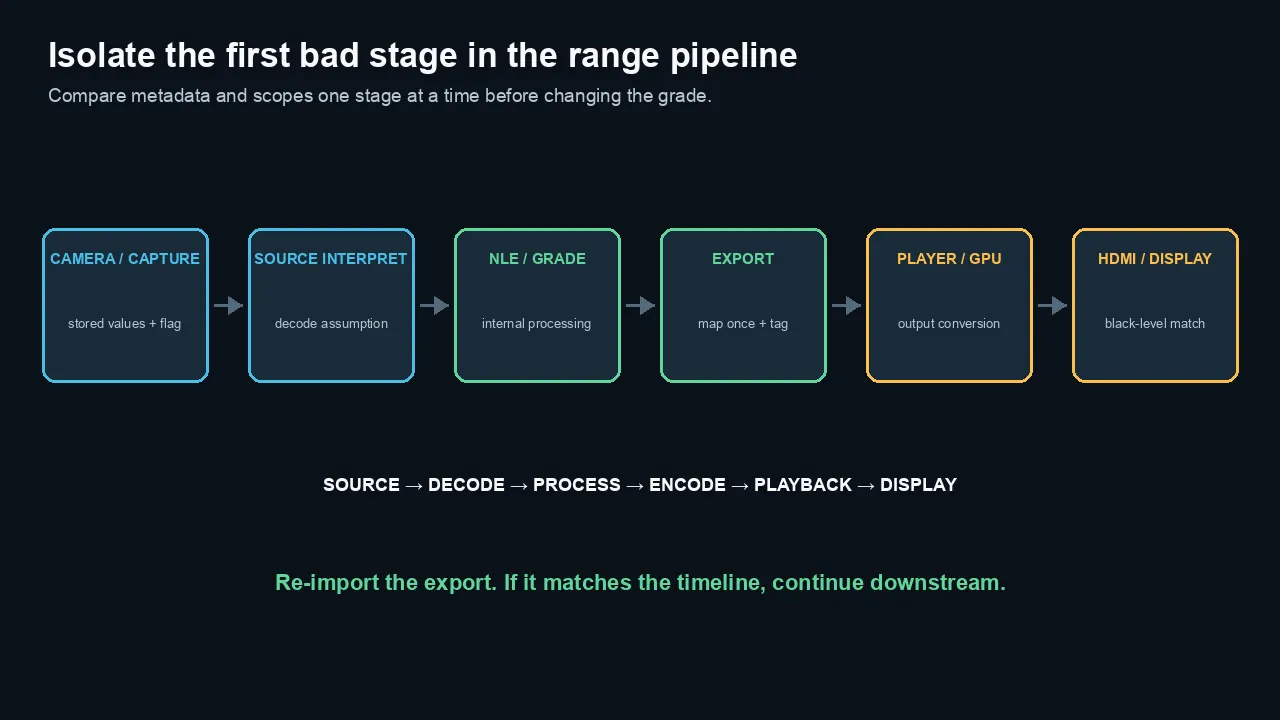
Find the first bad interpretation or conversion by comparing metadata and scopes one stage at a time.
Recommendations by workflow
Camera originals
Leave correctly interpreted originals unchanged.
Override range only when metadata or application behavior is demonstrably wrong.
Log footage
Do not confuse a flat Log curve with a range mismatch.
Apply the correct Log/gamut interpretation and output transform before diagnosing black and white levels.
Screen recordings
Capture and preserve full-range RGB when practical.
Map once into the chosen delivery format and inspect colored text and black levels afterward. For phone footage, use the appropriate Premiere Pro or Final Cut Pro HDR workflow before judging range.
YouTube and web
Use a correctly tagged standard delivery file.
YouTube will re-encode the upload. Verify the processed stream, not only the local upload file.
Broadcast
Use the delivery specification’s required codec, range, gamut, transfer function, audio, and legal limits.
Check luma and chroma excursions with appropriate scopes and QC tools.
Client review
Send a reference file and define the viewing path for final color approval.
A client television set to the wrong HDMI black level can make a correct master look wrong.
VFX and graphics
Use the range expected by the compositor and interchange format.
Document whether plates, mattes, and image sequences are full-range linear, log, or video-range encoded.
Common myths
Myth 1: Limited range has worse dynamic range
No.
It uses a different code-value mapping. Sensor dynamic range and transfer function are separate.
Myth 2: Full range always looks better
No.
Correct interpretation looks better. A full-range file in a limited-range pipeline can look wrong.
Myth 3: Video should always stay between 16 and 235
No.
Those are common nominal 8-bit luma values. Headroom, bit depth, HDR, RGB, and delivery specifications change the context.
Myth 4: Values above 100 IRE should always be clipped
No.
They may contain recoverable highlight information. Handle them according to the grade and delivery spec.
Myth 5: Legal range means broadcast legal
Not by itself.
Broadcast legality can also include chroma, gamut, excursions, audio, captions, and codec requirements.
Myth 6: A metadata flag always fixes the picture
No.
It fixes interpretation only when the stored values are already correct.
Myth 7: Washed-out video is always a gamma shift
No.
Range mismatch, HDR/SDR errors, and wrong source interpretation can look similar.
Myth 8: Scopes automatically reveal the flag
No.
Scopes display decoded values in the application’s chosen scale. Inspect metadata and the signal path too.
The practical bottom line
Full and limited range can both carry a correct image.
The failure happens when one stage maps the values differently from the others.
Do not fix gray blacks with a random contrast adjustment.
Inspect the source, range metadata, scopes, export, player, and display. Correct the first bad interpretation or conversion, then verify the complete path.
Frequently asked questions
What is the difference between full and limited video range?
Full range commonly uses the complete numeric interval, such as 0–255 in 8-bit. Limited-range video commonly maps nominal luma black to 16 and white to 235, leaving footroom and headroom.
Is limited range the same as legal range?
The terms are often used interchangeably in software, but a limited-range flag does not prove a file meets every broadcast legal requirement.
Why does limited-range video look washed out?
It looks washed out when nominal 16–235 values are displayed inside a 0–255 interval without the intended expansion, or when the signal is compressed twice.
Why do blacks crush when I export?
The values may be expanded twice, full-range media may be interpreted as limited, or the display’s black-level setting may not match the output.
Should Rec. 709 video be full or limited range?
Conventional Y′CbCr Rec. 709 delivery commonly uses limited range. Full-range Rec. 709 can also exist in specific RGB, camera, VFX, or computer workflows. Follow the format and destination.
What are 16–235 video levels?
They are the common nominal 8-bit luma code values for limited-range video: 16 for black and 235 for white. Chroma commonly uses 16–240.
What are the 10-bit legal values?
Common nominal 10-bit limited values are 64–940 for luma and 64–960 for chroma, with neutral chroma near 512.
Can I fix a range mismatch with a LUT?
A dedicated mathematical transform can remap ranges, but a creative LUT is not the first choice. Correct source interpretation or metadata when possible and verify clipping behavior.
How do I check whether a file is full or limited range?
Use MediaInfo or ffprobe to inspect range metadata, then verify the decoded black and white points on scopes with a known chart.
Does YouTube expect limited range?
Common H.264/Y′CbCr web delivery uses limited range. YouTube re-encodes uploads, so provide a correctly tagged standard file and inspect the processed result.
Official sources checked
- Microsoft: About YUV Video
https://learn.microsoft.com/en-us/windows/win32/medfound/about-yuv-video
- Microsoft: Recommended 8-Bit YUV Formats for Video Rendering
- Microsoft: 10-Bit and 16-Bit YUV Video Formats
https://learn.microsoft.com/en-us/windows/win32/medfound/10-bit-and-16-bit-yuv-video-formats
- Adobe Premiere: Lumetri scopes
- Apple Final Cut Pro: Check video levels and use video scopes
https://support.apple.com/en-gb/guide/final-cut-pro/ver761cad58/mac
- FFmpeg pixel-format and color-range documentation
https://ffmpeg.org/ffprobe.html

About the Author
Joseph Nilo has been working professionally in all aspects of audio and video production for over twenty years. His day-to-day work finds him working as a video editor, 2D and 3D motion graphics designer, voiceover artist and audio engineer, and colorist for corporate projects and feature films.