
Digital video looks simple on the surface.
A camera records a picture. An editor cuts it. An export becomes a file.
Underneath, several systems must agree about where detail is stored, how color is represented, when frames appear, how the image is compressed, and how a display should render it.
When one property is misunderstood, the wrong fix follows.
A soft screen recording gets blamed on resolution when chroma sampling is the problem.
An HDR clip gets a gamma LUT when it needed correct source interpretation and tone mapping.
A small camera file stutters because the codec is difficult to decode, not because the drive is slow.
This guide is a map of the complete pipeline.
Quick answer
Digital video combines six technical layers:
- Spatial sampling — resolution and chroma detail.
- Tonal and color encoding — bit depth, gamut, transfer function, matrix, and range.
- Time — frame rate, shutter, timestamps, and cadence.
- Compression — codec, GOP structure, bitrate, and encoder decisions.
- Post-production media — originals, proxies, optimized media, cache, and masters.
- Delivery and display — export tags, platform processing, tone mapping, player behavior, and the screen.
No one setting controls “quality.”
The best workflow protects the source, uses an appropriate working representation, creates a robust master, and makes delivery copies for known destinations.
Explore the detailed guides
YouTube Compression
Learn why complex footage falls apart after platform processing and what to control before upload.
Read the guide: YouTube CompressionChroma Subsampling
See what 4:2:0, 4:2:2, and 4:4:4 preserve in camera, editing, keying, and delivery workflows.
Read the guide: Chroma SubsamplingColors After Export
Diagnose whether the file, its color tags, the viewer, or the display changed the image.
Read the guide: Colors After ExportH.264 vs HEVC vs ProRes
Choose delivery or production codecs without confusing compression efficiency with edit performance.
Read the guide: H.264 vs HEVC vs ProResVariable vs Constant Frame Rate
Understand timestamps, phone recordings, audio drift, and safe VFR-to-CFR conversion.
Read the guide: Variable vs Constant Frame RateLong-GOP vs All-Intra
Compare temporal compression, random access, storage, decode load, and generational behavior.
Read the guide: Long-GOP vs All-IntraFull vs Limited Video Range
Prevent lifted blacks, crushed highlights, and range mismatches across software and displays.
Read the guide: Full vs Limited Video RangeProxies vs Optimized Media
Use originals, proxies, intermediates, cache, and masters for the job each actually solves.
Read the guide: Proxies vs Optimized MediaBitrate vs Codec
Separate the compression strategy from its data budget and make better export decisions.
Read the guide: Bitrate vs CodecHDR to SDR Tone Mapping
Convert HLG or PQ to Rec. 709 deliberately without double transforms or misleading previews.
Read the guide: HDR to SDR Tone Mapping24 vs 30 vs 60 FPS
Choose motion cadence, shutter, slow motion, and delivery frame rate from the destination backward.
Read the guide: 24 vs 30 vs 60 FPSThe digital-video pipeline
A useful model is:
scene → sensor/capture → encoded camera file → decoder → color-managed working space → edit/effects → master → delivery encode → platform transcode → player → display
Every arrow can change the image.
Capture
The camera decides or records:
- sensor readout;
- exposure;
- white balance;
- frame size;
- frame rate;
- shutter;
- bit depth;
- chroma sampling;
- transfer function;
- color gamut;
- codec;
- bitrate;
- GOP structure; and
- metadata.
Decode and interpretation
The NLE reads the codec and assigns meaning to the values.
It must know:
- color primaries;
- transfer function;
- Y′CbCr matrix;
- range;
- timebase;
- orientation;
- pixel aspect; and
- camera-specific Log or RAW behavior.
Processing
The application can convert the source into a high-precision working space, then apply:
- color correction;
- scaling;
- compositing;
- titles;
- keying;
- stabilization;
- noise reduction;
- retiming; and
- effects.
Mastering and delivery
The final timeline becomes a high-quality master and one or more delivery versions.
A platform may encode the upload again into several adaptive streams.
Display
The player, operating system, GPU, output connection, display profile, screen mode, and room affect the final appearance.
The file is not the last stage.
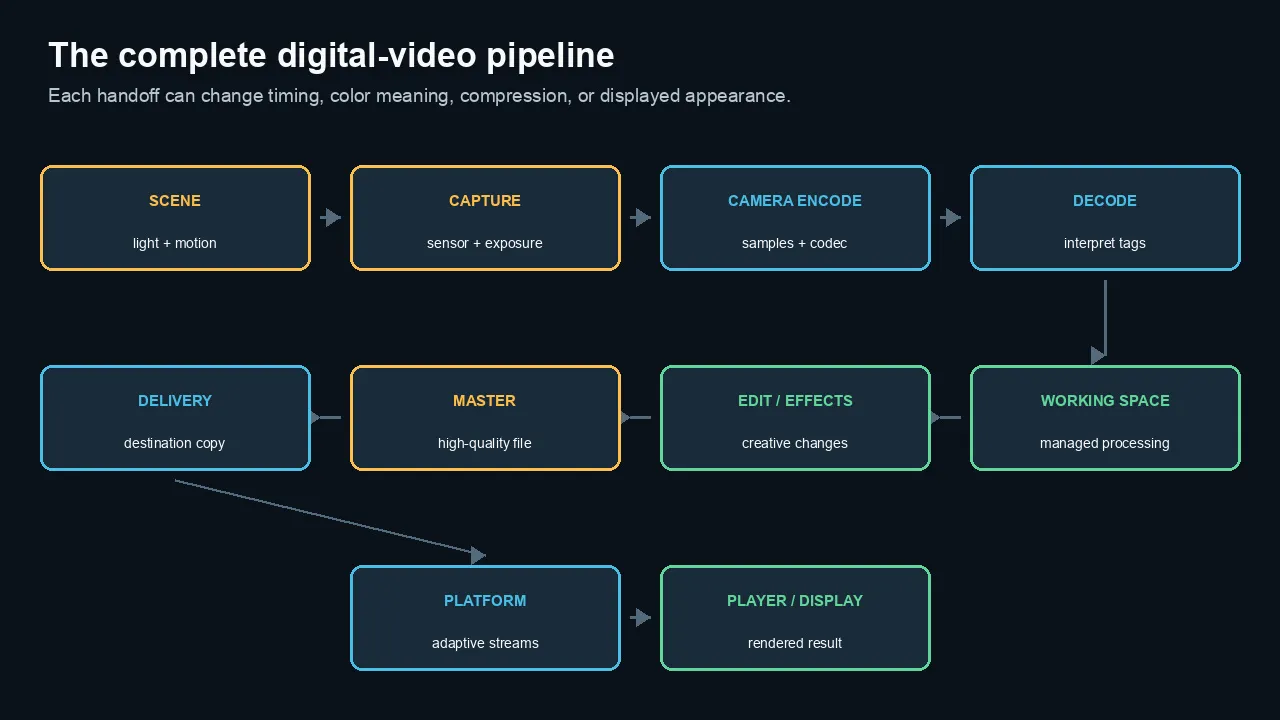
The digital-video pipeline runs from the scene through capture, interpretation, editing, mastering, delivery, platform processing, and display.
Spatial detail: resolution and chroma
Resolution
Frame size describes the luma pixel grid:
- 1920×1080;
- 3840×2160;
- 4096×2160; or
- another raster.
More pixels can preserve more spatial detail when the lens, sensor, focus, processing, and bitrate support it.
Upscaling creates more output pixel positions. It does not create original camera detail.
Chroma subsampling
Video often stores color-difference channels at lower spatial resolution than luma.
- 4:4:4 keeps full chroma resolution.
- 4:2:2 halves horizontal chroma resolution.
- 4:2:0 halves chroma resolution horizontally and vertically.
Natural camera footage can survive 4:2:0 well.
Fine colored text, hard saturated edges, keys, graphics, and narrow color selections reveal the difference more readily.
Detailed guide: 4:2:0 vs 4:2:2 vs 4:4:4: Chroma Subsampling Explained
Resolution and chroma are separate
A 4K 4:2:0 file has a larger luma grid than a 1080p 4:4:4 file.
Neither label alone declares a universal winner.
Choose based on subject and stage.
Tonal precision: bit depth
Bit depth controls how many code values each stored sample can represent.
- 8-bit: 256 values per channel
- 10-bit: 1,024 values per channel
- 12-bit: 4,096 values per channel
Higher bit depth helps:
- gradients;
- Log transforms;
- HDR;
- heavy grading;
- keying;
- VFX; and
- repeated calculations.
It does not automatically create more sensor dynamic range.
A clean 8-bit image can look excellent when little correction is required.
Detailed guide: 8-Bit vs 10-Bit Video: When the Difference Actually Matters
Bit depth and chroma are separate
Ten-bit 4:2:0 has more tonal precision than 8-bit 4:2:2.
Eight-bit 4:2:2 has more spatial chroma detail.
Ten-bit 4:2:2 combines both advantages when the workflow supports it.
Color meaning: gamut, transfer, matrix, and range
Code values need context.
Primaries and gamut
Primaries define the color system, such as Rec. 709 or Rec. 2020.
Gamut describes the colors represented within that system.
Transfer function
The transfer function describes how encoded values relate to light or display output.
Examples include:
- Rec. 709-family SDR behavior;
- HLG;
- PQ; and
- camera Log curves.
Matrix
Y′CbCr matrix coefficients describe how RGB relates to luma and color-difference components.
Rec. 601, Rec. 709, and Rec. 2020 use different matrices.
Range
Full and limited range map black, white, and chroma into different numeric intervals.
A wrong range interpretation can lift blacks or crush the image.
Detailed guides:
- Full vs Limited Video Range
- Why Colors Change After Export
- HDR to SDR Tone Mapping
- Log Video Format Reference Guide
Tags and transforms
Metadata tells the application how to interpret the signal.
A transform changes the values from one space to another.
Retagging and conversion are not the same operation.
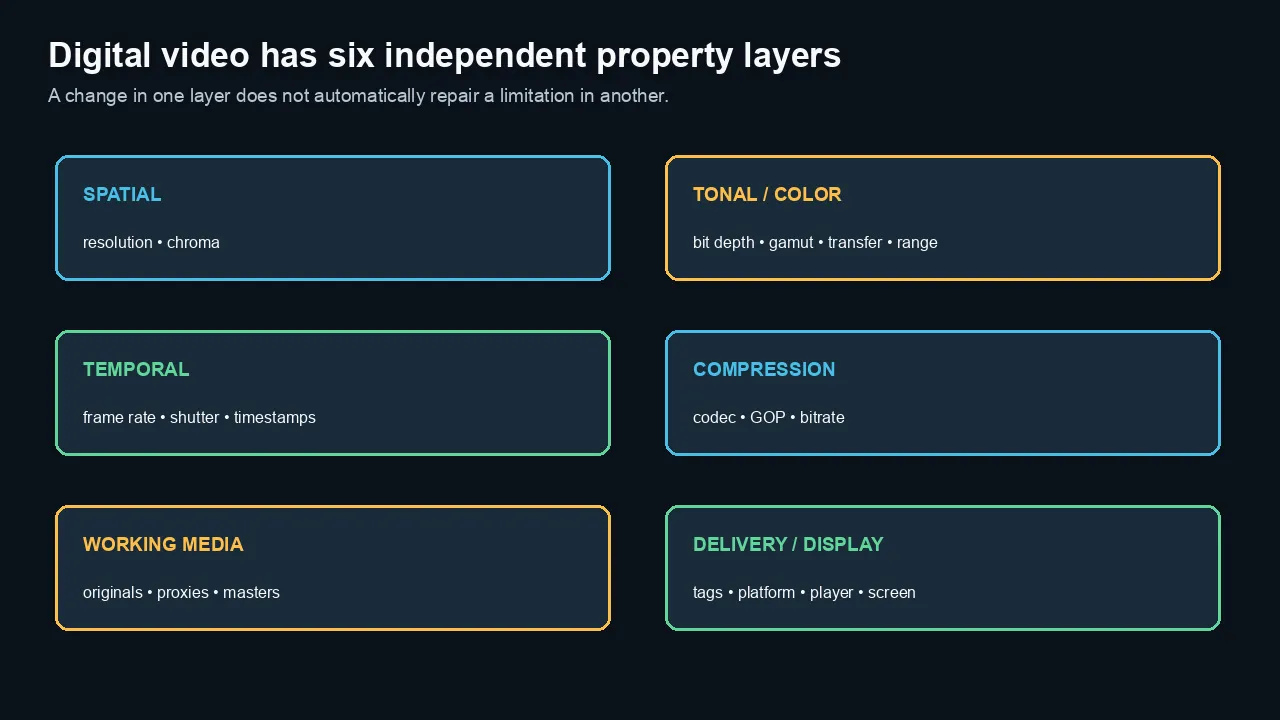
Spatial, tonal, temporal, compression, working-media, and delivery properties are related but remain distinct.
Time: frame rate, shutter, and timestamps
Frame rate
Frame rate controls how often motion is sampled.
- 24/23.976 for conventional narrative cadence
- 25/50 for 50 Hz and PAL-derived workflows
- 30/29.97 for general presentation and web
- 60/59.94 for fast motion, HFR delivery, and slow motion
Detailed guide: 24 vs 30 vs 60 FPS
Shutter
Shutter controls exposure duration per frame.
A 180-degree starting point is approximately:
1 ÷ (2 × frame rate)
Frame cadence and motion blur work together.
Timestamps
Constant frame rate uses regular intervals.
Variable frame rate allows frame duration to change while timestamps preserve real time.
VFR can work correctly, but unstable timestamps or software assumptions can create sync and editing problems.
Detailed guide: Variable vs Constant Frame Rate
Timecode
Timecode labels frames for production and editorial reference.
Drop-frame timecode skips selected frame numbers. It does not remove video frames.
Compression: codec, GOP, and bitrate
Codec
The codec defines the compression and decoding method.
- H.264 emphasizes broad delivery compatibility.
- HEVC provides greater compression efficiency in many modern workflows.
- ProRes emphasizes high-quality production and frame-independent editing.
Detailed guide: H.264 vs HEVC vs ProRes
GOP structure
Long-GOP media predicts across frames to save data.
All-Intra compresses frames independently for predictable access.
A small Long-GOP file can require more decode work than a large intraframe file.
Detailed guide: Long-GOP vs All-Intra
Bitrate
Bitrate is the data budget per second.
Codec supplies the strategy. Bitrate supplies the budget.
Resolution, frame rate, bit depth, chroma, image complexity, and encoder quality determine how far that budget goes.
Detailed guide: Bitrate vs Codec
Platform compression
YouTube and other services create new delivery streams.
Fine detail, grain, foliage, particles, fast motion, gradients, and small screen text can exceed the stream’s practical budget.
Detailed guide: Why YouTube Compression Ruins Some Videos
Editing media: originals, proxies, and optimized files
Originals
Edit source media directly when it is responsive and supported.
This is the simplest workflow.
Proxies
Proxies are lightweight linked representations for editorial work.
They reduce resolution, bitrate, decode cost, or transfer size.
Optimized media
Optimized or full-resolution intermediate media provides edit-friendly high-quality decoding for finishing, application exchange, and repeated generations.
Cache and render files
Cache stores processed timeline results.
It is not a source-media replacement.
Detailed guide: Proxies vs Optimized Media vs Transcoding
Metadata matters
A useful transcode preserves:
- timecode;
- duration;
- frame rate;
- audio channels;
- color tags;
- orientation;
- asset identity; and
- relink information.
Mastering, delivery, and platform processing
Master
A master is a high-quality rendering of the finished timeline.
For many Mac-centered live-action workflows, an appropriate ProRes profile is practical.
Keep camera originals and project sources too.
Delivery copy
A delivery file serves a device, platform, or client requirement.
It may use H.264, HEVC, or another specified codec.
Do not use one small delivery file as the only archive.
Export color
A correct export needs:
- intended output color space;
- correct bit depth;
- correct range;
- correct metadata;
- one HDR/SDR conversion path; and
- a viewer/display test.
Platform transcode
Upload bitrate and codec describe the source given to the platform.
The viewer may receive another codec, resolution, and bitrate through adaptive streaming.
Display
A reference monitor and a consumer phone do not share one viewing environment.
Create a correct, tagged master and test representative destinations.
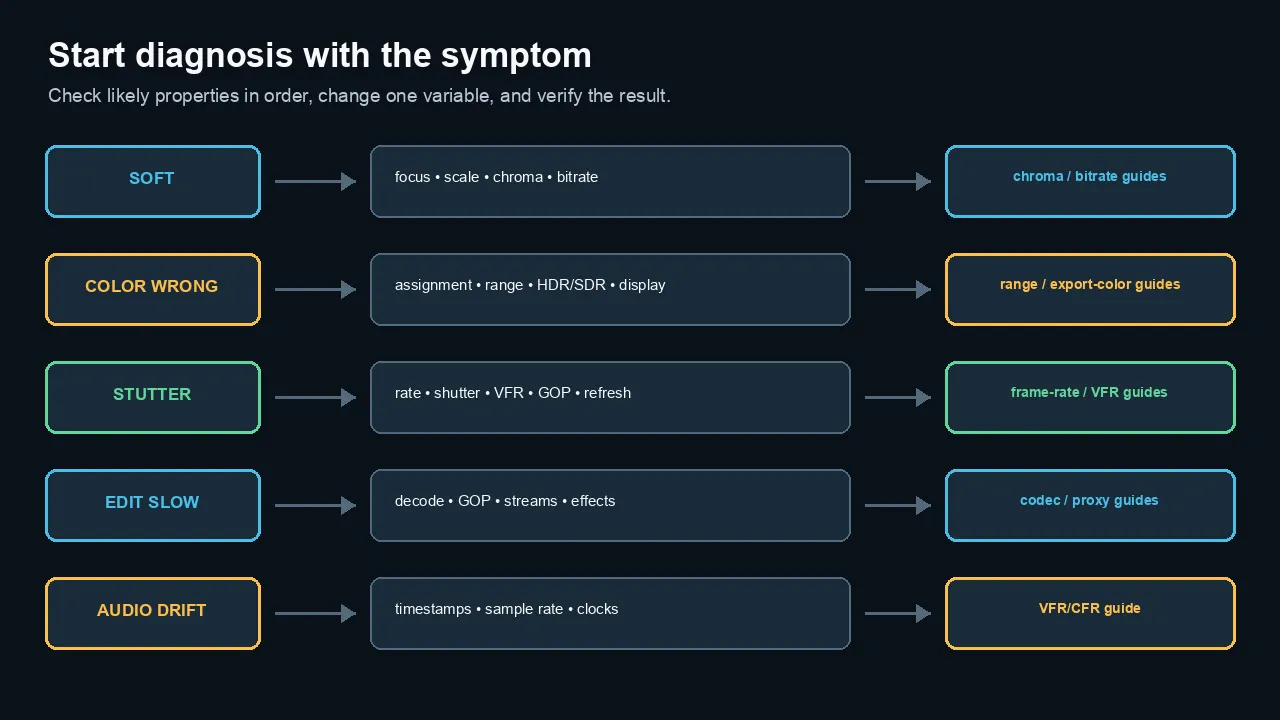
Begin with the symptom, check the most likely properties, and change one variable at a time.
How to diagnose a video problem
Do not change several properties at once.
If the image is soft
Check:
- source focus;
- scaling;
- playback resolution;
- chroma sampling;
- codec/bitrate;
- platform processing; and
- display size.
If motion stutters
Check:
- frame rate;
- shutter;
- VFR timestamps;
- dropped frames;
- GOP decode load;
- storage;
- display refresh; and
- interpolation.
If colors change
Check:
- source assignment;
- primaries;
- transfer function;
- matrix;
- range;
- HDR/SDR conversion;
- output tags;
- viewer gamma; and
- display profile.
If editing is slow
Check:
- codec profile;
- hardware decoder;
- Long-GOP structure;
- number of streams;
- resolution/frame rate;
- storage throughput;
- effects; and
- proxy/optimized options.
If audio drifts
Check:
- VFR/timestamps;
- dropped frames;
- sample rate;
- separate hardware clocks;
- duration;
- frame-rate interpretation; and
- capture discontinuities.
Reproduce and isolate
- Protect the originals.
- Choose a short repeatable section.
- Record the current properties.
- Change one variable.
- Compare the image, scopes, timing, and performance.
- Keep notes.
A practical production checklist
Before capture
- Choose delivery frame rate and color space.
- Confirm camera bit depth and chroma mode.
- Select codec and bitrate for the project.
- Test card speed, heat, and recording time.
- Check shutter and flicker.
- Plan Log/HDR transforms.
- Slate and synchronize external audio.
Before editing
- Back up originals.
- Inspect codec, pixel format, frame rate mode, audio, and color tags.
- Test native playback.
- Generate proxies only where useful.
- Normalize unstable VFR media.
- Verify color interpretation.
- Confirm timeline frame rate and output space.
Before finishing
- Reconnect originals/high-quality media.
- Check reframes, focus, noise, keys, and effects.
- Review scopes.
- Verify HDR/SDR and range handling.
- Render a hard test section.
Before delivery
- Export a high-quality master.
- Create destination-specific derivatives.
- Re-import the export.
- Inspect metadata.
- Check desktop, browser, phone, and platform playback.
- Preserve master, sources, project, and documentation.
Digital-video glossary
| Term | Practical meaning |
|---|---|
| Bit depth | Numeric precision per stored sample |
| Bitrate | Encoded data used per second |
| Chroma subsampling | Spatial resolution of color-difference channels |
| Codec | Method used to represent and compress media |
| Color primaries | Coordinates defining a color system’s red, green, and blue |
| Container | File structure holding video, audio, and metadata |
| CFR/VFR | Constant or variable frame timing |
| Gamut | Set or volume of colors represented |
| GOP | Group of temporally related encoded pictures |
| HDR | Video designed for a wider luminance/color display system |
| Luma/chroma | Brightness-like structure and color-difference information |
| Matrix | Relationship between RGB and Y′CbCr components |
| Proxy | Lightweight linked editing representation |
| Range | Numeric mapping of black, white, and chroma values |
| Transfer function | Relationship between encoded values and light/display output |
Practical workflow guides
Use these focused guides for common application and delivery tasks.
The practical bottom line
Digital video is not one quality slider.
It is a chain of decisions.
Capture enough information for the work. Interpret it correctly. Edit in a stable representation. Master at high quality. Deliver what the destination supports. Verify the actual playback path.
When a problem appears, identify the stage before changing the image.
That is the difference between troubleshooting and guessing.
Frequently asked questions
What is digital video?
Digital video is a timed sequence of encoded image samples, usually paired with audio and metadata. Its appearance depends on spatial sampling, color encoding, frame timing, compression, processing, delivery, and display.
What determines video quality?
Source optics and exposure, resolution, bit depth, chroma sampling, color management, frame rate, shutter, codec, bitrate, encoder quality, editing, generation count, delivery, and display all contribute.
Is resolution the most important video setting?
No. Resolution matters, but focus, motion, noise, bit depth, chroma, codec, bitrate, color management, and delivery can be more limiting.
What is the difference between codec and container?
A codec defines how video or audio is encoded. A container such as MOV or MP4 holds streams and metadata. The extension does not identify the codec by itself.
Why is 10-bit video useful?
Ten-bit provides 1,024 code values per channel, which helps gradients, Log/HDR transforms, strong grading, keying, and repeated processing remain smoother.
Why can a small video file be hard to edit?
Long-GOP compression saves storage by predicting across frames. Random access may require several frames to be decoded. Hardware support and storage also affect performance.
Why does video look different after export?
The file may have wrong source/output color interpretation, metadata, range, or HDR conversion. It may also be correct while another viewer or display uses a different rendering path.
Should I always use proxies?
No. Edit originals when they are responsive. Use proxies for lightweight editorial work and optimized/full-resolution intermediates when full-quality decode or interchange requires them.
Why does YouTube reduce video quality?
YouTube re-encodes uploads into adaptive streams. Complex motion, grain, foliage, gradients, noise, and small text can exceed the stream’s data budget.
What is the best video format?
There is no universal format. Choose capture, editing, mastering, and delivery formats separately based on quality, performance, compatibility, storage, and destination.
Official sources and standards
The hub should cite detailed support pages rather than reproduce a large standards bibliography.
Use primary references from:
- ITU-R Rec. BT.709, BT.2020, BT.2100, and relevant reports;
- Apple ProRes, ProRes RAW, HDR, and Final Cut documentation;
- Adobe Premiere color-management and encoding documentation;
- Microsoft digital Y′CbCr and pixel-format documentation;
- Google/YouTube encoding and HDR documentation;
- FFmpeg documentation for media inspection and timing; and
- current camera-manufacturer specifications where examples are used.

About the Author
Joseph Nilo has been working professionally in all aspects of audio and video production for over twenty years. His day-to-day work finds him working as a video editor, 2D and 3D motion graphics designer, voiceover artist and audio engineer, and colorist for corporate projects and feature films.