
Your grade looks right in the editor.
You export the file and open it in another app.
The blacks lift. The image looks washed out. Saturation shifts. Highlights feel harsher. Or the entire picture becomes darker than the timeline.
The export may be wrong.
But the file may also be correct while the two viewers display it differently.
That distinction matters. If you correct a viewing difference by changing the pixels, you can make the actual master wrong.
Quick answer
Video usually changes after export for one of five reasons:
- The two viewers use different display gamma or viewing assumptions.
- The source, sequence, or export is assigned the wrong color space.
- Color metadata is missing, incomplete, or interpreted differently.
- HDR media is being viewed or exported through an SDR path without the intended tone mapping.
- Full-range and limited-range levels are being interpreted incorrectly.
Start by comparing the timeline and export in a controlled, color-managed path.
Do not begin with a compensation LUT.
Confirm the source interpretation, sequence output space, export tags, signal range, and viewer settings first.
First decide whether the file or the viewer changed
Ask one question before touching the grade:
Did the encoded pixel values change incorrectly, or did the viewing system render the same signal differently?
Those are separate failures.
Signs of a viewing difference
- The file looks different in QuickTime Player, a browser, VLC, and the NLE.
- The scopes remain consistent when the exported file is re-imported.
- The image changes when you move the same file between displays.
- A client screenshot looks different from your calibrated monitor.
- The mismatch is mostly in midtone contrast rather than clipping or hue.
Signs of an actual file or interpretation problem
- The export looks wrong when re-imported into the same color-managed sequence.
- Scopes show clipped highlights or crushed shadows that were not present before export.
- HDR footage is tagged or interpreted as Rec. 709.
- A Rec. 709 file is tagged as HLG, PQ, P3, or Rec. 2020.
- The range flag changes from full to limited or limited to full.
- A source clip was manually overridden to the wrong camera color space.
Re-import the export
The fastest first test is simple:
- Export a short representative section.
- Re-import that file into the same project.
- Place it above the original timeline.
- Disable any duplicate output transform or LUT.
- Compare the image and scopes.
If the re-imported export matches closely, the encode may be fine. The external viewer is probably using a different display path.
If it does not match, inspect the export color space, source interpretation, range, and bit depth.
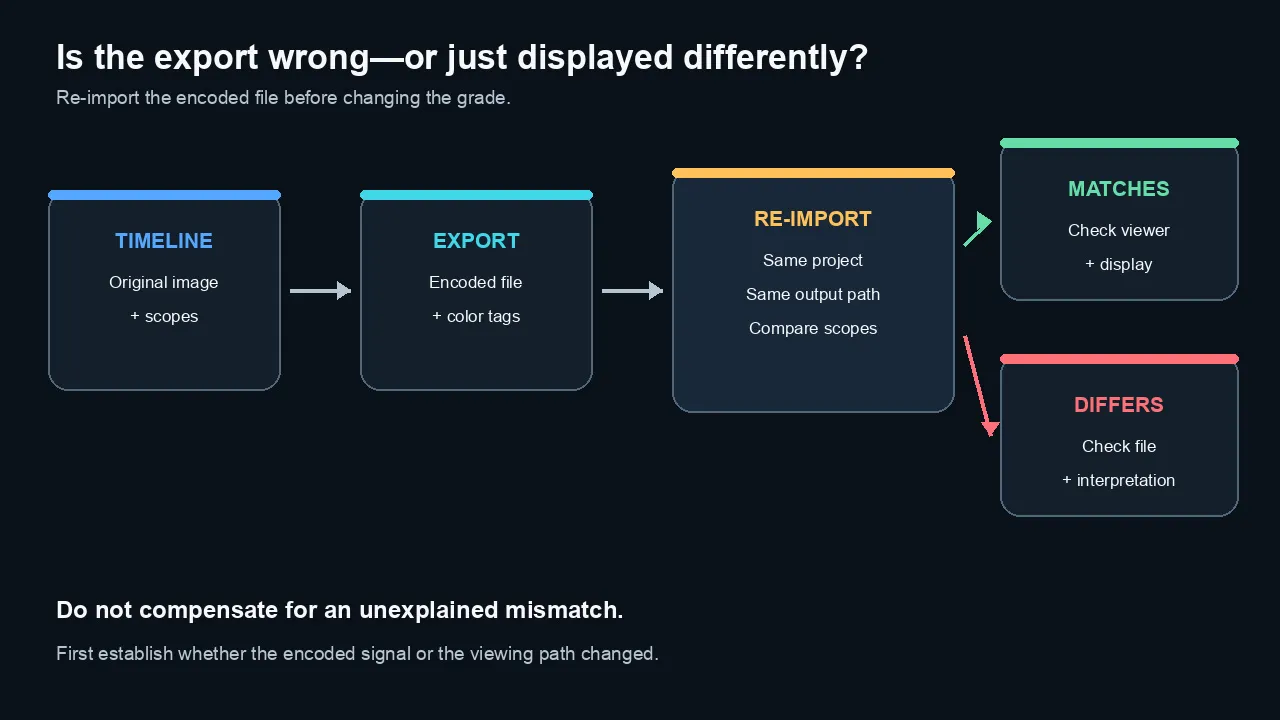
Re-import the encoded file before changing the grade. A match points toward the viewer or display; a mismatch points toward the file or its interpretation.
Why Rec. 709 can look different across viewers
People often speak of Rec. 709 as if it describes one complete viewing system.
It does not.
A video workflow includes:
- color primaries;
- a transfer function;
- a Y′CbCr matrix;
- signal range;
- display behavior;
- viewing environment; and
- application color management.
Two applications can read the same Rec. 709-tagged file and still display different midtone contrast.
The familiar QuickTime gamma shift
Adobe’s current Premiere documentation describes a viewer-gamma difference among common viewing conditions.
Premiere provides three Viewer Gamma choices:
- 2.4 Broadcast
- 2.2 Web
- 1.96 QuickTime
Changing Viewer Gamma changes how Premiere previews the image.
It does not change the exported signal.
That control is useful because an editor can grade while anticipating the main viewing environment.
It is not a promise that every browser, phone, television, and desktop app will match.
There is no universal desktop reference environment
A broadcast reference workflow controls the monitor, transfer function, ambient light, and output hardware.
Consumer playback does not.
A viewer may watch on:
- a bright phone outdoors;
- a MacBook with automatic brightness;
- a Windows display with an unmanaged app;
- a television in Vivid mode;
- an HDR display showing an SDR file;
- a browser with its own color-management behavior; or
- a dim room with the display set too bright.
You cannot force all of those environments to match.
You can create a correctly tagged master, grade for the intended audience, and test representative playback paths.
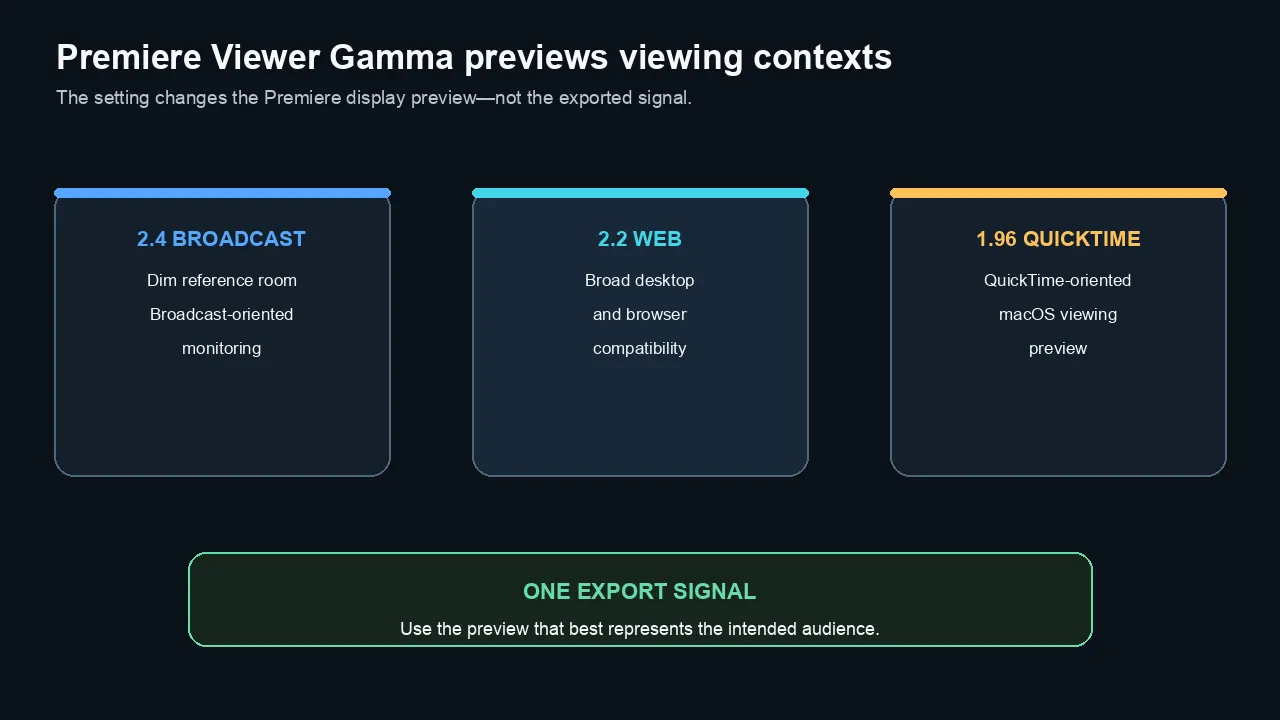
Premiere's 2.4, 2.2, and 1.96 Viewer Gamma choices preview different viewing contexts. They do not change the exported signal.
What color metadata actually does
A video file needs enough information for software to interpret its values.
Important properties include:
- Color primaries — the chromaticity coordinates used to define red, green, and blue.
- Transfer function — how encoded values relate to light or display brightness.
- Y′CbCr matrix — how RGB and luma/chroma components relate.
- Range — full/data range or limited/video range.
Apple’s AVFoundation documentation treats the primaries, transfer function, and matrix as separate color properties.
That separation is important.
A file labeled “Rec. 709” in a simplified inspector may still contain several distinct fields behind that label.
Tags do not automatically change pixels
Changing metadata can alter how a viewer interprets the same stored values.
That is different from converting the image.
If a Rec. 709 file is falsely tagged as HLG, the viewer may apply an HDR interpretation to SDR values.
If HLG footage is merely retagged as Rec. 709 without a proper conversion, the image can remain wrong.
Retagging and color conversion are not interchangeable.
Containers may not carry every camera detail reliably
Camera RAW formats often carry strong metadata about the source color space.
QuickTime, MP4, and MXF can carry standard color properties, but they may not fully describe every vendor-specific Log and gamut combination.
A transcode can also lose camera-specific interpretation metadata.
That is why Log footage sometimes needs a manual source-color-space assignment even when the codec and container are recognized.
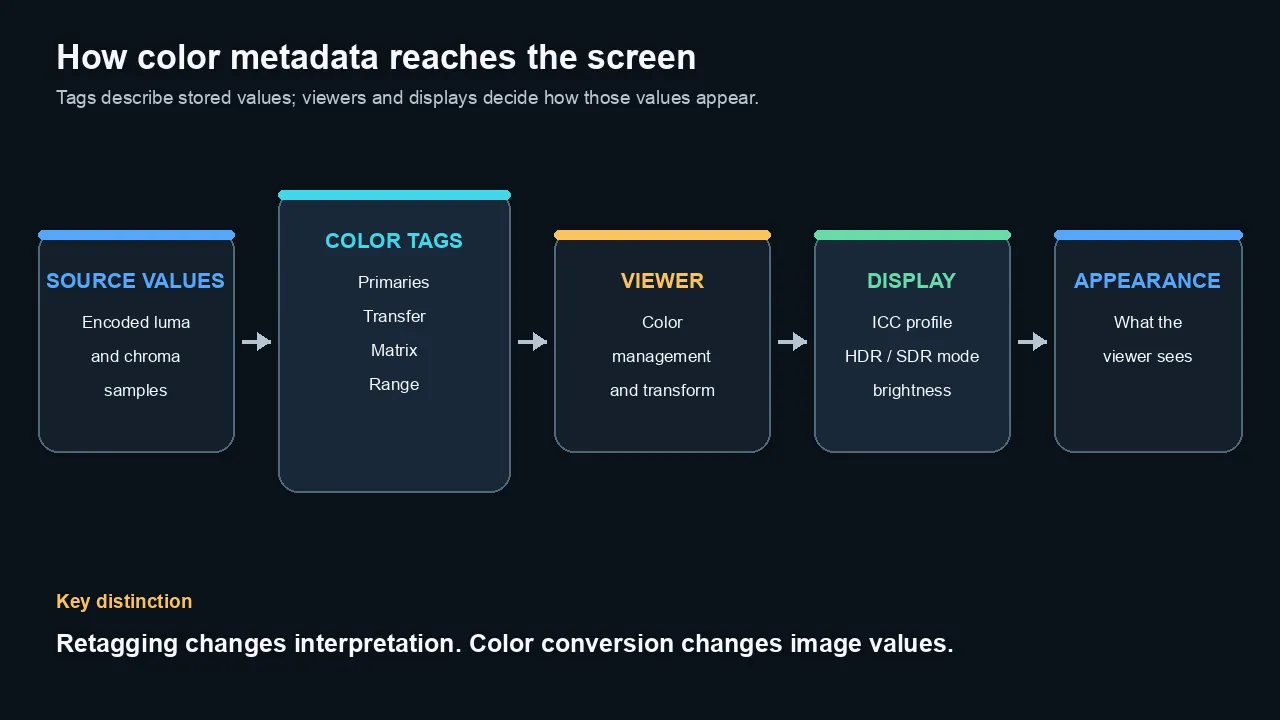
Color metadata describes how source values should be interpreted; the viewer, display profile, and screen still determine the final appearance.
Source interpretation mistakes
A color-managed project depends on correct input information.
If the editor thinks a clip is Rec. 709 when it is actually HLG, PQ, S-Log3, C-Log, V-Log, or Apple Log, every later decision begins from the wrong image.
Common interpretation failures
- iPhone HLG footage is treated as ordinary Rec. 709.
- Log footage is transformed twice: once automatically and once with a LUT.
- A camera LUT is applied to footage that the NLE already converted.
- A Rec. 709 clip is manually assigned a wide-gamut Log space.
- A screen recording tagged Display P3 is forced into sRGB or Rec. 709 without a controlled conversion.
- A transcoded file loses the original camera-space metadata.
Check the source before grading
For each unusual source type, record:
- camera or capture device;
- codec and container;
- bit depth and chroma sampling;
- color primaries;
- transfer function;
- matrix;
- range;
- camera Log/gamut setting; and
- whether the NLE applies an automatic transform.
Do not stack transforms until you understand the first one. For practical finishing context, see these color-grading techniques for Log footage.
A double transform can look contrasty and oversaturated.
A missing transform can look flat, washed out, or overbright.
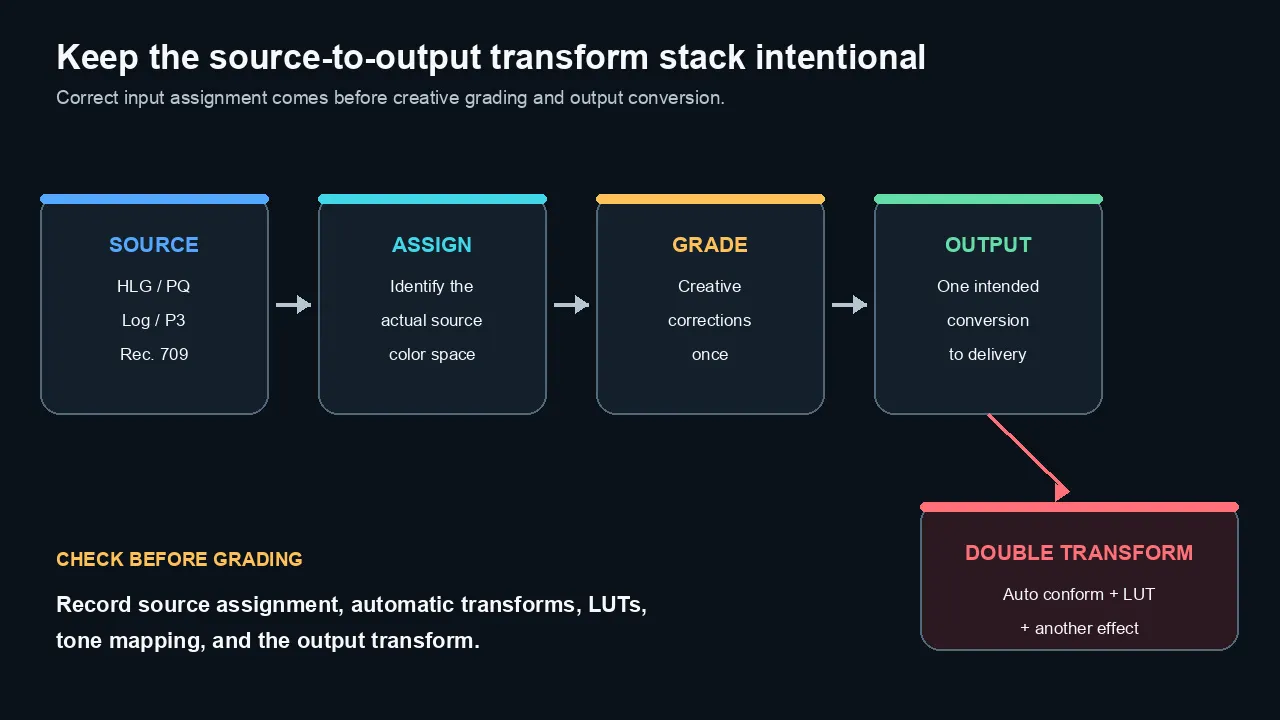
Identify the source first, grade once, and apply one intended output conversion. Record every automatic transform, LUT, and tone-mapping stage.
HDR and SDR mismatches
HDR media contains assumptions that an SDR Rec. 709 project does not share.
Common HDR transfer functions include:
- HLG
- PQ
A proper HDR-to-SDR conversion must compress brightness and often gamut into the smaller SDR output.
That process is tone mapping and gamut compression.
Why HDR footage can look washed out
If HLG or PQ values are displayed as if they were ordinary Rec. 709 values, the tonal curve is wrong.
The result may look:
- pale;
- low contrast;
- too bright;
- clipped;
- oversaturated in highlights; or
- inconsistent among clips.
Modern versions of Premiere and Final Cut Pro can automatically conform supported HDR media to an SDR sequence.
That is helpful, but you still need to verify:
- the source was identified correctly;
- the project output is actually Rec. 709 SDR;
- only one conversion is active;
- highlight roll-off is acceptable;
- saturated highlights remain believable; and
- the final export is tagged as intended.
Do not stack tone-mapping tools
Final Cut Pro warns that Color Conform and the legacy HDR Tools effect are additive.
Use one controlled conversion unless you have a specific reason to build a manual chain.
The same principle applies elsewhere.
Automatic tone mapping plus a conversion LUT plus a manual HDR effect can create a second or third transformation.
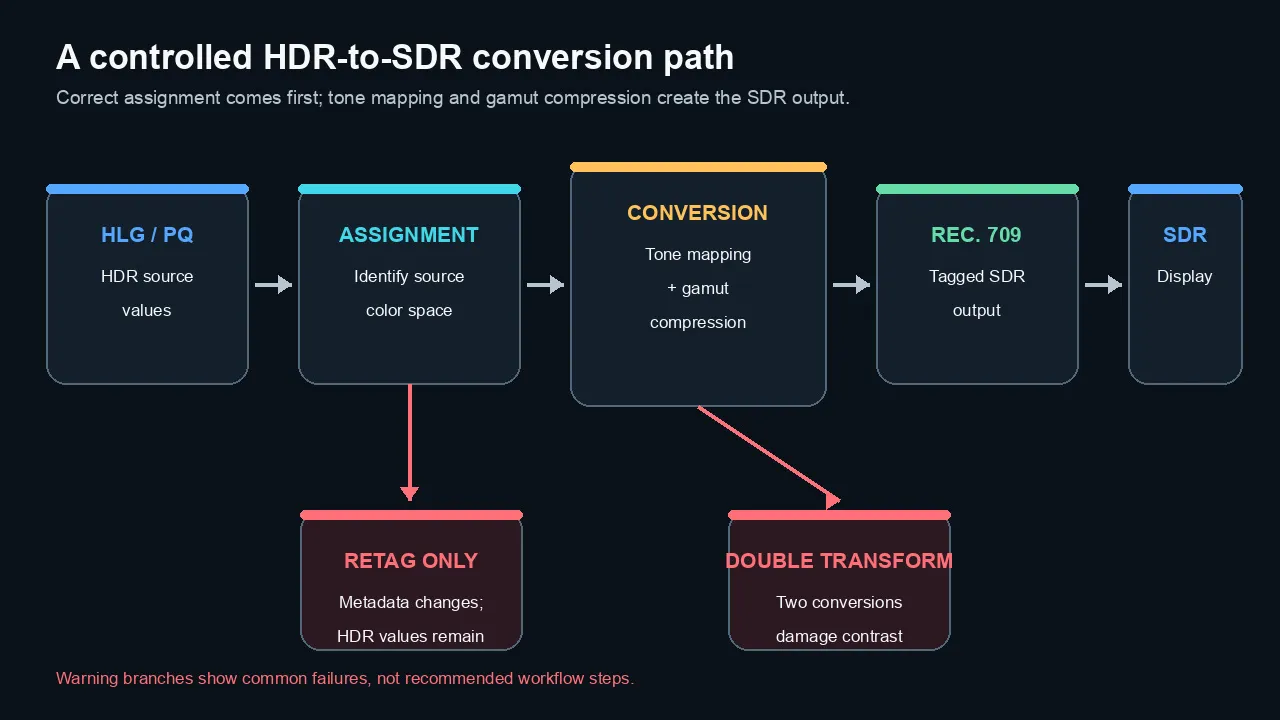
A controlled HDR-to-SDR path assigns the source correctly, then applies one intentional tone-mapping and gamut-compression stage.
Full-range and limited-range mistakes
Signal range errors can look like a gamma problem.
They are not the same.
In a common 8-bit limited-range Y′CbCr signal:
- nominal black is code value 16;
- nominal white is 235; and
- chroma uses a nominal 16–240 range with neutral at 128.
Full-range 8-bit video commonly maps black to 0 and white to 255.
Limited interpreted as full
If limited-range values are stretched as though they were full range, the result can become too contrasty.
Blacks may crush and highlights may clip.
Full interpreted as limited
If full-range values are compressed as though they were limited, the result can look washed out.
Blacks lift and whites lose intensity.
Range is not color gamut
A file can be:
- Rec. 709 full range;
- Rec. 709 limited range;
- Rec. 2020 full range; or
- Rec. 2020 limited range.
Range, gamut, transfer function, matrix, bit depth, and chroma sampling are separate properties.
Use scopes and metadata inspection together.
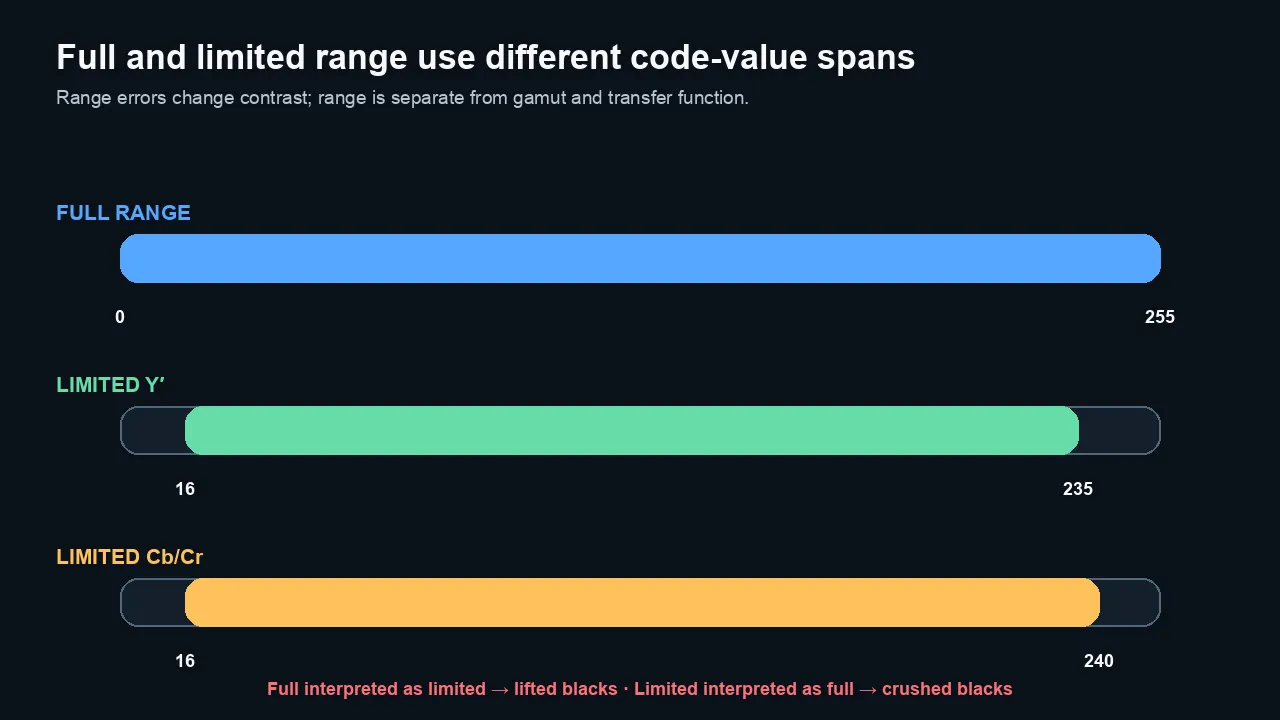
Full range commonly spans 0–255 in 8-bit video. Limited-range luma spans 16–235, while limited chroma spans 16–240.
Premiere, QuickTime, browsers, and client review
No single desktop player should be your only reference.
Premiere
Premiere’s Program Monitor is part of a color-managed editing environment.
Current Premiere versions expose Viewer Gamma so the editor can preview Broadcast, Web, or QuickTime-oriented viewing assumptions.
Remember: Viewer Gamma does not alter the export.
QuickTime Player
QuickTime Player participates in the macOS color-management path.
Its appearance can differ from a broadcast-oriented NLE preview because the viewer and display transform are not identical.
Use it as one representative consumer playback path, not as the only truth source.
Browsers and platforms
Browsers can apply color management, then a platform may decode a newly transcoded stream rather than your uploaded file.
YouTube, Vimeo, and social platforms create new versions.
A platform mismatch can therefore involve:
- your source export;
- platform transcoding;
- stream selection;
- browser color management;
- operating-system display management; and
- the physical display.
Client review
Ask clients to review through a defined path.
For important color approvals, specify:
- the file or review platform;
- browser or application;
- SDR or HDR mode;
- display brightness behavior;
- whether automatic tone or color features should be disabled; and
- whether the review is editorial or final color approval.
A phone screenshot sent through messaging is not a reliable color reference.
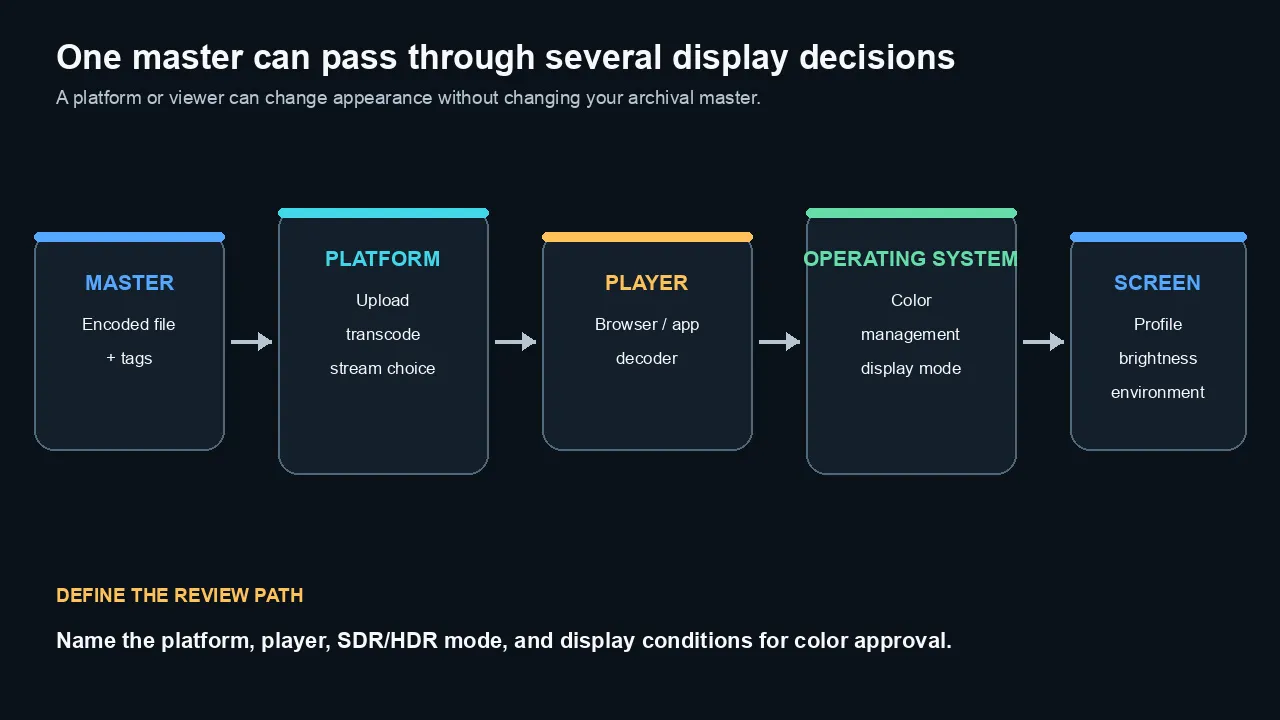
A master can pass through platform transcoding, player decoding, operating-system color management, and display settings before the viewer sees it.
A reliable export workflow
1. Choose the destination first
Decide whether the final master is:
- Rec. 709 SDR;
- Rec. 2100 HLG;
- Rec. 2100 PQ;
- P3; or
- another required delivery space.
2. Interpret every source correctly
Confirm Log, RAW, HDR, P3, and Rec. 709 media before grading.
3. Use one intentional working and output pipeline
Know where input transforms, tone mapping, LUTs, effects, and output transforms occur.
4. Monitor for the audience
For SDR web delivery, Adobe currently recommends considering a 2.2 Viewer Gamma preview.
For broadcast-oriented grading, 2.4 remains the broadcast reference choice in Adobe’s guidance.
Do not confuse the preview choice with a change to file encoding.
5. Export a high-quality short test
For repeatable test exports, build and inspect the preset in Adobe Media Encoder.
Use a section containing:
- skin;
- deep shadows;
- bright highlights;
- saturated colors;
- gradients; and
- graphics.
6. Re-import and compare
Check the file in the original project and on scopes.
7. Inspect metadata
Use MediaInfo, ffprobe, or an application inspector to check primaries, transfer, matrix, range, bit depth, and codec profile.
8. Test representative playback
Check at least:
- the NLE;
- one macOS or Windows player;
- a current browser;
- the intended platform after processing; and
- a representative phone or television.
9. Keep the master separate from review copies
Do not alter the archival master merely to match one uncontrolled viewer.
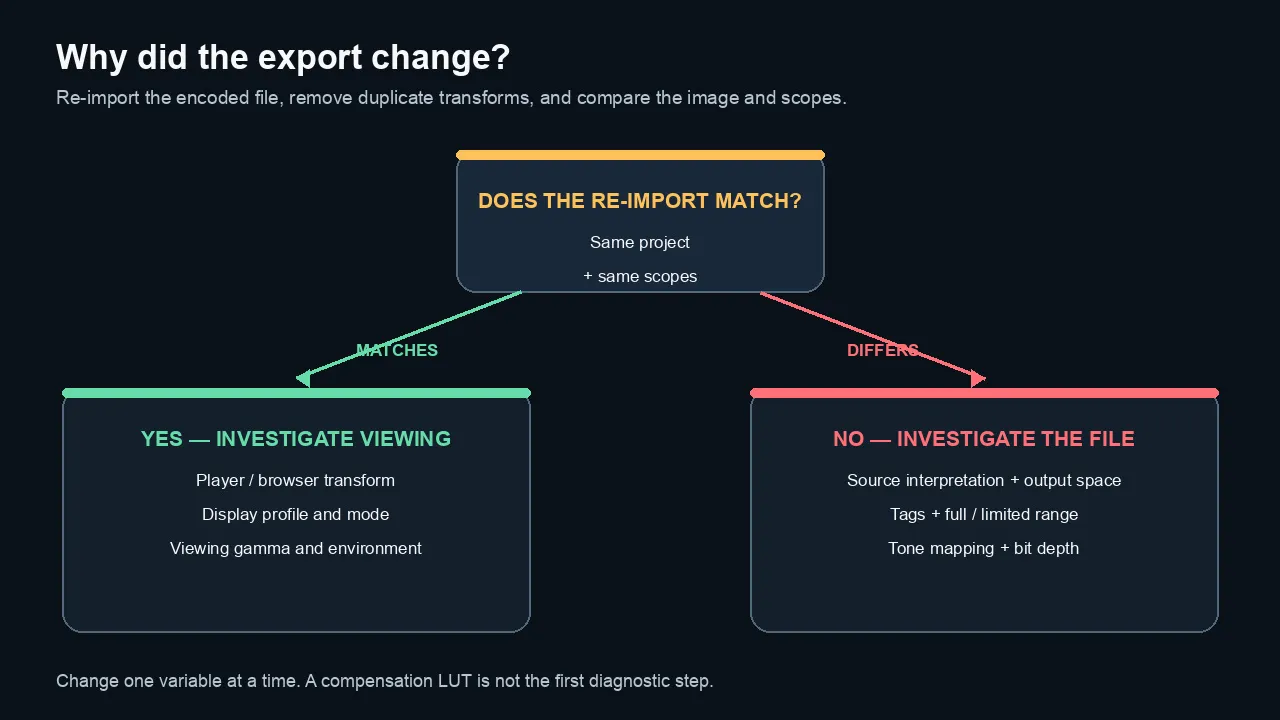
Re-importing the export separates a viewer or display mismatch from an actual source, output, metadata, range, or transform problem.
A controlled troubleshooting test
Use one short timeline and change one factor at a time.
Record the baseline
- Source color space
- Sequence working space
- Output color space
- Viewer gamma
- Display profile
- Export codec and bit depth
- Export color tags
- Range
- Player
- Operating system
- Display mode
Compare with scopes
Include:
- luma waveform;
- RGB parade;
- vectorscope; and
- exported-file metadata.
Do not judge from screenshots alone
Screenshots may pass through another color conversion.
If you use screenshots for documentation, record how they were captured and where they were viewed.
Build a small matrix
| Test | Variable changed | Purpose |
|---|---|---|
| A | Viewer Gamma 2.4 / 2.2 / 1.96 | Separate preview behavior from export behavior |
| B | Correct versus incorrect source assignment | Demonstrate interpretation errors |
| C | HDR-to-SDR conversion on/off | Show tone-mapping effect |
| D | Full versus limited interpretation | Show range mismatch |
| E | Correct versus missing export tags | Test application behavior |
The goal is diagnosis, not creating a universal “corrected” LUT.
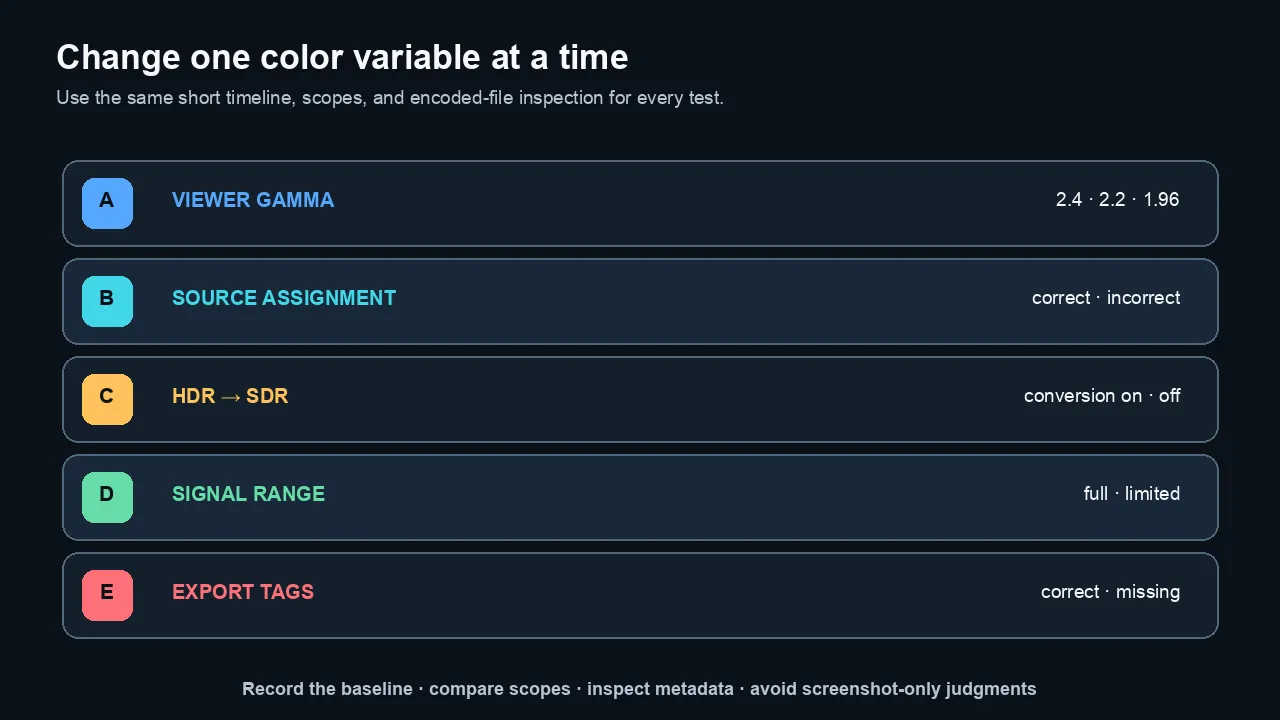
Change one variable at a time while keeping the same short timeline, scopes, and metadata inspection procedure.
Common myths
Myth 1: QuickTime always shows the wrong image
No.
QuickTime may display the same file through a different color-management and viewing path than the NLE.
That can create a real appearance difference without corrupting the file.
Myth 2: A gamma-compensation LUT fixes every export
No.
A LUT changes image values.
It may make one viewer look closer while making a correctly managed destination too dark or too contrasty.
Myth 3: Rec. 709 guarantees identical appearance everywhere
No.
Display gamma, environment, application behavior, range handling, screen calibration, and platform transcoding still matter.
Myth 4: Retagging is the same as converting
No.
Retagging changes interpretation metadata. Conversion changes image values to another color representation.
Myth 5: Washed-out video always means a gamma problem
No.
HDR/SDR errors and range mismatches can produce similar symptoms.
Myth 6: The client’s screenshot proves the master is wrong
No.
The screenshot may include the client’s viewer, display settings, capture path, and messaging compression.
It is evidence of their experience, not a controlled measurement of the file.
The practical bottom line
Do not grade against an unexplained mismatch. Diagnose it.
First determine whether the encoded file differs from the timeline or whether two viewers render the same signal differently.
Then verify source interpretation, project output, color tags, HDR conversion, and range.
Use Viewer Gamma to preview an intended viewing condition, not to change the master secretly.
Keep a correctly tagged high-quality master and create audience-specific review or delivery versions when needed.
Frequently asked questions
Why does my video look washed out after export?
The most common causes are a different viewer-gamma path, incorrect source or export color-space tags, HDR footage treated as SDR, or a full/limited range mismatch. Re-import the export and compare it on scopes before changing the grade.
Is QuickTime gamma shift a bug?
Adobe describes the familiar difference as the result of different viewer and display gamma assumptions rather than a simple export bug. Premiere’s Viewer Gamma control lets you preview Broadcast, Web, or QuickTime-oriented viewing without changing the exported signal.
Should I use a gamma-compensation LUT?
Not as a first step. A compensation LUT changes the image and may only match one viewing path. Confirm the source interpretation, output color space, metadata, range, and Viewer Gamma first.
What Viewer Gamma should I use in Premiere?
Adobe currently presents 2.4 for broadcast, 2.2 for web, and 1.96 for QuickTime-oriented macOS viewing. Choose based on the main audience and keep in mind that the setting changes the Premiere preview, not the export.
Why does HDR footage look washed out in an SDR sequence?
HLG or PQ footage uses a different transfer function and often a wider color space. It must be correctly identified and tone mapped or conformed to Rec. 709 for SDR delivery.
Can wrong video levels make an export look washed out?
Yes. Full-range values interpreted as limited can lift blacks and reduce contrast. Limited-range values interpreted as full can crush blacks and clip highlights.
How can I tell whether my export is actually wrong?
Re-import the export into the same color-managed project, disable duplicate transforms, and compare the image and scopes with the original timeline. Then inspect the file’s primaries, transfer function, matrix, and range metadata.
Why does the same video look different in two browsers?
The browsers may use different color-management paths, hardware decoders, display profiles, or platform streams. Test the actual delivery environment rather than assuming every desktop app is equivalent.
Should I grade web video at gamma 2.2 or 2.4?
Adobe’s current guidance suggests 2.2 for broad web compatibility and 2.4 for broadcast. The correct choice depends on the intended audience and controlled viewing environment.
Will exporting ProRes instead of H.264 fix a gamma shift?
A higher-quality codec can reduce compression damage, but it does not automatically resolve viewer gamma, incorrect color tags, HDR/SDR conversion, or range interpretation.
Official sources checked
- Adobe: Fix washed-out colors in Premiere exports
- Adobe: How Color Management works in Premiere
- Adobe: Color Management options
- Adobe: Configure sequence Color Management
- Apple: Setting color properties for a specific resolution
- Apple: Intro to wide color gamut and HDR in Final Cut Pro
https://support.apple.com/guide/final-cut-pro/ver09be4f91f/mac
- Apple: Use automatic color management and Color Conform
https://support.apple.com/guide/final-cut-pro/ver808063493/mac
- Microsoft: About YUV video
https://learn.microsoft.com/en-us/windows/win32/medfound/about-yuv-video

About the Author
Joseph Nilo has been working professionally in all aspects of audio and video production for over twenty years. His day-to-day work finds him working as a video editor, 2D and 3D motion graphics designer, voiceover artist and audio engineer, and colorist for corporate projects and feature films.