
Feature and credit information checked October 1, 2026. This guide explains Adobe’s documented behavior and practical editing decisions; it is not a hands-on benchmark.
You don’t always need another shot. Sometimes you need the shot you already have to last another half-second.
A B-roll shot ends just before the next cut. A product shot needs another beat. A patch of room tone runs short.
That is the kind of problem Generative Extend is designed to address. The important question isn’t just whether it can make a clip longer. It’s whether the extra material belongs in your finished video.
Quick answer: Premiere’s Firefly-powered Generative Extend creates additional material at a clip’s beginning or end. Adobe documents up to two seconds of added video or ten seconds of audio. It needs an internet connection and is intended for short extensions, not generating an entire replacement scene. [1]
Best for: Evaluating a small timing repair when the existing shot is otherwise right and synthetic footage is acceptable for the project.
Skip it when: You need missing dialogue, an exact continuation of a software demonstration, or unaltered evidence of what someone actually did.
It generates new frames. It doesn’t recover missing footage.
At 24 frames per second, twelve frames give you half a second. That can be enough to make a cut work.
First check whether those frames already exist outside the clip’s current in and out points. Those unused frames are your handles: real material you can reveal without inventing anything.
If you have no handles, you’re making a different choice. A frame hold repeats an image. A speed adjustment changes the timing of existing material. Generative Extend synthesizes a continuation from the clip. Adobe also distinguishes this from its Generative Media Tool, which generates a new piece of media rather than extending an existing edge. [2]
None of those approaches is automatically the best edit. A convincing generated frame still isn’t something the camera recorded.
For the broader set of editing tools, see the Premiere AI features guide. For generating a new clip rather than extending one, see the Premiere Generative Media Tool guide.
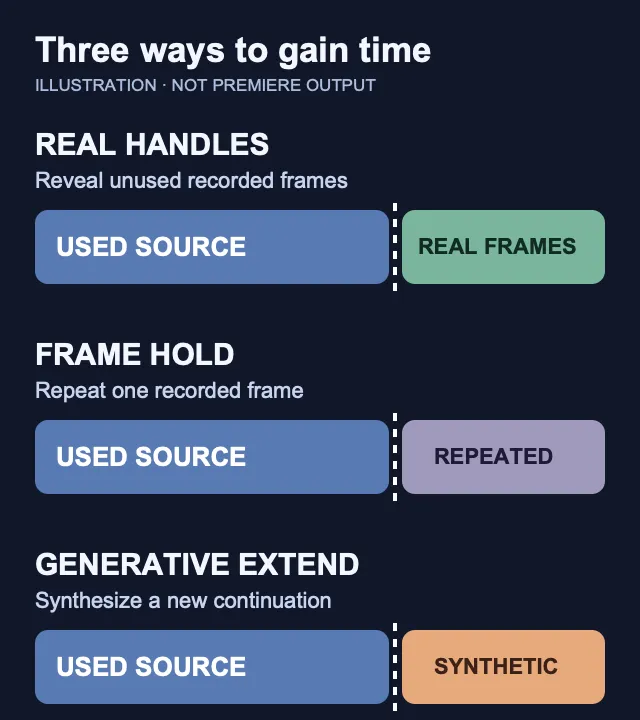
Illustration: revealing recorded handles, holding one frame, and synthesizing a continuation are different edits.
Where I’d consider it—and where I’d use another edit
These are editing recommendations, not results from a controlled test.
| Editing problem | First approach to consider | What needs checking |
|---|---|---|
| A B-roll shot finishes just before the next cue | Look for unused source frames, then consider a short extension | Continuity at the join and whether motion remains believable |
| A locked-off product shot needs more reading time | Compare a frame hold with an extension | Packaging, lettering, reflections, and product shape |
| A pan ends before the edit needs it to | Compare another trim or a short extension | Camera direction, speed, and objects entering the frame |
| A tutorial needs more time to explain a menu | Hold a clean frame or record a pickup | Whether the interface and cursor still show the real workflow |
| Room tone ends too soon | Compare a clean room-tone edit with audio extension | Changes in texture, unwanted voices, and an audible seam |
The product-shot example deserves particular care. A result can feel plausible at a glance and still be wrong for the thing you’re selling.
Look at the details that must stay exact: a label, a connector, an indicator light, or the number of fingers holding the product. Judge those details at delivery size, not only in a small timeline preview.
The limits that matter when you export
Adobe’s September 9 overview lists broader source support than some older instructions. It now includes arbitrary aspect ratios, interlaced footage, and non-square pixels. That doesn’t mean the generated section keeps every property of the source. [3]
| Source or workflow | Adobe’s documented extension behavior |
|---|---|
| Resolution and aspect ratio | Source sizes from 360p through the documented 4K dimensions; unsupported native shapes may be generated at a supported size and reframed |
| Source frame rate | Source clips can be 12–60 fps; extensions above 30 fps are generated at 30 fps |
| High-bit-depth or HDR source | Eligible high-bit-depth or HDR source generates an 8-bit SDR extension; the original remains unchanged. Check Adobe’s separate iPhone HDR exception below. |
| Interlaced source | Generated extensions are progressive |
| Non-square-pixel source | Generated extensions use square pixels |
Those are not interchangeable deliverables. [3]
An HDR source does not produce an HDR extension
Treat the generated section as a separate image-quality check. Inspect gradients, highlights, skin, and any color change where the original ends.
Exporting the sequence to a higher-bit-depth format does not restore precision that the generated frames never contained. Nor does an SDR delivery requirement guarantee that a visible mismatch won’t matter.
Adobe separately documents an iPhone HDR workaround: convert through a Rec.709 sequence and Render and Replace before attempting the extension. That is an SDR conversion path, not an HDR-preserving fix. [4]
High-frame-rate projects need a motion check
A 30 fps continuation of higher-frame-rate material can have different motion cadence. How obvious that becomes depends on the shot and delivery.
Check the actual exported join, especially in a pan or fast movement. Don’t assume that selecting a higher frame rate for the final export creates the missing original motion samples.
Don’t use it to finish a sentence—or invent a tutorial step
Adobe says Generative Extend does not create or extend spoken dialogue. It also excludes audio containing music and supports mono or stereo rather than surround audio. [5]
For an unfinished sentence, use another take, a pickup, or an edit around the missing words. For room tone beneath a finished sentence, ambience extension is a different task.
A software tutorial creates another accuracy problem. Menu labels, progress indicators, cursor positions, and interface states are the explanation—not disposable background detail.
Adobe cautions that clips containing text or graphics are outside the feature’s intended camera-footage use case and may produce unexpected results. [5] For a tutorial, I’d hold an accurate screen or recapture the step rather than generate what the application supposedly did next.
The same principle applies to interviews and documentary material. Extending a reaction can imply that a person held an expression or made a gesture they never actually made. When that changes the meaning, choose a non-generative edit.
How to try Generative Extend without losing your original edit
Start with a duplicate sequence and keep the original clip available. You want a clean way to compare the result, not a timeline where the original decision has disappeared.
Adobe’s documented basic workflow is straightforward: select the Generative Extend tool and drag the chosen clip edge. Its instructions call for at least two seconds of source video or three seconds of source audio. Generated material receives an AI label; the label’s menu provides Regenerate and, where available, Revert to Original. [1]
For a first attempt, use a normal-speed source clip rather than a complicated nested or retimed sequence. Check the requested duration, available credits, and any conversion warning before proceeding.
Once the extension is ready, watch across the boundary at normal speed, then step through it. Listen across the cut too. A clean-looking frame is not enough if the movement or sound changes abruptly.
Finally, export a short range containing both the original and the extension. That is the comparison that matters for delivery.
Troubleshooting: check the clip before changing your subscription
A failed extension does not necessarily mean you need a different paid plan.
Adobe’s known-issues page identifies speed changes, time remapping, and nested/multicam sources as complications. Its documented approaches include working at normal speed and flattening the chosen multicam angle. Do that on a duplicate, not your only editable sequence. [6]
Also check the selected audio. Music or unsupported channel layouts can affect a linked video/audio attempt. Separate the components when the problem is confined to audio; don’t assume the video itself is unusable. [6]
If the app presents a format warning, read what it will change. Accepting a conversion and preserving the camera format are different outcomes.
There is also a current one-side restriction: the same clip cannot simply receive an extension at both ends. Adobe documents workarounds, but for a small timing repair, start with the one edge you actually need. [6]
How many generative credits does it use?
Adobe’s published video-extension rates vary by resolution and frame rate. The following figures were checked October 1, 2026. [7]
| Generated video format | Published credits per second | Two-second arithmetic |
|---|---|---|
| 720p / 24 fps | 50 | 100 |
| 1080p / 24 fps | 100 | 200 |
| 4K / 24 fps | 150 | 300 |
| 720p / 30 fps | 75 | 150 |
| 1080p / 30 fps | 125 | 250 |
| 4K / 30 fps | 175 | 350 |
The last column is rate-card arithmetic, not a measured account charge. Don’t use it to assume how a fractional-second request, a retry, an audio extension, or a special allowance will be billed. Check the current in-app information and usage record. [7]
For budgeting, distinguish the amount of footage generated from the amount you keep. Three separate two-second outputs at the listed 1080p/24 rate work out to 600 credits—not 200—even if only one attempt is useful. That is an illustration, not an observed test result.
The more useful production measure is credits and time per usable extension, including review and cleanup. A low nominal generation cost doesn’t help if you spend longer fixing the result than making another edit.
Do you need another Adobe plan?
Check your existing feature access and credit allowance first. Having Premiere available and having enough premium-generation access are separate questions. Adobe lists Generative Extend among the premium workflows supported by eligible Firefly plans. [7]
An added Firefly subscription should not be confused with a license to the Premiere desktop editor. Confirm both parts of the setup before buying anything. [9]
Use the Premiere pricing guide for the editor subscription and the Firefly pricing and credits guide for generation allowances. Don’t buy a larger app bundle solely because you need a few additional frames.
Check the handoff, not just playback
A result that plays in your sequence is not automatically ready for a colorist, sound editor, or archive.
Adobe documents limitations involving project collection and exchange formats. It recommends Render and Replace for affected extensions before Project Manager collection or interchange export. [6]
Work on a turnover copy. Preserve the original sources, the editable sequence, and a record of where generated material starts. Send a reference movie so the receiving editor can compare the intended cut with the rebuilt timeline.
Generated media also needs to travel with the project. Adobe saves extensions in the project’s Captured and Generated scratch-disk location; check that location rather than assuming everything is beside your camera originals. [3]
That is also why I wouldn’t wait until delivery day to try the round trip.
Check client permission before sending footage to the cloud
Adobe states that customer content is not used to train its generative AI models. That is a training-policy statement—not a claim that Generative Extend runs locally. [8]
For client work, confirm that cloud processing and synthetic additions are acceptable before generating anything. Use your own test footage for evaluation rather than an unreleased product, confidential screen recording, or someone else’s interview.
A vendor’s AI policy and a client’s permission are two separate checks. Keep the project’s requirements attached to the editing decision.
My recommendation
Treat Generative Extend as a small repair tool, not a substitute for coverage.
Use real handles when they exist. Use a clean hold or another edit when that solves the problem. Consider generation when a short continuation would genuinely help and you can inspect what it changes.
The useful question isn’t “Can AI make this clip longer?”
It’s “Would I deliver these extra frames?”
Generative Extend FAQ
Can Generative Extend create missing dialogue?
No. Adobe excludes spoken-dialogue extension. Use it for an eligible ambience problem, not to manufacture the end of a sentence. [5]
Can I extend a clip longer than two seconds?
Adobe documents up to two seconds of added video and ten seconds of audio. Don’t plan a longer missing scene around those limits. [1]
Can I use it on a screen recording?
Adobe says text-and-graphics clips are not its intended use case. For a tutorial, an accurate frame hold or a new recording is the safer editorial choice when exact interface behavior matters. [5]
Will an extension keep my original color depth and frame rate?
Not necessarily. Adobe’s current output limits differ from some accepted source formats. Inspect the generated media and the exported join before treating the result as delivery-ready. [3]
Is it the same as slowing down a clip?
No. A speed change changes the timing of existing footage; a generative extension synthesizes a continuation. Choose based on the edit you need, not simply which operation makes the clip longer. [2]
Sources
- Adobe: Add frames using Generative Extend.
- Adobe: Generative Media Tool overview.
- Adobe: Generative Extend overview, updated September 9, 2026.
- Adobe: Convert iPhone HDR clips for Generative Extend.
- Adobe: Generative Extend FAQ.
- Adobe: Generative Extend known issues.
- Adobe: Generative credits FAQ.
- Adobe: Our approach to generative AI.
- Adobe: Compare Firefly plans.

About the Author
Joseph Nilo has been working professionally in all aspects of audio and video production for over twenty years. His day-to-day work finds him working as a video editor, 2D and 3D motion graphics designer, voiceover artist and audio engineer, and colorist for corporate projects and feature films.