
HDR footage can hold bright windows, specular highlights, neon signs, and saturated color that an SDR display cannot reproduce directly.
Drop that footage into the wrong Rec. 709 timeline and it may look washed out or blown out. The broader export-color diagnostic separates this transform problem from player, tag, range, and display differences.
Apply two automatic conversions and it may become dull, dark, or strangely compressed.
HDR-to-SDR is not a matter of lowering exposure. It is a controlled rendering from one display system into another.
Quick answer
To convert HDR video to SDR correctly:
- Identify the source as HLG, PQ, or another known HDR/log space.
- Set the target output to Rec. 709 SDR.
- Apply one tone-mapping path—automatic or manual, not both.
- Compress out-of-gamut color as well as luminance.
- Protect faces, midtones, and the intended SDR white level.
- Shape highlights deliberately instead of clipping everything above 100 nits.
- Review through an SDR monitoring path and inspect scopes.
- Export with correct Rec. 709 metadata and range.
Automatic tone mapping is a good starting point.
For important work, treat the SDR version as its own deliverable and perform a trim pass.
At a glance
| Source | Transfer function | Common color primaries | SDR target |
|---|---|---|---|
| HLG HDR | Hybrid Log-Gamma | Rec. 2020 | Rec. 709 SDR |
| PQ HDR | Perceptual Quantizer | Rec. 2020/P3-in-2020 | Rec. 709 SDR |
| iPhone HDR | Commonly HLG/Dolby Vision workflow | Wide gamut | Rec. 709 SDR version |
| Log camera media | Camera Log curve | Camera gamut | Managed transform to Rec. 709 |
Log-to-Rec.709 and HDR-to-SDR share color-management tools but are not identical operations.
What tone mapping changes
HDR can represent brightness far beyond conventional SDR mastering.
PQ encodes absolute display luminance up to a large standardized range.
HLG uses a relative system designed for broadcast compatibility and display adaptation.
Rec. 709 SDR is normally mastered around a much smaller display range and different transfer behavior.
Tone mapping decides how HDR luminance fits into SDR.
The conversion must make choices
An HDR image may contain:
- diffuse white surfaces;
- bright practical lights;
- sun reflections;
- clouds above SDR white;
- neon signs;
- fire;
- specular skin highlights; and
- metadata describing mastering or content peaks.
An SDR output cannot preserve every HDR brightness relationship exactly.
The conversion must decide:
- where SDR diffuse white lands;
- where highlight compression begins;
- how hard the shoulder is;
- which highlights remain distinct;
- whether midtones shift;
- how black detail is preserved; and
- how the image feels at SDR contrast.
Tone mapping is not simply clipping
Clipping everything above SDR white destroys highlight separation.
A tone-mapping curve can roll bright values gradually into the available output.
Poor tone mapping can create:
- flat midtones;
- gray whites;
- hard highlight edges;
- dim faces;
- haloing;
- local contrast changes; or
- scene-to-scene inconsistency.
Global and local tone mapping
A global transform applies one relationship across the frame.
A local or content-adaptive transform can respond to regions and scenes.
Local processing may preserve highlight appearance better, but it can introduce:
- halos;
- pumping;
- inconsistent contrast; and
- shot-matching difficulty.
The implementation matters.
Tone mapping and gamut compression
HDR media often uses Rec. 2020 container primaries and can contain colors outside Rec. 709.
Reducing brightness does not bring those colors into gamut automatically.
Gamut clipping
Hard clipping can:
- flatten saturated highlights;
- shift hue;
- remove color separation;
- produce harsh neon colors; or
- create illegal RGB values after conversion.
Gamut compression
Gamut compression moves out-of-range colors toward the SDR boundary while trying to preserve:
- hue;
- relative saturation;
- brightness relationships; and
- smooth transitions.
Adobe’s current color-management controls separate Output Tone Mapping and Output Gamut Compression for this reason.
Bright saturated highlights are difficult
A blue LED, red taillight, or neon sign may be both brighter and more saturated than SDR can reproduce.
The conversion must reduce luminance and chroma together. This is separate from the sampling structure explained in the chroma-subsampling guide.
Treating only one dimension can distort the color.
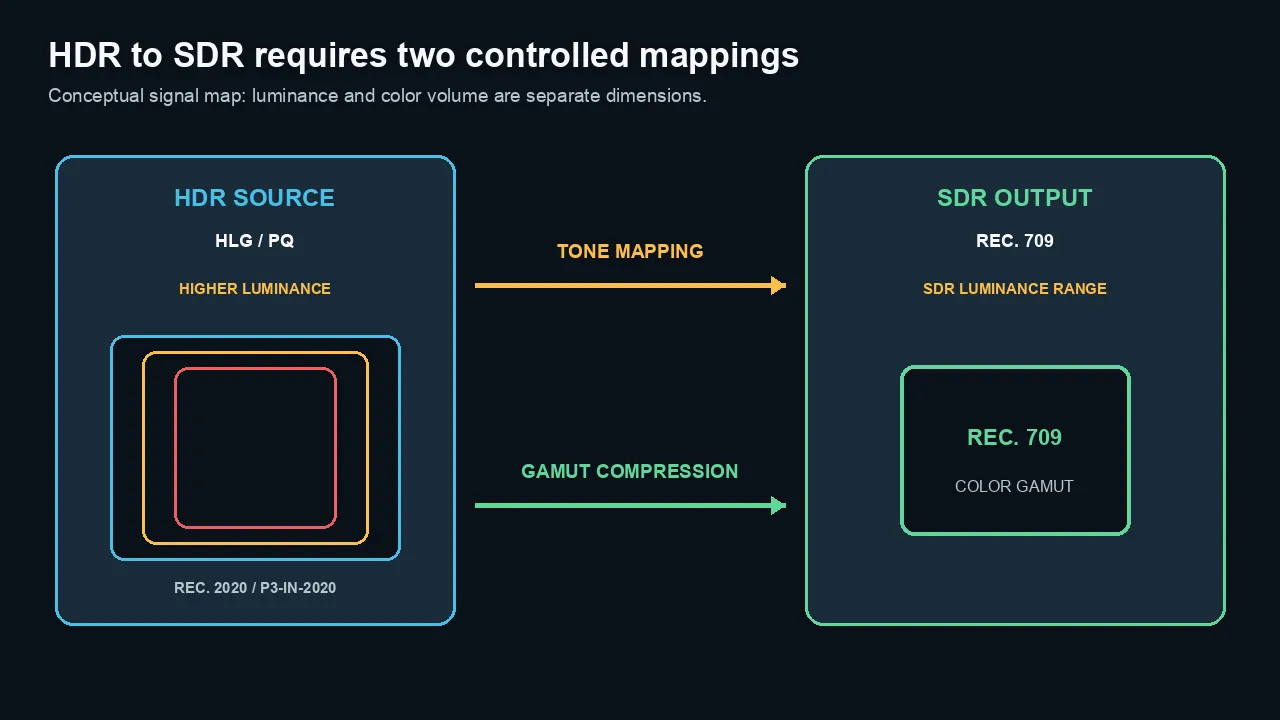
HDR-to-SDR conversion maps luminance and color volume separately: tone mapping fits brightness, while gamut compression fits wide color into Rec. 709.
HLG and PQ are different
Do not treat every HDR file as one generic curve.
HLG
Hybrid Log-Gamma is a relative HDR system used in broadcast and many camera/phone workflows.
Its final appearance depends on the display and viewing environment through the system OOTF.
PQ
Perceptual Quantizer maps code values to absolute display luminance.
PQ workflows may use static or dynamic metadata to describe mastering and content characteristics.
Source assignment must be correct
If HLG values are interpreted as PQ, or PQ values as HLG, tone and brightness will be wrong before the SDR conversion begins.
If HDR is interpreted as Rec. 709, it may look:
- washed out;
- clipped;
- too bright;
- low contrast; or
- oversaturated.
Dolby Vision
Dolby Vision can use dynamic metadata and defined transforms to create display-specific rendering and SDR versions.
Do not flatten a Dolby Vision workflow into one generic LUT without understanding the mastering path.
This article focuses on conventional HLG/PQ-to-Rec.709 conversion. Use the dedicated iPhone Dolby Vision workflow for that metadata-aware finishing path.
Viewer tone mapping vs output tone mapping
This distinction prevents many mistakes.
Viewer tone mapping
Viewer tone mapping lets an HDR image fit on a display that cannot show the full range.
It can affect only the preview.
Apple’s Final Cut Pro viewer can show HDR as tone mapped. Apple states that this viewer setting does not affect HDR output through external A/V Output.
A tone-mapped preview is not proof that the timeline has become SDR.
Output tone mapping
Output tone mapping converts the working image into the chosen SDR output space.
That conversion becomes part of the exported SDR file.
Display tone mapping
An HDR television may also tone map an HDR signal to its own peak capability.
That is a third stage.
Do not confuse:
- NLE viewer mapping;
- exported HDR-to-SDR conversion; and
- consumer display rendering.
Check what the scopes represent
Scopes can show:
- source values;
- working-space values;
- values before output tone mapping; or
- final output-referred values.
The application and scope mode determine which stage you are seeing.
Know the measurement point before setting levels.
Why HDR looks wrong in SDR
Missing source interpretation
The NLE treats HLG or PQ as Rec. 709.
Missing tone mapping
The source is recognized as HDR, but no conversion is applied into the SDR output.
Highlights exceed the output and clip.
Double tone mapping
Automatic color management converts the clip, then a LUT or HDR effect converts it again.
The result may become dark, dull, low contrast, or strangely rolled off.
Wrong effect order
A creative grade designed for HDR may be applied after the conversion when it was intended before it—or the reverse.
The highlight behavior changes.
Wrong output space
A timeline is graded as HDR but exported or tagged as Rec. 709 without a proper output transform.
Wrong tags
An SDR conversion is encoded correctly but tagged as HLG/PQ, or an HDR file is tagged Rec. 709.
Gamut left unmanaged
Brightness is compressed but saturated Rec. 2020/P3 colors are clipped into Rec. 709.
Range mismatch
A full/limited range error can stack on top of the HDR conversion and look like a tone-mapping problem.
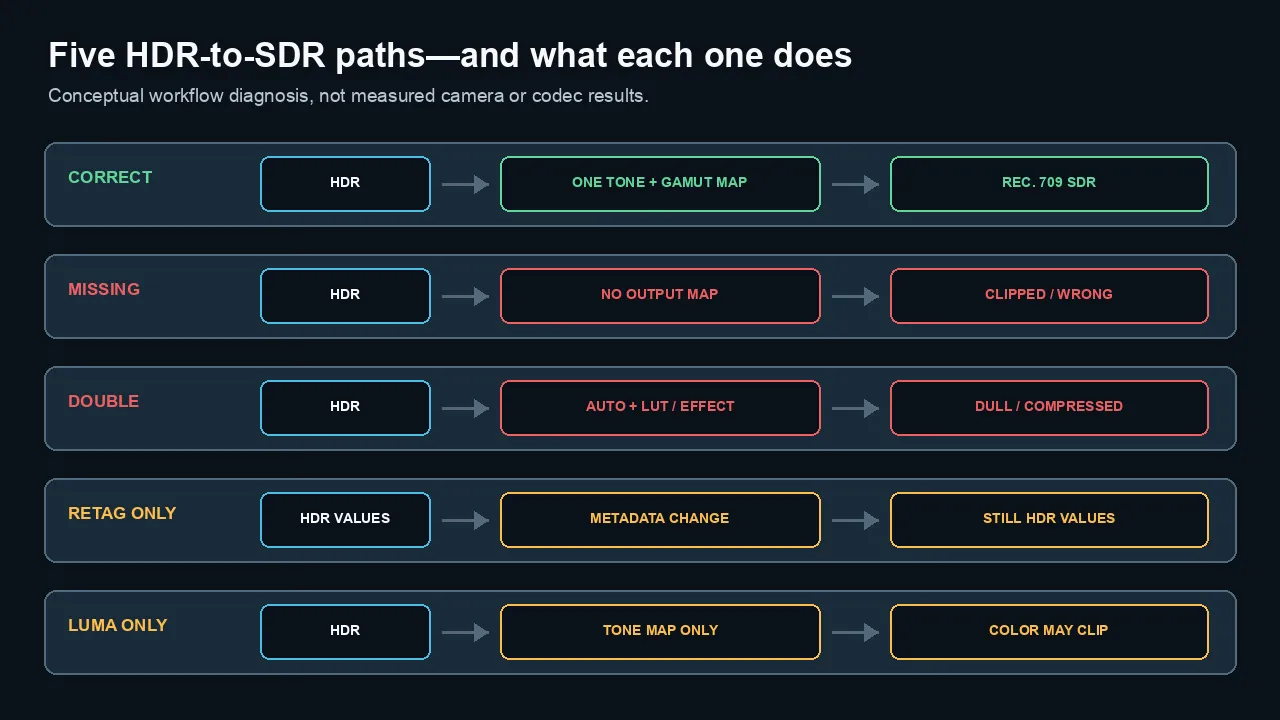
A correct workflow applies one controlled tone-and-gamut conversion. Missing, double, retag-only, and luminance-only paths fail in different ways.
Automatic tone mapping
Modern NLEs can manage mixed HDR, Log, and SDR media.
This is useful and safer than older manual workflows when source metadata is reliable.
Advantages
- Fast setup
- Consistent input handling
- Protection from immediate highlight clipping
- Easier mixed-media timelines
- Color-space-aware effects
- Output-specific rendering
Limits
Automatic processing cannot know every creative intention.
It may not choose the desired:
- highlight priority;
- face level;
- practical-light brightness;
- graphics white;
- scene contrast;
- saturation roll-off; or
- shot match.
Mastered SDR inside a wide-gamut workflow
Adobe warns that output tone mapping can slightly alter previously mastered SDR media brought into a wide-gamut tone-mapped sequence.
Use a minimal or bypass strategy for elements that should pass through unchanged.
Verify source metadata
Automatic tone mapping is only as good as the source assignment.
A camera file with missing or wrong tags may require manual interpretation.
Manual and trim-pass workflows
Manual conversion
A manual workflow can use:
- color-space transforms;
- tone curves;
- color-managed output transforms;
- gamut-compression tools;
- HDR wheels;
- luminance qualifiers;
- scene-specific keys; and
- approved technical LUTs.
The technical transform should establish a valid starting point.
The creative trim shapes the SDR version.
SDR trim pass
A trim pass reviews the converted SDR program shot by shot.
Check:
- skin tone;
- diffuse white;
- specular highlight separation;
- black detail;
- saturated highlights;
- graphics;
- subtitles;
- transitions; and
- shot matching.
One master grade versus two grades
Short, low-risk work may use one wide-gamut grade with separate HDR and SDR output transforms.
Premium work may need distinct HDR and SDR trims.
The more the HDR look relies on extreme highlights and color volume, the more valuable a dedicated SDR pass becomes.
LUT limitations
A fixed LUT cannot respond to every scene or mastering peak.
It can be a controlled technical transform when designed for the exact source and target.
It is not a universal HDR-to-SDR solution.
Graphics, titles, and SDR white
Graphics need a brightness convention in HDR.
A white title should not automatically become a 1,000-nit object.
SDR reference white
Conventional SDR output treats reference white around the SDR mastering level.
In HDR timelines, systems often map graphics white to a chosen nit value such as 203 nits, depending on workflow and standard.
Apple’s current SDR-to-PQ Color Conform option maps 100% SDR white to 58% PQ, identified as 203 nits.
Why this matters for the SDR version
If a graphic was authored as an HDR highlight, tone mapping may dim or reshape it.
If it was intended as ordinary UI white, it should land consistently in SDR.
Check:
- logos;
- subtitles;
- lower thirds;
- legal text;
- end cards;
- screen captures; and
- interface graphics.
Mixed SDR and HDR elements
A color-managed timeline can inverse-tone-map SDR elements into HDR and tone-map HDR elements into SDR.
Confirm that already mastered SDR graphics are not altered unintentionally.
Premiere Pro workflow
Current Premiere color management offers SDR, HDR, and wide-gamut tone-mapped sequence configurations.
A practical SDR conversion
- Confirm the clip’s source color space.
- Set the sequence Output Color Space to Rec. 709.
- Use a color setup that enables intended tone mapping and gamut compression.
- Avoid adding a second HDR-to-SDR LUT unless the automatic path is disabled or the LUT has a specific creative role.
- Grade while viewing the output-referred SDR result.
- Check scopes and the final export.
Wide Gamut (Tone Mapped)
Adobe describes this setup as preserving wide-gamut source data in the working space, then applying output tone mapping and gamut compression into the selected output.
This can be strong for one grade serving multiple outputs.
Direct 709
Adobe’s Direct 709 setup targets Rec. 709 SDR and maps wide-gamut sources into that workflow at input.
Choose based on whether you want a wide-gamut working space or a direct SDR pipeline.
Color-space-aware effects
Use current effects that understand the working color space.
Legacy effects can behave differently in wide-gamut or HDR processing.
Final Cut Pro workflow
Final Cut Pro uses Color Conform to manage clips whose color space differs from the project.
Automatic conversion
With automatic color management enabled, Final Cut can convert an HLG or PQ clip into an SDR Rec. 709 project.
Manual conversion
Color Conform offers explicit conversions including:
- HDR (HLG) to SDR; and
- HDR (PQ) to SDR.
Do not stack Color Conform and HDR Tools
Apple states that the effects are additive and recommends using only one on a clip.
A legacy project may use HDR Tools deliberately. Confirm the order and disable the automatic path when appropriate.
Viewer mapping
The Show HDR as Tone Mapped viewer option helps display HDR on a non-reference screen.
It does not replace final output conversion or reference monitoring.
A reliable HDR-to-SDR process
1. Inventory sources
Record:
- HLG, PQ, Log, RAW, or SDR;
- primaries;
- transfer function;
- matrix;
- range;
- bit depth;
- mastering metadata; and
- camera profile.
2. Choose the SDR target
Usually Rec. 709 with the required frame rate, range, codec, and viewing convention.
3. Choose the working space
Direct SDR or wide-gamut color-managed.
Do not change the architecture after the grade without reviewing every shot.
4. Apply one input/conform path
Confirm automatic and manual transforms are not stacked.
5. Grade in context
Protect faces and midtones before chasing peak highlights.
6. Apply output tone mapping and gamut compression
Use the NLE’s controlled output path or a documented manual transform.
7. Perform an SDR trim
Review shot continuity, highlights, color, graphics, and subtitles.
8. Monitor properly
Use an SDR reference mode or external SDR output for critical decisions.
9. Export and inspect metadata
Confirm Rec. 709 primaries, transfer/matrix behavior, range, bit depth, and codec.
10. Re-import and test
Compare the SDR export against the timeline and representative players.
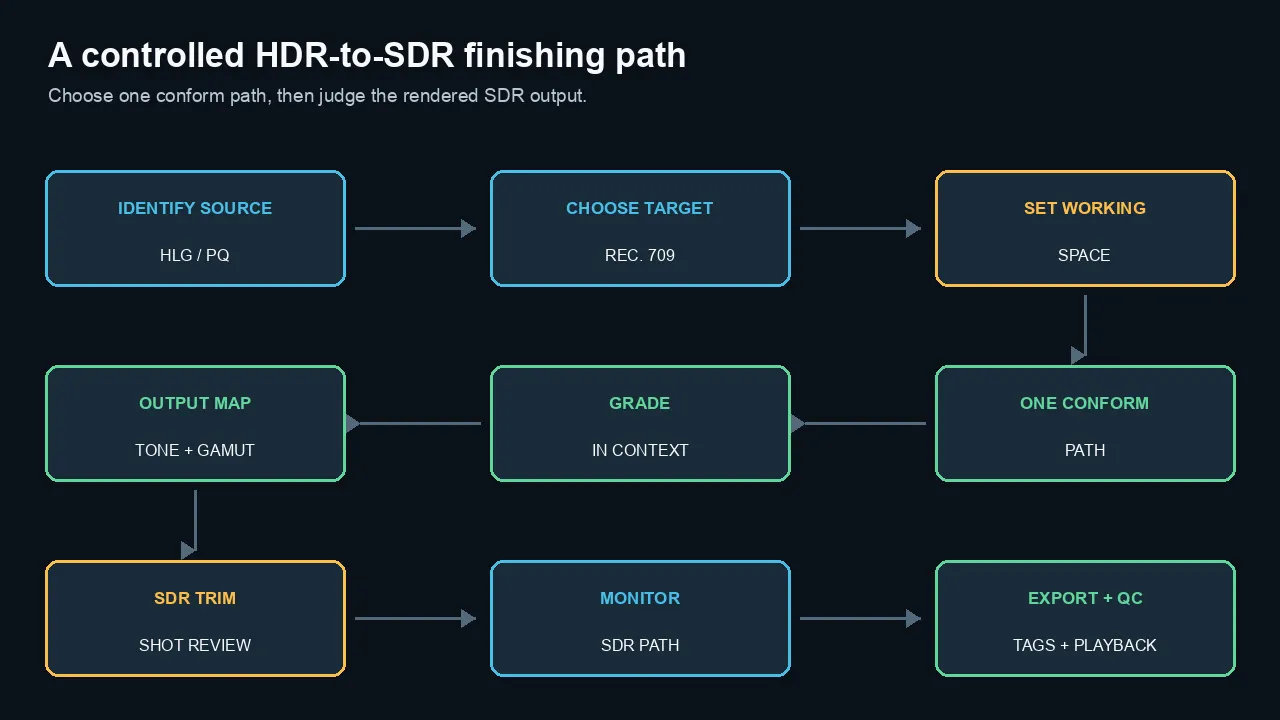
Choose the Rec. 709 target, use one conform path, grade through the intended output transform, then trim, monitor, export, and verify the SDR result.
How to test the conversion
Build a short sequence containing:
- skin in shade and sun;
- diffuse white;
- clouds;
- neon or LED color;
- fire or specular reflections;
- deep shadows;
- saturated wardrobe;
- SDR graphics; and
- subtitles.
Compare three paths
- No tone mapping
- Automatic output tone mapping
- Manual/trimmed SDR version
Evaluate
- highlight clipping;
- highlight separation;
- face level;
- midtone contrast;
- black detail;
- hue shifts;
- saturated-highlight behavior;
- shot consistency;
- graphics white; and
- final metadata.
Do not use screenshots as the only evidence
Capture methods and viewers can add another transform.
Use scopes, original files, and a known display path.
Common myths
Myth 1: HDR to SDR means lowering exposure
No.
The transfer function, luminance range, gamut, and display rendering must be converted.
Myth 2: Everything above 100 nits should be clipped
No.
Tone mapping can preserve highlight relationships inside the SDR output.
Myth 3: One LUT converts every HDR source
No.
HLG, PQ, Dolby Vision, camera Log, mastering peaks, and creative intent differ.
Myth 4: Viewer tone mapping changes the export
Not necessarily.
A viewer-only option can affect preview without altering the signal.
Myth 5: Automatic tone mapping removes the need for grading
No.
It creates a valid starting point. Important programs still benefit from an SDR trim.
Myth 6: Tone mapping and gamut compression are the same thing
No.
One maps luminance; the other handles colors outside the target gamut. They interact.
Myth 7: HDR metadata alone creates a good SDR version
No.
Metadata can guide rendering, but the conversion and creative review still matter.
Myth 8: A washed-out HDR clip needs a gamma LUT
Not as a first step.
Confirm source interpretation and output tone mapping.
The practical bottom line
HDR-to-SDR is a finishing decision, not a checkbox to ignore.
Use one controlled color-management path. Separate viewer tone mapping from output conversion. Compress luminance and gamut together. Protect faces and SDR white. Perform a trim pass when the work matters.
Then verify the Rec. 709 export on scopes and a known SDR display path.
Frequently asked questions
What is HDR-to-SDR tone mapping?
It compresses HDR luminance into the smaller SDR display range while preserving useful contrast and highlight relationships. A complete conversion also handles colors outside the Rec. 709 gamut.
Why does HDR video look washed out in SDR?
The HLG or PQ transfer function may be interpreted as Rec. 709, or the source may lack the intended tone-mapping transform. Wrong tags and double transforms can also cause the problem.
Is HLG the same as PQ?
No. HLG is a relative broadcast-oriented system; PQ maps code values to absolute display luminance. They require correct source identification and different rendering assumptions.
Can I use a LUT to convert HDR to SDR?
A technical LUT can be part of a controlled workflow, but one fixed LUT cannot adapt to every source, peak level, scene, gamut, or creative intention. Color-managed tone mapping plus an SDR trim is safer.
Does Final Cut Pro automatically convert HDR to SDR?
With automatic color management enabled, Final Cut Pro can use Color Conform to convert HLG or PQ clips into an SDR project. Verify the source assignment and avoid stacking Color Conform with HDR Tools.
Does Premiere Pro automatically tone map HDR footage?
Current Premiere color-management setups can automatically tone map HLG, PQ, Log, and other wide-gamut media into a Rec. 709 output. Confirm the selected sequence color setup and source interpretation.
What is gamut compression?
It maps colors outside the target gamut into Rec. 709 while trying to preserve hue, saturation relationships, and smooth highlight behavior.
Should HDR and SDR have separate grades?
A color-managed master grade can serve both for some work. Premium programs often benefit from a dedicated SDR trim because highlights, contrast, saturation, and graphics may need shot-specific adjustment.
What is the difference between viewer and output tone mapping?
Viewer tone mapping helps display HDR on a limited screen and may affect preview only. Output tone mapping creates the SDR signal that is exported.
Can YouTube make an SDR version from an HDR upload?
YouTube processes HDR uploads into platform streams and can provide SDR playback paths, but creators should follow current HDR metadata requirements and inspect both HDR and SDR playback. A controlled SDR master may still be needed for other destinations.
Official sources checked
- Apple Final Cut Pro: Use automatic color management and Color Conform
https://support.apple.com/en-gb/guide/final-cut-pro/ver808063493/mac
- Apple Final Cut Pro: View HDR video with tone mapping
https://support.apple.com/guide/final-cut-pro/view-hdr-video-ver06915f2fe/mac
- Adobe Premiere: Configure sequence Color Management
- Adobe Premiere: Customize color setups; output tone mapping and gamut compression
- Adobe Premiere: Tone mapping
- YouTube: Upload HDR videos
https://support.google.com/youtube/answer/7126552
- ITU-R Report BT.2408
https://www.itu.int/pub/R-REP-BT.2408

About the Author
Joseph Nilo has been working professionally in all aspects of audio and video production for over twenty years. His day-to-day work finds him working as a video editor, 2D and 3D motion graphics designer, voiceover artist and audio engineer, and colorist for corporate projects and feature films.