
A 20 Mbps export looks clean.
Another 20 Mbps export falls apart in motion.
A 100 Mbps camera file is smaller than a 500 Mbps ProRes file but harder to edit.
Bitrate tells you how much data a file uses. It does not tell you how intelligently that data is used.
That is the codec’s job.
Quick answer
A codec is the compression and representation method.
A bitrate is the data budget per second.
Video quality depends on both.
At the same bitrate, a more efficient codec or encoder can preserve more detail.
Within the same codec and settings, a higher bitrate usually reduces compression damage—until the source, output resolution, and viewing conditions make additional data difficult to see.
You also need to know:
- frame size;
- frame rate;
- bit depth;
- chroma sampling;
- GOP structure;
- encoder quality;
- rate-control mode;
- image complexity;
- source quality; and
- number of previous compression generations.
There is no universal bitrate that means “high quality” for every codec and video.
At a glance
| Question | Codec answers | Bitrate answers |
|---|---|---|
| How is the image compressed? | Yes | No |
| How much data is available per second? | No | Yes |
| How easy is the file to decode? | Strong influence | Partial influence |
| How large is the file? | Indirect influence | Direct influence |
| Will motion hold up? | Efficiency matters | Data budget matters |
| Is the format compatible? | Strong influence | Little influence |
What a codec controls
A codec defines how video is encoded and decoded.
It can specify tools for:
- spatial compression inside a frame;
- temporal prediction across frames;
- motion estimation;
- transforms;
- quantization;
- entropy coding;
- reference pictures;
- deblocking and filtering;
- bit depth and chroma profiles; and
- decoder behavior.
Codec family is not the complete encoder
Two applications can encode H.264 differently. A repeatable Adobe Media Encoder workflow helps keep those settings explicit.
One may use:
- a hardware encoder optimized for speed;
- a fast software preset;
- a slow multi-pass encoder;
- a different GOP structure;
- stronger motion search;
- adaptive quantization; or
- another rate-control strategy.
They can produce different images at the same bitrate.
Newer does not mean automatically better
HEVC and AV1 were designed for greater compression efficiency than H.264 in many use cases.
The real result still depends on:
- encoder implementation;
- settings;
- content;
- decode support;
- latency; and
- target device.
A rushed HEVC encode can look worse than a carefully encoded H.264 file.
Post codecs use bits differently
ProRes is not designed to win a tiny-file delivery contest.
It uses a high data rate and frame-independent structure to support:
- responsive editing;
- repeated generations;
- high bit depth;
- chroma fidelity; and
- predictable post-production.
Comparing ProRes Mbps directly with H.264 Mbps without considering purpose is misleading.
What bitrate controls
Bitrate measures encoded data over time.
Common units include:
- kilobits per second, kbps;
- megabits per second, Mbps; and
- gigabits per second, Gbps.
Average versus instantaneous bitrate
A 20 Mbps VBR file may average 20 Mbps while simple sections use less and complex sections use more.
A bitrate graph can reveal short peaks that a single average number hides.
Video and audio are separate
A file’s total bitrate can include:
- video;
- audio;
- captions;
- metadata; and
- container overhead.
When calculating video file size, include the audio data rate and a small amount of overhead.
More bitrate has diminishing returns
At very low data rates, small increases can create obvious improvement.
At a sufficient data rate, additional bits may preserve differences that are hard to see in normal playback.
The plateau depends on:
- source detail;
- codec;
- encoder;
- viewing size;
- display;
- motion;
- noise; and
- audience.
Why the same bitrate can look different
Different codecs
A 10 Mbps H.264 encode and a 10 Mbps HEVC encode use the same data rate but different coding tools.
HEVC may preserve more detail at that rate when the encoder and decoder are well implemented.
That is not a fixed guarantee for every clip.
Different encoders
A slow software encoder can spend more analysis time finding efficient motion and bit allocation.
A real-time hardware encoder must finish every frame on schedule.
Hardware encoding can be excellent. The constraint is different.
Different presets
Encoder presets usually trade time for compression efficiency.
A slower preset does not automatically change the target bitrate.
It tries to use the available bits more effectively.
Different GOP structures
Long-GOP encoding can reuse information across time.
All-Intra spends data independently on every frame.
At the same bitrate, a Long-GOP delivery encode may preserve more visual quality.
The All-Intra file may be easier to edit.
Different pixel formats
Ten-bit 4:2:2 and 8-bit 4:2:0 do not use the same chroma-sample structure.
A profile carrying more precision or chroma information may need a different data budget.
Different sources
A clean camera master gives the encoder useful information.
A previous low-bitrate export contains artifacts that can become new texture for the next encoder.
Repeated compression wastes bits describing old damage.
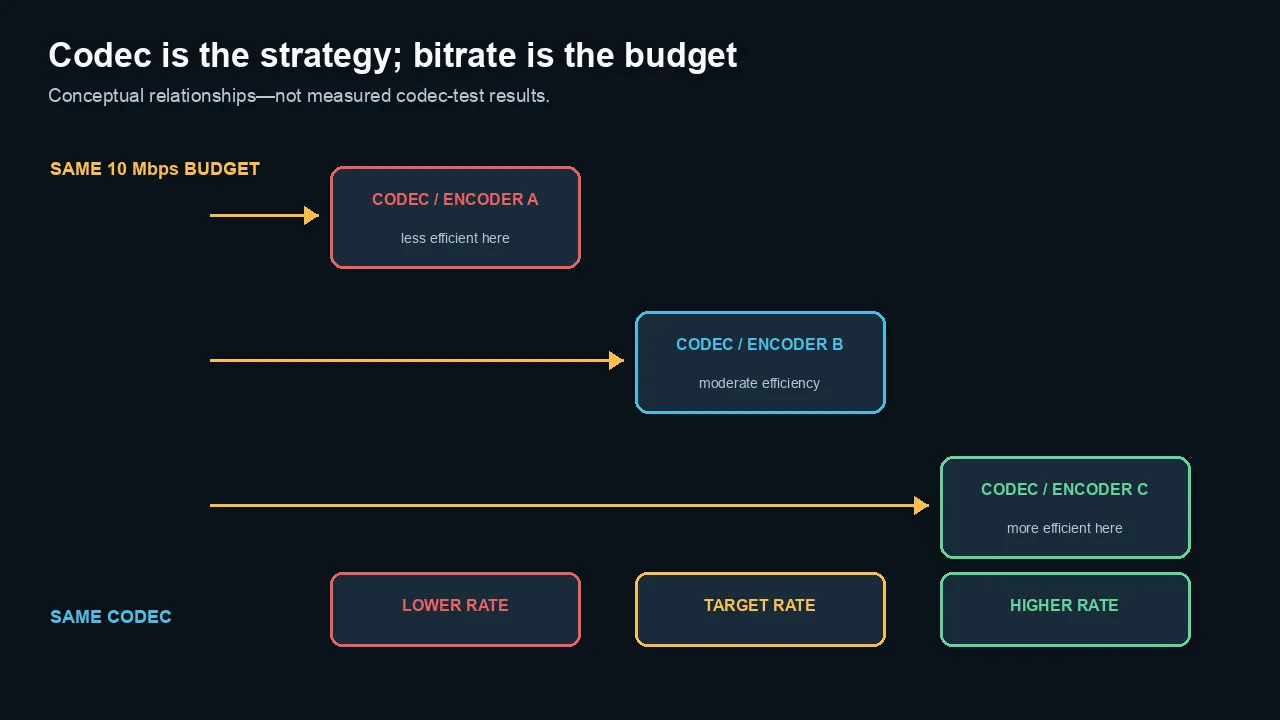
Codec and encoder efficiency determine how a fixed bitrate is used; more bitrate within one setup increases the available budget.
Resolution and frame rate divide the budget
A bitrate is shared by every frame and pixel position.
At the same bitrate:
- 4K has more pixel positions than 1080p;
- 60 fps has twice as many frames as 30 fps; and
- 10-bit or richer chroma profiles may represent more sample information.
Bits per pixel per frame
A rough diagnostic is:
bits per pixel per frame = bitrate ÷ width ÷ height ÷ frame rate
This can help compare encodes within a similar codec and content family.
It is not a universal quality score.
Different codecs, profiles, GOPs, and images use bits differently.
Example
A 10 Mbps budget at 1080p30 has far more data per pixel per frame than the same 10 Mbps at 4K60.
The 4K60 file may still look useful because:
- codec efficiency differs;
- neighboring pixels and frames are predictable;
- viewing distance hides detail; and
- the encoder allocates data adaptively.
But the encode is under greater pressure.
Do not increase resolution without increasing the plan
Upscaling 1080p to 4K creates more output pixels, not more source detail.
It may affect a platform’s processing path, but the file still needs enough bitrate to avoid damaging the enlarged representation.
Why content complexity matters
Simple images compress well.
Difficult images need more data.
Easier content
- locked interviews;
- clean backgrounds;
- low noise;
- slow motion;
- shallow depth of field;
- large shapes; and
- stable lighting.
Harder content
- foliage;
- water;
- confetti;
- smoke;
- film grain;
- sensor noise;
- handheld motion;
- fast gameplay;
- flashing lights;
- fine UI text; and
- gradients near the codec’s limits.
Noise consumes bitrate
Random noise changes from frame to frame.
The encoder cannot predict it efficiently.
Denoising a noisy source can improve compression, but excessive noise reduction can erase real texture and create motion artifacts.
Use the lightest treatment that solves the problem.
Grain needs a strategy
A heavy film-grain overlay can consume a large part of the streaming budget.
For web delivery, test:
- reduced grain strength;
- larger grain structure;
- grain added after major scaling;
- clean master plus platform-specific grain; and
- the actual processed platform stream.
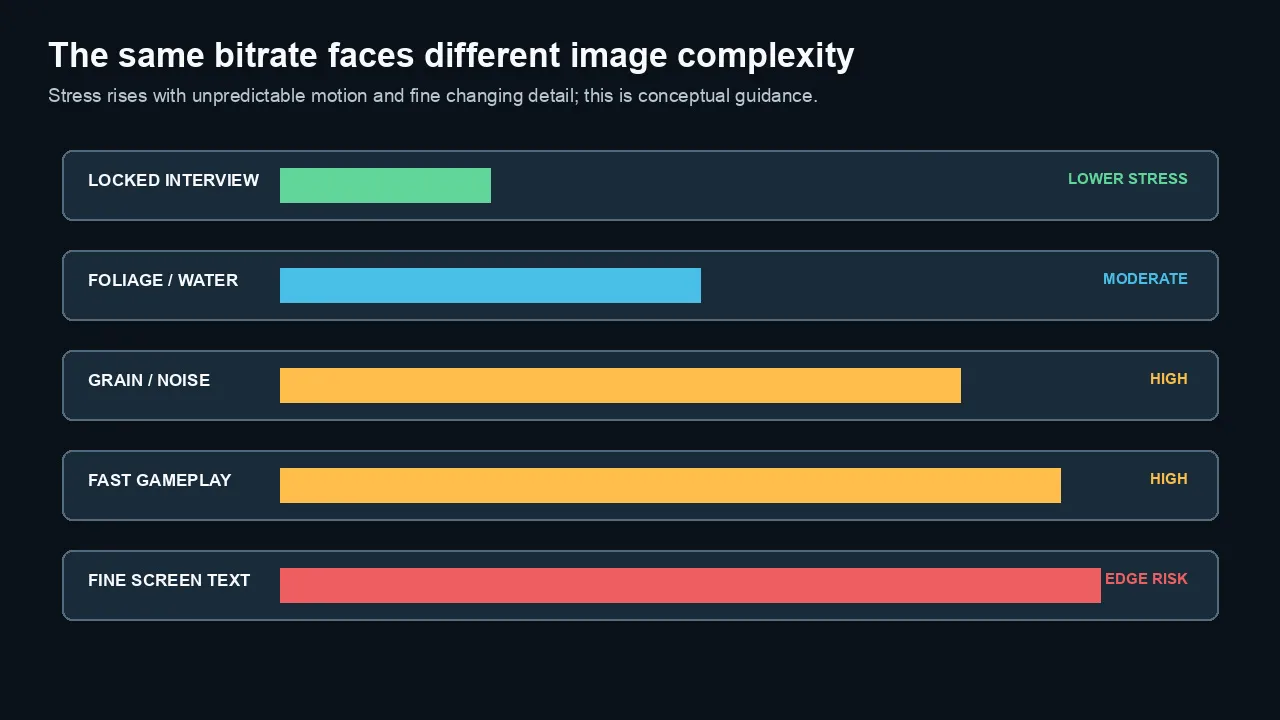
The same codec and bitrate face different stress as motion and unpredictable fine detail increase.
CBR, VBR, and constant-quality modes
Rate control decides how the encoder spends data.
Constant bitrate
CBR targets a steady data rate.
It is useful when:
- network bandwidth is fixed;
- a channel has a strict transmission budget;
- hardware expects a constrained stream; or
- the delivery specification requires it.
A fixed budget can waste bits on easy scenes and starve hard scenes.
Variable bitrate
VBR spends fewer bits on simple sections and more on complex sections while targeting an average or limit.
It is a strong general choice for file-based delivery. The dedicated CBR versus VBR guide covers that choice in depth.
Multi-pass VBR can analyze the program before final allocation.
The benefit depends on encoder and settings.
Constant quality
Constant-quality modes target a visual quantization or quality level rather than one exact average bitrate.
File size becomes the result.
Google’s VP9 guidance recommends constant-quality mode for many file-based encoding situations, while constrained modes are useful when the output must stay within a rate limit.
CRF and CQ values are codec-specific
A CRF 18 H.264 encode is not directly equivalent to CRF 18 HEVC, VP9, or AV1.
Even two encoders can define quality scales differently.
Treat the number as a control within that encoder, not a universal unit.
Bitrate and file size
The basic estimate is:
file size in bytes ≈ total bitrate in bits per second × duration in seconds ÷ 8
For decimal gigabytes:
GB ≈ Mbps × seconds ÷ 8,000
Example
A 10-minute file with:
- 20 Mbps video; and
- 0.32 Mbps audio
uses roughly:
20.32 × 600 ÷ 8,000 ≈ 1.524 GB
The final container may differ slightly.
VBR file-size prediction
Use the target average bitrate for an estimate.
Maximum bitrate affects peaks, not the entire duration.
Constant-quality file size
You cannot predict it precisely without encoding because the rate responds to image complexity.
Run a representative section or a full first pass.
Capture, editing, mastering, and delivery
Capture
Camera bitrates are not directly comparable across unrelated codecs and modes.
A 200 Mbps Long-GOP HEVC mode and a 400 Mbps All-Intra H.264 mode can differ in:
- codec;
- GOP structure;
- bit depth;
- chroma;
- encoder;
- frame rate;
- crop; and
- camera processing.
Test the complete mode.
Editing
High bitrate can improve source fidelity while demanding more drive throughput.
Codec structure and hardware support determine decode performance.
Use proxies or optimized media when the source is strong but the edit is slow.
Mastering
A master should preserve the timeline through future versions and alternate deliverables.
Use a robust high-quality codec such as an appropriate ProRes profile rather than a low-bitrate upload file.
Delivery
The target device or platform determines:
- codec;
- bitrate envelope;
- resolution;
- frame rate;
- audio; and
- compatibility.
Keep the master separate from the delivery copy.
Upload bitrate is not viewing bitrate
YouTube and other platforms re-encode uploads.
The bitrate you upload is the quality of the source you provide.
The viewer receives a platform-generated stream. See how adaptive high-bitrate delivery differs from the upload source. It is based on:
- playback resolution;
- codec;
- device;
- connection;
- platform processing; and
- adaptive streaming decisions.
Higher upload bitrate can help
It can give the platform a cleaner source, especially for:
- motion;
- grain;
- foliage;
- screen detail;
- gradients; and
- repeated compression.
Higher upload bitrate does not control the final stream
Past a useful point, larger upload files produce diminishing returns.
The platform still chooses its own streaming codec and data rate.
Use the site’s detailed YouTube bitrate guide for current recommendations, and the YouTube compression guide when the processed stream loses detail.
How to choose a practical bitrate
Start with the destination
Ask:
- Which codec and profile are supported?
- What resolution and frame rate are required?
- Is there a maximum file size?
- Is the file uploaded, downloaded, streamed, or broadcast?
- Which devices must decode it?
Classify the image
Easy, moderate, or difficult?
A talking-head tutorial and a grainy concert should not share one quality expectation at the same rate.
Choose the rate-control mode
- VBR or constant quality for file-based quality efficiency.
- CBR or constrained VBR when bandwidth or specification demands it.
- High-data-rate intraframe media for post and mastering.
Test short hard sections
Include:
- fastest motion;
- darkest noisy scene;
- gradients;
- small text;
- saturated graphics; and
- transitions.
Evaluate normal playback and crops
A 400% crop reveals artifacts.
Normal viewing reveals whether they matter.
Preserve a master
Do not tune the only master down to a delivery bitrate.
Create derivatives from a high-quality source.
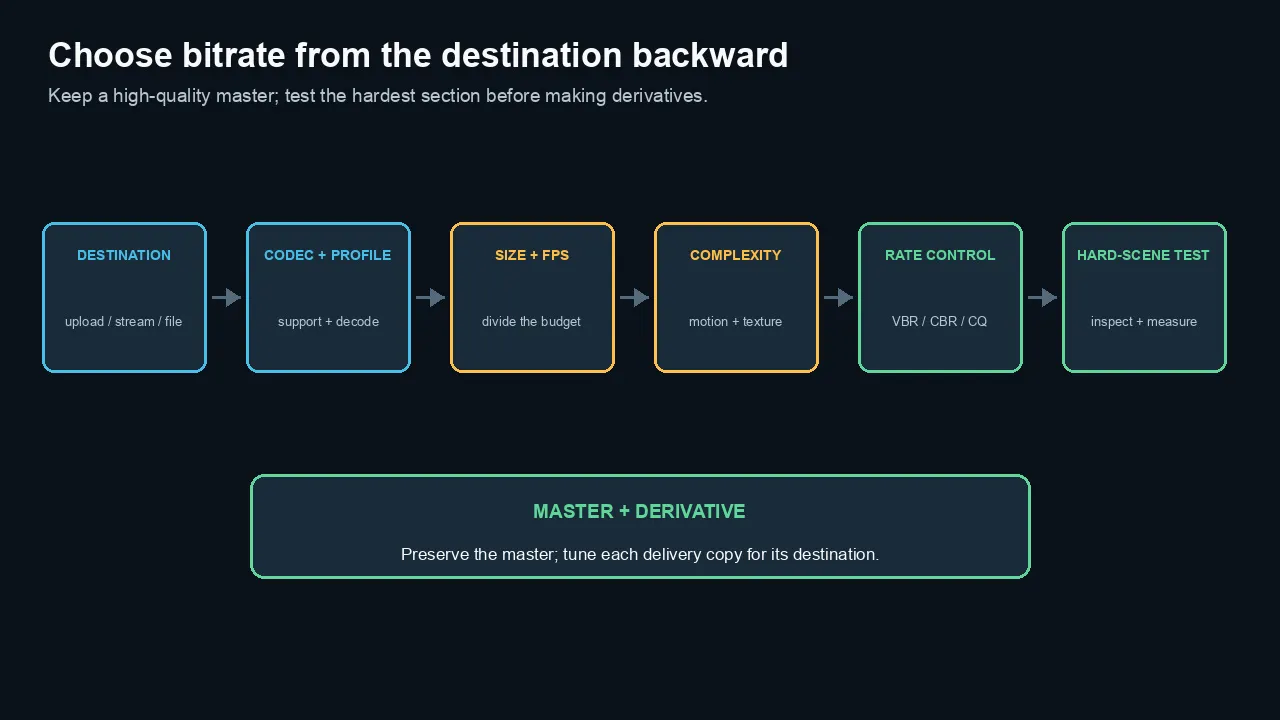
Choose bitrate from the destination backward, test the hardest scene, and preserve a high-quality master.
How to run a fair test
Keep constant
- source frames;
- frame size;
- frame rate;
- bit depth where supported;
- chroma sampling where supported;
- color tags;
- range;
- duration;
- scaling; and
- audio.
Test one question at a time
Codec efficiency: Same target bitrate and comparable profile/settings.
Bitrate effect: Same codec, encoder, preset, and GOP at several rates.
Preset efficiency: Same codec and bitrate at several speed presets.
Rate control: Same codec and quality target using VBR versus constrained modes.
Measure
- file size;
- encode time;
- decode load;
- visible artifacts;
- motion behavior;
- banding;
- text detail;
- objective metrics such as VMAF or PSNR where appropriate; and
- human review at normal size.
Objective metrics are not the final verdict
A score can miss:
- temporal pumping;
- objectionable texture loss;
- UI edge softness;
- grain character;
- color-management mistakes; and
- viewer preference.
Use metrics to support, not replace, visual review.
Common myths
Myth 1: A higher bitrate always means better video
Usually it helps within the same setup, but source quality, codec, encoder, and diminishing returns limit the benefit.
Myth 2: One bitrate is high quality for every codec
No.
Codec efficiency and profile matter.
Myth 3: HEVC is always half the bitrate of H.264
No.
There is no fixed universal ratio.
Myth 4: 4K always needs four times the bitrate of 1080p
No.
Compression reuses spatial and temporal information. Required bitrate depends on codec, content, frame rate, and quality target.
Myth 5: A small file is low quality
Not necessarily.
An efficient codec and simple content can produce a strong small file.
Myth 6: A large ProRes file is automatically better than the source
No.
It cannot restore missing source information.
Myth 7: Upload bitrate becomes the YouTube viewing bitrate
No.
YouTube makes new adaptive streaming versions.
Myth 8: CBR gives better quality than VBR
Not inherently.
VBR can spend the same average budget more intelligently on complex scenes.
The practical bottom line
Codec determines the strategy. Bitrate supplies the budget.
Quality comes from the interaction between them—plus resolution, frame rate, pixel format, encoder, source, and image complexity.
Compare bitrates only within a known context.
Keep a high-quality master, test the hardest scenes, and follow the final destination instead of chasing one universal Mbps number.
Frequently asked questions
What is the difference between bitrate and codec?
A codec is the method used to compress and represent video. Bitrate is the amount of encoded data used per second. The codec decides how efficiently that budget is used.
What matters more for video quality: bitrate or codec?
Both matter. A more efficient codec can look better at the same bitrate, while too little bitrate will damage any lossy codec. Encoder quality and content also affect the result.
Does a higher bitrate always improve quality?
Within the same codec and settings, it usually reduces compression damage until diminishing returns. It cannot restore detail missing from the source.
Can two videos have the same bitrate but different quality?
Yes. They may use different codecs, encoders, presets, GOP structures, resolutions, frame rates, bit depths, chroma formats, or source material.
Does 4K need more bitrate than 1080p?
Usually, because it contains more pixel positions. The exact increase depends on codec efficiency, frame rate, image complexity, and quality target.
Does 60 fps need more bitrate than 30 fps?
Usually, because the encoder must represent twice as many frames. Temporal prediction means the required increase is not always exactly double.
Is VBR better than CBR?
For file-based delivery, VBR can allocate more bits to difficult scenes and fewer to easy scenes. CBR is useful when a fixed transmission or specification budget matters.
Why does grain need more bitrate?
Grain changes randomly across the image and over time, so the encoder cannot predict it efficiently. It consumes data that could otherwise preserve structure and motion.
What bitrate should I use for YouTube?
Use the current recommendations in the site’s dedicated YouTube bitrate guide, based on resolution, frame rate, SDR/HDR, and upload codec. YouTube will re-encode the file.
How does bitrate affect file size?
File size is approximately total bitrate multiplied by duration, divided by eight. Add video, audio, and container overhead.
Official sources checked
- Google VP9 bitrate modes
https://developers.google.com/media/vp9/bitrate-modes
- Google VP9 settings
https://developers.google.com/media/vp9/settings/vod
- YouTube recommended upload encoding settings
https://support.google.com/youtube/answer/1722171
- Apple ProRes White Paper for target data rates and codec purpose
https://www.apple.com/final-cut-pro/docs/Apple_ProRes.pdf
- Adobe Premiere video encoding settings
https://helpx.adobe.com/premiere/desktop/render-and-export/export-files/video-encoding-settings.html
- FFmpeg codec and rate-control documentation
https://ffmpeg.org/ffmpeg.html

About the Author
Joseph Nilo has been working professionally in all aspects of audio and video production for over twenty years. His day-to-day work finds him working as a video editor, 2D and 3D motion graphics designer, voiceover artist and audio engineer, and colorist for corporate projects and feature films.