
Your Mac computer’s central processing unit (CPU) handles much of the general-purpose work your system does.
In video editing, that affects timeline responsiveness, background processing, and export performance.
When the CPU can’t keep up, you’ll usually notice laggy scrubbing, choppy playback, and longer waits during renders and exports.
Video editors often want the best Mac available for video editing, but CPU performance is only one part of the speed equation.
Modern Macs split work across the CPU, GPU, unified memory, fast storage, and dedicated media engines for formats like H.264, HEVC, and ProRes.
This guide explains what to look for in a Mac CPU, how current Apple Silicon chips compare, and how popular editing apps use CPU resources in real workflows.
Disclosure: This post contains affiliate links.
If you buy through them, I may earn a commission at no extra cost to you.

What Should I Look For in a CPU?
When it comes to CPUs, the first two things to consider are speed and cores.
Speed, measured in gigahertz (GHz), determines how quickly your CPU can carry out instructions.
Cores refer to the number of processors on the CPU — the more cores, the better it can handle multiple tasks at once.
In general, a higher GHz and more cores are both beneficial for video editing.
However, it’s important to note that you may also need a good GPU and enough RAM to support the power of your CPU.
When shopping for a new or upgraded Mac for video editing, look for one with a high GHz and multiple cores (ideally at least four).
Overall, your Mac’s CPU can have a significant impact on the speed and performance of your video editing.
Make sure to consider its power when selecting or upgrading your computer for this purpose.
CPUs Available Today for Mac Computers (2025)
Apple Silicon now spans the Mac lineup. CPU performance is a mix of CPU cores, media engine support, and memory bandwidth.
Here’s a quick rule of thumb:
- Base chips – great for 1080p and lighter 4K workflows.
- Pro chips – strong for consistent 4K and multicam editing.
- Max chips – excel at effects-heavy timelines and long exports.
- Ultra chips – built for high-end 6K/8K workflows and huge projects.
- M1 Processor — still capable for lighter editing and everyday tasks; best for 1080p and lighter 4K projects, especially with ProRes.
- M1 Pro Processor — a strong upgrade for multicam and heavier 4K timelines; provides better sustained performance and headroom than base chips.
- M1 Max Processor — better for effects-heavy timelines and faster exports; solid option when buying used or refurbished.
- M1 Ultra Processor — designed for high-end editing workloads like large projects and demanding exports; pair with plenty of memory and fast storage.
- M2 Processor — good entry point for newer Apple Silicon performance; ideal for 1080p and lighter 4K edits when workflows aren’t effects-heavy.
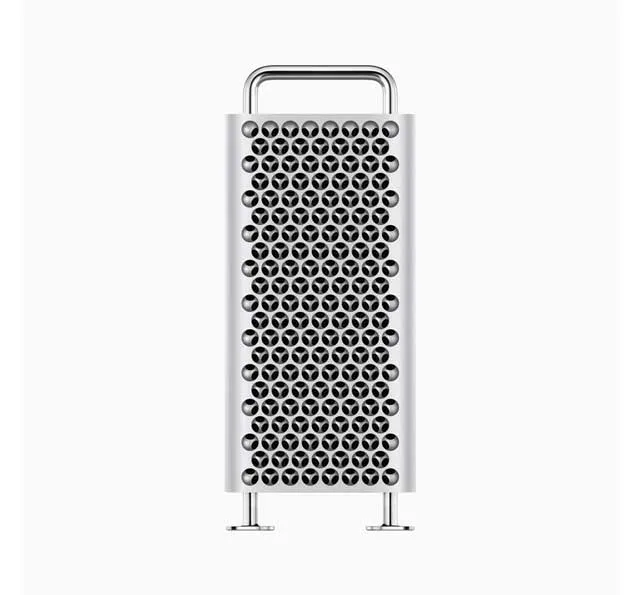
- M2 Ultra Processor — found in the Mac Pro; notable if you need PCIe expansion along with strong export and render performance.
- M3 Ultra Processor — offered in the Mac Studio; excellent for high-throughput professional work without needing PCIe expansion.
- M4 Processor — used in the MacBook Air and iMac; strong for day-to-day editing and efficient performance.
- M4 Pro Processor — available in the Mac mini and MacBook Pro; a sweet spot for serious editors who cut 4K regularly and want strong export times.
- M4 Max Processor — available in the MacBook Pro and Mac Studio; best for effects-heavy timelines, frequent exports, and demanding workflows.
- M5 Processor — announced on October 15, 2025; used in the 14-inch MacBook Pro; the newest generation for mobile editing.
When choosing between generations, prioritizing the chip tier and memory configuration often matters more than minor generation differences.

Which Video Editing Applications Benefit From a Powerful CPU?
Nearly every video editor benefits from a faster CPU.
The more important question is which parts of your workflow are CPU-limited versus GPU- or media-engine-limited.
CPU-heavy tasks often include:
Exports and long renders.
Proxy creation and transcoding.
Multicam editing.
Motion graphics, compositing, and heavy plugin workflows.
CPU matters less when:
Your codec is being accelerated by hardware media engines.
Your timeline is dominated by GPU-accelerated effects or color.
Your system is limited by memory capacity or slow storage.
For most editors, a balanced Mac with enough memory is the fastest upgrade you can make.

Adobe Premiere Pro and the CPU
Adobe Premiere Pro is a timeline-based editor commonly used for YouTube, social media, client work, and short films.
In Premiere Pro, the CPU affects timeline responsiveness, rendering, and exports, while GPU and media engines handle many playback tasks.
CPU performance matters most for:
Multicam timelines.
Effects-heavy sequences.
Background tasks like proxies and transcoding.
For reliable 4K performance, a Pro-tier chip or better and enough memory provide the best experience.
Get Adobe Premiere Pro (affiliate link):
https://prf.hn/l/RmYOw5A
Related guide:
https://josephnilo.com/blog/best-mac-for-premiere-pro/

Adobe After Effects and the CPU
After Effects is used for motion graphics and visual effects.
It benefits from strong CPU performance, especially when previews and renders are a big part of your day-to-day workflow.
Prioritize:
More CPU cores for faster previews and rendering.
Enough memory for large comps and higher resolutions.
A balanced GPU for accelerated effects.
If After Effects is a primary tool, stepping up a chip tier and adding memory headroom usually pays off.
Get Adobe After Effects (affiliate link):
https://prf.hn/l/DRPwxyw
Related guide:
https://josephnilo.com/blog/adobe-creative-cloud-price-explained/

Avid Media Composer and the CPU
Avid Media Composer is widely used for high-end film and television workflows.
CPU performance helps most when timelines are long, track counts are high, and you’re exporting frequently.
CPU benefits include:
Faster exports and background processing.
Smoother performance on complex sequences.
Better handling of multi-stream edits.
You don’t need the most expensive chip to run Avid well, but higher-tier chips and sufficient memory improve responsiveness and reduce slowdowns on demanding projects.

Final Cut Pro and the CPU
Final Cut Pro is highly optimized for macOS and Apple Silicon.
It takes excellent advantage of CPU performance and hardware media engines, especially with ProRes workflows.
A faster CPU improves:
Playback with layered effects.
Background rendering.
Multicam editing performance.
For ProRes-heavy work, Apple Silicon systems deliver some of the best performance per watt available.

CPU / Processor Frequently Asked Questions
What is a CPU?
A CPU, or central processing unit, is the main processor in a computer. It’s responsible for carrying out instructions and performing calculations.
What is a CPU core?
A core refers to the physical component within a CPU that processes instructions and data. A single-core CPU has one core, while a dual-core CPU has two cores, and so on.
How many cores do I need for video editing?
It depends on the specific video editing application you’re using and your own personal workflow. In general, more cores will result in faster performance, but it’s not always necessary to have a high number of cores. Check the recommended minimum requirements of your video editing app and consider your own workflow before making a decision.
Do clock speeds matter for video editing?
Clock speed, measured in GHz, refers to how fast a CPU can execute instructions. In general, higher clock speeds will result in faster performance, but it’s not always the most important factor. In video editing, the number of cores and how efficiently the software can utilize them are often more important for performance.
What is the current fastest CPU for Mac?
Currently, the fastest CPU for Mac is the M1 Max and M1 Ultra processors in the Mac Studio. However, it’s important to consider your specific needs before investing in a high-end processor.
What is an integrated GPU?
An integrated GPU, or graphics processing unit, is built into the CPU. This allows for a smaller and more efficient design, but it may not have as much power as a dedicated GPU. Some video editing software can utilize both CPU and GPU for improved performance.
What is Unified Memory?
Unified Memory is a technology that allows the CPU and GPU to access the same memory, making it more efficient for tasks that require them to work together. This can result in improved performance in certain tasks, including video editing.
What is Memory Bandwidth?
Memory bandwidth refers to the speed at which data can be transferred between the CPU and RAM. It’s measured in GB/s, and higher memory bandwidth can result in improved performance for tasks that require a lot of data transfer, such as 4k video editing.
Conclusion:
When choosing a video editing app keep in mind how many cores your CPU has as well as what type of project you'll be working on.

About the Author
Joseph Nilo has been working professionally in all aspects of audio and video production for over twenty years. His day-to-day work finds him working as a video editor, 2D and 3D motion graphics designer, voiceover artist and audio engineer, and colorist for corporate projects and feature films.
Video Editing Related Posts
Adobe Creative Cloud for Video Editing
Top 10 Video Editing Software for Mac
The Benefits of Dual-Monitor Setups for Video Editing
How to Choose the Right Video Editing Monitor for Your Needs
Best Monitors for Video Editing
(Almost) 50 Mistakes Every New Video Producer Makes
Breakthrough AI Tools: Elevate Your Video Production Game!
Final Cut Pro Related Posts
How to Create a Seamless Transition in Final Cut Pro
Mastering the Essentials: A Beginner's Guide to Final Cut Pro Keyboard Shortcuts
Optimizing Performance in Final Cut Pro
How to Work With iPhone HDR Footage in Final Cut Pro
All About the Final Cut Pro Student Discount
Premiere Pro Ultimate Guides to:
Ultimate Starter Guide
Buying Premiere Pro
Lumetri Color Panel
Essential Sound Panel
Exporting to YouTube
Freeze Frames
Transitions
Transcription
Cropping
Zooming
Adobe Creative Cloud Pricing and Plans
Exporting iPhone HDR
More Premiere Pro creator guides
Premiere Pro Exporting Low Quality?
Premiere Pro Export Settings for YouTube Shorts
Premiere Pro vs Final Cut Pro for YouTubers
- What Should I Look For In A CPU?
- Cpus Available Today For Mac Computers (2023)
- M1 Processor
- M1 Pro Processor
- M1 Max Processor
- M1 Ultra Processor
- M2 Processor
- Which Video Editing Applications Benefit From A Powerful CPU?
- Adobe Premiere Pro And The CPU
- Adobe After Effects And The CPU
- Avid Media Composer And The CPU
- Final Cut Pro And The CPU
- CPU / Processor FAQ
Video Editing Related Posts
Adobe Creative Cloud for Video Editing
Top 10 Video Editing Software for Mac
The Benefits of Dual-Monitor Setups for Video Editing
How to Choose the Right Video Editing Monitor for Your Needs
Best Monitors for Video Editing
(Almost) 50 Mistakes Every New Video Producer Makes
Breakthrough AI Tools: Elevate Your Video Production Game!
Final Cut Pro Related Posts
How to Create a Seamless Transition in Final Cut Pro
Mastering the Essentials: A Beginner's Guide to Final Cut Pro Keyboard Shortcuts
Optimizing Performance in Final Cut Pro
How to Work With iPhone HDR Footage in Final Cut Pro
All About the Final Cut Pro Student Discount
Premiere Pro Ultimate Guides to:
Ultimate Starter Guide
Buying Premiere Pro
Lumetri Color Panel
Essential Sound Panel
Exporting to YouTube
Freeze Frames
Transitions
Transcription
Cropping
Zooming
Adobe Creative Cloud Pricing and Plans
Exporting iPhone HDR
More Premiere Pro creator guides
Premiere Pro Exporting Low Quality?
Premiere Pro Export Settings for YouTube Shorts
Premiere Pro vs Final Cut Pro for YouTubers