
Waves Bass Fingers is a sample-based fingerstyle electric-bass instrument built around a fretboard-aware performance engine, not simply a folder of one-shot bass notes. Waves documents more than 14,000 samples, multiple velocity and round-robin layers, position-aware articulations, open-string forcing, five legato behaviors, tone/amp processing and a seven-pedal effects board. The guide documents a stereo-only plug-in component and a standalone application. [1] [1][2]
The useful distinction is that Bass Fingers tries to decide where and how a bassist would play a note. The fretboard Position and String Range controls affect which string/fret sample is chosen, while the articulation section determines how overlapping notes, open strings and legato samples are handled. Those performance controls matter at least as much as the amp and effects if the goal is a believable programmed line. [1]
My Short Version
Start with the performance engine before polishing the tone. Choose Manual or Adaptive Position mode, set a useful fretboard region when using Manual, and choose Legato Type according to the performance rules you want. Adjust velocity response to the keyboard or MIDI part. If an open E, A, D or G should really sound open, enable its Open String button rather than assuming the sampler will choose it. [1]
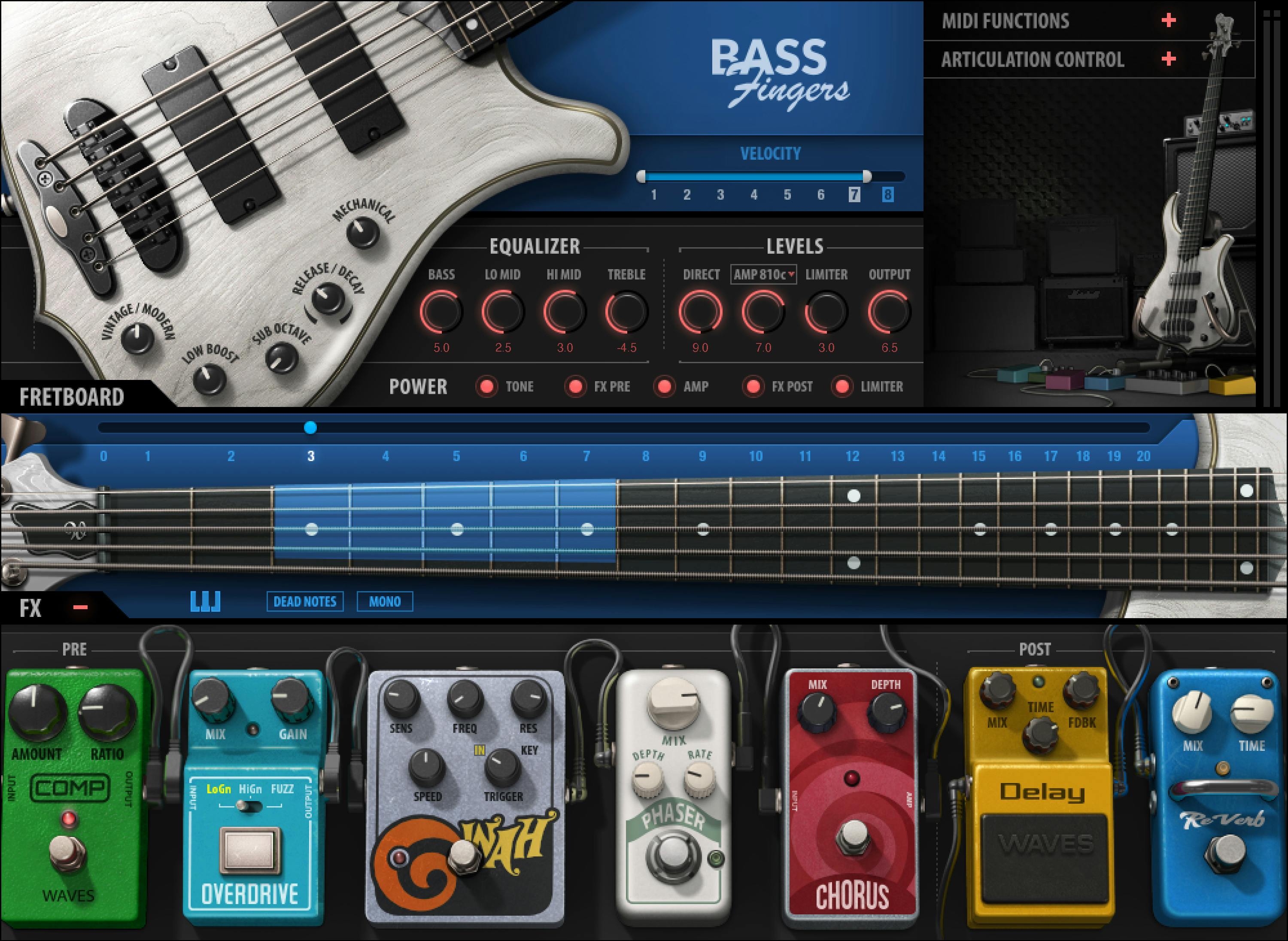
Then shape the instrument. Vintage/Modern, the four-band EQ and the Direct/Amp balance establish the core sound. The first five pedals—Compressor, Overdrive, Wah, Phaser and Chorus—sit pre-amplifier; Delay and Reverb are post-amplifier. That signal-flow distinction is documented and is more useful than treating the pedalboard as seven interchangeable inserts. [1]
I did not play, render or compare Bass Fingers for this article. The workflow suggestions here are editorial recommendations based on the documented control relationships.
Sample library, velocity layers and round robins
The current Waves product page describes a 15.5 GB library with more than 14,000 samples, eight velocity layers and six round robins for every sampled note. The manual describes the library as a detailed multisample set with performance noises and articulations, and supports switching between installed sample-library folders through the WaveSystem toolbar. [1][2]
Waves documents Standard and HD sample-library choices as having the same programming while differing in quality and file size. [1]
If Bass Fingers cannot find a valid sample folder, the manual says its folder-selection dialog will not accept a directory that lacks valid Waves sampled-instrument resources. Changing the selected library makes the new folder the default until another library is loaded. [1]
Vintage / Modern
Vintage/Modern moves the basic sample tone from a warmer, richer low-end character at the Vintage end toward a brighter, more detailed Modern sound. Waves describes this as part of the core Tone section rather than an amp-model selector. [1]
Use it before piling on EQ. If the source character is already too dark or too bright, this control changes the instrument’s broad tonal presentation without requiring you to force the four EQ bands into a corrective role.
Low Boost and Sub Octave
Low Boost enhances bass/sub content outside the normal processing chain. Sub Octave adds a synthesized octave-below layer; unlike Low Boost, Waves says the Sub Octave layer is sent through the instrument’s processing and effects. [1]
That distinction matters when troubleshooting why a pedal or amp change affects one low-frequency contribution more than another. Low Boost is not simply another level control for the Sub Octave generator.
Release / Decay and Mechanical
The combined Release/Decay control changes the prominence of sampled note endings. At its centered 0 setting, the guide says no release samples play; moving toward the positive side emphasizes release/mechanical endings, while moving toward the negative side emphasizes harmonic decay endings. The documented endpoints are +10 for full release endings and -10 for full decay endings. [1]
Mechanical sets the level of fretting/mechanical-noise samples. These noises are part of the realism system, but more is not automatically more realistic. Treat the control as an audibility choice for the arrangement and mix.
Four-band EQ
Bass Fingers includes fixed Bass, Low Mid, High Mid and Treble tone bands. Waves describes the EQ as integral to the amp and says it is bypassed when Amp is off. The guide text places it between FX Pre and FX Post, while the printed signal-flow diagram shows Amp Simulation before the 4-band EQ. [1] The manual does not publish complete numeric frequency/gain domains for these four knobs, so this article does not infer values from knob positions or screenshots. [1]
Direct, Amp and Amp Type
The Direct control sets the processed direct contribution without the amp simulation. Amp controls a parallel amp-simulated contribution based on an 8x10 bass-cabinet path. Amp Type selects among four bass amp impulse responses. The guide’s control figure labels them Amp 810c, Amp 810d, Amp V115 and Amp 410d; treat these as manual-figure labels, not a check of the current installed UI. [1]
Waves recommends starting with either Direct or Amp as the main tone and then blending. That is vendor workflow guidance, not a result measured in this article.
Turning the Amp power section off bypasses the Direct and Amp controls and disables the Amp Type selector. This bypasses more than the simulated cabinet contribution. [1]
Limiter, Output and five power toggles
Limiter controls the threshold of the output limiter; the manual states that higher settings produce more gain reduction. It does not publish a dB threshold scale in the control description, so none is invented here. [1]
Output sets the instrument output level. [1]
Five section power buttons independently deactivate Tone, FX Pre, Amp, FX Post and Limiter. Waves notes that disabling modules can reduce CPU use. Do not confuse an individual pedal’s bypass with one of these larger section power controls. [1]
Fretboard display and Position Selector
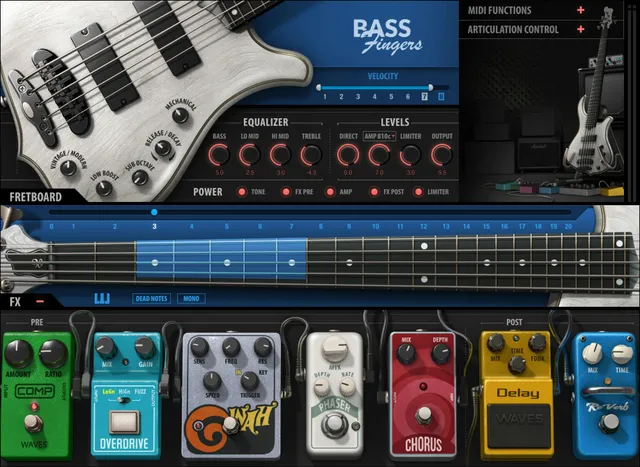
The fretboard is documented as a 24-fret, five-string neck. A highlighted active region covers a five-fret range, and played/selected notes are shown on the fretboard. Clicking a string/fret displays that note location. [1]
The Position Selector changes the active five-fret region used when choosing samples. Because the same pitch can exist on different strings/frets, changing Position can change timbre and can also affect whether simultaneous notes can be assigned to different strings. This is a sample-selection/performance control, not a pitch transposer. [1]
There is a source wording discrepancy worth preserving. The current manual sentence says there are “twenty numbers” over the fretboard, but the current manual image visibly shows labels 0–20, and the current product page advertises 21 interactive playing positions. The available documents do not resolve that count discrepancy. [1][2]
Dead Notes and Mono Mode
Dead Notes switches every played note to its corresponding muted/dead-note sample, following fretboard location and articulation settings. Waves explicitly says this control is not host-automatable but is MIDI assignable. [1]
Mono Mode makes the instrument fully monophonic. In this mode, the manual says no legato samples are played. That is distinct from choosing a Legato Type: Mono Mode changes the overall voice behavior. [1]
Keyswitch Editor
The Keyswitch Editor assigns samples and articulation functions to the lowest keyboard octave, C0–B0. The manual says those keys are otherwise unused for normal played samples, so the assignments can act as performance switches/triggers. Sample-assigned keyswitches remain velocity sensitive. [1]
When a keyswitch is assigned to an articulation command, Waves instructs you to hold the keyswitch and then play the note. The editor opens with the factory mapping, but this article does not reproduce a possibly version-sensitive factory map as if it were immutable.
Round Robin, Transpose and velocity controls
Click the + control to expand the MIDI Functions or Articulation section. The official interface illustration shows those panels collapsed. [1]
Round Robin Mode offers Forward, Reverse and Random sample rotation. With Round Robin switched off, the manual says the longest available sample plays. [1]
Transpose offsets incoming MIDI by -24 to +24 semitones. [1]
Velocity to Volume determines how much the velocity layers differ in playback level: the manual uses 0 for original layer levels and 10 for a much stronger level spread. [1]
Velocity Range changes the instrument’s dynamic range and how many velocity layers are available to playing dynamics. Velocity Curve moves the response from logarithmic toward exponential so the keyboard response can be matched to the player/controller. The manual does not publish a full numeric domain for those two controls, so none is inferred. [1]
Pitch modulation and sustain
The Modulation section controls pitch-modulation Depth and Rate. Higher Depth increases pitch movement; Rate sets its speed. The manual says modulation depth is mapped to the keyboard modulation wheel by default. [1]
The Sustain Pedal button enables/disables sustain-pedal behavior, and its LED indicates when sustain is active. [1]
Open Strings
Four Open Strings buttons force the corresponding open-string sample for E1, A1, D2 and G2, regardless of the Position setting. Waves describes this as a way to prioritize the tone of real open strings in lines where those pitches should be performed open. [1]
There is no separate button for the fifth string in this documented set.
Legato Type: five behaviors
The current manual documents five Legato Type choices: [1]
- Realistic — uses Position and string context to generate legato or non-legato samples. For successive notes on the same string, the guide says it will ‘mute the played note.’ The wording does not unambiguously identify which note is muted; that behavior was not tested here.
- Extended — allows legato samples beyond the normal fret span associated with the selected Position.
- Force Legato — disregards realistic string limitations so hammer-on/pull-off style legato can continue across strings.
- Always — triggers legato samples even when played notes do not overlap.
- Off (Polyphonic) — removes the legato rules and allows notes to play polyphonically, including combinations that would not be possible on one real string. [1]
This is one of the most consequential realism/programmability controls in the instrument. Start with Realistic when the guide’s string/position rules fit your part; the other modes relax or remove those legato rules. This is a control-based suggestion, not a tested performance result.
Position mode: Manual vs Adaptive
The Position system itself can operate in Manual or Adaptive mode. [1]
In Manual, the selected position remains fixed even when notes outside the range are played. Waves recommends MIDI/keyswitch control when you want planned sample-accurate position moves. The manual explicitly states that the Position control is not host-automatable, although it can be assigned to MIDI or keyswitches. [1]
In Adaptive, the instrument changes position according to the incoming notes. The manual says the Position Slider becomes inactive in this mode. [1]
String Range
String Range prioritizes note selection on chosen strings while keeping the broader fretboard-position logic. Notes in the selected string range are kept within the fretboard range when possible; notes outside that selection can use other available strings. Because the same pitch sounds different on different strings, this control is partly a timbre tool as well as a playability rule. [1]
Pedalboard signal flow
The pedalboard contains seven pedals. Waves explicitly places the first five before the amplifier and the last two after it: [1]
FX Pre: Compressor → Overdrive → Wah → Phaser → Chorus.
FX Post: Delay → Reverb.
Each pedal has its own bypass. The documented pre/post ordering explains how the pedals interact with the Amp section.
Compressor and Overdrive
The pre-amp Compressor has Amount and Ratio. Amount sets how much signal is compressed; Ratio controls the amount/ratio of compression. Waves does not publish numeric domains in this manual section. [1]
The parallel Overdrive has Mix and Gain, plus a three-way type selector: Hi Gain, Lo Gain and Fuzz. Mix blends clean and driven signals; Gain sets distortion amount. [1]
Wah
The guide says the Wah can be driven from audio dynamics or incoming MIDI notes. Trigger selects In for an audio-responsive filter envelope or Key for MIDI-note triggering. In its detailed prose, Mix blends clean and filtered signals; Freq sets cutoff; Sens sets dynamics sensitivity in In mode or envelope depth in Key mode; Res sharpens or flattens the cutoff response; Attack sets how long the filter takes to open.
The overview and pedal illustration instead show Speed, and the illustration does not label Mix. These are documented prose functions, not a verified current UI mapping. Do not equate Speed with Attack or infer that an unpictured control is absent. [1]
Phaser and Chorus
The parallel Phaser provides Mix, Depth and Rate. The parallel Chorus provides Mix and Depth. Their manual descriptions are functional rather than numeric, so this article does not invent ranges/defaults. [1]
Delay and Reverb
The post-amp Delay provides Mix, Feedback and Time. Time uses a shared control for synchronized musical values and free millisecond timing. The manual describes noon as the slowest Free value; one side of the control moves through free rates, while the other moves through host-related musical values. [1]
The post-amp Reverb provides Mix and Time, with Time controlling decay duration. [1]
These two pedals occur after the amplifier in the documented path, unlike Chorus/Phaser/Wah/Overdrive/Compressor.
Output meter and clip reset
The right-side output meter is deliberately unscaled. Waves describes it as a general high/low level indication, not a calibrated delivery meter. A red clip indicator lights after clipping; click the clip light to reset it. [1]
That reset behavior is worth preserving in text because it is a meaningful readout interaction, not merely decorative UI.
WaveSystem toolbar, Tune and MIDI mapping
The top toolbar handles preset save/load, sample-library selection, Compare, Undo/Redo and interface resizing. [1]
Tune adjusts instrument tuning from -100 to +100 cents, with 0 cents as the documented initial/reset value. [1]
Use the WaveSystem Save menu’s Save MIDI Map to New File command to save external MIDI Learn and Keyswitch Editor settings; Set as Default MIDI Map stores the selected mapping as the default. [1]
Standalone preferences
Bass Fingers can run standalone. Its File menu includes All Notes Off, which sends an All-Notes-Off MIDI command for stuck sustaining notes, and Preferences.
The Preferences dialog exposes Output device, Test (plays a sound if outputs are configured correctly), Active Output Channels, Sample Rate, Audio Buffer Size, active MIDI Inputs and Tempo. On Windows, sample rate and buffer size are changed through the audio driver’s control panel rather than directly in this panel. [1]
Those settings describe the standalone wrapper; they should not be presented as plugin tone controls inside a DAW.
A practical Bass Fingers workflow
First choose a representative preset and set the sample library. As an editorial starting point, use your MIDI line to adjust Velocity Curve/Range, Position, String Range, Open Strings and Legato Type. That lets the sampler make coherent performance decisions before tone processing hides or exaggerates articulation problems. [1]
Second, set Vintage/Modern, EQ and the Direct/Amp balance. Add Sub Octave only if the arrangement needs a synthesized octave layer; remember that it travels through the processing/effects path while Low Boost is documented outside that chain. [1]
Finally, add pedals with the documented routing in mind. Use pre-amp drive/modulation to shape what hits the amp and post-amp Delay/Reverb for space. Watch the output clip light and reset it after correcting an overload. This is editorial workflow advice derived from the manual, not a tested preset recipe.
Best for / skip if
Bass Fingers is best for MIDI-programmed fingerstyle electric bass when string/fret position, articulations and performance rules matter, especially when a generic one-sample-per-pitch instrument sounds too static. [1][2]
Skip it when you already have a recorded bassist, need a different core playing technique as the primary identity, or do not want to manage a large sampled instrument/library. The current product page describes fingerstyle performance; this article does not generalize it into every bass technique.
Limitations and evidence boundary
This is a documentation-led article. I did not audition the sample library, measure velocity consistency, compare the four amp IRs, verify round-robin randomness, test host automation/MIDI latency, judge realism, or benchmark CPU use.
Many tone/effect knobs are documented by function without complete numeric ranges/defaults. Those numbers are intentionally not inferred from screenshots. The current primary-source Position count discrepancy—manual prose “twenty numbers” versus a visible 0–20 selector and product-page “21 interactive playing positions”—is retained as a source note rather than hidden. [1][2]
Related guides
For more information, see the official Waves Bass Fingers product page and Waves sample libraries page.
Bottom line
Bass Fingers is most useful when you treat its fretboard/articulation engine as the instrument and its amp/pedals as the finishing chain. Position, String Range, Open Strings, velocity and Legato Type decide which performance samples are used; Vintage/Modern, EQ, Direct/Amp and the seven pedals decide how those samples are processed. [1]
That order—performance first, tone second—is the simplest way to understand the interface without reducing it to a preset browser.
Sources
Checked October 18, 2026. No listening, native-host or MIDI performance test was performed.
- Waves Bass Fingers User Guide, current product-linked manual; controls parsed and current fretboard/Position plus seven-pedal UI pages visually inspected.
- Waves Bass Fingers product page, current product identity, library/velocity/round-robin/position feature claims and current manual/thumbnail link.
- Waves Graphic Library, current Bass Fingers listing and product-image reuse rule requiring a relevant Waves product backlink.
FAQ
What is Waves Bass Fingers?
Bass Fingers is a sample-based fingerstyle bass virtual instrument. Its sampler uses fretboard and articulation controls to select performance samples, with tone shaping, amp processing and seven pedals documented in the guide.
What does Position change?
Position selects a five-fret range used to choose samples. Because notes can be played on different strings and frets, changing Position can affect tone and whether simultaneous notes can be assigned across different strings.
How do Manual and Adaptive Position modes differ?
In Manual mode, Position stays fixed even when notes fall outside its range. In Adaptive mode, Position shifts according to incoming notes and the Position slider becomes inactive. The Position control is not host-automatable, but the guide documents MIDI-control and keyswitch assignment.
What does Realistic Legato do?
Realistic mode uses Position and string context to choose legato or non-legato samples. For successive notes on the same string, the guide says it will ‘mute the played note.’ That wording does not unambiguously identify which note is muted, and no MIDI or runtime test was performed here.
Which pedals are before and after the amp?
Compressor, Overdrive, Wah, Phaser and Chorus are pre-amplifier, in that order. Delay and Reverb are post-amplifier.
What happens when the Amp section is switched off?
The guide says the EQ is integral to the amp and is bypassed; switching off Amp also bypasses the Direct and Amp controls and disables the Amp Type selector.
Can Bass Fingers force open-string samples?
Yes. Four Open Strings buttons force E1, A1, D2 and G2 to use their corresponding open-string samples regardless of the Position setting.
How does Delay Time switch between Free and Sync values?
The same knob covers Free millisecond values and host-synchronized note values. Noon is the slowest Free value; clockwise from noon increases the Free rate, while positions below noon select host-related musical note values.

About the Author
Joseph Nilo has been working professionally in all aspects of audio and video production for over twenty years. His day-to-day work finds him working as a video editor, 2D and 3D motion graphics designer, voiceover artist and audio engineer, and colorist for corporate projects and feature films.