
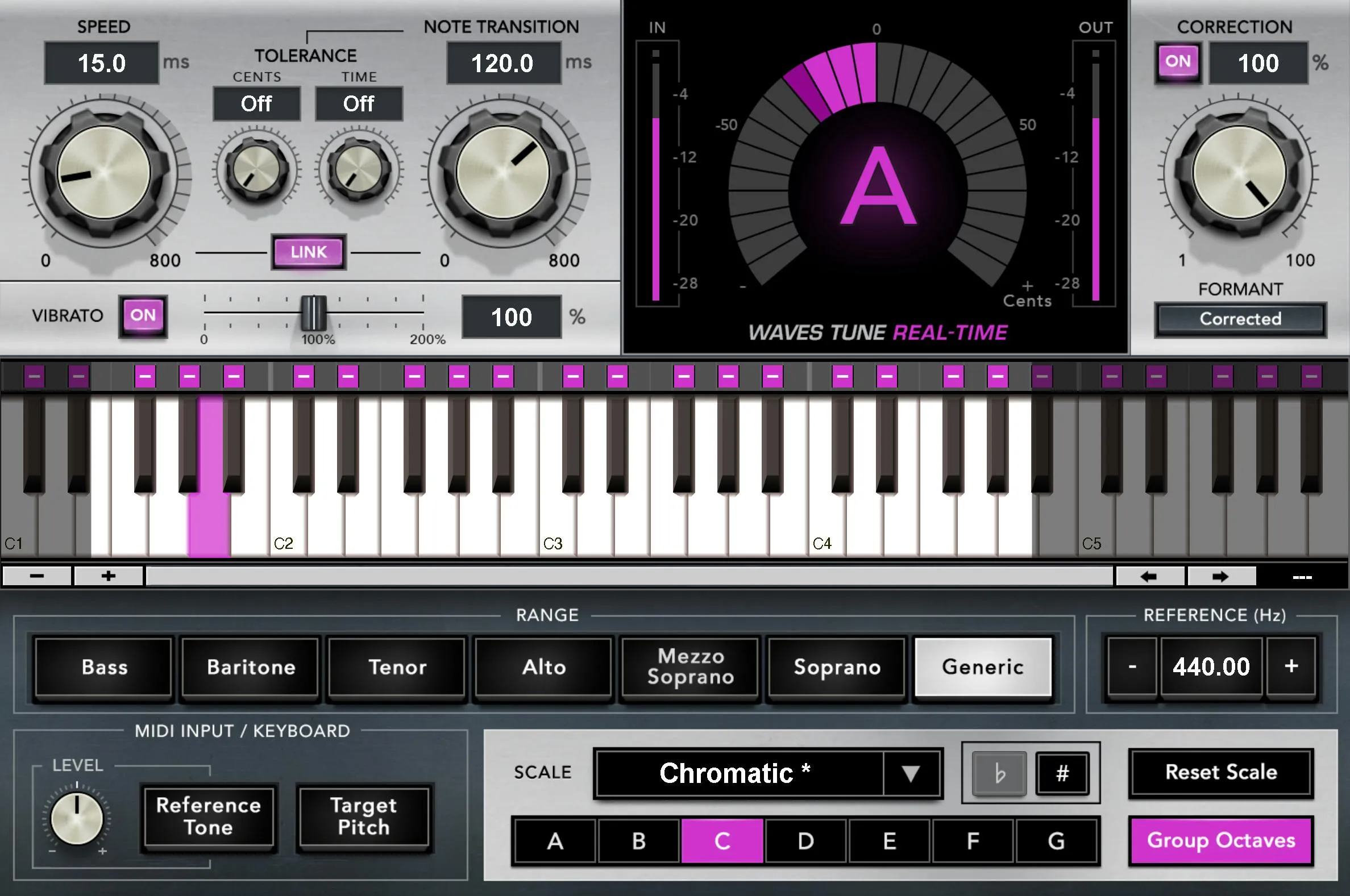
Waves Tune Real-Time detects a single vocal pitch and moves it toward the allowed notes in a selected scale. Speed controls correction within a note, Note Transition governs movement to another target, and the keyboard defines which notes are allowed, redirected or bypassed. [1]
It can be used for restrained correction or an obvious quantized effect. It cannot decide the singer's musical intention without appropriate note rules.
About the imagery: the cover is an editorial illustration. The plugin interface is official Waves product artwork, not a capture of a listening or compliance test.
My Short Version
Set the key, scale and usable vocal range first. Then choose how tightly and how quickly the voice should be corrected.
Use Tolerance to address unwanted target changes, not to compensate for the wrong scale. Keep natural pitch movement only where it serves the performance; an effect-oriented vocal may call for a different choice.
This is a source-based control guide, not a newly tested vocal preset or a guarantee of transparent correction.
What source it expects
The manual specifies monophonic material—one pitch-bearing voice at a time. Mono and Stereo components are provided; the Stereo component uses a summed signal for detection. A choir or a completed mix is not the same task. [1, p.5]
Waves also distinguishes its zero latency reported to the host from a documented dynamic detection/correction delay of up to4ms, dependent on pitch. That is a vendor specification, not an end-to-end monitoring measurement on Joseph's setup.
Choose a clean source and check the detected notes before interpreting an odd result as simply the wrong Speed setting.
Correction timing
Speed
Speed sets how quickly pitch is moved toward its target, over 0.1–800ms, default15ms. It also affects how tightly a sustained note's drift is corrected. [1, p.8]
A faster setting can flatten more of the original contour. Decide whether the phrase needs tighter pitch or whether its movement is part of the performance.
Note Transition
Note Transition controls the response when the target changes from one note to another. Its range is 0.1–800ms, default120ms, with0.1mssteps. [1, p.9]
This is different from tightening a sustained note. A transition can be smooth while the held pitch remains controlled, or intentionally abrupt for a quantized effect.
Link
Link moves Speed and Note Transition together; it defaults Off. [1, p.9]
It is an editing convenience, not proof that the two controls should have equal values. Start by understanding their separate jobs.
Tolerance: when a target is allowed to change
Cents
Tolerance Cents adds a margin before the detector changes to a neighbouring target. Its documented range is Off–40cents, defaultOff. The manual's50-cent reference applies to the Western equal-tempered example, not every non-Western scale. [1, pp.10–11]
Use it when small fluctuations trigger unwanted note changes. It is not a way to choose the song's key.
Time
Tolerance Time waits before accepting a pitch excursion as a new target. Its range is Off–300ms, defaultOff. [1, pp.10–11]
When both tolerances are active, the manual says either threshold can start the Note Transition behavior. They are not necessarily two conditions that must both be satisfied.
Excessive tolerance can hold a target longer than the performance intends. Check short embellishments and adjacent allowed notes, not just a long sustained phrase.
Vibrato
Vibrato On/Off
With Vibrato enabled, the processor handles the voice's pitch modulation separately from the ordinary note-transition correction. It defaults On. With it off, correction can act on that movement like other pitch changes. [1, p.11]
The control is relevant to small vocal flutter as well as a clearly sustained vibrato. Turning it off is not a universal route to a more accurate vocal.
Vibrato Depth
Depth scales the existing pitch modulation over 0–200%, default100. Lower values reduce it; higher values exaggerate it. The manual distinguishes pitch modulation from amplitude modulation, which this control does not adjust. [1]
A depth of zero is a different choice from simply using a slower correction speed. Compare the actual contour rather than assuming all “natural” settings point in the same direction.
Correction amount and formants
Correction On/Off
This switch turns pitch correction on or off, defaultOn. [1, p.12]
Use it to compare the correction decision. Do not confuse it with a single keyboard note's bypass rule or a host bypass that can remove the whole instance.
Correction percentage
The amount ranges from 1–100%, default100. It scales the distance of the pitch correction toward the target; it is not a conventional dry/wet audio blend. [1, pp.12–13]
For example, partial correction can leave some of the original pitch offset without mixing an untreated second voice into the result. The manual's meter illustrations show the scaled correction in cents.
Formant
Formant selects Corrected or Non-Corrected, defaultCorrected. It determines whether the process compensates vocal resonances while shifting pitch. [1, p.13]
Use the non-corrected option as an intentional character choice, not as a claim about the singer's identity. Larger shifts can make the distinction more obvious, but the outcome still depends on the source.
Correction and level meters
The central display identifies the target note and the correction amount in cents. The input and output meters show levels over the manual's -28 to0dBFS scale. [1, pp.12–13]
A stable target display does not prove that the musical target is right. Check it against the melody and chosen rules.
The manual does not define a separate held-peak reset contract for these meter fields. No reset gesture or loudness measurement is invented here.
Key, scale and detection range
Reference Pitch
Reference calibrates the tuning center: A440 by default, adjustable by±100cents, approximately415.3–466.16Hz. The value and adjacent controls alter that reference, not the song's root note. [1, p.14]
Use it when the recording's tuning reference differs. Do not shift the whole reference simply to fix one wrong target rule.
Root and accidentals
The A–G buttons and flat/sharp controls select the root. The Scale menu supplies the interval structure and allowed-note pattern. The default is an equal-tempered chromatic scale. [1, pp.7,14]
A scale choice provides information to the correction process; it does not establish which pitch the singer intended at every moment.
Scale menu and custom scales
A selected scale can be edited through the keyboard rules. An asterisk marks a modified scale. User Scale starts with notes disallowed so you can enable the required ones; Chromatic starts with all notes allowed. [1, pp.14,18]
The manual supports additional scale presets without enumerating a complete current menu. This guide does not invent a supposedly exhaustive list or create separate pages for each preset.
Range presets and boundary handles
Range restricts detection/correction to the intended register. The interface shows Bass, Baritone, Tenor, Alto, Mezzo Soprano, Soprano and Generic, plus draggable boundaries on the keyboard. Notes outside the selected region pass without correction. [1, pp.7,15–16]
Choose a range that includes the actual performance without treating a voice label as a judgment about the person. Narrowing it too far can leave intended notes unprocessed.
Keyboard view buttons and navigation help inspect the display; they should not be confused with changing the scale's legal-note rules. The manual does not specify numerical zoom increments for them.
The five keyboard note rules
Each note's status area can be cycled through the documented rules. [1, p.16]
Legal permits that note as a target. Illegal sends the correction toward a nearby legal note. Pitch Up and Pitch Down require the next legal note in the chosen direction. Bypass Note leaves that note without ordinary correction.
This is more specific than a global major/minor switch. Use an exception only where the performance needs it, and check the effect at the phrase boundary.
Group Octaves
When Group Octaves is active, changing a note rule applies it to the matching note in every octave. With it off, the edit applies only to that specific note and octave. [1, p.17]
Check this before making a local exception. A change intended for one part of the melody can otherwise affect the whole register.
Reset Scale
Reset Scale restores the selected scale's default rules and discards custom note edits. [1, pp.15,17]
This is not a whole-plugin reset. Keep a saved version of custom rules before replacing them.
Send to All and Receive
Send to All transmits Root, Scale and custom note rules to other instances in the session. Receive determines whether an instance accepts those updates and can also receive scale information from Key Detector. [1, p.17]
This is a session-wide editing action, not merely a preview. Leave Receive off on an instance that must retain a different set of rules.
MIDI and the virtual keyboard
A host-routed MIDI track or keyboard can address the instance. Right-click MIDI Learn maps a supported control, and the mapping is stored with the preset. [1, pp.19–20]
Reference Tone and Level
Reference Tone makes a played keyboard/MIDI note produce a reference sound. Its Level spans -18 to +18dB. The manual notes that host dynamic processing can suspend the tone when no audio is entering. [1, p.21]
Keep playback level conservative. A reference tone is a listening aid, not a required part of the exported vocal.
Target Pitch
Target Pitch uses played notes to force the vocal's target, with Speed and Note Transition still shaping the response. It can override an ordinary note-bypass rule, but incoming material outside Range remains excluded. [1, p.21]
This can be correction or a performed effect. Do not mistake a MIDI target for evidence that the original singer was wrong.
The manual includes a directionally inconsistent A4-to-C4 example. This guide relies on its general target-note explanation and does not repeat that example as a verified pitch-direction rule.
Presets and toolbar
WaveSystem provides About, Undo/Redo, preset load/save, Previous/Next, Setup A/B, Copy A/B, sizing and help. Current preset browsing adds search, Factory/User/Favorite views, favorites, Copy/Paste, Reset to Default and Detach. [3][4]
A preset can carry note rules and MIDI mappings as well as speed settings. Check the entire configuration before applying it to a different song.
A practical order of decisions
Confirm the source and intended melody, then set Reference, Root, Scale and Range.
Choose Note Transition for the movement between notes and Speed for the correction within them. Address unwanted target changes with the tolerance controls only after the note rules are sensible.
Check vibrato and formant behavior, then reduce the correction percentage when partial movement serves the performance. Compare the result against the original in the arrangement.
These are proposed evaluation steps. No new test, latency measurement or universal preset is claimed.
Related plugins
Waves Tune is the related detailed pitch-editing product; its workflow is not interchangeable with Real-Time's rules-based processing.
Vocal Bender changes pitch and formant character and supplies creative modulation, rather than this complete scale-rule interface.
Vocal Rider controls vocal level rather than pitch. Sibilance handles another separate vocal issue.
The Waves resource hub connects the broader toolkit and purchasing guidance.
Bottom line
Choose the right target before making correction faster. Scale, range and note rules determine where the voice can go; timing and amount determine how it gets there.
Use that control to serve the performance, whether the intended result is restrained or deliberately quantized.
Sources
Manual and library checked September19,2026. The current official product page and its V16 manual link were rechecked September23,2026.
- Updated Waves Tune Real-Time User Guide, source/componentsp.5 and complete controlsp.7–21.
- Waves Tune Real-Time product page.
- WaveSystem guide.
- Waves preset instructions.
- Waves Graphic Library.
Frequently Asked Questions
What kind of source is Waves Tune Real-Time designed to detect?
It is designed to detect one pitched vocal line at a time. A polyphonic mix or competing pitched sounds can make the intended target ambiguous.
How are Speed and Note Transition different?
Speed governs correction toward a target within a note. Note Transition governs movement when the target changes from one note to another. Link can move those timing controls together.
What do Tolerance Cents and Tolerance Time change?
They affect when Tune Real-Time permits a change to another target note: Cents concerns pitch distance, while Time concerns duration. They do not replace choosing the correct scale and allowed notes.
Is Correction percentage a dry/wet mix?
No. Correction percentage adjusts how much pitch correction is applied; it is not simply a blend of two audio paths. The separate Correction On/Off control enables or bypasses that correction.
What happens when a keyboard note is marked Illegal or Bypass Note?
Illegal prevents that note from being a correction target and sends correction toward a nearby legal note. Bypass Note leaves that note without ordinary correction. Pitch Up and Pitch Down are additional directional rules.
Does zero reported plugin latency mean no physical processing delay?
No. Host-reported latency and the manual's detection/correction delay describe different things. Do not treat a zero latency report as proof of zero physical detection time.

About the Author
Joseph Nilo has been working professionally in all aspects of audio and video production for over twenty years. His day-to-day work finds him working as a video editor, 2D and 3D motion graphics designer, voiceover artist and audio engineer, and colorist for corporate projects and feature films.