

Waves Bass Rider is an automatic gain-riding plugin designed to even out the level of individual bass notes without using compression as the leveling mechanism. It detects note attacks, sustains and releases, then moves its Rider fader to bring the detected note energy toward a target you set. [1][2]
That distinction matters. Bass Rider changes gain from note to note; it does not replace a compressor when you actually want compression's envelope shaping or color. Waves' own guide positions it as a way to level the bass before later EQ or compression. [1]
My Short Version
Start by putting Bass Rider before EQ or compression, which is the order Waves recommends in its quick-start guide. Play the bass and watch the Target Energy Meter, then set the Target around the average input level. [1]
Check that the intended notes are detected. If soft notes following louder notes are missed, increase Sensitivity and set Response = Fast. If string noise, buzz or ghost notes are being treated as notes, increase Artifacts. If background spill is detected and amplified, increase Spill. [1]
Then use Min Range and Max Range to limit how far the Rider fader is allowed to move. Use Output to place the leveled bass at the right overall mix level. [1]
I did not run Bass Rider on audio for this article. Those steps come from the current Waves documentation, not from a new listening comparison.
What Bass Rider actually does
Bass Rider analyzes the incoming bass signal to identify notes and their envelopes, then changes gain so those notes sit closer to the level represented by the Target control. [1]
This is different from lowering peaks according to a compressor threshold and time constants. Bass Rider's central movement is an automated fader ride. That can leave you free to use a compressor later for tone, attack/release shape or additional dynamic control rather than asking the compressor to do all of the leveling. [1]
The current product page says Bass Rider is optimized for electric, acoustic, synth and upright bass, and also identifies uses such as kick drum or feeding guitar into an amp simulator at a more consistent level. Those are documented use cases, not a claim that the plugin will behave identically on every source. [2]
Components: Bass Rider and Bass Rider Live
The guide documents four plugin components: [1]
- Bass Rider Mono
- Bass Rider Stereo
- Bass Rider Live Mono
- Bass Rider Live Stereo
The User Guide states 42 ms for the regular Mono/Stereo components and 5 ms for Live Mono/Stereo, and describes the regular components as round and transparent and Live as adding a little punch to note starts. [1]
The current product-page table separately lists Regular/Live latency in samples: native44 1852/221, native48 2016/240, native88 3704/441, native96 4032/480, native176 8064/960, and native192 8064/960.
The same product page also says “Real-time operation adds no latency,” which conflicts with the guide and its own nonzero table entries. These are conflicting vendor-published statements, not measurements or host-runtime proof; the discrepancy is unresolved here. [2]
Those are vendor-documented component differences; latency was not measured and the sonic difference was not auditioned for this article.
Target Energy Meter
The Target Energy Meter shows the energy of the incoming signal. [1]
- Documented scale: 0 to -42 dBFS [1]
Use it as the visual reference for where the bass's note energy is landing before you decide where to set the Target slider.
The guide does not publish a separate meter ballistics specification, so none is inferred from the moving display.
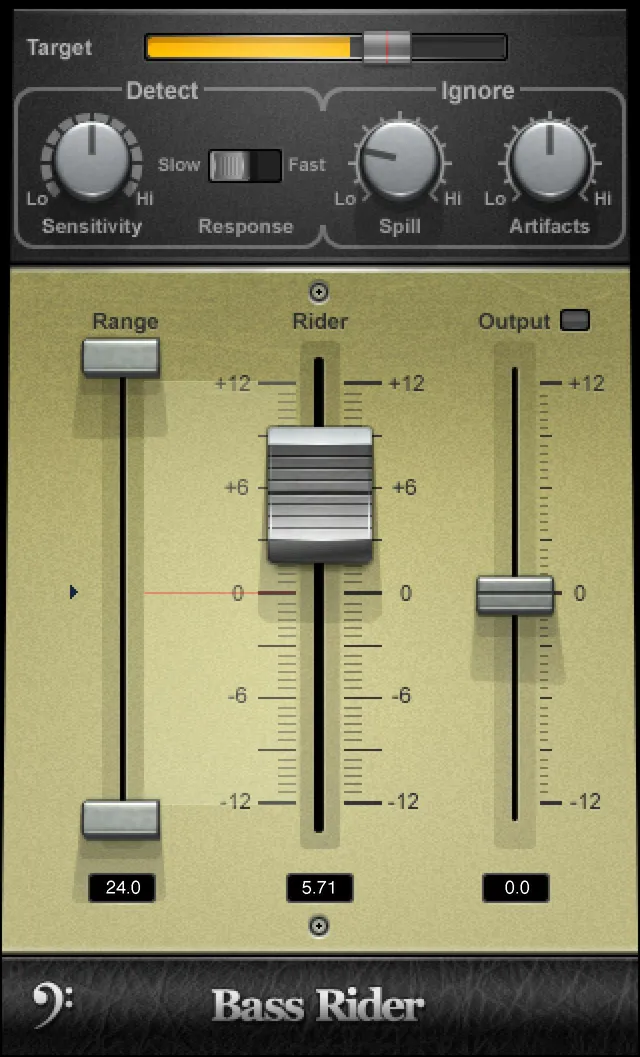
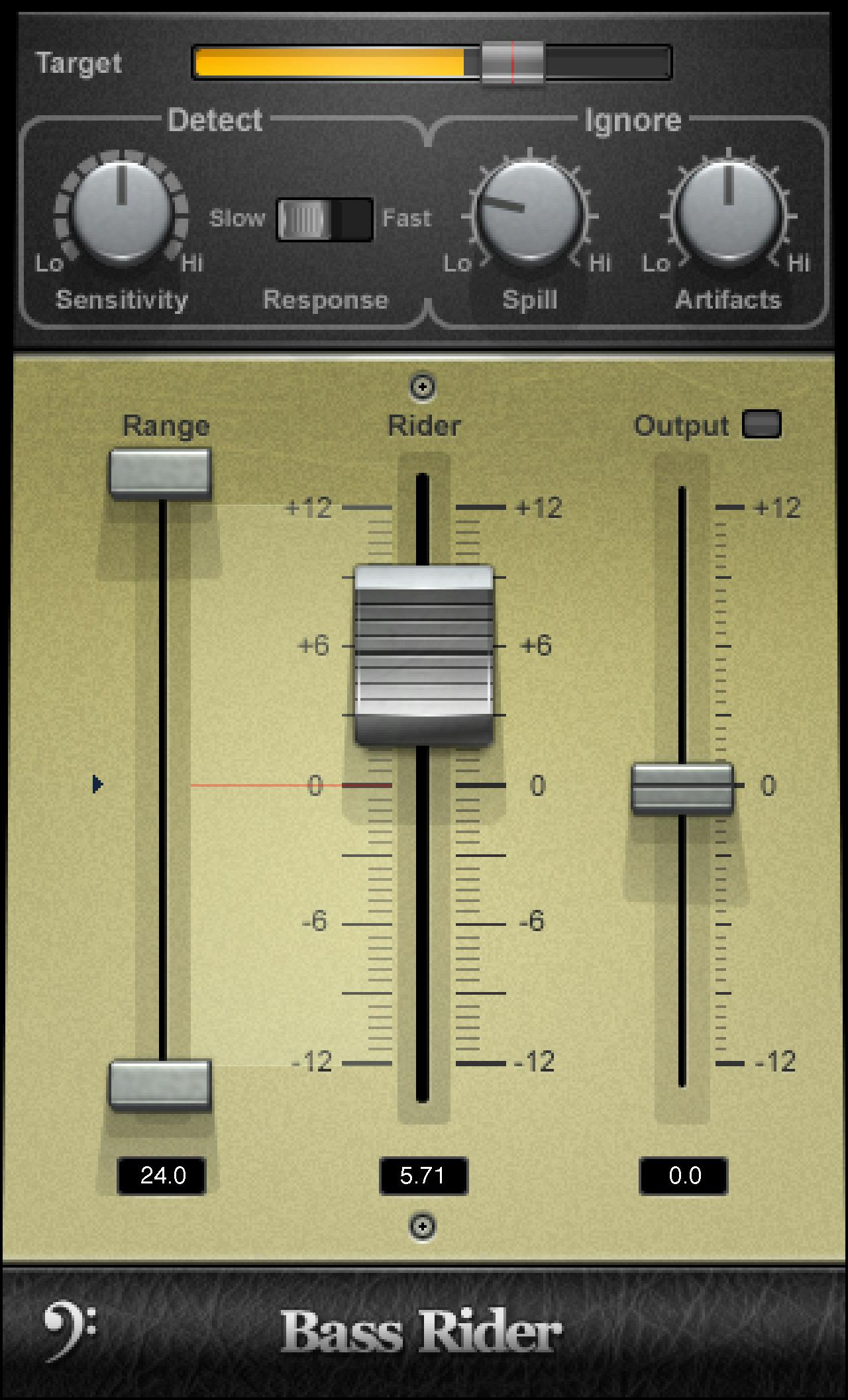
Target Slider
Target sets the desired bass level range and calibrates the Rider fader's 0 position. [1]
- Range: 0 to -42 dBFS
- Default: -14 on the documented scale [1]
Waves recommends placing the target around the average input level. A higher target asks the rider to add more gain overall; that can also bring up noise along with quiet notes, which is one reason to watch the detector and the resulting fader movement rather than treating a higher target as automatically better. [1]
Note Detect Sensitivity
Sensitivity controls how readily the note detector recognizes notes. [1]
- Range: 0–100
- Default: 50 [1]
Higher values detect more notes; lower values detect fewer individual notes. If soft notes following loud ones are being missed, Waves' troubleshooting guidance is to increase Sensitivity and use the Fast Response mode. [1]
Note Detect Response
Response determines when the detector resets and becomes ready to identify the next note. [1]
- Choices: Slow / Fast
- Default: Slow [1]
Waves describes Slow as calibrated for long note releases and Fast as calibrated for short releases. Use Fast when successive notes are not being recognized reliably; use Slow when the longer-release behavior better matches the performance. [1]
This is a detector timing choice, not an audio-compressor release control.
Ignore Spill
Spill tells the detector how much spill or leakage to ignore. [1]
- Range: -50 to -3 dBFS
- Default: -40 dBFS [1]
This matters when a mic'd amp, upright bass or another live source contains bleed from nearby instruments. If that bleed is being mistaken for bass notes and then amplified by the rider, Waves recommends increasing Spill. [1][2]
Ignore Artifacts
Artifacts controls the detector's tolerance for sounds that can trigger detection but are not the note you want to ride—Waves gives examples such as string buzz, crackles, transient noises, squeaks and modulation within notes. [1]
- Range: 0–100
- Default: 50 [1]
Higher values make the detector ignore more artifacts. Waves notes that increasing this setting may require you to readjust Sensitivity, because both controls affect what the detector decides counts as a note. [1]
Max Range
Max Range sets the upper boundary of automatic Rider-fader movement. [1]
- Range: -11 to +12 dB
- Default: +12 dB [1]
Lower this limit when you do not want Bass Rider to add large amounts of gain to quiet notes.
Min Range
Min Range sets the lower boundary of automatic Rider-fader movement. [1]
- Range: -12 to +11 dB
- Default: -12 dB [1]
Raise this limit when you do not want the automatic rider to pull loud notes down by the full available amount.
Together, Min Range and Max Range define the corridor in which the automatic Rider fader can work.
Rider Fader
The Rider Fader is the gain control Bass Rider moves automatically according to its note detector. [1]
- Range: -12 to +12 dB
- Default: Idle value [1]
You can also drag the Rider fader manually with the mouse. When you release it, automatic riding resumes. [1]
That makes the fader both a readout of what the algorithm is doing and a temporary manual control. It is not documented as a permanent manual override that disables automatic riding.
Output
Output trims the bass level after the automatic riding stage. [1]
- Range: -12 to +12 dB
- Default: 0 dB
- Clip indicator: shows when the output is clipping [1]
Use Output to place the already-ridden bass correctly in the mix without shifting the Target or detector calibration merely to make the whole track louder or quieter.
The guide states what the clip LED indicates but does not publish a hold time or a separate reset action, so neither is invented here.
Idle Arrow
The Idle Arrow sets the Rider fader value used when there is no bass activity. [1]
- Range: -12 to +12 dB
- Default: 0 dB [1]
Waves says it is typically kept around the middle of the allowed range to avoid abrupt gain changes between passages. [1]
Because the Rider fader's documented default is its Idle value, changing Idle also changes the level from which the automatic rider waits between detected events.
Effective Range
Effective Range is a readout showing the total gain range currently available for automatic riding. [1]
- Range: 1–24 dB
- Default: 24 dB [1]
It reflects the span created by the Min and Max boundaries; it is not a second independent gain fader.
WaveSystem toolbar
The shared WaveSystem toolbar provides standard Waves preset/workflow controls including preset load/save, A/B comparison, undo/redo and interface resizing. [1]
These controls manage plugin state and workflow; they are not part of Bass Rider's note-detection algorithm.
A practical Bass Rider setup
Insert Bass Rider before EQ or compression, following Waves' documented quick-start order. Watch the Target Energy Meter and place the Target around the average bass level. [1]
Solo the bass temporarily and verify that the intended notes are being detected. If notes are missed, increase Sensitivity and try Fast Response. If buzz, fret noise or ghost notes trigger the rider, increase Artifacts. If bleed is being detected, increase Spill. [1]
Then narrow Min and Max Range until the automatic fader is allowed to correct useful level differences without making moves larger than you want. Return to the full mix and use Output to place the bass. [1]
That is a starting workflow, not a promise that a particular range or target will suit every performance.
Bass Rider versus compression
Bass Rider and a compressor can both reduce apparent level inconsistency, but they do it differently. Bass Rider moves gain according to detected bass-note envelopes; a compressor changes gain according to its own threshold/ratio/time behavior. [1]
If the main problem is that different notes arrive at very different levels, Bass Rider can handle that leveling first. If you want transient shaping, sustain changes, envelope-dependent color or compression as an audible effect, use a compressor for that job. Waves explicitly presents Bass Rider as something that can precede compression rather than necessarily replace it. [1][2]
Best for / skip if
Bass Rider is best for bass parts where note-to-note level changes are the problem and you want a bounded automatic fader ride rather than heavy compression doing all of the leveling. The Spill and Artifacts controls also make it relevant to bass recordings with bleed, fret noise or other detector distractions. [1][2]
Skip it when the source is already consistently leveled, when you specifically want compressor envelope behavior, or when a few obvious manual gain edits would be simpler and easier to verify. This article does not claim that automatic riding is inherently better than automation or compression.
Limitations and evidence boundary
This is a documentation-led guide. I did not run Bass Rider or Bass Rider Live on audio, measure the documented 42 ms / 5 ms latency, compare their sound, test note-detection accuracy, or measure the Target meter.
The current product page and product-linked manual were checked. The official manual's full interface and control pages were visually inspected, including the numbered Target, detector, range, Rider, Output, Idle and Effective Range controls. Values not published by the guide—such as meter ballistics or clip-hold timing—remain unspecified.
Related guides
For current product details and Waves documentation, visit the Bass Rider product page. Waves describes Bass Rider as a companion to Vocal Rider.
Bottom line
Bass Rider is an automatic note-leveling fader for bass: set a Target, tune the detector with Sensitivity/Response/Spill/Artifacts, limit the allowed gain movement with Min and Max, and use Output for final placement. [1]
Its value is separation of jobs. Let the rider deal with note-to-note gain changes, then use EQ or compression later if you need those processors for tone or envelope shaping. [1][2]
Sources
Sources checked October 18, 2026. No listening, native-host, latency, compatibility or measurement test was performed. Latency details above are conflicting vendor-published statements/specifications; none was measured or confirmed in a host.
- Waves Bass Rider User Guide, current product-linked guide. Official full-interface and control pages were visually inspected.
- Waves Bass Rider product page, current product identity and documented use cases.
- Waves Graphic Library, which lists Bass Rider and permits use of images on that library page when the displayed image links back to the relevant Waves product page.
FAQ
What does Waves Bass Rider do?
Waves describes it as detecting bass-note attack, sustain, and release, then automatically adjusting each note's gain toward a specified level. That is its documented gain-riding function, not a claim that it was tested here.
Where does Waves recommend placing Bass Rider?
The Quick Start recommends placing it before EQ or compression, then checking note detection and setting overall level with Output. This is Waves' workflow recommendation, not a universal requirement.
How should I set the Target control?
Waves recommends setting Target around the average input level. The manual says higher targets add more gain and raise overall loudness, and warns that lifting quiet notes also lifts accompanying noise. Target ranges from 0 to −42 dBFS and defaults to −14 on that scale.
What should I try if soft bass notes are missed?
Waves' troubleshooting guidance is to increase Sensitivity and set Response to Fast when soft notes following louder notes are not detected. Sensitivity ranges 0–100 (default 50); Response offers Slow/Fast (default Slow).
What is the difference between Spill and Artifacts?
Spill addresses leakage from other instruments that may be detected and gain-raised. Artifacts covers non-note sounds such as string buzz, amp crackles, transients, squeaks, or modulation within a note. The guide says higher Artifacts settings ignore more, and may require Sensitivity readjustment.
What do Min Range and Max Range limit?
They set the lower and upper boundaries of Rider Fader movement: Min Range is −12 to +11 dB (default −12), and Max Range is −11 to +12 dB (default +12). The Rider Fader itself ranges −12 to +12 dB and defaults to the Idle value.
What is the Idle Arrow, and what does Effective Range show?
Idle Arrow sets the Rider Fader value when there is no bass activity; it ranges −12 to +12 dB and defaults to 0. Effective Range displays the total gain range available for automatic riding; it ranges 1–24 dB and defaults to 24.
What latency is documented for Bass Rider and Bass Rider Live?
The User Guide states 42 ms for regular Mono/Stereo and 5 ms for Live Mono/Stereo. The current product table lists different-formatted nonzero sample counts by native rate, while the same product page also says “Real-time operation adds no latency.” These vendor statements conflict; none is an independent measurement or runtime confirmation.

About the Author
Joseph Nilo has been working professionally in all aspects of audio and video production for over twenty years. His day-to-day work finds him working as a video editor, 2D and 3D motion graphics designer, voiceover artist and audio engineer, and colorist for corporate projects and feature films.