
Waves Berzerk is a creative distortion processor built around a gain shaper, an interactive feedback oscillator, dynamics processing, EQ and output color. Its controls influence one another; lowering a gain-related setting is not always a reliable way to lower the final level.
This guide follows the complete current product-linked manual and genuine Waves interface imagery. I have not run or auditioned Berzerk. Tonal descriptions, unusual behavior and performance claims below are attributed to Waves, not listening or benchmark results.
My Short Version
Choose Character first, then set Drive. Click Go! when you want a waveform variation; only then does Density become active.
Treat Feedback and Dynamics as ways to change the signal feeding Drive, not as ordinary effects appended to the final output. EQ, by contrast, is just before Output and is explicitly not fed back into Drive.
Watch level as you change settings. The manual warns that less Drive or a different Character can sometimes produce more output, and its limiter sits before the Output gain control.
Mono, Stereo and internal ST/M/S modes
The manual documents Mono and Stereo host components. Mono omits the Stereo Input Mode selector and feedback Channel selector; it is not missing a separate processing stage.
Inside the Stereo component, ST processes the whole stereo image. M processes the middle without processing the sides, while S processes the sides without processing the middle.
These internal modes are not three separately listed host components. The product page's current Mono/Stereo listing does not establish how a particular host, version or external sidechain will behave.
The guide's low-CPU claim, including with upsampling, is a vendor statement rather than a measurement here.
Input level and the peak LED
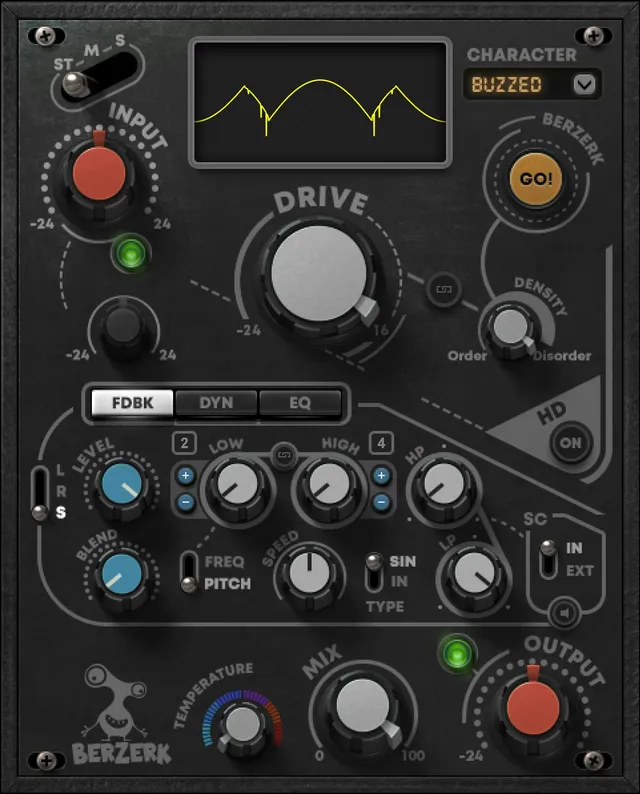
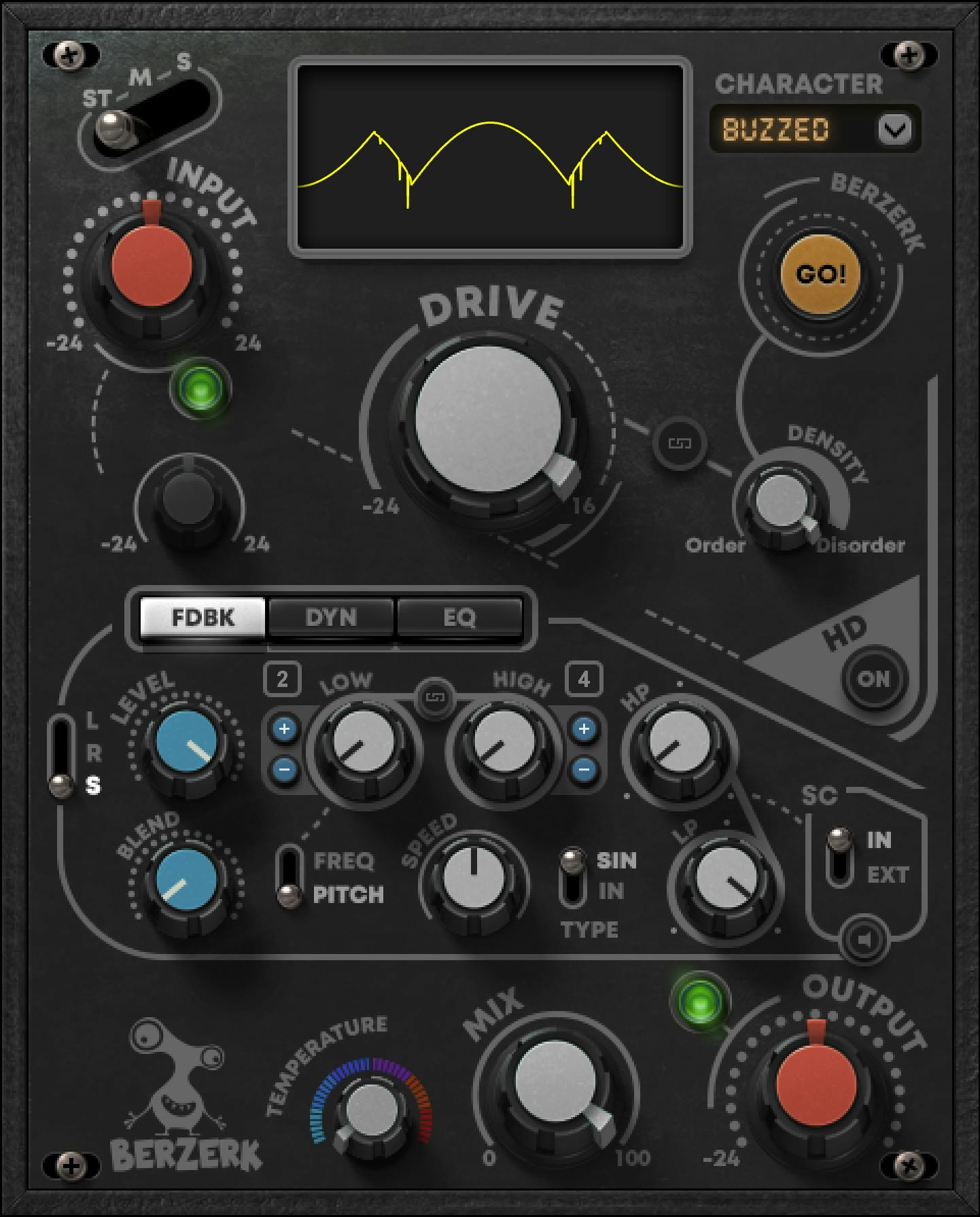
Input controls level arriving from the host, from -24 to +24 dB, default 0 dB. It affects the behavior of the whole processor, not just the final volume.
The adjacent LED indicates input peaks. Waves describes green as generally suitable, occasional red as not necessarily producing unwanted distortion, and continuous red as a reason to lower Input or the source level.
That qualitative advice does not specify a calibrated clipping threshold. The guide also notes that very low input can prevent the dynamics section behaving as intended.
In M or S mode, the smaller Mid/Side Input Level independently adjusts the selected component, also -24 to +24 dB, default 0 dB. It is grayed out in ST mode.
Character, Drive, Go! and Density
Character chooses the basic distortion waveform. Changing it can substantially change the effect, so choosing it before fine-tuning the rest is a useful vendor-described starting point.
The prose does not enumerate the full Character menu. Crushed appears in the preset examples and Buzzed is visible in the authentic artwork; neither is a complete menu list or a verified default.
Drive changes the generated distortion for the chosen Character, with a documented range of -24 to +16 dB. No factory Drive value is supplied.
Go! generates a random variation while retaining the Character's fundamental shape. Waves recommends saving a useful variation as a preset; that is not a promise that another click can recreate it or that a reproducible seed is exposed.
Density, 0-100, changes the amount of randomness and resulting waveform complexity. It is initially unavailable and becomes active after Go! is clicked.
The small Drive/Density Link moves the two controls together. The manual does not state its offset law, step size or default; the offset-preservation rule for a different link in Feedback should not be borrowed for this one.
Shaper Display and HQ
The Shaper Display reflects the selected waveform. Waves describes increased Drive as increasing its amplitude and increased Density as making it more jagged.
It also shows Dynamics activity. It is not documented as a calibrated output-level trace or a clipping meter.
The manual calls the high-definition switch HQ, while the illustrated button is labeled HD. Its On state enables x8 upsampling of the output signal according to the guide; these labels are not treated as two separate switches.
Its comments about low-resolution files, smoother results or a grittier Off sound are vendor descriptions, not comparisons performed here. No switch default is stated.
Feedback is an oscillator path, not a delay return
The central FDBK, DYN and EQ tabs expose their respective panels. Selecting a tab is not itself described as changing the audio routing or bypassing another panel.
The Feedback module generates a sine signal that tracks input amplitude. The guide describes feedback sent to Drive, with Drive also fed back to the oscillator, and says this module is outside the output audio chain.
Its behavior depends on the distortion Character/Density and the dynamics feeding it. A low-dynamic-range input can produce little modulation; more dynamic range can produce more movement.
This is why Feedback should not be explained as an ordinary audible echo loop. The manual describes an interacting distortion-control path rather than a timed audio delay.
Feedback source, Level and Blend
Stereo Source chooses whether feedback tracking uses both channels, R or L. That can matter when the two sides have different pitch-tracking behavior.
The selector is available only when the Stereo component's Input Mode is ST. It is not an independent way to re-enable stereo feedback selection while the main input is M or S, and it is absent from Mono.
Level sets the feedback processor's output to Drive. Blend mixes the Drive and feedback outputs. The guide does not supply numerical bounds, units or defaults for these two controls.
One preset example uses Blend off to remove that section's contribution. That example does not define a new global bypass switch or a universal preset state.
Low/High limits, Pitch mode and linked movement
Low and High bound the intended pitch motion. Each supports 20-20,000 Hz in Frequency view or C0-C8 in Pitch view, and hovering reveals a control's value.
The Freq/Pitch switch changes how those bounds are expressed. In Pitch view, the small plus/minus buttons move by one octave, and the number shows the current octave.
The Low/High Link moves both bounds together while preserving their existing offset. This is the link for which the guide explicitly documents offset preservation.
Speed sets how long pitch takes to cycle between the Low and High values. Its numerical range, displayed unit and default are not supplied in the prose.
The selected limits are maximum possible travel, not a guaranteed sweep. Waves says a low envelope level or insufficient dynamic range can reduce the movement or leave pitch static, even after the described normalization before modulation.
Type chooses what is modulated: the incoming signal or the generated sine signal. It is not documented as a menu of interchangeable LFO waveforms.
Sidechain source, filters and Listen
Side Chain Source selects internal or external sidechain input. That documents the choice, not the steps for configuring a particular host's bus routing.
The HP and LP sidechain filters have a documented 5 Hz-22 kHz range. Their slopes, exact defaults and additional filter interactions are not specified.
Side Chain Listen solos the sidechain, and the panel blinks white while it is engaged. This is a listening-state indication, not the output limiter LED or a clipping alert.
Dynamics Blend, Threshold and the two selectors
Dynamics shapes the signal fed to Drive for distortion. The guide specifically distinguishes that from controlling the dynamics of the final output audio.
Blend mixes the Drive and Dynamics signals. Waves describes greater Blend as increasing complexity in the Shaper Display; no numerical Blend range or default is given.
Threshold applies to Rider and Dynamics processing. The guide does not give its numerical range, units, default, ratio, attack or release, so a conventional compressor's parameter values should not be added.
Two switches work together: Rider/Dyn and Up/Down. The general description on page 13 says Dynamic primarily returns low-level sounds to Drive and Rider primarily high-level sounds; Up/Down sets the direction of level change around threshold.
Page 14 gives the more specific combination descriptions below. They are reported separately from the broader summary; neither passage defines a complete numerical transfer law.
| Up/Down | Rider/Dyn | Effect described in the specific table |
|---|---|---|
| Up | Dynamic | Sounds exceeding threshold are distorted; this can produce pumping. |
| Up | Rider | Soft signals below threshold are distorted; louder sounds are not. |
| Down | Dynamic | Sounds above threshold receive downward compression, producing less distortion. |
| Down | Rider | Sounds above threshold are compressed; lower-level sounds are not compressed. |
The table and general paragraph do not specify a complete detector or gain curve. The preset examples illustrate combinations; they are not measurements or factory defaults for every new instance.
EQ: after distortion, outside the feedback path
The three-band EQ colors the distorted signal immediately before Output. The manual explicitly says it is not fed back to Drive.
Each band has Q 0.5-100 and gain -12 to +12 dB. Their frequency ranges differ:
| Band | Frequency range |
|---|---|
| Low | 60-550 Hz |
| Mid | 800-2500 Hz |
| High | 3000-11,000 Hz |
The section's On/Off button bypasses EQ. The guide does not publish band defaults, additional shape choices or a graph-editing gesture set.
Its prose labels the last entry “High bank.” That is retained as a wording issue, not interpreted as an extra bank or fourth EQ band.
Temperature and the literal EQ wording
Temperature controls the overall output color on a unitless 0-100 scale. Its stated default is 64.4, while its reset value is 0; those are different documented values.
Waves describes higher settings as roomier, darker and smoother, and lower settings as more present and articulated. These are subjective vendor descriptions, not results from this guide.
The manual positively says “Temperature does have the same effect as the EQ section control”, then describes a greater effect on the surrounding air. This guide does not insert a missing “not” or turn that sentence into a specified EQ-equivalence curve.
Temperature and the three-band EQ retain their separately documented controls. The passage does not supply a frequency response, filter design or measured explanation of their relationship.
Mix, Output and the limiter warning
Mix blends total distortion processing with the input signal, from 0 to 100%, default 100%. This final mix is distinct from the Feedback and Dynamics Blend controls.
Output ranges from -24 to +24 dB, with no stated factory value. It is not interchangeable with Input or Drive because its placement differs.
The guide places a limiter described as set to -0.9 dB before Output gain. Its adjacent LED indicates limiter activity, with red indicating excessive limiting that may color the result.
Raising Output after that limiter can clip the signal sent to the host. The stated limiter value is not presented here as a measured dBFS/true-peak ceiling, a downstream safety guarantee or a reason to ignore host meters.
There is another important warning: under some conditions, decreasing Drive or another gain-related control can increase level, and changing Character can do the same. Waves says the result depends on source material and dynamics; less gain on one knob does not necessarily mean less loudness overall.
Presets and shared toolbar controls
The WaveSystem toolbar provides preset selection, save/load, compare, undo/redo, resize and Guide access. The manual refers readers to the WaveSystem Guide for the shared toolbar's full behavior rather than specifying additional Berzerk processing controls there.
M/S Processing, Rider, Explode and Implode are example presets illustrating interactions, not a list of factory control defaults. Their settings should not be generalized into a rule that all Character, Blend or HQ choices start that way.
Apart from the explicit Temperature reset value, no separate global reset operation is documented in this guide.
A practical way to build an effect
Set a sensible Input level and choose the Stereo mode before shaping the distortion. Select Character, set Drive and decide whether a Go! variation and Density are needed.
Then add Feedback or Dynamics for a specific reason. Revisit Drive after changing those sections, because the guide describes an interactive loop rather than independent, once-only stages.
Use EQ for post-distortion color and the final Mix for the overall processed/input balance. Recheck host level after changes, including apparently smaller gain settings, because of the documented non-monotonic behavior.
That is a conceptual workflow drawn from the control relationships, not an auditioned recipe or a set of “best” preset values.
Best for, skip if and related guides
Best for: deliberately changing a source's character when you want more control than a single drive amount, including internal middle/sides processing and interactive modulation.
Skip if: you need a transparent output compressor, a guaranteed loudness relationship between knobs, or a measured explanation of every nonlinear interaction.
For a conventional compressor's exposed controls, see the Renaissance Compressor guide. Berzerk's Dynamics section feeds Drive; it should not be substituted for that different job without understanding the routing.
For a separate EQ stage with frequency-selective dynamics, the Waves F6 guide covers another approach. Berzerk's own EQ remains a three-band post-distortion section.
The Waves audio and post resources hub collects the existing related guides.
Sources and documentation limits
Sources checked October 19, 2026, EDT:
- Official Berzerk Distortion product page, current Mono/Stereo listing.
- Complete Berzerk User Guide, 15 pages: components p.3; examples pp.4-7; Input p.9; Drive p.10; Feedback pp.11-12; Dynamics pp.13-14; EQ p.14; Output/toolbar p.15.
- Waves Graphic Library, authentic stereo-interface original and attribution/product-backlink terms.
The complete Character menu is not enumerated in the prose. Unwritten control ranges, defaults, detector curves, host routing and current runtime behavior remain unspecified.
The broad Dynamics description and specific four-combination table are attributed separately. Temperature's positive EQ sentence is not silently negated or expanded into a transfer law. CPU, timbral and limiter claims remain vendor descriptions, not measured results.
FAQ
Does Berzerk have a separate Mid/Side plugin component?
The guide documents Mono and Stereo host components. ST, M and S are internal modes in the Stereo component: full-image, middle-only or sides-only processing. The Mono component omits that selector and the feedback channel selector. The current product listing is not evidence of a third Mid/Side host component or a tested host configuration.
Why is Density unavailable until Go! is clicked?
Density controls randomness in a variation of the selected Character, and the guide says it starts disabled until Go! is clicked. Go! generates a new variation retaining that Character's fundamental shape. The Drive/Density Link moves those controls together, but no offset or step law is documented for it. Saving a useful variation as a preset is vendor advice, not a guarantee of a repeatable random seed.
When can I choose Left or Right as the feedback source?
The feedback source selector is present in the Stereo component and is available only when Stereo Input Mode is ST. It selects both channels, Left or Right for feedback tracking. It is not an independent way to override M or S input processing, and the Mono component does not include the selector.
Will feedback pitch always reach the Low and High limits?
No such guarantee is given. The guide treats them as maximum travel limits and says inadequate envelope level or dynamic range can reduce motion or leave pitch static, even with its described normalization. Each bound supports 20 to 20,000 Hz or C0 to C8. Pitch view adds octave buttons; linking Low and High preserves their existing offset.
What does the blinking white sidechain panel mean?
The manual says the panel blinks white while Sidechain Listen is engaged. Listen solos the selected sidechain, which can be internal or external and filtered by the HP and LP controls. That indication is not a clip warning or a complete description of host sidechain routing. The guide does not publish a numeric default for the filters or Listen state.
What are the four Dynamics switch combinations?
The specific table says Up/Dynamic distorts sounds exceeding threshold; Up/Rider distorts soft sounds below threshold rather than louder sounds; Down/Dynamic compresses above-threshold sounds for less distortion; and Down/Rider compresses above-threshold sounds but not quieter ones. The earlier primarily-low/primarily-high descriptions are broader statements, not replacements for those four rows or a complete numerical transfer curve.
Does Temperature duplicate the EQ controls?
The guide positively says Temperature does have the same effect as the EQ section control, then describes a greater influence on the surrounding air. That wording is retained without inserting a missing not, but it is not a specified or measured EQ-equivalence curve. Temperature has a 0 to 100 scale, default 64.4 and reset 0; the three-band EQ has separately documented frequency, gain and Q controls.
Does Berzerk's output limiter prevent all clipping?
No. The guide places its limiter, described as set to -0.9 dB, before Output gain and explicitly warns that raising Output can clip the signal sent to the DAW. It also warns that decreasing Drive or another gain-related control, or changing Character, can sometimes increase level. Neither the limiter description nor the LED establishes a measured true-peak ceiling or a clip-proof output.

About the Author
Joseph Nilo has been working professionally in all aspects of audio and video production for over twenty years. His day-to-day work finds him working as a video editor, 2D and 3D motion graphics designer, voiceover artist and audio engineer, and colorist for corporate projects and feature films.