
Waves Brauer Motion is a creative auto-panner built around one or two independently configurable panners that move signals along selectable paths inside a spherical visual model. It can run continuously, sync movement to session tempo, respond to input/sidechain amplitude, or place a signal statically; deeper controls add range limits, triggering, delay-based depth, dynamics and motion-dependent filtering. [1][2]
The current product page describes Brauer Motion as a spherical/circular movement tool rather than a conventional left/right auto-pan. The manual makes the architecture clear: the sphere is a conceptual display, while the actual sound is controlled by panner mode, path, modulator, timing, range and processing sections. [1][2]
My Short Version
Start with one panner and Sync or Free mode. Pick a Path Type—Classic for straightforward side-to-side movement, Circle/Circle Phase for front/back-style motion, or X-Lights for hard alternating sides—then set speed and use the A/B range markers to limit how much of the path is traveled. [1]
Use Depth and Width to scale the perceived motion before reaching for the more complex sections. Add a Trigger if movement should react to transients, or switch to Input mode if amplitude itself should continuously drive position. Motion Filter and Dynamics are optional color/movement enhancers, not requirements for basic panning. [1]
I did not audition Brauer Motion for this article. The behavior below comes from Waves’ current documentation.
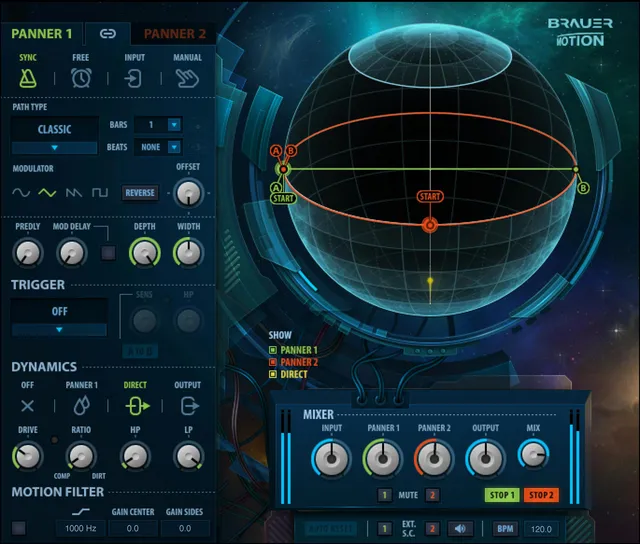
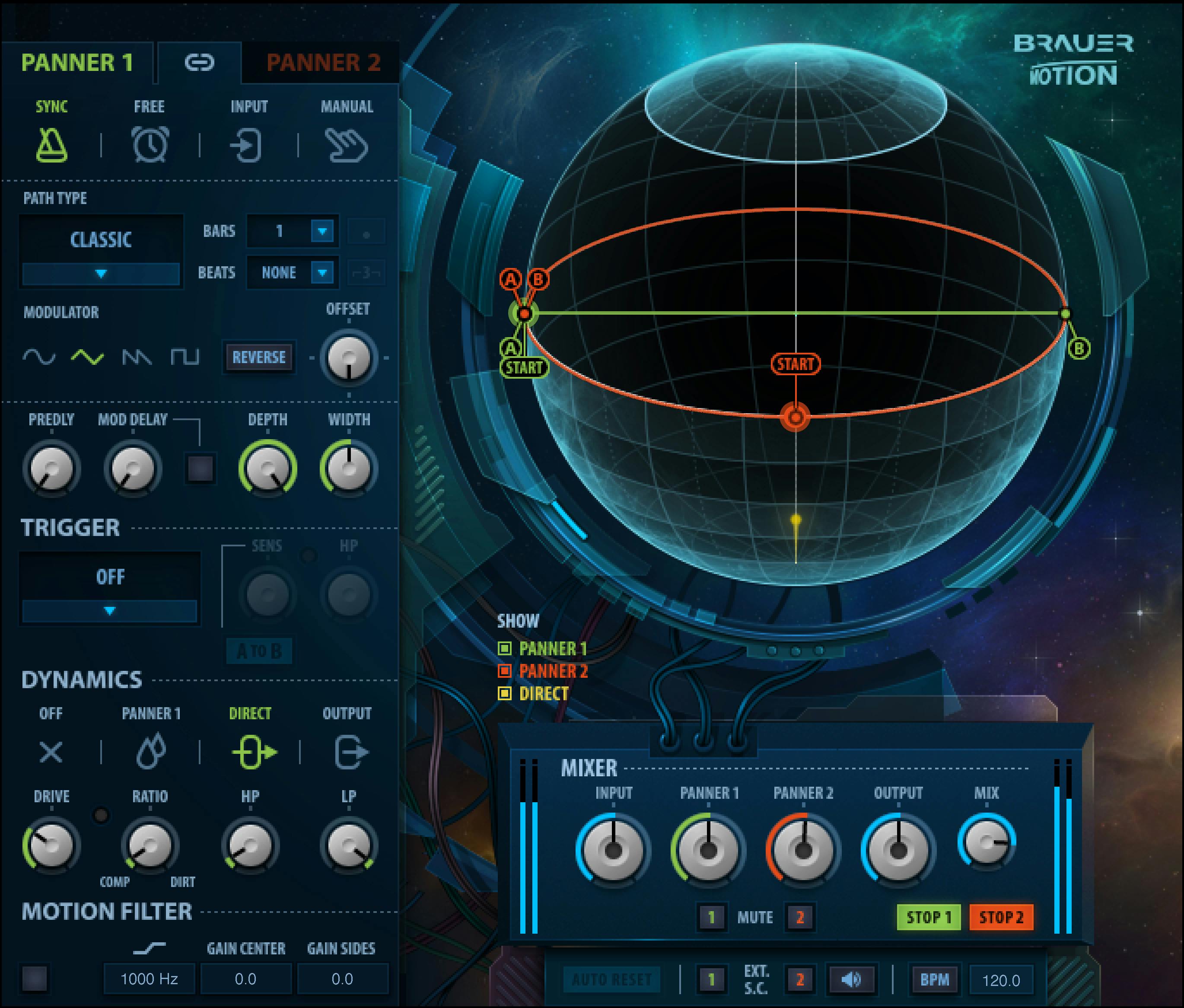
Stereo and mono-to-stereo components
Brauer Motion has two documented components. [1]
- Stereo — two inputs feeding two independently configurable, color-coded panners.
- Mono-to-Stereo — one input duplicated to the two-panner architecture so the mono source can be spatially moved across a stereo output. [1]
The panners can be linked or independent. When Link is On, edits to one panner affect the other; when previously different panners are linked, the manual says their values become aligned when a linked control is next moved. [1]
Panner selector and Link
The interface lets you choose Panner 1 or Panner 2 for editing. Panner 1 is green and Panner 2 orange in the stereo component. The selector range is Panner 1/Panner 2; its documented default and reset are both Panner 1. [1]
Link range is On/Off, with On documented as both default and reset state. With Link enabled, changes to linked controls are applied identically to both panners; unlink when the two sides need different paths, rates or processing. [1]
Mode: Sync, Free, Input and Manual
The Mode selector determines how panner movement is controlled. [1]
- Sync — movement speed derives from host/manual BPM plus bars, beats, dotted and triplet values.
- Free — movement speed is a user-defined time in seconds.
- Input — incoming amplitude, or an assigned external sidechain, drives movement; Input Sensitivity sets responsiveness.
- Manual — no automatic motion. The Start marker positions the signal statically along the chosen path and can itself be automated. [1]
At the control level, the guide reports Free as the Mode selector default and Sync as reset. Changing between Sync and Free translates the current timing to equivalent bars/beats or seconds rather than intentionally changing movement duration. Separately, Getting Started says the plugin opens with the MHB Default preset and its Full Reset walkthrough begins in Sync with Classic path; those preset states are distinct from the Mode selector's default/reset values. [1]
Path Type
Brauer Motion documents four path types; the guide's Getting Started identifies Classic as the default Path Type in its walkthrough. [1]
- Classic — conventional two-dimensional left/right travel; default modulator Triangle.
- Circle — circular-style motion with a perceived near/far dimension; default modulator Sawtooth.
- Circle Phase — similar to Circle, but one side is phase-inverted for a sharper around/behind-style impression; default modulator Sawtooth.
- X-Lights — hard alternate left/right behavior with no depth; only Sawtooth is available and Offset is replaced by Pulse Width. [1]
The path determines geometry; the modulator determines how position progresses along that path.
Modulator
The Modulator selector shapes motion along the path. [1]
- Sine — smooth acceleration/deceleration, bouncing between start/end.
- Triangle — linear movement in each direction, bouncing between endpoints.
- Sawtooth — travels to the end and jumps directly back to the start.
- Square — jumps instantly between start and end with no intermediate travel. [1]
The manual notes path-specific defaults and reports Sine as reset. X-Lights restricts the modulator choice to Sawtooth. [1]
Reverse and Offset
Reverse flips movement direction. Range On/Off; default/reset Off. [1]
Offset groups the A/B/Start markers so an established path range can be shifted around the sphere. Range 0–100, default/reset 0. Offset is unavailable in X-Lights mode. [1]
Sync speed controls
In Sync mode, timing is described in musical units. [1]
Bars
- Range: 0–32 bars.
- Default: value calculated from a one-second movement at the current tempo.
- Reset: 0. [1]
Beats
- Options: None, 1/2, 1/4, 1/8, 1/16, 1/32, 1/64.
- Default: calculated from one second; the guide gives 1/2 at 120 BPM as an example.
- Reset: 1/2. [1]
Dotted and Triplets are mutually exclusive On/Off modifiers. Both default/reset Off. [1]
Free speed
In Free mode, Speed is the time required to complete the defined path. [1]
- Range: 125 seconds to 0.05 seconds.
- Default/reset: 1 second. [1]
This is path traversal time, not an LFO-frequency readout in hertz.
Input Sensitivity
In Input mode, Input Sensitivity sets how strongly movement follows amplitude changes. [1]
- Range: 0–100.
- Default/reset: 0. [1]
Lower values respond mainly to larger changes; higher values follow subtler amplitude variation more closely. [1]
X-Lights Pulse Width
Pulse Width appears with X-Lights and controls the proportion of time spent at the left/right boundaries versus the transition/quiet interval. [1]
- Range: 0–100.
- Default/reset: 0. [1]
At low values, the signal spends less time held at the sides; at high values, it spends more time there. [1]
PreDelay
PreDelay adds an unmodulated delay before the panner path. [1]
- Range: 0–200 ms.
- Default/reset: 0. [1]
Its effect is most obvious when the delayed moving path is mixed against an undelayed panner, dry signal or another track.
Mod Delay and Mod Delay On/Off
Mod Delay varies delay with the perceived near/far motion so farther positions can be delayed more. [1]
- Range: 0–10 seconds, in 0.001-second increments.
- Default/reset: 0.
- Separate Mod Delay On/Off switch; default/reset Off. [1]
This is one of the tools that contributes to the depth illusion; it is not the same as PreDelay.
Depth and Width
Depth scales the amplitude variation associated with the perceived front/back motion. [1]
- Range: 100–0.
- Default/reset: 100. [1]
Width sets the stereo boundaries in which motion occurs. [1]
- Range: 200–0.
- 100 = full normal stereo image.
- 0 = mono; panning motion is no longer perceived.
- 200 = widened beyond the nominal sphere.
- Default/reset: 100. [1]
Width is independent of the A/B range markers.
Sphere range markers A, Start and B
The sphere contains editable range/position markers. [1]
- A defines the beginning of the path: range 0–100, default/reset 0.
- Start defines the initial position within the A–B range: range 0–100, default/reset 0.
- B defines the end of the path: documented range 100–0, default/reset 100. [1]
Moving A past Start can carry Start with it until the user separates them again. The markers define the portion of the path that is actually used, while Offset can shift the grouped region. [1]
Trigger selector
Triggers are available in Sync and Free modes, not Input or Manual. The selector documents these behaviors: [1]
- Off — continuous movement.
- Simple — starts when level crosses threshold and continues until manually stopped.
- One Shot — completes the defined path after a threshold crossing and then stops. If the signal is still above threshold at the point where it would stop, it makes another round and stops after reaching the path end below threshold. [1]
- Re-trigger — movement starts above threshold and stops below it.
- S-Trig Reverse — moves forward above threshold and returns toward Start when level falls below threshold.
- A to B — jumps between A and B according to threshold state; direction can be reversed with its A-to-B/B-to-A selector. [1]
These are event behaviors; they are separate from Input mode’s continuous amplitude-driven movement.
Trigger Sensitivity, LED, HP and Hold
Trigger Sensitivity sets the input threshold for trigger activation. [1]
- Range: ±48 dB.
- Default/reset: 0. [1]
A green Sensitivity LED indicates when the input/sidechain has crossed the trigger threshold. [1]
Trigger HP filters low-frequency content from the trigger detector only. Range Off (16 Hz)–2000 Hz; default/reset Off. [1]
In A-to-B mode, the A to B / B to A selector chooses direction; default/reset A to B. Hold delays the pan start after threshold crossing, with range Off (1 ms)–1000 ms, default/reset Off. [1]
Dynamics selector
Each panner includes a dynamics processor whose target is selected independently. Waves documents: [1]
- Off — no dynamics processing.
- Path 1 / Path 2 — dynamics on the moving/wet path; the mono-to-stereo component exposes only Path 1.
- Direct — dynamics on the dry/direct path; it becomes inaudible at Mix 100 because no direct signal remains. The guide warns that assigning dynamics to Direct on both panners can double-process the direct signal. [1]
- Output — dynamics on the entire output. [1]
The selector itself is not a compressor ratio; the amount/type is controlled by Drive and Ratio below. The same printed p.24 table separately lists a Range of On/Off, default Off and reset Off after its five target choices. The guide does not explain this apparent mismatch; the exact selector presentation remains unresolved. [1]
Drive and gain-reduction LED
Drive increases input into the dynamics section while inversely reducing its output so more processing can occur without a matching loudness jump. [1]
- Range: 0–100.
- Default/reset: 0. [1]
The gain-reduction LED is color-coded: green approximately 0.1–3 dB, yellow 3.1–9 dB, red 9.1–20 dB of documented reduction. [1]
Ratio: Comp to Dirt
Ratio morphs the dynamics character from compression to clipping. [1]
- Range: 0 (Comp)–100 (Dirt).
- Default/reset: 0 (Comp). [1]
At 0, Waves describes a tight compressor with roughly 5 ms attack and 100 ms release. At 100, Dirt acts as a clipper with no attack/release timing. [1]
Dynamics HP and LP
The dynamics section has post-process filters. [1]
- HP: Off (16 Hz) to 2000 Hz; default 23 Hz; reset Off.
- LP: Off (22000 Hz) to 1000 Hz, counterclockwise; default 18000 Hz; reset Off. [1]
These filters are part of the dynamics output path, not the trigger detector HP described earlier.
Motion Filter
The Motion Filter is a dynamic high-shelf whose gain changes with path position to emphasize perceived distance/movement. [1]
- Motion Filter On/Off: default/reset Off.
- Shelf Freq: 100–18000 Hz, default/reset 1000 Hz.
- Center/Close: ±24 dB, default/reset 0 dB. In Classic it is Center; in Circle/Circle Phase it becomes Close; inactive in X-Lights.
- Sides/Far: ±24 dB, default/reset 0 dB. In Classic/X-Lights it is Sides; in Circle/Circle Phase it becomes Far. [1]
The name change reflects the selected geometry; it is not a different filter module.
Mixer section
Input level range is Off (-48 dB) to +18 dB, default/reset 0 dB. [1]
Panner 1 / Panner 2 level controls set wet-path level. Range Off (-48 dB) to +18 dB, default/reset 0 dB. The mono-to-stereo component exposes one Path level; stereo has two. [1]
Stereo also has Mute 1 / Mute 2 for individual paths. The manual does not specify a range, default or reset value for these buttons. [1]
Output range is Off (-48 dB) to +18 dB, default/reset 0 dB. [1]
Mix blends direct and processed paths: range 0–100, where 0 is direct only and 100 processed only; default/reset 100. [1]
Start/Stop
Each panner has a Start/Stop control. [1]
- Range: Start or Stop.
- Default: movement started (button displays Stop).
- Reset: stopped (button displays Start). [1]
When a trigger is active, a stopped panner can start again after the trigger threshold is crossed.
Global controls
Auto Reset decides whether edits affecting path/speed restart movement at the appropriate path position. Range On/Off; default/reset On. [1]
Ext. S.C. routes assigned external sidechain signal to Input mode and trigger detection. Range On/Off; default/reset Off. The stereo component provides independent sidechain activation for Panner 1 and Panner 2. [1]
Side Chain Monitor auditions the sidechain. Range On/Off; default/reset Off. [1]
In Sync mode, BPM spans 30–240 BPM. Default follows the DAW/session; reset 120 BPM. Manual BPM toggles session-sync versus the manually entered BPM; default/reset Off. [1]
The Display Legend switches panner-path and Direct-signal visual overlays On/Off; both documented legend groups default/reset On. These affect visualization, not audio. [1]
A practical Brauer Motion workflow
For a basic animated pan, start in Sync or Free, choose Classic or Circle, set movement time, then reduce the A/B range if a full traversal is too dramatic. Use Width and Depth to scale the apparent movement before adding more processors. [1]
For rhythmic movement tied to performance, use a Trigger in Sync/Free or use Input mode for continuous amplitude-driven position. Filter the trigger detector with its HP control when low-frequency energy causes unwanted trigger events. [1]
Only after the motion itself works should you add Mod Delay, dynamics or Motion Filter. Those sections can make depth and movement more obvious, but they can also turn a simple panner into a much more colored effect. This is an editorial workflow derived from the documented architecture; I did not audition it.
Best for / skip if
Brauer Motion is best for automated spatial movement, rhythmic panning, animated pads/effects, moving background vocals and mono-to-stereo positional effects where a conventional left/right pan is too simple. Waves says the intended monitoring setup is stereo loudspeakers, not headphones, because the spatial effect and motion are not perceived properly on headphones. [1][2]
Skip it when you only need a static pan or basic tempo-synced left/right LFO; simpler host automation may be easier. Also avoid treating the sphere as a physically measured binaural room model—it is a conceptual spatial control/display system, not Nx-style room simulation.
Limitations and evidence boundary
This article is documentation-led. I did not listen to Brauer Motion, test mono compatibility, measure delay/dynamics timing, verify DAW sidechain behavior, or compare modes in a native host. Waves cautions that panning relies on gain change and may introduce up to 6 dB gain compensation; a particularly hot input may clip, so the manual says to adjust the input accordingly. This is a vendor warning, not a test result. [1]
The User Guide's printed control chapters 13–30 cover panner modes, path/modulator, timing, markers, trigger, dynamics, motion filter, mixer and global controls. The exact installed plugin build and its current UI correspondence remain unverified. [1]
Related guides
Waves’ S1 Stereo Imager offers static stereo width/rebalancing, Center handles center-versus-sides remapping, and Doppler provides motion-related sound-design effects.
Bottom line
Brauer Motion is much more than a left/right auto-pan. Its two-panner architecture combines four motion modes, four path types, multiple modulators, path-range markers, trigger logic, delay-based depth, dynamics, motion filtering and sidechain control. Start with path, speed, range and Width/Depth; the rest is optional shaping around that core movement engine. [1][2]
Sources
Source review: October 16, 2026. No listening or native-host test was performed.
- Waves Brauer Motion User Guide, product-linked guide, especially printed pp.3, 5–17 and 21–30.
- Waves Brauer Motion product page, current product identity and positioning.
- Waves Graphic Library, current Brauer Motion listing and stated backlink-based reuse rule for images on the page.
FAQ
What does Waves Brauer Motion do?
Waves describes Brauer Motion as a circular auto-panner for creating moving, spherical panning effects. Its guide explains that the visual sphere represents the panner's position and movement. [1][2]
What is the difference between Stereo and Mono-to-Stereo?
In Mono-to-Stereo mode, one input feeds two panners. In Stereo mode, the two inputs are handled separately by their respective panners. The Mixer page shows one Path control for Mono-to-Stereo and separate path controls for Stereo. [1]
Should I monitor Brauer Motion on headphones?
Waves recommends stereo loudspeakers rather than headphones: the manual says the spatial effect and motion are not perceived properly on headphones. This is the vendor's guidance, not a listening test in this review. [1]
Why does the manual mention both Free and Sync as defaults?
The Mode selector's control-table default is Free and its reset value is Sync. Separately, Getting Started says the plugin opens with the MHB Default preset and describes a Full Reset walkthrough beginning with Sync and Classic path. These refer to different contexts. [1]
What happens in One Shot mode if the input stays above threshold?
The guide says One Shot completes the path after a threshold crossing. If the input is still above threshold at the stop point, the path makes another round and stops at the path end once the input is below threshold. [1]
What does the Width control change?
Width sets the width of the movement area, from 0 to 200 percent. The guide lists 100 percent as its default and reset value. [1]
What does the Dynamics selector process?
The guide lists Off, Path 1, Path 2, Direct and Output. In Mono-to-Stereo, it says only Path 1 is available. It also warns that assigning dynamics to Direct on both panners can double-process the direct signal. The same p. 24 table separately lists a Range of On/Off, default Off and reset Off after the five target choices; the guide does not explain this apparent mismatch, so the exact selector presentation remains unresolved. [1]
How does external sidechain input work in the two component modes?
The Global section has one sidechain control in Mono-to-Stereo mode and separate Side Chain 1 and Side Chain 2 controls in Stereo mode. The guide describes sidechain input as an external signal for triggering the panner. [1]

About the Author
Joseph Nilo has been working professionally in all aspects of audio and video production for over twenty years. His day-to-day work finds him working as a video editor, 2D and 3D motion graphics designer, voiceover artist and audio engineer, and colorist for corporate projects and feature films.