
Waves Center is a stereo processor that detects “phantom center” content separately from side content and lets you rebalance the two after a mix is already stereo. Its main faders control Center and Sides level, while Low, High and Punch steer low-frequency, high-frequency and transient content between those detected regions. [1][2]
The product page markets this as a way to adjust vocal level, widen/narrow a mix, reshape loops and manage center-versus-side energy. The manual describes a detector that analyzes amplitude, frequency and time-envelope relationships in a stereo signal. Treat that as content rebalancing, not a promise of recovering isolated original stems. [1][2]
My Short Version
Use the Center and Sides faders for the large move: more/less center, or more/less sides. Then use Low, High and Punch to decide which kinds of energy should be treated as center versus side content. [1]
If lowering Center also removes too much kick/bass or transient energy, move Low or Punch toward Sides to restore more of that material outside the detected center. Watch both the stereo Output Meters and Center Detection Meter while you work. [1]
I did not process a mix with Center for this article. The behavior below is documentation-led.
How Center separates center and sides
Waves defines Center as a mono/phantom-center signal whose left and right time/frequency properties match, while Sides contains stereo material whose left/right properties differ. [1]
The manual describes a dynamic detection engine that considers amplitude, frequency and time-envelope relationships in the stereo source. Low, High and Punch fine-tune its frequency- and time-detection process. [1]
That means lowering Center will often reduce a centered vocal, but it is not equivalent to isolating a vocal stem. Other centered material can move with it.
Low
Low controls the balance of low-frequency content between Center and Sides. [1]
- Range: 0–100.
- 0 = Center. [1]
The manual’s practical example is useful: if lowering the Center fader also removes too much low-frequency information, turn Low toward Sides to preserve more of that low end outside the reduced center. [1]
The guide does not publish an exact crossover frequency for this control, so none is inferred from the interface.
High
High controls the balance of high-frequency content between Center and Sides. [1]
- Range: 0–100.
- 0 = Center. [1]
This lets high-frequency material be biased toward the center or side analysis independently of the main Center/Sides fader levels. The current guide does not publish a specific frequency boundary/Q for the control.
Punch
Punch controls how transient content is distributed between Center and Sides. [1]
- Range: 0–100.
- 0 = Center. [1]
Punch also affects the Center Detection Meter. Waves suggests moving Punch toward Sides when reducing Center has also removed transient energy you want to keep. [1]
Punch is not a compressor attack control; it changes detection/spatial allocation of transient content.
Master Gain
Master Gain controls overall stereo gain. [1]
- Range: +6 dB to -24 dB. [1]
The guide describes its overall-gain function but does not specify its exact position in the signal flow.
Center fader
The Center fader controls the gain of detected Center content. [1]
- Range: +6 dB to Off. [1]
Raise it to emphasize center-detected material or lower it to reduce it. Since Center detection can include vocals, kick, bass, snare or other centrally mixed elements, use Low/High/Punch when you need to alter which types of content follow the center reduction. [1]
Sides fader
The Sides fader controls the gain of detected side/stereo content. [1]
- Range: +6 dB to Off. [1]
Raising Sides increases the relative prominence of side information and can make the stereo image feel wider; lowering Sides narrows/reduces peripheral material. Think of this control as a way to rebalance detected side content; the guide does not provide additional synthesis-algorithm details. [1]
Output Meters
The stereo Output Meters show output after processing. [1]
- Range: 0 dBFS to -36 dBFS. [1]
They are readouts only; they do not set the detection threshold or Center/Sides balance.
Center Detection Meter
The horizontal Center Detection Meter displays how much Center content the algorithm detects. [1]
Waves documents its location in signal terms as post-Punch and pre-Center gain / High / Low settings, and specifically notes that Punch affects the detection meter. A mono source shows a full Center indication; sufficiently different left/right program material produces an empty Center meter. [1]
Use it as a detector readout, not a guarantee that a specific instrument has been isolated.
Interface relationships
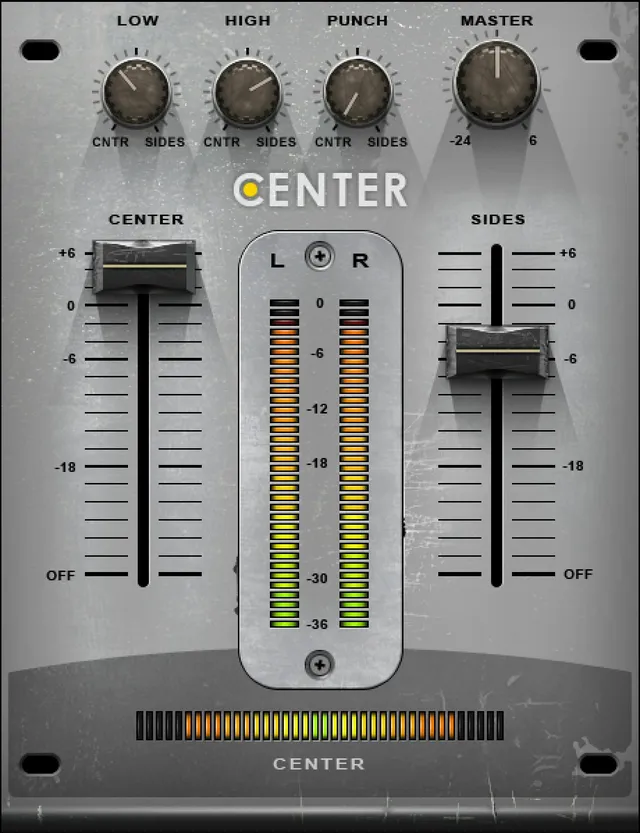
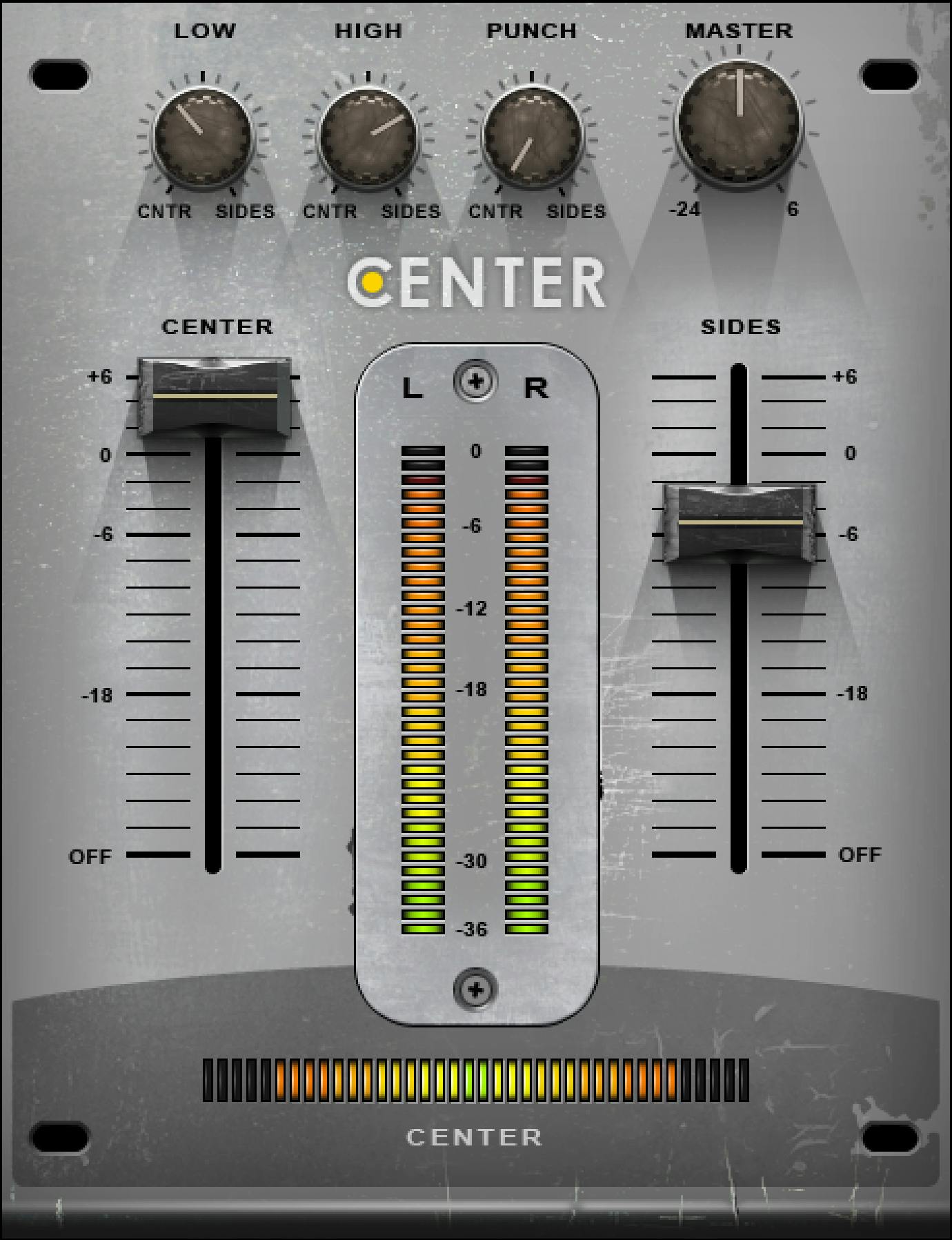
The inspected official manual interface page confirms the layout: Low, High, Punch and Master across the top; Center/Sides faders on either side; stereo output meters in the middle; Center Detection Meter below. [1]
Use the labels to find each control; the layout alone does not establish undocumented signal order. The shared WaveSystem toolbar provides preset save/load, comparison, undo/redo, resizing and help. Those are plugin-management functions rather than additional Center audio controls. [1]
A practical Center workflow
Start by deciding whether the problem is mainly the center level or the side level. Move the Center/Sides faders first so you can hear the large spatial rebalance. [1]
If lowering Center removes too much low end, push Low toward Sides. If it removes too much transient energy, move Punch toward Sides. Use High when high-frequency content needs a different center/side distribution than the rest of the mix. [1]
Finish with Master Gain and check the output meters. This is a documentation-led workflow; I did not audition these moves on a mix.
Best for / skip if
Center is best for existing stereo mixes, masters, loops, stems or effects returns where center-vs-side level balance needs adjustment and the original multitrack is unavailable or inconvenient. [1][2]
Skip it when you need true source separation into clean vocal/drum/instrument stems. Center’s detector works from stereo relationships and cannot guarantee that every centered sound is the target you want to change.
Limitations and evidence boundary
This article is documentation-led. I did not listen to Center, measure separation artifacts, compare it with M/S EQ, test mono compatibility, or verify detection behavior with controlled signals.
The current user guide’s complete control section was parsed and its interface and control pages were visually inspected. The manual does not publish exact crossover frequencies for Low/High, a conventional time constant for Punch, per-control defaults/reset values, or control increments; those details remain unspecified. [1]
Related guides
Useful official relationships include S1 Stereo Imager for width/recentering, F6 Floating-Band Dynamic EQ for frequency-selective dynamics, and WLM Plus for final loudness/metering work.
Bottom line
Center is a post-mix spatial rebalance tool, not a stem separator. Center and Sides faders make the broad level change; Low, High and Punch determine how low-frequency, high-frequency and transient content is allocated between the detected regions; Master Gain adjusts overall stereo gain, and the meters provide level and detection feedback. The guide leaves Master Gain's exact signal-flow position unspecified. [1][2]
Sources
Official product page, linked guide and Graphic Library checked October 18, 2026. No listening or native-host test was performed.
- Waves Center User Guide, current product-linked guide; complete controls parsed and current manual interface page visually inspected.
- Waves Center product page, current product identity and use positioning.
- Waves Graphic Library, current Center listing and stated backlink-based image reuse condition.
FAQ
What does Waves Center detect?
Its dynamic detector looks for stereo content with equal left/right time and frequency properties as phantom Center. Center is described as mono content; Sides contains stereo content whose properties differ.
Can Waves Center separate a vocal into an isolated stem?
The documented function is changing the level of content detected in the phantom Center, which may include a vocal. Waves does not document recovery of isolated original tracks here; other centered sounds can be affected too.
What does the Low control do?
Low balances low-frequency content between Center and Sides. Its documented range is 0–100, with 0 = Center. The guide does not specify a crossover frequency, increments, the opposite endpoint, or a default.
What does the High control do?
High balances high-frequency content between Center and Sides, over a documented range of 0–100 with 0 = Center. The guide does not give an exact frequency boundary, increments, the opposite endpoint, or a default.
Is Punch a compressor attack control?
The guide describes Punch as controlling transient spread between Center and Sides and affecting the Center Detection Meter. It documents a 0–100 range with 0 = Center; it does not document a compressor attack time.
What are the Center and Sides fader ranges?
Each gain fader is documented from +6 dB to Off. The guide does not specify a default or fader increments.
What do Center's meters show?
The stereo Output Meters display output after processing and are marked from 0 dBFS to -36 dBFS. The Center Detection Meter displays detected Center content; it is post-Punch and pre-Center gain, High and Low, and Punch affects it. The guide says a mono input shows a full Center meter while different left/right program material shows an empty one, although its quickstart directs users to load Center on a stereo track.
Does the guide specify the controls' default settings?
No per-control default or reset values are stated in the guide's controls section. The illustrated knob and fader positions are not a documented default-state table.

About the Author
Joseph Nilo has been working professionally in all aspects of audio and video production for over twenty years. His day-to-day work finds him working as a video editor, 2D and 3D motion graphics designer, voiceover artist and audio engineer, and colorist for corporate projects and feature films.