
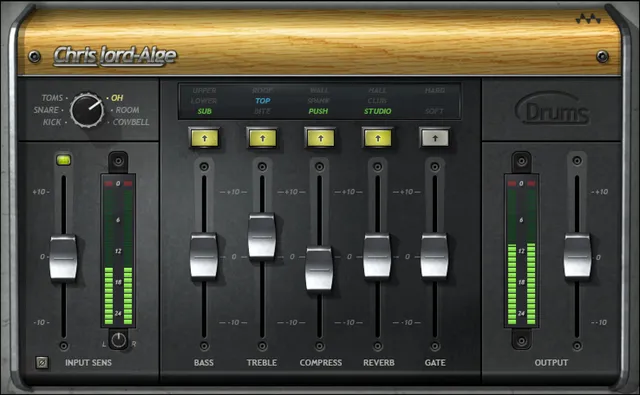
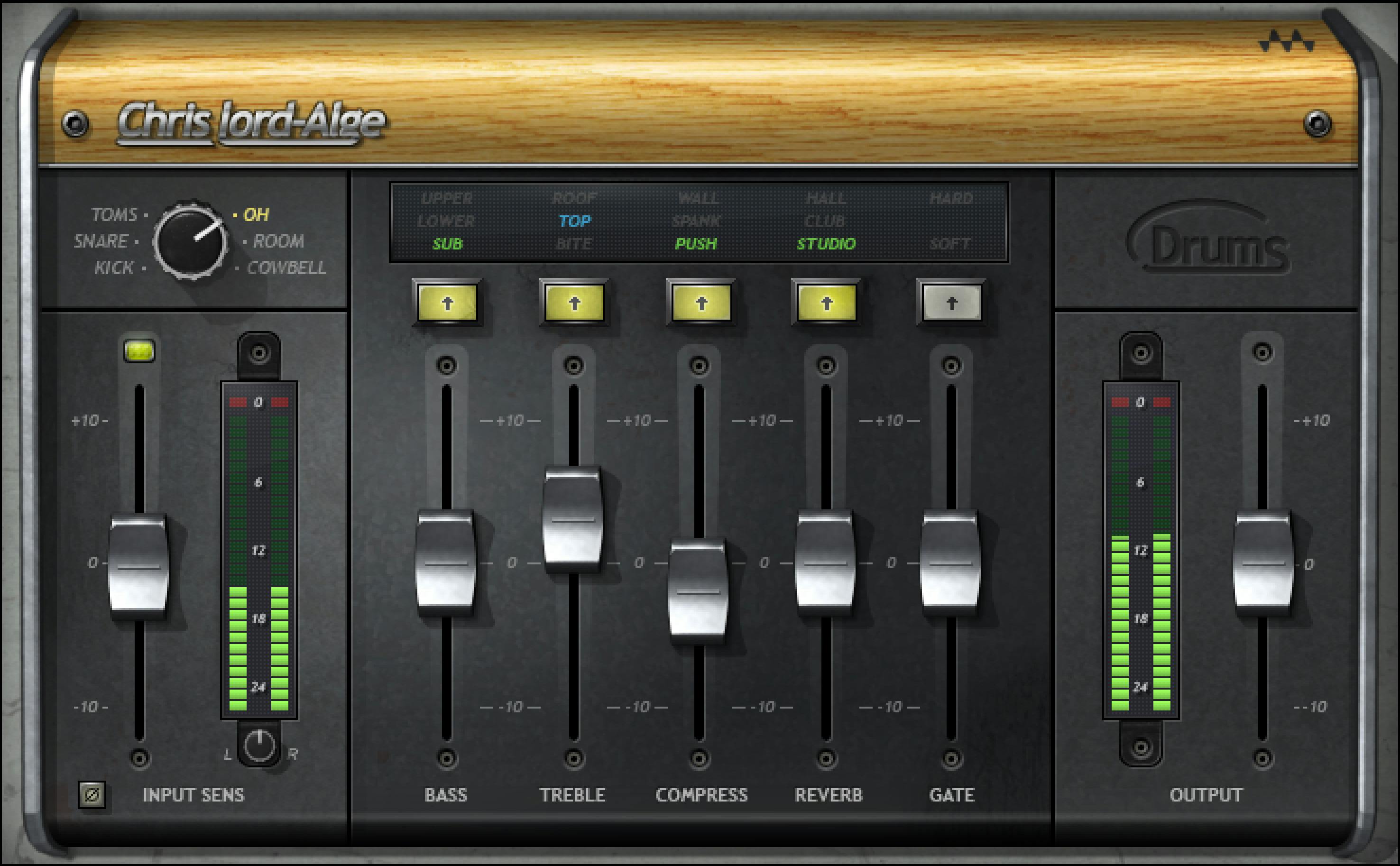
Waves CLA Drums is a drum-focused multi-effects processor with six source modes: Kick, Snare, Toms, OH, Room and Cowbell. It combines broad bass and treble shaping, compression and reverb with a mode-dependent choice between gating and delay. It processes the recording you supply; selecting a drum name is not a sample-replacement command. [1, pp.4–6,8–12][2]
The setup detail that matters most is Cowbell mode changes the available effect: Delay is available there, while Gate is not. The other five modes provide Gate instead. Understanding that switch is more useful than assuming every section is always present. [1, pp.6,11–12]
About the imagery: the cover is an editorial illustration. The interface is vendor-supplied reference artwork, not a tested installation.
My Short Version
Choose the mode for the source before adjusting the effects. An overhead recording and a close snare microphone are different inputs, even when they capture the same performance. The guide is aimed primarily at multitrack drum recordings; Waves also describes using individual outputs from samplers or drum machines. [1, pp.4,6][2]
Set Input Sensitivity using a representative loud passage. Then choose one problem to address: tone, dynamic range, spill between hits or added ambience. The source mode and the effect's Color select the processing context; its fader makes the adjustment within that context. [1, pp.4,6]
Keep an untreated reference. An all-zero or all-Clear setup is not automatically dry: the manual distinguishes EQ at zero from the other controls' active starting states, and says fixed processing remains when all Colors are Clear. [1, p.6]
Components and intended sources
The guide lists Mono-to-Stereo, accepting mono input and producing stereo output, and Stereo, accepting and producing stereo. Balance is documented only in the Stereo component. No separate mono-output component or M/S mode is listed. [1, pp.5,9]
A mono close microphone can therefore emerge as a stereo signal. Choose the component for the intended routing rather than assuming a mono source guarantees mono output. These are documented configurations, not a certification of the choices exposed by a particular host.
For a finished stereo drum stem, remember that source-specific processing still acts on the audio entering the plugin. Choosing Snare does not demonstrate that the plugin isolates the snare from the rest of the kit. The guide does not document source separation. [1, pp.4–6,8]
Drum Mode and changing controls
Drum Mode offers Kick, Snare, Toms, OH, Room and Cowbell. OH means overheads. The manual also identifies cymbals, hi-hats and bells as intended Cowbell-mode sources. [1, pp.4,8]
The mode is the broad source-processing choice. The guide does not disclose every internal filter or dynamics change behind each position. It also does not state a factory default for Drum Mode; the illustrated Kick selection is not enough to establish one.
Gate or Delay, depending on the mode
In Kick, Snare, Toms, OH and Room, the mode-dependent section is Gate. In Cowbell, it is Delay. That means the manual describes six effect families across the product, but Gate and Delay are not simultaneously available in one mode. [1, pp.6,11–12]
Changing to Cowbell simply to reveal Delay also changes the selected source mode. Treat that as a processing decision, not a hidden routing trick that adds delay without changing anything else. No runtime mode-switching behavior was tested for this guide.
Input Sensitivity and meters
Input Sensitivity controls the level reaching the processor. Its documented scale is −10 to +10, in 0.1 steps, with a 0 default. The range entry does not print a unit, so this article does not silently turn it into a verified dB specification. [1, p.8]
Input level matters before compression and gating decisions. Waves recommends considering the passage with the highest peaks, rather than setting sensitivity during a quiet gap and then judging the rest of the performance. [1, pp.4,6]
Sensitivity LED
Waves describes the indicator as off for too low, green for good, yellow for optimal and red for very hot. Those are vendor setup labels, not published numerical thresholds or a listening verdict. The guide explicitly allows that the material may work at a level other than yellow. [1, pp.4,9]
A red Sensitivity LED and a clip indicator answer different questions. Do not replace the meter's specified clipping threshold with an assumed threshold for the Sensitivity colors.
Input Meter and Clip LED
The input peak meter displays −26 to 0 dBFS. Its Clip LED indicates a level above 0 dBFS; clicking inside the meter area resets the indication. Resetting a held indication does not repair already-clipped audio or change the input gain. [1, p.8]
No hold duration, loudness target or numerical Sensitivity-color boundary is documented here.
Balance
Balance adjusts the left/right offset in the Stereo component only. Its range is −6 to +6 dB, with 0.1 steps and a 0 default. [1, p.9]
This is separate from selecting a drum source or choosing an effect Color. The guide does not give a pan law or an exact formula for the two channel gains; neither is inferred from the graphic.
Phase Switch
Phase Switch reverses the input phase. It has On/Off states and defaults to Off. The guide does not expose a continuously adjustable phase angle, timing offset or automatic microphone-alignment function. [1, p.9]
With several microphones capturing one kit, evaluate a reversal with the other relevant tracks playing. A change judged on a soloed microphone does not answer how those recordings combine. This is a comparison recommendation, not evidence that a particular recording was corrected or that reversal replaces time alignment.
Bass and Treble
The effect faders are broad controls rather than fully exposed processors. Their scales do not disclose all the engineering settings behind a Color.
Bass
Bass adjusts low-frequency gain across −10 to +10, in 0.1 steps, default 0. Its active Colors are Sub in green, Lower in blue and Upper in red. Sub is the documented default; Clear bypasses the Bass section. [1, p.9]
No exact cutoff, slope or Q is published for these filter characters. A name such as Sub is not a frequency specification. Move the Bass fader away from zero before comparing Colors: the manual says the EQ Color has no effect at zero. [1, pp.6,9]
Treble
Treble uses the same −10 to +10 scale, 0.1 steps and 0 default for high-frequency gain. Its Colors are Bite in green, Top in blue and Roof in red; Bite is the default, and Clear bypasses this section. [1, p.10]
As with Bass, the guide does not map the names to precise frequencies. Make a deliberate nonzero adjustment before comparing them. When the task is a narrow, known resonance rather than broad tonal shaping, an EQ with an exposed frequency control is easier to specify.
Compress
Compress changes dynamic-range processing on a −10 to +10 scale, in 0.1 steps, default 0. Its Colors are Push in green, Spank in blue and Wall in red. The default is Push; Clear bypasses compression. [1, p.10]
The control does not expose independent threshold, ratio, knee, attack or release settings. The name Wall does not establish a brickwall output ceiling. No numerical compression specification is assigned to a Color in this guide.
When comparing settings, consider the quieter hits as well as the strongest accents. The useful question is whether the performance's intended dynamics remain clear in the arrangement, not simply whether one version sounds larger in isolation. No preferred setting or listening result is claimed.
Reverb
Reverb changes the wet contribution. Its scale is −10 to +10, in 0.1 steps, with a 0 default. Choose Studio in green, Club in blue or Hall in red. Studio is the default; Clear mutes the reverb. [1, p.11]
A zero macro value does not mean zero percent wet. Nor do the environment names supply decay seconds, room dimensions or a separate pre-delay setting. Evaluate the tail through pauses, fills and transitions instead of assuming a larger named space is automatically more appropriate. [1, pp.6,11]
Gate
Gate adjusts the gate threshold and is unavailable in Cowbell mode. It uses −10 to +10, 0.1 steps and a 0 default. This is a control scale, not a documented threshold in dBFS. [1, p.11]
The gate is intended to reduce spill or bleed from other kit elements. The guide does not promise complete separation of overlapping instruments, and it does not provide a numeric conversion from the fader to the detector threshold. [1, pp.6,11]
Gate Color has two active shapes: Soft in green and Hard in red, plus Clear for bypass. Soft is the default. There is no third blue gating shape in the documented list. Attack, hold, release and attenuation-range values are not specified. [1, p.11]
Listen for intentional quiet hits and natural decays when evaluating a gate. Reducing spill is not useful if it removes part of the performance you meant to retain. That is an evaluation criterion, not a report of a gate test or a universal threshold recommendation.
Cowbell-only Delay
The Delay fader is available only in Cowbell mode. It adjusts the delay wet contribution over −10 to +10, in 0.1 steps, default 0. The Color selector—not that fader—chooses rhythmic timing and character. [1, p.12]
The active Colors are 16 in green for a sixteenth note, Dot Eight in blue for a dotted eighth note, and Quarter in red for a quarter note. They synchronize to the session BPM; Clear mutes the delay. The printed default identifies green 16. [1, p.12]
These are musical divisions, not fixed millisecond durations. The guide does not expose a free-time, tap-tempo or feedback control. Cowbell mode also excludes Gate, so a need for both detailed gating and independent delay may be better served by separate processors. [1, pp.6,11–12]
Output and clip indication
Output adjusts the final level using −10 to +10, 0.1 steps and a 0 default. Its range entry does not explicitly specify a unit. The output peak meter spans −26 to 0 dBFS, and its Clip LED indicates values above 0 dBFS. Click in the meter area to reset the indication. [1, pp.12–13]
Input and output meters observe different places in the signal path. Neither is a loudness meter or a guarantee that another downstream processor cannot clip. Use a similar apparent listening level when comparing treated and untreated material; that is a review method, not a measurement made here.
Zero, Clear and whole-plugin bypass
Keep three states separate. Zero is a control value: it makes Bass and Treble Color cycling ineffective until their faders move, while other faders retain their designed starting processing. Clear bypasses an EQ, compression or gate section, or mutes a wet effect. [1, pp.6,9–12]
An all-Clear setup is not documented as a transparent whole-plugin bypass. Waves says fixed processing remains. The guide does not publish enough internal topology to prove a bit-identical pass-through from a combination of internal settings. Preserve an untreated reference and use an appropriate host bypass for the whole-plugin comparison. No host-bypass or null test was performed here. [1, p.6]
Presets and toolbar
The shared WaveSystem toolbar provides preset save/load, settings comparison, undo/redo and interface resizing. The upper-right help icon opens the WaveSystem Guide. [1, p.13]
No reset gesture, number of undo levels or hidden preset behavior is added. A preset is a proposed setup, not proof that it matches the levels or microphone balance of a different recording.
A drum-stem review workflow
This is a hypothetical editing exercise, not a recording processed for this article.
Imagine a music edit with separate kick, snare and overhead stems. A short fill leads into a spoken line. The fill feels crowded, but that description alone does not identify the cause: it might be the snare level, an ambience tail, cymbal energy or simply too many musical events at the transition.
Keep the untreated stems and current edit recoverable. Start with the track whose role is in question, select its source mode and set input level from a representative loud passage. Avoid introducing a gate simply because a snare track often has one; the quiet notes may be part of the fill's expression.
Evaluate tone with the kit together. Make a deliberate EQ move before cycling Colors, and return to the same passage for each comparison. For an ambience question, remove the reverb with Clear, then restore only the contribution that supports the phrase. Zero is not the mute reference.
When judging gating, play through both the loud accents and the quiet lead-in. When judging input reversal, include the microphones that share the same drum. When judging the end of the fill, continue through the spoken entrance rather than stopping at the final hit.
Finally compare at a similar apparent level. Does the musical gesture remain intact? Is the narration clear without making the fill feel abruptly truncated? Would a smaller level move, an edit to the tail or an arrangement change answer the question more directly?
Those are review questions, not a claim that CLA Drums improved a mix, saved time or passed a listening comparison.
Best for and reasons to choose another tool
CLA Drums is designed for broad source-specific drum processing without exposing every filter, dynamics and ambience parameter. Its mode-dependent controls suit a workflow that begins with the particular drum track or microphone position. [1][2]
Choose a more detailed processor when the job requires an exact filter frequency, independent gate attack/hold/release, a stated compressor ratio, freely editable delay or precise microphone time alignment. A finished stereo stem may also offer less independent control than the original multitrack recording. These are task distinctions, not comparative quality verdicts.
Documentation limits
This article follows the product-linked guide, not a personally installed build. Unpublished internal settings remain unspecified: filter frequencies and slopes, compressor timing, gate timing and range, reverb decay, delay feedback, numerical Sensitivity thresholds and the full fixed-processing chain.
The manual's explicit six-mode list and interface govern the control description. An ambiguous product-page feature bullet referring to five drum sounds does not override those named controls or prove a different installed version. Drum Mode's factory default is not stated; a selected mode in an illustration is not a reset test. [1, pp.4,7–8][2]
No drum recording, listening, host routing, CPU, latency, timing, noise, hardware or null test was performed. No price, subscription entitlement, rating or performance promise is included.
Related tools
Smack Attack is a more focused reference when the question is transient attack or sustain shape rather than a drum-specific combination of EQ, compression and ambience. [4]
InPhase provides a phase/time-alignment workflow when an input-reversal switch does not address the actual relationship between recordings. Its delay and reference-based tools are a different control set, not a promise that one reversal will align every microphone. [5]
The Waves audio-post resource hub collects the site's broader Waves material.
Bottom line
Start with the drum source, then choose the processing—not the other way around. CLA Drums' six modes, mode-dependent Gate or Delay, broad Color controls and input-reversal switch can be understood without inventing the settings hidden behind them. Know what zero and Clear do before calling a comparison unprocessed. [1]
Sources
Documentation observed October 15, 2026. Manual citations use printed page numbers. These are documentary observations, not installed-plugin or listening results.
- Waves CLA Drums User Guide, linked by the product page. All 13 pages read as text; full-interface and control pages 7–12 visually inspected. Page 13 image retrieval failed; its prose was readable.
- Waves CLA Drums product page, product identity, intended sources and linked guide. Promotional statements, prices and testimonials are not treated as results from this article.
- Waves Graphic Library, product-image listing and conditional product-backlink permission. The acquired image is presented as vendor-supplied reference artwork, not a verified installed build.
- Waves Smack Attack, related transient-shaping role only.
- Waves InPhase, related phase/time-alignment role only.
Frequently Asked Questions
Why does Gate disappear in Cowbell mode?
That is the documented mode-dependent layout. Cowbell provides Delay instead of Gate; the other five modes provide Gate. Switching modes to reveal a control also changes the source-processing choice, so do not treat it as adding another independent effect to the same setup.
Is Cowbell mode only intended for a cowbell recording?
No. The guide also lists cymbals, hi-hats and bells for that mode. It remains a processing choice for the supplied recording, not a command that isolates or replaces one instrument in a mixed track.
Does setting every Color to Clear fully bypass CLA Drums?
No. Waves says fixed processing remains when all Colors are Clear. The individual Clear states bypass sections or mute wet effects; they do not establish a transparent whole-plugin pass-through. Keep an untreated reference for the complete comparison.
Why does changing Bass or Treble Color seem to do nothing?
Check the corresponding EQ fader. The guide says Color changes have no EQ effect while that fader is at zero. Make an intentional nonzero adjustment before comparing the filter characters; the Color names do not disclose exact frequencies.
Does a Gate setting of zero mean a zero-dBFS threshold?
No dBFS conversion is documented for the Gate fader. Its minus-ten-to-plus-ten scale has a zero default, and the guide describes non-EQ faders at zero as active starting settings. Use Gate's Clear state for bypass rather than treating zero as a disabled gate.
What do 16, Dot Eight and Quarter mean for Delay?
They select a sixteenth note, dotted eighth note and quarter note, synchronized to the session BPM. They are not fixed millisecond values. Delay is available only in Cowbell mode; its fader controls the wet contribution, and Clear mutes it.
Can the Phase Switch time-align my drum microphones?
The documented switch reverses the input phase; it does not provide a timing offset or automatic alignment. Evaluate the change with the relevant microphones playing together, and treat time alignment as a separate task. No microphone-alignment test was performed for this guide.
Which component is intended for a mono drum recording?
The guide lists Mono-to-Stereo for mono input and stereo output, and Stereo for stereo input and output. Balance is documented only in the Stereo component. Confirm the intended host routing rather than assuming a mono source produces mono output.

About the Author
Joseph Nilo has been working professionally in all aspects of audio and video production for over twenty years. His day-to-day work finds him working as a video editor, 2D and 3D motion graphics designer, voiceover artist and audio engineer, and colorist for corporate projects and feature films.