
Waves CLA Guitars is a guitar-focused multi-effects plugin with six main effect faders, three musical modes and optional modeled amplification. Bass, Treble, Compress, Reverb, Delay and Pitch supply broad tonal and mix decisions; each effect has three named Color choices. Clean, Crunch and Heavy establish the guitar-mode context, with a separate Bypass position. [1, pp.4–6,8][2]
The useful distinction is between shaping an already-recorded guitar sound and adding an amp model to a direct recording. Re-Amplify determines which of those workflows the mode selector addresses. The controls are deliberately broad: this is not a collection of fully exposed parametric EQ, compressor, cabinet and modulation editors. [1, pp.4–5,8–13]
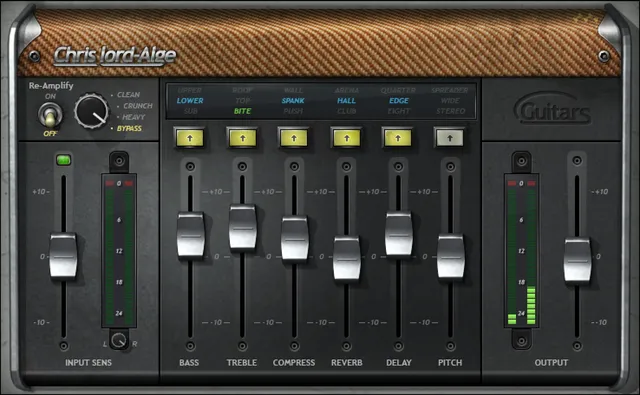
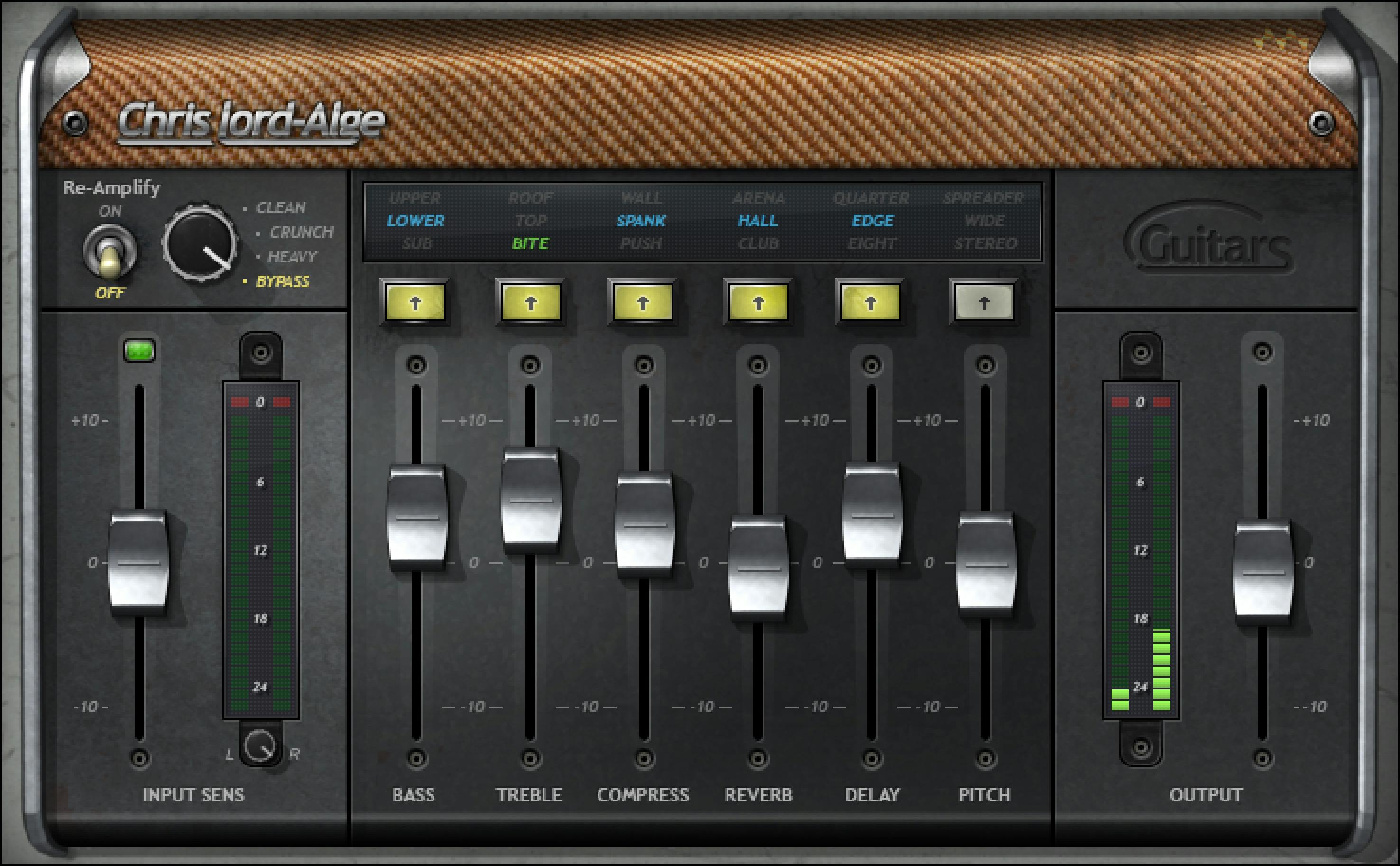
About the imagery: the cover is an editorial illustration. The interface is vendor-supplied reference artwork, not a tested installation.
My Short Version
Decide what you are starting with before moving the effects. A recorded amplifier already has an amp sound; a direct-injection recording may still need one. With Re-Amplify off, choose the mode that describes the recorded sound. With it on, choose the intended amp character. [1, pp.4,8]
Then establish a sensible input level, choose one effect to address a specific mix problem, and compare its Colors without changing several unrelated controls at once. Use the Output control to keep a louder result from winning the comparison merely because it is louder. That is an editorial evaluation method, not a tested preset.
Do not make an all-zero or all-Clear setup your assumed dry reference. The manual assigns particular processing states to those controls and says fixed processing remains with all Colors clear. Use a separate unprocessed reference when judging the complete effect. [1, p.6]
Components and stereo output
The manual names two components: Mono-to-Stereo, accepting a mono source and producing stereo output, and Stereo, accepting and producing stereo. The Balance control is documented only for the Stereo component. [1, pp.5,9]
Choose for the actual input routing. A mono guitar recording does not imply that the plugin's result stays mono. Conversely, these component names do not describe Mid/Side processing: do not read a shortened component label as evidence of an M/S mode. No separate mono-output component is listed in this guide. [1, p.5]
This is the documented component model, not a confirmation that a particular host exposes every component or routes it correctly on your system.
Guitar Mode and Re-Amplify
Guitar Mode
Options are Clean, Crunch, Heavy and Bypass; the documented default is Clean. Clean, Crunch and Heavy are named operating modes, not published distortion percentages or references to specific amplifier brands. [1, pp.4,8]
With Re-Amplify off, Waves describes the modes as choices for the type of recording already supplied: for example, a clean or crunchy recorded part. With Re-Amplify on, the choice instead describes the intended modeled-amp result. [1, p.4]
Bypass is specifically qualified in the manual. It removes mode-specific processing when Re-Amplify is off; when Re-Amplify is on, it also disables the modeled amp. The guide does not identify that position as a guaranteed bypass of every effect and every fixed stage. [1, p.8]
Re-Amplify
This On/Off switch enables a modeled amp selected for the current guitar mode. Default: Off. The manual recommends leaving it off for a microphone-recorded amplifier and describes direct recording as its re-amplification use case. [1, pp.4,8]
Waves also documents greater CPU load with Re-Amplify enabled, but supplies no percentage or machine-specific estimate here. No CPU measurement was made for this article. The switch does not expose a cabinet browser, microphone-placement control or list of identified amp models. [1, p.8]
Input Sensitivity, metering and Balance
Input Sensitivity
Input Sensitivity adjusts the level reaching the processor. Documented control range: −10 to +10, 0.1 steps, default 0. The range entry does not explicitly attach a unit, so this guide retains the control scale rather than turning it into an independently verified dB specification. [1, p.8]
Use the loudest relevant part of the performance when considering input level. Waves' setup advice is to consult both the Sensitivity indicator and input meter; it also cautions that a yellow indicator is not an absolute condition for a useful result. [1, pp.4,6]
Sensitivity LED
The manual labels its states off: too low; green: good; yellow: optimal; red: very hot. These are vendor operating descriptions, not published numerical thresholds. The red Sensitivity state is not the same specification as the separate meter's over-0-dBFS clip indicator. [1, pp.4,9]
Input Meter and Clip LED
The input meter displays peaks over a −26 to 0 dBFS scale. Its Clip LED indicates a level above 0 dBFS. Clicking inside the meter area resets the indication. That action clears the readout; it does not repair clipping already present in a recording. [1, p.9]
Balance
In the Stereo component, Balance changes the left/right level offset. Range: −6 to +6 dB, 0.1 steps, default 0. It is not available as the documented Stereo-only control in Mono-to-Stereo. [1, p.9]
The manual does not publish a pan law or a detailed mathematical description of how the two channels move. Do not infer either from the knob position.
How faders and Colors work
A fader changes an effect's amount or tonal contribution; its Color selector changes the kind of processing behind that fader. The Colors are selectable independently across the six effects. [1, pp.5–6]
All six effect faders have the documented −10 to +10 control range, 0.1 increments and 0 default. These are macro-control values: the guide does not map every value to a dB boost, compression ratio, wet percentage, delay feedback or pitch interval. In particular, a negative wet-effect fader value is not a negative wet-mix percentage. [1, pp.9–13]
The default does not have the same meaning for every module. Bass and Treble Color changes have no EQ effect while their faders remain at zero. The other effect faders at zero represent the designed starting processing state rather than an instruction to turn their effects off. [1, p.6]
Bass
Bass controls low-frequency gain on the common −10 to +10 scale, with 0.1 increments and a 0 default. Its filter Colors are Sub (green, default), Lower (blue) and Upper (red); Clear bypasses that section. [1, pp.9–10]
The labels are not a frequency table. No cutoff, slope or bandwidth is published for these choices in the guide. To evaluate a Color, first make an intentional nonzero Bass adjustment; otherwise the manual says cycling the EQ Colors has no effect. [1, pp.6,10]
Treble
Treble controls high-frequency gain using the same documented scale, step and default. Its Colors are Bite (green, default), Top (blue), Roof (red) and Clear for bypass. [1, p.10]
As with Bass, no numerical frequency or Q is assigned to a Color here. Treat a change in Color as choosing another broad filter character, not as moving to a known surgical center frequency. Color comparison requires moving the Treble fader away from zero. [1, pp.6,10]
Compress
Compress changes dynamic-range processing: −10 to +10, 0.1 steps, default 0. The choices are Push (green, default), Spank (blue), Wall (red), and Clear to bypass compression. [1, pp.10–11]
The guide does not give separate threshold, ratio, knee, attack or release settings for those characters. In particular, the name Wall is not enough to promise brickwall limiting or a numerical output ceiling. Compare the actual role of the guitar in the arrangement rather than assigning an undocumented compressor specification to a name.
Reverb
Reverb adjusts the reverb contribution on the documented −10 to +10 scale, in 0.1 steps, default 0. Its types are Club (green, default), Hall (blue) and Arena (red); Clear mutes the reverb. [1, p.11]
These names do not supply exact decay times, pre-delay or room dimensions. The control is an amount decision within a selected character, not a seconds readout. For an edit, evaluate whether the tail belongs in the next shot or musical phrase instead of assuming a larger named space is the better choice.
Delay
Delay amount
The Delay fader adjusts the delay wet contribution: −10 to +10, 0.1 steps, default 0. It does not select time; that belongs to Delay Color. [1, p.12]
Delay Color and tempo
The three active choices are Eight (green, default: eighth note), Edge (blue: dotted eighth note) and Quarter (red: quarter note). Clear mutes the delay. The guide states that delay time follows the session BPM. [1, p.12]
A selected note value is not a fixed millisecond duration across different tempos. There is no separately documented free-time, feedback or tap-tempo parameter in this control list. Do not invent one when describing the macro.
Pitch
Pitch adjusts pitch-modulation wet contribution, with −10 to +10 range, 0.1 steps and default 0. Its Colors are Stereo (green, default), Wide (blue), Spreader (red) and Clear for mute. [1, pp.12–13]
The manual positions this section as modulation/chorusing/doubling, not a note editor. It does not provide a semitone range, a modulation-rate control or fixed per-Color detune values. This is therefore not a pitch-correction procedure for a wrong note. [1, pp.5,12–13]
For a guitar-based video cue, judge the width in the actual finished mix and delivery playback. A pleasing isolated spread is not by itself proof that a doubled part will retain its intended balance when summed or heard on different speakers. This is evaluation guidance, not a measured compatibility result.
Output and clip reset
Output controls final plugin level. Its published scale is −10 to +10, 0.1 steps, default 0; as with Input Sensitivity, the range entry does not explicitly print a unit. [1, p.13]
The output peak meter has the same −26 to 0 dBFS displayed scale as the input meter. Its Clip LED indicates levels above 0 dBFS and is reset by clicking in the meter area. Input and output are separate metering points; neither peak display is a loudness-matching measurement. [1, pp.9,13]
Zero, Clear and Bypass
Keep three different questions separate. Zero is a fader setting with the EQ-versus-other-effects distinction described above. Clear bypasses Bass, Treble or Compress, or mutes Reverb, Delay or Pitch. Guitar Mode Bypass disables the mode-specific processing and, when enabled, the modeled amp. [1, pp.6,8–13]
Waves explicitly says that some fixed processing remains when all Colors are clear. The manual does not provide a full internal topology from which to prove that a combination of internal switches yields a transparent pass-through. Do not call an all-Clear setup a null-tested bypass. [1, p.6]
For a complete processed-versus-unprocessed evaluation, retain an unprocessed reference and use the host's bypass facility where appropriate. Keep level and timing differences in mind. That is a comparison method, not a statement that a particular host bypass was tested here.
Presets and the WaveSystem toolbar
The product guide assigns preset save/load, settings comparison, undo/redo and interface resizing to the shared toolbar. It directs readers to the upper-right help icon for the WaveSystem guide. [1, p.13]
No undocumented reset shortcut, number of undo levels or preset count is added here. A preset is a starting configuration, not evidence that it suits every DI level, arrangement or recorded amp sound.
A guitar-cue editing workflow
The following is a hypothetical editing exercise, not an account of a recording processed for this article.
Suppose a short electric-guitar phrase leads into an on-camera line. The performance fits, but the guitar feels too large at the handoff. First separate possible causes: excessive level, a long ambience tail, too much width, or a tonal conflict with the voice. Do not solve all four at once merely because six faders are available.
Keep the untreated recording and the current edit recoverable. Decide whether its amp character already works before introducing Re-Amplify. A new amp tone would be a creative change, not an automatic cleanup step. Establish the source level before evaluating compression or ambience.
Choose one question for the first comparison. For a tail problem, mute the wet section under review and then bring it back deliberately; do not assume a zero fader is silent. For a tonal problem, make an audible Bass or Treble adjustment before comparing Colors. For rhythmic repeats, compare against the session's actual tempo and the next spoken entrance rather than judging a solo loop alone.
After choosing a candidate, compare it at a similar apparent output level. Play through the transition without stopping. Does the guitar still lead into the scene naturally? Is the voice clear without losing the musical gesture? Can a simple level or arrangement edit do the job more predictably?
That last option matters. A processor earns its place by solving the named problem, not by adding more of every available effect. Nothing in this example establishes time saved, improved translation or a listening preference for CLA Guitars.
Best for and reasons to choose another tool
CLA Guitars is a reasonable workflow to investigate when broad guitar-tone and ambience decisions are preferable to assembling several detailed processors. Its optional amp stage also makes the distinction between a DI and a finished amp recording part of the setup. [1][2]
Choose a more detailed tool when the job requires a precisely specified EQ notch, adjustable compressor timing, identified amp/cabinet selection or independently editable delay parameters. A timing or arrangement problem may instead call for an edit. These are task distinctions, not comparative listening or purchasing verdicts.
Documentation and testing limits
This article explains the controls in the current product-linked manual, not a personally installed build. The guide does not publish the internal filter frequencies, compressor time constants, reverb decays, pitch intervals or every fixed processing stage. Macro values are not silently converted into conventional engineering units.
The full manual text was read and its printed control pages 8–13 were visually inspected on October 12, 2026. Retrieval of the full-interface illustration on page 7 failed during that review. The interface shown here was subsequently acquired from the Waves Graphic Library as vendor-reference artwork; its version/build is not identified.
No live guitar input, DI re-amplification, listening, host routing, CPU, latency, MIDI or hardware comparison was performed. The product's promotional examples and artist testimonials are not Joseph's results. No temporary price, plan membership, rating or zero-latency promise is used.
Related tools
For an acoustic-focused multi-effects alternative, the official CLA Unplugged page describes an acoustic-instrument emphasis. That is a different starting brief, not proof that one plugin sounds better on a given recording. [4]
For a broader amp/cabinet/stomp selection workflow, consult GTR3. For a dedicated delay editor rather than CLA Guitars' three rhythmic Colors, consult H-Delay. These ordinary vendor references are not links to unpublished site articles or affiliate redirects. [5][6]
Bottom line
CLA Guitars is a set of broad guitar-processing decisions, not six fully exposed laboratory instruments. Start with the recording and Re-Amplify choice, understand the mode, then evaluate each fader and Color for a specific role. Most importantly, distinguish an effect's zero setting, its Clear state and the mode's Bypass position before calling anything unprocessed. [1]
Sources
Documentation checked October 12, 2026. These are source observations, not installed-plugin or listening tests. Manual locators below use printed page numbers; the PDF has 13 pages.
- Waves CLA Guitars User Guide, linked by the product page. Full text read; printed control pages 8–13 image-inspected. Full-interface page 7 image retrieval failed.
- Waves CLA Guitars product page, product purpose, effect/mode overview and linked manual. Promotional rankings, prices, testimonials and audio examples are not adopted as evidence of results.
- Waves Graphic Library, CLA Guitars listing and required relevant-product backlink. The acquired image is presented as vendor-supplied reference artwork, not a verified installed build.
- Waves CLA Unplugged, acoustic-instrument product positioning only.
- Waves GTR3, amp/cabinet/stomp workflow distinction only.
- Waves H-Delay, dedicated delay workflow distinction only.
Frequently Asked Questions
Should I enable Re-Amplify for a guitar recorded through an amp?
Waves recommends leaving Re-Amplify off for a microphone-recorded amplifier. With it off, choose the mode for the recorded sound; with it on, choose the intended modeled-amp result. Adding another amp stage is a creative choice, not a required cleanup step.
Does setting every Color to Clear bypass CLA Guitars?
No. The manual says fixed processing remains when all Colors are clear. Clear bypasses the EQ or compression section, or mutes a wet effect, depending on the module. Keep an unprocessed reference for a whole-plugin comparison.
Why does changing Bass or Treble Color seem to do nothing?
Check the corresponding fader. Waves says cycling EQ Colors has no effect when its EQ fader is at zero. Make a deliberate nonzero adjustment before comparing the filter characters.
Does zero mean the reverb, delay and pitch effects are muted?
No. Those faders at zero represent the designed starting state. Their Clear Color positions are the documented effect mutes. Do not read a zero macro value as zero percent wet.
What do Eight, Edge and Quarter mean for delay?
They select an eighth note, dotted eighth note and quarter note respectively, synchronized to the session BPM. They are rhythmic divisions, not fixed millisecond values. The Delay fader controls the effect contribution rather than the note value.
Can the Pitch fader correct a wrong guitar note?
The documented Pitch section is a modulation and doubling-style effect, not a note-correction editor. Its Stereo, Wide and Spreader Colors do not establish a semitone correction range. Use editing or an appropriate pitch tool for that separate job.
Which component is intended for a mono guitar source?
The guide lists Mono-to-Stereo for mono input with stereo output, and Stereo for stereo input and output. Balance is documented only for the Stereo component. Confirm the intended routing in your host rather than assuming the output remains mono.
Is a yellow Sensitivity LED a guarantee of the best sound?
No. Yellow is Waves' operating guideline, not a listening verdict. The guide allows that another level may suit the material. Check the loudest relevant passage, distinguish the Sensitivity LED from the separate clip indication, and judge the result in context.

About the Author
Joseph Nilo has been working professionally in all aspects of audio and video production for over twenty years. His day-to-day work finds him working as a video editor, 2D and 3D motion graphics designer, voiceover artist and audio engineer, and colorist for corporate projects and feature films.