
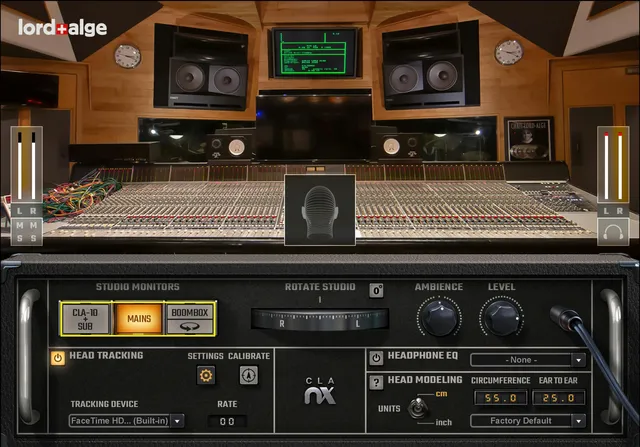
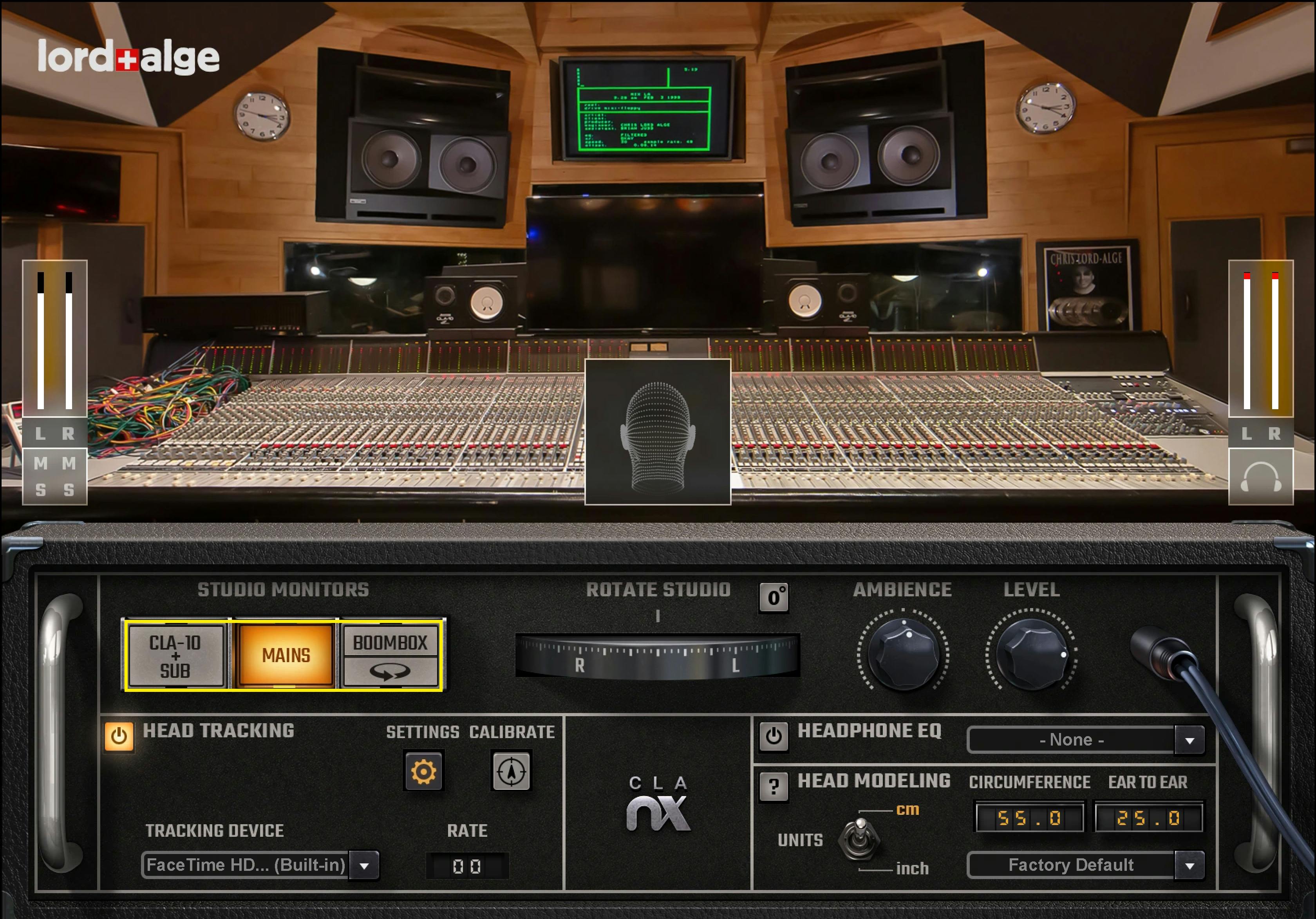
Waves CLA Nx is a headphone-monitoring plugin that places your mix inside a modeled version of Chris Lord-Alge’s Mix LA control room. It lets you switch among three documented monitor systems, rotate the virtual room, change room ambience, apply a headphone-model correction curve, and optionally track your head with a camera or Waves Nx Head Tracker. [1][2]
The important distinction is that CLA Nx is a monitoring environment, not a mix processor you are supposed to print into the final master. Waves instructs you to place a single instance on the master bus and bypass it before the final bounce. [1]
My Short Version
Put CLA Nx last on your monitoring/master path, choose the monitor system you want to reference, select your headphone model, and turn on the headphone EQ if you want its correction curve. Start with Ambience at 100% if you want the captured-room balance Waves documents, then adjust only if that amount of room sound is distracting or too dry for you. [1]
If you use head tracking, calibrate while facing the center of your physical screen. The virtual room can then remain spatially anchored while you turn your head. If you do not want tracking, switching tracking off does not disable CLA Nx processing. [1]
I did not monitor a mix through CLA Nx for this article. The workflow guidance here is based on Waves’ documentation rather than a listening comparison.
What CLA Nx is modeling
Waves describes CLA Nx as a virtual recreation of Chris Lord-Alge’s Mix LA control room. The current product page presents it as a way to check a mix through three monitor perspectives while listening on headphones. [2]
The plugin does not claim to turn your headphones physically into those loudspeakers. It applies the modeled room/speaker cues and, when enabled, a headphone correction profile so you can audition the mix through that virtual monitoring context. [1][2]
Components
The guide describes CLA Nx as a way to monitor a stereo mix and instructs users to insert one instance on the master bus, not on individual tracks. It does not identify mono and stereo component variants. Bypass CLA Nx before the final bounce. [1]
The three monitor systems
CLA Nx provides three speaker-system choices. [1][2]
CLA-10 + Sub
This mode models Chris Lord-Alge’s near-field monitor setup together with the room’s Infinity 12-inch BU-2 subwoofer. The guide identifies the near-field monitoring setup as CLA/Avantone-style monitors. [1]
Use this as a near-field-plus-sub reference rather than assuming it represents the room’s large mains.
Main
Main selects the room’s large custom Ocean Way HR1 main monitors, documented as having two 15-inch drivers plus a horn per side. [1]
This is the large-control-room-monitor perspective in CLA Nx.
Boombox
Boombox models the Sony ZS-M1 boombox positioned at the rear of the room. [1]
The boombox view includes a circular room-rotation control so you can orient the virtual listening perspective toward it. [1]
Input meters, mute and solo
The left and right Input meters are full-scale digital meters. [1]
- Published scale: -∞ to 0 dBFS
- Clip indication: infinite hold
- Reset: click the clip indicator [1]
Each input channel also has Mute and Solo controls. These affect monitoring inside the plugin; they are not substitutes for your DAW’s mix decisions.
Output meter and clipping
CLA Nx has an output/headphone meter with the same documented full-scale range: [1]
- -∞ to 0 dBFS
- infinite-hold clip indication
- click the clip indicator to reset [1]
Waves explicitly notes that CLA Nx can clip its output. If the output meter clips, lower the plugin’s output Level rather than treating the monitoring stage as automatically protected. [1]
Output Level
Level adjusts CLA Nx output. [1]
- Range: -24 dBFS to +6 dBFS
- Default: 0 dBFS [1]
Those units reproduce the current guide's printed wording; they are not independently verified output measurements.
This is a monitoring-level trim after the virtual-room processing. It does not change the documented speaker-model selection.
Rotate Studio
The Rotate Studio wheel changes the orientation of the virtual room around the listener. [1]
You can rotate it manually, then return the room to the centered 0° position using the dedicated reset or the documented Alt-click reset behavior. [1]
The guide does not publish a separate numeric minimum/maximum rotation range for the control, so none is inferred from the artwork.
Ambience
Ambience changes the amount of modeled room ambience. [1]
- Range: 60% to 160%
- Default: 100% [1]
At 100%, Waves describes the ambience as corresponding to the captured room/IR balance. Lower and higher settings deliberately alter that amount, which Waves presents as a way to personalize the environment rather than as a more accurate measurement of the physical room. [1]
Head Tracking On/Off
The Head Tracking switch enables or disables tracking input. [1]
Turning head tracking off does not bypass CLA Nx processing. It simply stops the room orientation from following tracked head movement. [1]
The on-screen wireframe head provides tracking feedback. The manual says it appears gray when tracking is off, when your head is outside the usable tracking area, or when lighting is too poor for camera tracking. [1]
Tracking device menu
The tracking-device selector lets you choose the available tracking source. [1]
Documented choices include:
- Camera
- Nx Head Tracker [1]
When compatible tracking sources are available, Sensor Fusion combines the selected camera with one Nx Head Tracker. Waves documents Sensor Fusion rates up to 80 fps and notes that Sensor Fusion tracks one person at a time. [1]
Settings
The Settings button opens or brings forward the Waves HeadTracker application. The manual says the app launches when CLA Nx is instantiated by default and quits when the plug-in is removed or made inactive, or when the host closes. The utility menu can disable auto-launch and auto-shutdown. [1]
These settings affect the companion-app workflow, not a separate audio-processing stage.
Calibrate
Calibrate defines the current forward-facing position as the center/sweet-spot orientation. [1]
Use it while sitting in your normal listening position and looking straight toward the physical display. If the virtual room feels rotated even though you are centered, recalibration is the documented first correction.
Tracking Rate readout
The Rate display shows tracking update speed. [1]
Waves gives these optimal ranges:
- Camera: 25–30 fps
- Nx Head Tracker: 35–50 fps
- Sensor Fusion: 45–80 fps [1]
These are tracking-rate targets, not audio sample rates or plugin latency measurements.
Head Modeling
CLA Nx includes personal head-dimension settings because those dimensions affect the virtual-spatial model. [1]
Units
Units switches measurement display between centimeters and inches. [1]
Head circumference
Circumference sets head circumference. [1]
- Range: 35–75 cm / 13.8–29.5 in
- Default: 55 cm / 21.7 in [1]
Ear-to-ear distance
Ear to Ear is the distance from ear to ear around the back of the head, on a plane parallel to the floor. [1]
- Range: 15–40 cm / 5.9–15.8 in
- Default: 25 cm / 9.8 in [1]
Head-modeling presets
Head-modeling presets are separate from normal WaveSystem plugin presets. [1]
The guide says a factory head-model preset loads when CLA Nx opens or is enabled, even if a host session contains head-measurement settings, unless the user has saved a different default. User head-model presets can be stored separately. [1]
That behavior matters when recalling sessions: verify the active head measurements instead of assuming the DAW session necessarily restored the values you expect.
Headphone EQ selector and On/Off
The Headphone EQ section lets you choose a supported headphone model and enable its correction curve. [1][2]
The product page says over 270 headphone models in its headline feature copy, while the linked manual says more than 250 correction curves. The same product page also describes the supported set as a ‘handful’ or ‘some’ models. These are source-specific statements; the discrepancy does not establish a verified current count or prove which wording is newer. [1][2]
The controls are:
- Select — choose the headphone model/correction profile
- Off / On — disable or enable the selected correction curve [1]
Selecting a model does not by itself guarantee the correction is active; Headphone EQ must be On. [1]
Waves says a selected headphone model becomes the default correction curve and loads automatically in a new instance of any Nx plugin. If your model is not listed, the manual advises leaving Headphone EQ off rather than choosing an unrelated model. Turn the Headphone EQ switch on to apply the curve. [1]
Waves Nx Head Tracker companion app
Several controls live in the Waves Head Tracker companion application, not on the CLA Nx audio plugin itself. They are still relevant to the documented tracking workflow and are separated here so they are not mistaken for audio parameters. [1]
Camera tracking controls
The manual documents Camera Tracker On/Off, Camera Select, Reset Face Detection, Low Light Mode, a frame-rate indicator, and Tracking Data. Low Light Mode increases frame rate in poor lighting and is available only with FaceTime HD cameras built into certain MacBook Pro computers. Camera tracking data includes yaw, pitch, roll, x, y, and z. [1]
Utility-menu controls
The utility menu includes interface sizes of 75%, 100%, 125%, 150%, and 200%, an Apply as Default to All command, links to the plug-in manual and WaveSystem guide, More Info, Disable Tracker App Auto-Launch, and Disable Tracker App Auto-Shutdown. [1]
These affect the companion application workflow, not the CLA Nx sound directly.
Bluetooth tracker controls
For Waves Nx Head Tracker hardware, the companion app documents:
- Device List and connection-status display
- Connect
- Refresh device list
- Open Bluetooth settings on Windows
- Rename tracker permanently, with a documented 5–15 character name length
- Update firmware
- Identify
- FW Version readout
- Automatic Connect, enabled by default
- tracking-data display: yaw, pitch and roll [1]
The app can show and connect multiple available trackers; the guide documents support for up to seven connected tracker devices in the companion application. That does not mean CLA Nx Sensor Fusion uses seven trackers for one listener: Sensor Fusion uses the selected camera plus one tracker and tracks one person at a time. [1]
WaveSystem toolbar
The manual describes preset save/load, setting comparison and undo/redo in the WaveSystem toolbar. Interface resizing is documented separately in the utility menu. [1]
These are host/plugin workflow controls rather than CLA Nx room-model parameters.
A practical monitoring workflow
Insert one CLA Nx instance on the master monitoring bus and keep it out of the rendered deliverable by bypassing it before the final bounce, as Waves instructs. [1]
Choose one of the three virtual monitor systems, set Ambience near the documented 100% baseline, select your actual headphone profile if available, and turn Headphone EQ on if you want that correction applied. [1][2]
If you use tracking, select Camera, Nx Head Tracker or Sensor Fusion, calibrate from your centered listening position, and confirm the Rate display is operating in the documented useful range for that tracking mode. [1]
Then switch among the virtual speaker systems as a reference exercise. Do not treat agreement among those virtual perspectives as proof that a mix translates universally; this article does not establish that claim.
Best for / skip if
CLA Nx is best for producers and mixers who want a documented virtual control-room reference on headphones, especially when they want to switch among CLA’s near-field, main and boombox perspectives without changing physical speakers. [1][2]
Skip it when you need a neutral measurement tool, room-correction calibration for physical loudspeakers, or processing that should become part of the final audio file. CLA Nx is a monitoring environment and Waves explicitly tells you to bypass it for the final bounce. [1]
Limitations and evidence boundary
This is a documentation-led guide. I did not listen through CLA Nx, compare its room model with Mix LA, measure localization accuracy, verify headphone correction curves, benchmark CPU/latency, test cameras/trackers, or render audio through the plugin.
The source review covered the current product page, the linked User Guide v2 and official interface imagery. No installed build, audio, host, camera, tracker, latency, CPU or headphone correction was tested.
Related guides
For product details, see the official Waves CLA Nx product page and the CLA Nx User Guide v2.
Bottom line
CLA Nx is a headphone monitoring environment: choose one of three Mix LA speaker perspectives, set room ambience and output level, optionally apply a headphone correction profile, and use camera/tracker data to keep the virtual room spatially anchored as you move. [1][2]
Its core limitation is equally important: it is for monitoring. Bypass it before the final bounce, and do not confuse the virtual-room perspective with processing that belongs in the master. [1]
Sources
Sources checked October 18, 2026. No listening, native-host, camera/tracker, compatibility, CPU, latency or measurement test was performed.
- Waves CLA Nx User Guide v2, current product-linked guide. Official interface, meter, head-tracking and headphone-EQ pages were visually inspected during the documentary review.
- Waves CLA Nx product page, current product identity and current statement of over 270 supported headphone correction profiles.
- Waves Graphic Library, which lists CLA Nx and permits use of images on that library page when the displayed image links back to the relevant Waves product page.
FAQ
What does Waves CLA Nx do?
It models the Mix LA monitoring environment for stereo headphone monitoring, with three speaker perspectives, room ambience, optional headphone EQ correction, and optional head tracking. This describes the documented purpose, not a listening-test result. [1][2]
Should I leave CLA Nx active for my final export?
No. Waves says to insert one instance on the master bus and bypass CLA Nx before bouncing the final mix. [1]
Which speaker systems are modeled in CLA Nx?
The guide lists CLA-10 + Sub, Main, and Boombox. It identifies the sub as an Infinity 12-inch BU-2, the mains as custom Ocean Way HR1 monitors, and the boombox as a Sony ZS-M1 at the rear of the room. [1]
What do the input and headphone meters show?
The guide describes full-scale meters from −∞ to 0 dBFS with an infinite-hold clip indication; click the clip indicator to reset it. Input channels also have mute and solo buttons. [1]
What is the documented CLA Nx output Level range?
The manual prints a range of −24 dBFS to +6 dBFS and a default of 0 dBFS. Those are the guide’s printed units; they have not been independently measured. [1]
How should I measure Ear to Ear for Head Modeling?
The guide defines it as the distance from ear to ear around the back of the head, on a plane parallel to the floor. It lists 15.0–40 cm (5.9–15.8 in) and a 25 cm (9.8 in) default. [1]
Does selecting a headphone profile automatically apply its correction?
No. The profile is selected from the Headphone EQ menu, but the manual says to turn the Headphone EQ switch on to apply the curve. If your model is not listed, Waves suggests turning the section off rather than choosing another model. [1]
What happens to the selected headphone profile in another Nx plug-in?
The manual says the selected model becomes the default correction curve and loads automatically in a new instance of any Nx plug-in. This is the guide’s documented behavior, not a local installation test. [1]

About the Author
Joseph Nilo has been working professionally in all aspects of audio and video production for over twenty years. His day-to-day work finds him working as a video editor, 2D and 3D motion graphics designer, voiceover artist and audio engineer, and colorist for corporate projects and feature films.