
Waves Curves AQ is an adaptive equalizer that analyzes an input, generates target curves, and then uses static and dynamic EQ processing to move the signal toward the selected target. Its controls let you change the total processing amount, cut and boost limits, dynamic/static balance, Tilt/Offset, sidechain-based MixSense processing, four processing bands, target-curve nodes, learned anchors, filters, dynamics timing, precision, output makeup/limiting, stereo processing balance and wet/dry mix. [1][2]
The important distinction is that the graph is not simply a conventional EQ. Some controls alter the target curve that AQ is trying to reach, while others limit or change the processing used to approach that target. [1]
My Short Version
Start with Learn. For one instrument or voice, use Instrument mode; for a mix or other polyphonic source, use Mix mode and select the relevant category. Let the scan run to completion when practical, then audition the five target curves. [1][2]
Before reaching for nodes and advanced controls, use the Main Power, global Cut/Boost and Dynamic/Static controls. Those are the quickest ways to decide how much AQ should do and how much of the job should be dynamic versus static. [1]
Use Tilt/Offset to reshape or align the target, MixSense when another track should influence the processing, and only then move into band limits, nodes, anchors, filters and the Advanced panel. No listening test was performed here, so this is workflow guidance based on the documented architecture rather than a claim that AQ makes a particular source sound better.
Components: AQ and AQ Live
The current guide documents four components: [1]
- Curves AQ mono
- Curves AQ stereo
- Curves AQ Live mono
- Curves AQ Live stereo [1]
The Live component is documented as a zero-latency version with important differences: [1]
- no limiter,
- no balance control,
- no suggested target curves; it works with input curves and manual instrument-category selection,
- adds Curve Freeze, a threshold below which the processing curve is frozen so low-level material does not keep changing it. [1]
The current manual does not publish a numeric Curve Freeze range/default in the retrieved control description, so none is invented here.
AI Learn panel
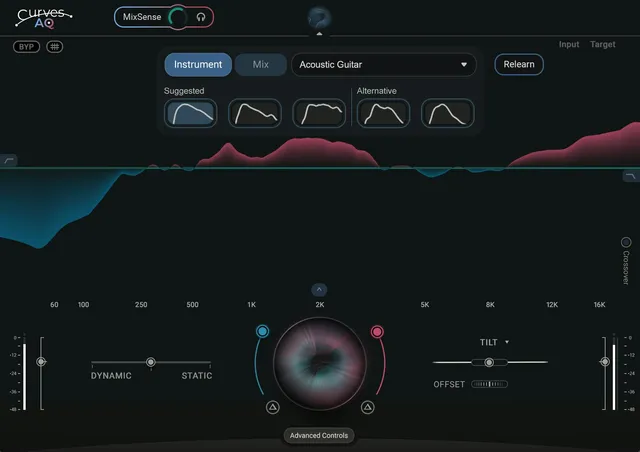
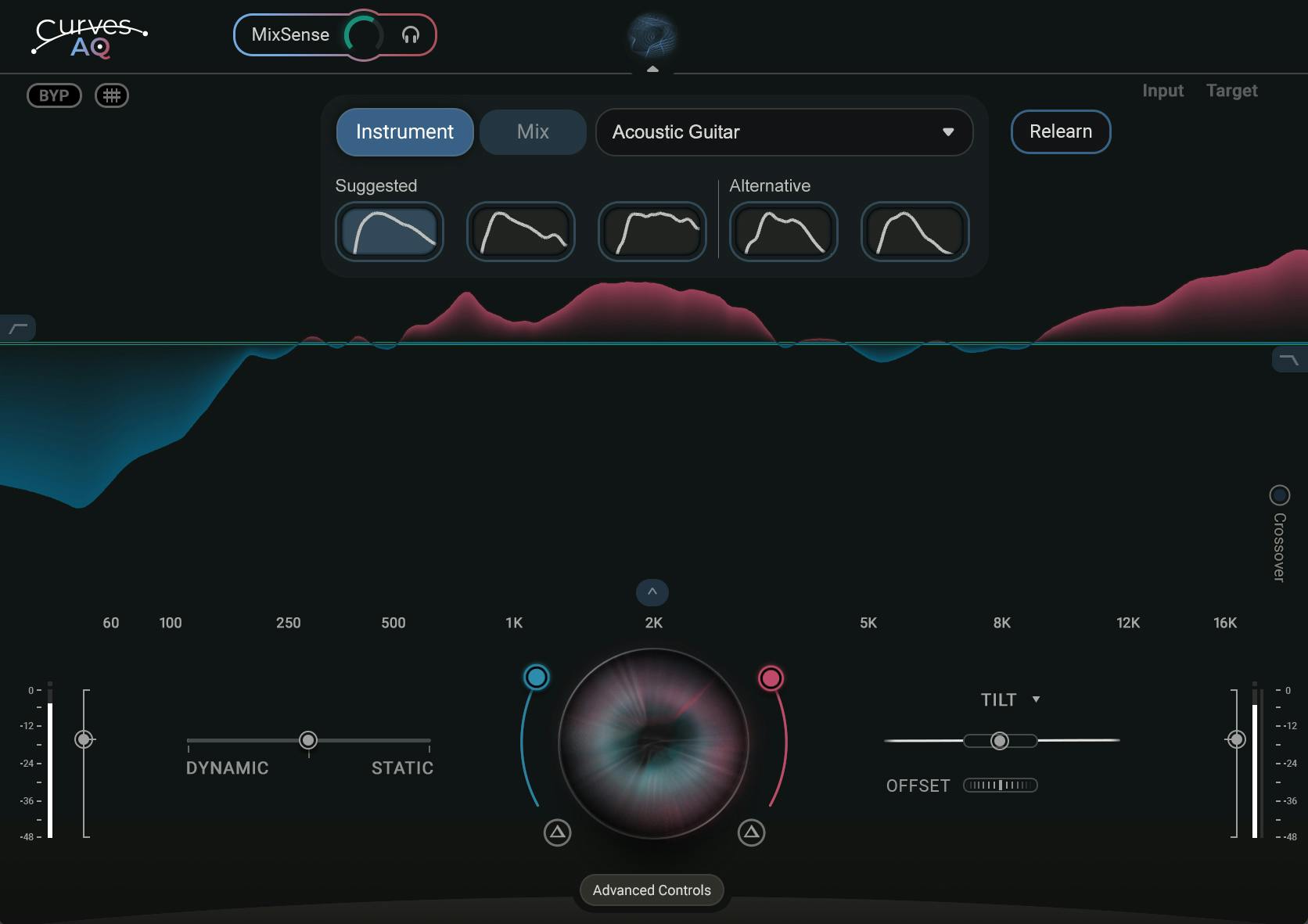
The AI Learn panel analyzes the incoming material, categorizes the learned input by instrument type or uses a selected mix category, and creates target-curve suggestions. [1]
A normal learning pass takes about 10 seconds according to the guide. A progress bar shows the scan. Once enough material has been analyzed, a Show Target control can end the scan early, although Waves recommends allowing the scan to finish when possible. [1]
No claim is made here about recognition accuracy or whether one learned curve is objectively correct.
Instrument and Mix modes
Instrument mode is intended for a single instrument or voice. Mix mode is intended for a mix or another polyphonic source and uses a music-category choice instead of a single-instrument class. [1]
After learning, changing the detected/selected instrument class or mix category does not require another scan; AQ can generate/use the new category relationship from the existing learned input. [1]
Target curve choices
The regular AQ component generates five target curves after learning. The first opens automatically. [1][2]
Clicking a selected target curve can toggle it to a flat curve and back to the calculated curve. Selecting a different target can also reset target-dependent parameters such as Dynamic/Static, Attack/Release and crossover frequencies unless their lock behavior prevents that. [1]
The five curves are generated from the learned material according to Waves; they are not fixed article presets being reproduced here.
Instrument Class / music category
The Instrument Class field shows the detected class and also functions as a menu. You can choose a different class without rescanning. [1]
Mix mode similarly uses a selected music category. The current guide describes the category workflow but does not publish a finite article-ready table of every possible class/category in the retrieved text, so this manuscript does not manufacture one.
Bypass
The upper-left Bypass switch compares the original and processed signals. [1]
It is the correct master comparison control; turning Main Power down changes AQ processing amount but is not described as the same control as plugin bypass.
Graphic display: Input, Target and Process
The graph can show three different kinds of information: [1]
- Input Signal — the learned input curve used in target calculation.
- Target Curve — the curve AQ is attempting to approach.
- Process Graph — real-time cuts/boosts being applied. [1]
This distinction is central to interpreting the interface: changing a target-curve node is not the same operation as applying a conventional EQ band directly to the audio.
Main Power
Main Power controls the total processing strength. [1]
- Range: 0% to 100%
- Default: 50% [1]
At 0 there is no AQ processing; at 100 the processor is allowed its maximum overall strength within the other constraints.
Global Cut and Global Boost
The global Cut and Boost controls limit the amount of cutting and boosting available across all frequencies. [1]
The guide makes an important point: these controls reduce the permitted processing; they do not increase it beyond AQ's base amount. Lower Boost means less allowed boost, and lower Cut means less allowed cut. [1]
The current guide does not publish numeric ranges/defaults for these global sliders in the retrieved control text, so none is guessed.
Each side also has a Δ / solo audition control. Solo Cut or Boost to hear the relevant processing contribution; engage both to hear the combined cut/boost contribution. [1]
Tilt amount and pivot
Tilt rotates/shapes the target curve around an adjustable pivot frequency. [1]
- Default pivot frequency: 1 kHz.
- Positive Tilt emphasizes higher frequencies while reducing lower frequencies; negative movement does the converse. [1]
The small dot is moved vertically for Tilt gain and horizontally for pivot frequency. The manual does not publish a numeric full Tilt gain/frequency range in the retrieved control section, so only the documented default pivot and behavior are asserted.
Tilt Curve Type
The menu above the Tilt dot provides four target-curve shapes: [1]
- Tilt — symmetrical see-saw behavior around the pivot.
- Hi-Tilt — primarily changes the higher frequencies; the selected frequency marks the high-shelf edge.
- Lo-Tilt — primarily changes lower frequencies; the selected frequency marks the low-shelf edge.
- Flat — applies a flat curve to the current target. [1]
These alter the target-curve shape rather than inserting a separate conventional shelf processor after AQ.
Offset
Offset moves the target curve horizontally. [1]
Waves describes this mainly as a way to align target and input curves when their keys/fundamentals differ.
- Default: 0 [1]
The manual illustrates a +20 example but does not publish the complete numeric range in the retrieved text; the full range is therefore left unspecified.
Dynamic / Static
The Dynamic/Static slider blends two approaches: [1]
- Dynamic EQ follows the real-time relationship between the signal and target.
- Static EQ is calculated from the learned input material. [1]
Without a learned input curve, only Dynamic EQ is available and the slider is grayed out. [1]
- Default: 50% / center.
- At the documented 50% setting, both processors operate at 100%; moving toward one side keeps that processor at 100% while reducing the other. [1]
This is not a simple wet/dry crossfade where center means half of each.
A lock control can prevent target changes from resetting this and other target-dependent values. [1]
MixSense On/Off
MixSense activates the sidechain-driven spectral-ducking behavior when a sidechain signal is available. [1]
Waves says it compares the main and sidechain signals spectrally and changes processing where they conflict. A sidechain mix can contain multiple instruments; louder components receive greater weighting in that calculation. [1]
This article does not claim the result is superior to conventional ducking; that is not tested here.
MixSense level and solo
The small MixSense knob sets the sidechain level used by the process. A headphones control can be held to solo/audition the sidechain. [1]
The current guide does not publish a numeric range/default for the MixSense level control in the retrieved text, so none is asserted.
Crossovers and four bands
AQ divides the processing display into four bands defined by three movable crossovers. [1]
Dragging a crossover changes its frequency and displays the current value. Instrument-mode learning can automatically update crossover locations. A Crossover View control shows/hides these crossover markers. [1]
The current guide does not give universal crossover defaults because the values can be learned/target dependent. Close the AI Learn panel before adjusting cut or boost in the crossover bands. [1]
Per-band Cut / Boost limits
Each band's colored control limits how much of the global Cut or Boost is permitted within that frequency range. [1]
The relationship is multiplicative. The guide's example uses global Cut at 75% and a band Cut at 100% to retain 75% allowed cut; a band setting of 200% would permit 150% relative to that global amount, while 0 prevents cut in that band. [1]
The documented default example for a band limiter is 100%. The guide demonstrates values up to 200%; it does not present a consolidated table of every band's complete range/default, so this article does not extrapolate beyond the documented relationship/example.
Curve nodes
You can add up to eight nodes per captured curve. Nodes reshape the target curve rather than directly applying an ordinary EQ band to the output. [1]
Each node widget provides: [1]
- Frequency
- Gain
- Q
- EQ Type: low shelf, bell, or high shelf
- Remove/Trash
- Solo [1]
The current guide explains behavior but does not publish one universal numeric range/default table for node Frequency/Gain/Q. Values are displayed interactively in the plugin; this manuscript leaves unpublished ranges unspecified.
Nodes at or below 100 Hz open as low shelves; nodes at or above 8 kHz open as high shelves. You can change those types manually. [1]
Double-click disables/re-enables a node without deleting it. Ctrl-drag provides precise control and solos the node; Shift-click/lasso supports multi-selection. Alt-clicking Trash deletes all nodes while automation values remain preserved. [1]
Learned Anchors
After learning, AQ creates four fixed-Q tonal anchors: [1]
- Low — shelf.
- Fundamental — bell.
- Harmonics — bell.
- Air — shelf. [1]
Hovering exposes frequency and gain offset. Moving an anchor changes its learned tonal area; a new target selection resets the anchor frequencies. Anchors are absent before a learning scan. [1]
The current guide does not publish fixed universal anchor frequencies/ranges because they are learned from the source.
HP and LP filters
The graph edges provide high-pass and low-pass filters for narrowing the output frequency range. [1]
Drag each filter left/right to set frequency and use its arrow menu to select slope. [1]
The current guide does not publish a consolidated list of all frequency/slope options in the retrieved text, so this article documents the controls without guessing numeric choices.
Attack and Release
The Advanced panel's Attack and Release controls set how quickly AQ processing reacts and returns. [1]
Waves explicitly says the time ranges vary depending on the target. [1]
Because the range is target-dependent and no single fixed default/range is published in the retrieved section, this article does not substitute numbers from a screenshot.
Precision
Precision changes how narrow/deep versus broad/shallow AQ's processing is. [1]
- Range: 0 to 100
- Default: 30 [1]
Waves warns that very high Precision settings may introduce unwanted artifacts; the guide discusses the many frequency bins and high-quality linear-phase filters in this context. That is a vendor warning, not a listening result from this article. [1]
Auto Makeup
Auto Makeup measures input RMS and applies dynamic makeup gain intended to keep output RMS close to input RMS as AQ cuts or boosts. [1]
The current guide describes the function but does not publish an explicit range/default for the switch/control in the retrieved text. Do not describe this as guaranteed perceptual loudness matching.
Limiter On/Off
The regular AQ component includes a documented true-peak limiter: [1]
- Range: On / Off
- Default: On
- Fixed output ceiling: -0.1 dB [1]
The Live component omits the limiter. [1]
This is the vendor's documented limiter description; no independent true-peak test was run.
Input/output meters and clip reset
The dBFS meters show input and output levels. The input meter includes per-channel red over-level indicators; clicking the meter clears the indicator. The output meter also shows gain reduction. [1]
Hovering over a fader handle displays its exact value. [1]
These readouts are distinct from adjustable gain/EQ controls.
Stereo processing mode
The regular stereo component's Balance menu offers: [1]
- LINKED — same processing relationship across left/right according to the Balance setting.
- L/R (SPLIT) — independent left/right processing.
- M/S — independent mid/side processing. [1]
This Balance system is not available in mono and not available in AQ Live. [1]
Balance
Balance changes the processing percentage between the two sides/domains chosen by the current stereo mode. [1]
- Range: -50 (left) to +50 (right)
- Default: 0 [1]
In M/S mode, the control reallocates processing between mid and side rather than literally left and right channels. [1]
Mix and Mix lock
Mix controls the plugin's total wet/dry balance. [1]
- Range: 0% to 100%
- Default: 100% [1]
The small lock prevents a newly loaded preset from changing Mix. [1]
Phase
Phase reverses the polarity of the plugin output. [1]
It is an output-polarity control, not the same as changing the phase response created by AQ's filters.
Input / Target display menus
The Input and Target menus provide the same management actions: [1]
- show/hide the curve,
- lock it against preset changes,
- trash/delete it. [1]
Deleting the target is a quick route back to a default curve. Deleting the input removes the learned input curve, disables the Static/Dynamic control, and removes Anchors. [1]
That reset behavior is significant and should be retained in CMS copy.
Grid, panels and tooltips
Grid shows/hides graph gridlines; it does not change processing or crossover placement. [1]
Separate buttons show/hide the Advanced panel and AI Learn panel. Tooltips can be enabled/disabled from the hamburger menu and can show control names/instructions in the interface. [1]
These are interface/display controls, not audio processing.
Curve Freeze in AQ Live
Curve Freeze exists in AQ Live. It sets a threshold below which the processing curve is frozen, preventing low-level material from continually changing that curve between songs/sources. [1]
The current guide gives the behavior but not a numeric range/default in the retrieved text, so none is invented.
Preset management and locks
The WaveSystem toolbar manages factory/user presets and threshold/curve data. The current guide says the preset system supports partial loading/clearing, copying a preset to another instance, Save As, setting a default, MIDI Map management, loading/resetting Curves thresholds/controls, and locking Input/Target curves or Mix against preset changes. [1]
Target changes can also reset target-dependent values unless the relevant lock is engaged. [1]
A practical workflow
Learn the source, pick a target, and first decide how much intervention you want with Main Power and the global Cut/Boost limits. Then choose the Dynamic/Static relationship. [1]
If the target is basically right but tonally misplaced, use Tilt or Offset before drawing many nodes. Use the four learned Anchors when you want broad source-aware adjustments and nodes when you specifically need to reshape the target at chosen frequencies. [1]
Use MixSense only when a sidechain relationship is part of the problem. In live/zero-latency contexts, remember that AQ Live removes suggested targets, limiter and Balance and adds Curve Freeze. [1]
This sequence is editorial guidance derived from the documented control hierarchy; no source was listened to or compared in this run.
Best for / skip if
Curves AQ is best suited when you want a learned target plus explicit control over how strongly and how dynamically the processor pursues that target. [1][2]
Skip its learning workflow when you already know the exact conventional EQ moves you want and a standard parametric EQ is simpler. Do not treat a learned target as objective truth: the guide itself presents target choice as subjective. [1]
Limitations and evidence boundary
This is a documentary control reference. No test of learning accuracy, classification accuracy, artifacts, latency, true-peak limiting, sidechain behavior, stereo imaging, CPU load, linear-phase behavior or audible quality was performed.
Several Curves AQ controls are intentionally source/target dependent, and the current manual does not publish fixed ranges/defaults for every graph control. Where the guide does not specify a number—Global Cut/Boost, full Tilt range, Offset range, MixSense level, node ranges, filter choices, Attack/Release target-dependent ranges, Auto Makeup state, Curve Freeze range—the article says so instead of inferring values from pixels.
Related guides
See Waves’ Curves Resolve product information for a related processor. The F6 guide covers a more conventional dynamic-EQ control workflow.
Bottom line
Curves AQ combines learned target curves with static/dynamic EQ and an unusually deep set of controls for limiting, reshaping and contextualizing that processing. [1][2]
The fastest workflow is Learn → choose target → Main Power/Cut/Boost → Dynamic/Static. Tilt, Offset, MixSense, bands, nodes, anchors, filters and Advanced controls are there when the initial target needs deliberate shaping rather than blind acceptance.
Sources
Checked October 16, 2026. No listening, AI-quality, sidechain, live-host, latency or measurement test was performed.
- Waves Curves AQ User Guide, current product-linked guide. The Main and Advanced interface/control pages were visually inspected during this writing pass.
- Waves Curves AQ product page, current product identity, five-target-curve description and current feature summary.
- Waves Graphic Library, current reusable-product-image permission with relevant Waves-product backlink required.
FAQ
What do the Input, Target, and Process Graph displays show?
The Input curve is used in target calculation, the Target curve is what AQ attempts to reach, and the Process Graph shows the cuts and boosts applied. These are different displays, so changing a target node is not the same as directly moving an EQ band on the signal. [1]
Should I choose Instrument or Mix mode?
The guide presents Instrument mode for a single instrument or voice and Mix mode for polyphonic material such as a mix, where you select a music category. In Mix mode you can change the category without starting another Learn scan. [1]
Do I need to finish the Learn scan?
A scan usually takes about ten seconds. Show Target can end it after enough material has been sampled, but Waves recommends letting it run because the results may be more accurate; the guide says stopping saves only a few seconds. It does not promise a particular classification or result. [1]
What is the difference between Dynamic and Static EQ?
Dynamic EQ follows the real-time signal relative to the target. Static EQ is calculated from the material you learned, so a substantial change in input content may make that static curve less suitable. The centered default is 50%, where both operate at 100%; the control is unavailable until input has been learned. [1]
What does MixSense need, and what does its control change?
MixSense becomes available when a sidechain signal is detected. Its small level knob sets the sidechain level used by the process, and press-and-hold on the headphones icon solos that sidechain. This describes the documented control; no comparison with conventional ducking was tested. [1]
How are target-curve nodes different from band controls?
Nodes reshape the target curve; band sliders limit how much global cut or boost is allowed in a frequency band. The three crossovers define the four bands. The AI Learn panel must be closed to adjust cut or boost at the crossovers. [1]
What are the four Anchors?
After learning, the Anchors panel provides Low (shelf), Fundamental (bell), Harmonics (bell), and Air (shelf) controls. Hovering shows frequency and gain offset; anchor frequencies reset when a new target curve is selected. [1]
What changes in Curves AQ Live?
The guide describes AQ Live as zero latency. Compared with regular AQ, it omits the limiter, Balance, and suggested targets; the manual says it uses input curves and manual instrument-category selection. It adds Curve Freeze, whose threshold freezes the processing curve below a level. The guide does not state a numeric threshold range/default, and no latency measurement was made here. [1]

About the Author
Joseph Nilo has been working professionally in all aspects of audio and video production for over twenty years. His day-to-day work finds him working as a video editor, 2D and 3D motion graphics designer, voiceover artist and audio engineer, and colorist for corporate projects and feature films.