
DTS Neural Mono2Stereo synthesizes a stereo image from a mono input. Width changes the phase relationship between the outputs; Crossover keeps lower-frequency material mono and in phase while higher frequencies receive the widening treatment.
It is a way to give mono material a stereo presentation—not a way to recover an original stereo recording or create discrete surround channels directly.
I read the complete nine-page guide and current official sources and inspected the genuine interface. I have not auditioned the plugin or measured its stereo compatibility, limiter or latency.
My Short Version
Width sets the spatial treatment; Crossover chooses where it starts. They solve different parts of the same decision.
Use the shelves for tone, not for another width setting. Their documented gains and cutoff frequencies are independent controls.
Monitor is an audition choice. Input presents unprocessed mono through both outputs; Output is the default processed presentation.
Keep gain and ceiling separate. Input Trim, Output Trim and the limiter's dBFS ceiling are not interchangeable numbers.
Best for and when to use something else
The guide frames Mono2Stereo around mono broadcast sources: live crowds, announcements, interviews and legacy material. It can also be considered wherever mono content needs a deliberately synthesized stereo presentation.
It is not a pan control for placing an existing stereo recording, a Mid/Side decoder or a direct surround-output processor. The current product lists a Mono-to-Stereo component. A raw component code containing MS does not establish Mid/Side operation.
The guide discusses using it before a separate surround upmixer. That workflow does not add surround channels to Mono2Stereo itself. For a broader set of tools, start with the Waves resources hub.
Input Trim and the input meter
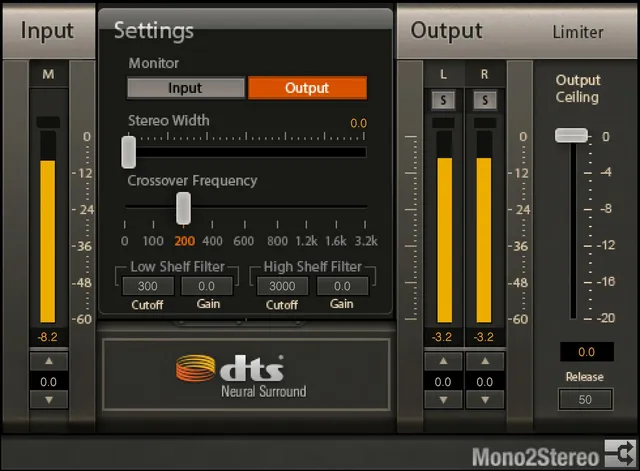
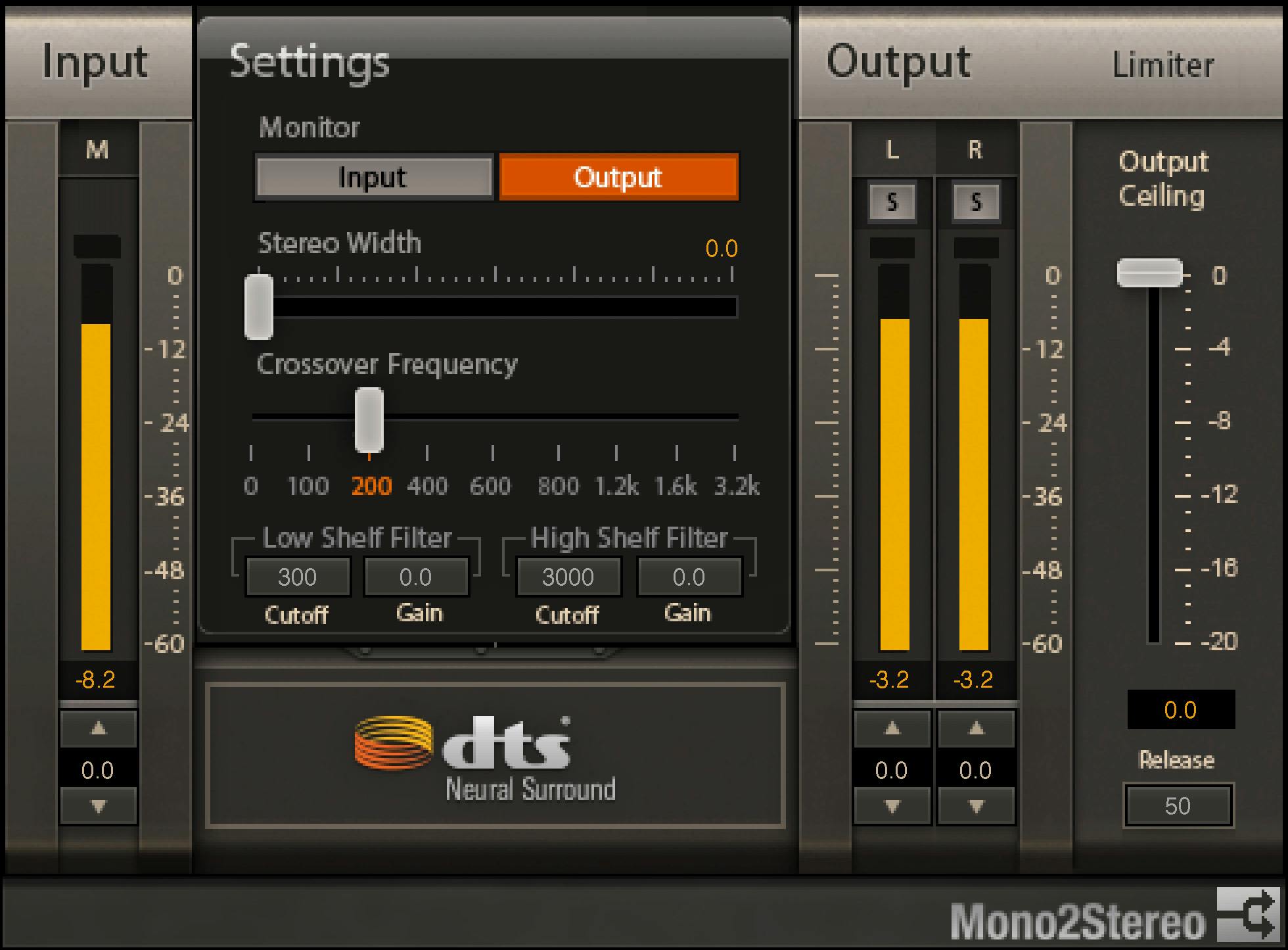
Input Trim spans −20 to 0 dB, default 0 dB. It attenuates the signal before processing. It is not a boost control.
The single input meter shows incoming level with a one-second peak hold. Its numeric field displays the held peak in dBFS. Clicking the red peak indication clears that indication.
That meter is a level reference, not a documented loudness measurement mode. For separate loudness work, the WLM Plus guide explains a different kind of meter.
Monitor Input and Output
The guide names this selector Operation Mode; the current Library interface labels it Monitor.
Input monitors the unprocessed mono signal, feeding it to both left and right outputs. Output, the documented default, monitors the processed output.
This is useful for separating the source from the synthesized result. It is not a documented limiter-enable control, nor does the guide specify an additional monitoring tap for every stage.
Width and Crossover
Stereo Width spans 0.0 to 1.0, default 0.0. The guide describes this as controlling phase difference from 0 to 90 degrees.
The displayed width number is not labeled a percentage, and it is not an output-channel count. No particular width setting is recommended here as universally mono-compatible.
Crossover Frequency determines the division between mono and widened content. Frequencies below it remain mono and in phase; higher frequencies receive the widening treatment.
The documented choices are 0, 100, 200, 400, 600, 800, 1200, 1600 and 3200 Hz, with a 200 Hz default.
Zero is explicitly a menu choice. The guide does not define an extra Off switch or a special bypass meaning for zero, so those behaviors are not assumed.
Four shelf controls, despite the heading
Page 8 is headed “Lo-Pass and Hi-Pass Filters,” but the individual definitions and the interface identify Low Shelf and High Shelf filters. These are the controls described here; no undocumented cut-filter slope is added.
| Control | Documented range | Documented default |
|---|---|---|
| Low-Shelf Gain | −12 to +12 dB | 0 dB |
| Low-Shelf Cutoff | 20–300 Hz | 300 Hz |
| High-Shelf Gain | −12 to +12 dB | 0 dB |
| High-Shelf Cutoff | 2000–10000 Hz | 3000 Hz |
The gain controls alter the amount of shelf boost or cut. Their cutoff controls set the shelf frequency; they do not replace Crossover or move its mono/stereo boundary.
If the task needs selective frequency-dependent dynamics rather than a broad shelf adjustment, that is a separate function covered in the F6 guide.
Output Trim and separate channel Solo
Output Trim spans −9 to +9 dB in 0.5 dB increments, default 0 dB. This is a gain adjustment, unlike the limiter ceiling's absolute dBFS reference.
Each output has an S Solo button to monitor its processed left or right signal separately. Both are On/Off controls with a default of Off.
The guide supplies no Shift-click multiselection rule, Clear Solo command or additional solo mode. Those gestures are not borrowed from other DTS plugins.
The two output meters show outgoing level, each with a one-second peak hold and a numeric held-peak field in dBFS. Clicking the red peak indication clears it.
Limiter Ceiling and Release
Ceiling spans 0 to −24 dBFS, default 0 dBFS. It sets the limiter ceiling.
Release spans 50 to 5000 milliseconds, default 50 ms. The guide specifically defines this release time for a 20 dB recovery; it is not presented as a universal time to reach exactly zero gain reduction.
There is no documented separate Limiter Enable switch or an Off default. The ceiling value is not evidence that limiting is bypassed.
The source does not establish a true-peak specification, a guarantee against intersample overs or measured recovery behavior. A ceiling setting should not be treated as proof of delivery compliance.
Toolbar and a practical setup order
The WaveSystem toolbar provides save/load presets, comparison, undo/redo, resizing and access to its guide. The manual figure includes the toolbar; the Library panel does not show it. That difference does not establish that the functions were removed.
My suggested order: first establish the input level, then compare Monitor Input and Output. Consider Width and Crossover together before changing the shelves.
Use each Solo button to inspect the processed channels separately, then return to the complete output. Set output gain and the limiter ceiling deliberately rather than treating either as an automatic level match.
The guide lists 44.1 and 48 kHz sample-rate support in its introductory specifications. That is a guide-scoped statement, not an independently tested current compatibility matrix. Undocumented latency and current host behavior remain unspecified here.
Sources and documentation limits
Checked October 19, 2026, America/New_York. The official product page links the complete nine-page user guide, read in full.
Pages 3–4 describe intended use, processing and guide-scoped sample rates; page 5 shows the full interface; page 6 covers input; page 7 covers monitoring, Width and Crossover; page 8 defines the shelves; page 9 covers output, Solo, limiter and toolbar.
The genuine Graphic Library interface was inspected. The shelf-heading discrepancy and Monitor/Operation Mode naming remain explicit. Marketing benefits are vendor claims, not listening or measurement results.
The licensing guide is a separate reference; no account or license action was performed.
FAQ
Does DTS Neural Mono2Stereo recover the original stereo recording?
No. It synthesizes a stereo result from a mono input; it does not recover missing original channels. The current component is Mono-to-Stereo, not a Mid/Side decoder or a direct surround-output component.
How do Width and Crossover work together?
Width sets phase difference from 0 to 90 degrees across its 0.0 to 1.0 range, with a default of 0.0. Frequencies below the selected crossover remain mono and in phase; higher frequencies receive the widening treatment. Crossover defaults to 200 Hz.
Which crossover frequencies are documented?
The guide lists 0, 100, 200, 400, 600, 800, 1200, 1600 and 3200 Hz. Zero is a listed choice, but the guide does not call it a separate Off switch. No other processor's crossover behavior is assumed.
Are the filters shelves or high-pass and low-pass filters?
Page 8 has a Lo-Pass and Hi-Pass heading, but its four definitions and the interface identify low and high shelves. Each gain spans minus 12 to plus 12 dB and defaults to 0. Low cutoff spans 20 to 300 Hz, default 300; high cutoff spans 2000 to 10000 Hz, default 3000.
What is the difference between Input Trim and Output Trim?
Input Trim attenuates before processing from minus 20 to 0 dB, default 0. Output Trim spans minus 9 to plus 9 dB in 0.5 dB steps, default 0. They are different from the limiter ceiling, which is specified in dBFS.
What does Monitor Input do, and how do the Solo buttons differ?
The guide calls Monitor Operation Mode. Input monitors the unprocessed mono signal through both outputs; Output monitors the processed result and is the default. The separate left and right Solo buttons monitor processed output channels individually and default Off. No Shift or Clear Solo gesture is documented.
What limiter settings are available?
Ceiling spans 0 to minus 24 dBFS and defaults to 0 dBFS. Release spans 50 to 5000 milliseconds and defaults to 50; the guide defines it for a 20 dB recovery. There is no documented separate limiter-enable switch or Off default.
How are peaks reset, and what does the toolbar provide?
Input and output meters have a one-second peak hold with numeric dBFS readouts; clicking the red peak indication clears it. WaveSystem separately provides preset save/load, comparison, undo/redo, resizing and help. No latency or true-peak performance was measured here.

About the Author
Joseph Nilo has been working professionally in all aspects of audio and video production for over twenty years. His day-to-day work finds him working as a video editor, 2D and 3D motion graphics designer, voiceover artist and audio engineer, and colorist for corporate projects and feature films.