
Waves Gemstones is a collection of creative audio effects accessed through one plugin. Choose an effect inside Gemstones rather than searching your DAW’s plugin list for every individual name. Waves’ product page describes a collection built around a small number of controls.
My Short Version
Start with the change your track needs: chorus movement, unstable pitch, a retro texture or more aggressive sound design. The effect names give you a starting point; their official descriptions help narrow the choice.
Check subscription coverage before downloading more effects. A visible download option does not establish that your subscription includes unrestricted use.
Descriptions below follow Waves’ documentation. No listening measurements or performance tests are presented.
Find the plugin first
Look for Waves Gemstones in your DAW, then select an effect from its browser. Waves’ installation and acquisition instructions explain this distinction between the plugin and the individual effects it contains.
If you are searching for Sugar Cube or Ripples as separate plugin entries, begin with the collection instead. Before changing your installation, consult those instructions and confirm which product you are trying to open.
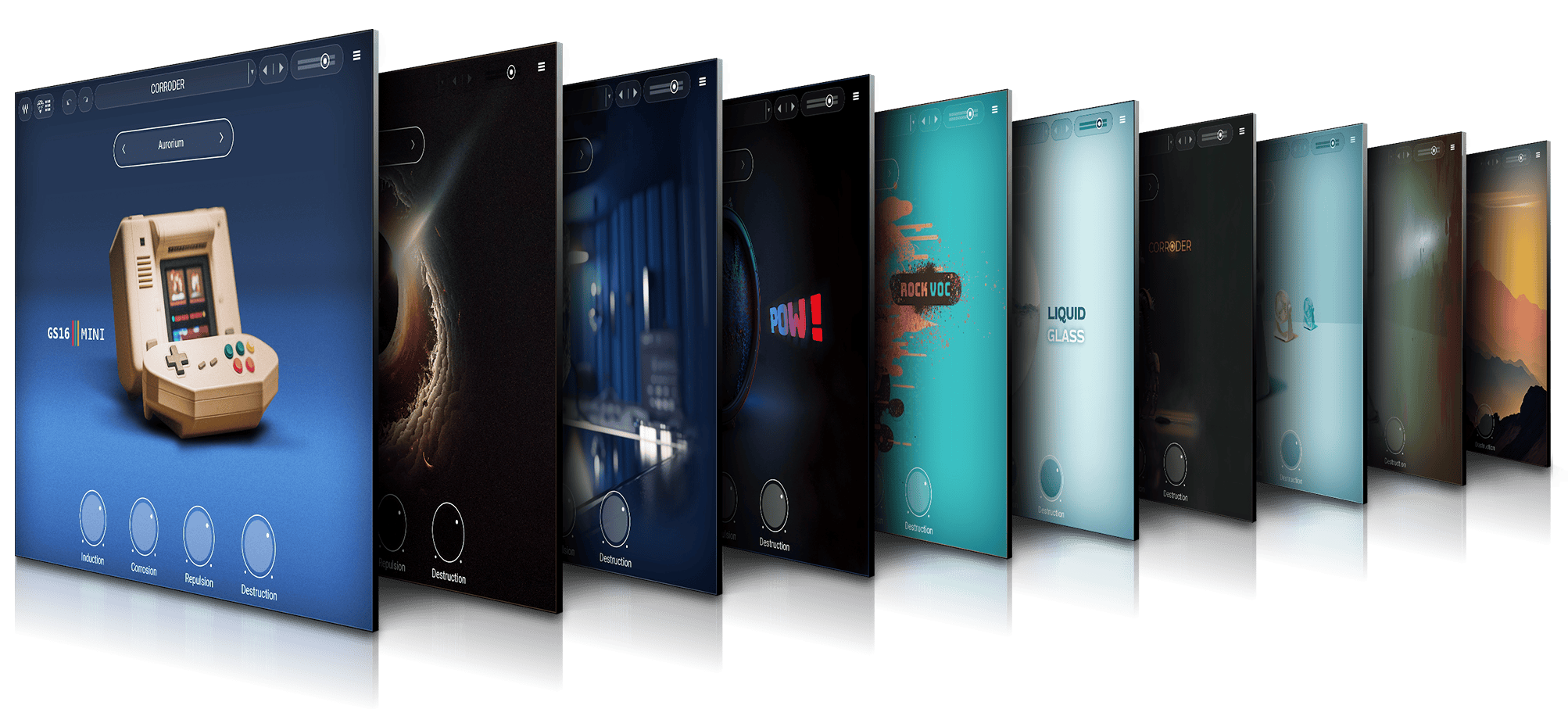
Choose an effect by its intended job
These examples explain the roles described by Waves. They are starting points for choosing what to evaluate in your own session.
| Effect | Documented direction | A useful question before trying it |
|---|---|---|
| Sugar Cube | Chorus intended to add movement and width to melodic or harmonic material | Does this part need a moving texture? |
| Ripples | Lo-fi character with pitch fluctuation | Would an unsettled pitch character serve the arrangement? |
| Static | An effect styled around older television audio | Is a deliberately aged texture part of the idea? |
| Corroder | Aggressive texture and destructive sound design | Should this part sound deliberately rougher? |
| GT16 Mini | A texture inspired by older video games | Does the production call for a game-like character? |
The dedicated pages describe creative aims without specifying stereo-width measurements, pitch-modulation rates, distortion circuits or bit-depth settings.
For example, pitch instability and chorus movement suggest different creative directions. Decide which direction belongs in the arrangement before spending time adjusting an effect.
Add more effects through the browser
Waves’ support article, dated July 25, 2023, documents this sequence:
- Insert Waves Gemstones on a track.
- Select Get More.
- In the Get Gemstones window, find an effect.
- Select Load beside it.
Waves says the downloaded effect then appears in the plugin’s browser and loads on the track.
The same article mentions ten preinstalled effects. Treat that as a dated installation statement, rather than a permanent limit on the collection.
Essential, Ultimate and perpetual licenses
Subscription coverage matters when deciding what to download. The product listing distinguishes the Essential selection from the broader Ultimate collection.
Waves’ license comparison, dated June 23, 2025, lists Gemstones as a subscription benefit. It also distinguishes ongoing subscription access from a perpetual license for a particular software version. Owning other Waves plugins therefore does not, by itself, establish access to Gemstones.
The acquisition instructions describe a Waves Essential Only filter and warn that other downloaded effects may operate in demo mode. Use the applicable coverage information when selecting effects; do not treat a successful download as confirmation of entitlement.
For the broader licensing decision, read the Waves subscription versus perpetual guide. Check the current terms and effect coverage before subscribing.
Make a deliberate choice in your session
Use a short musical passage that includes the moment you want to change. Write down the aim in ordinary language—more movement, a less stable texture or an intentionally rough sound—before opening an effect.
Then judge the result in the arrangement as well as on the isolated track. A conspicuous texture may be useful for a transition and distracting throughout an entire song. Keep the change only when it supports the job you identified.
When comparing versions in your own session, consider any loudness difference as well as the texture. Decide whether the change helps the arrangement at a comparable listening level.
When this overview is useful
Use this guide to understand the collection, shortlist effect types and follow the documented acquisition workflow.
For a task requiring exact modulation timing, calibrated parameter values or detailed routing, use documentation that specifies those details. This overview leaves undocumented settings and panel mappings out.
Frequently Asked Questions
Where do I find the individual Gemstones effects?
Open Waves Gemstones in your DAW and choose an effect inside its browser. Waves documents the collection as one plugin containing individual effects.
How do I download additional Gemstones?
Waves’ documented route is Get More, then the Get Gemstones window, then Load beside the selected effect. Check the dated instructions against your installed version.
Do Sugar Cube and Ripples have the same subscription coverage?
Waves’ dedicated pages list Sugar Cube in Essential and Ultimate, and Ripples in Ultimate only. Check current coverage before choosing.
Does a perpetual Waves plugin license include Gemstones?
Waves’ license comparison lists Gemstones under subscription benefits. Ownership of a different Waves product does not establish a Gemstones entitlement.
Which effect is described as adding pitch fluctuation?
Waves describes Ripples as a lo-fi effect with pitch fluctuation. That description does not specify modulation speed, depth or a measured result.
Does this guide explain every Gemstones control?
It covers documented effect roles and the browser workflow. Unsupported parameter names, ranges, defaults and panel mappings are omitted.

About the Author
Joseph Nilo has been working professionally in all aspects of audio and video production for over twenty years. His day-to-day work finds him working as a video editor, 2D and 3D motion graphics designer, voiceover artist and audio engineer, and colorist for corporate projects and feature films.