
Waves GEQ is a graphic equalizer with 30 fixed ISO bands, high- and low-pass filters, a floating parametric bell and a real-time analyzer. Its four components pair Classic or Modern filter designs with mono or stereo operation. The manual distinguishes Classic’s proportional-Q bands from Modern’s Flat-Top filters; it also documents analyzer comparison and calibration tools.
The useful choice is not simply “which version sounds better?” The guide describes different filter behavior, but I have not compared the components by listening or measurement. Choose the component for the channel layout and the way you want to shape neighboring bands, then use the analyzer as a display for routed sources—not as an automatic EQ or room-correction system.
This is a manual-based explainer. No GEQ build was installed or tested, and no audio, room, microphone or loudspeaker system was measured.
My Short Version
Choose GEQ Classic Mono or GEQ Classic Stereo for the manual’s proportional-Q design: as a band’s gain increases, its filter narrows. Choose GEQ Modern Mono or GEQ Modern Stereo when the documented Flat-Top response is the behavior you want to compare; Waves says adjacent equal boosts form a plateau without the interaction of Classic’s filters. Those are the guide’s design descriptions, not measured results.
All four components have the same 30 fixed ISO centers, from 25 Hz through 20 kHz, and the same documented Scale options of 6, 12 or 18 dB. Scale changes actual band gains, not just the graph’s zoom: the manual’s example says a +5 dB setting at 6 dB scale becomes +10 dB when Scale changes to 12 dB. Treat a scale change as an EQ change and recheck the curve.
Use the floating bell for a frequency between the ISO centers. Its Q control is separate from Classic’s global proportional-Q multiplier. In stereo, Link relatively links both channels’ bands, HP/LP filters, bell and Master Gain. FLAT resets the 30 ISO band gains to 0 dB; it does not reset the floating parametric section.
For analysis, route RTA1 and RTA2 to the intended host sources, then use Difference to display their frequency-response difference. Calibration exposes analyzer-level faders, response mode and an RTA1 alignment delay. The manual says the analyzer faders change only the analyzer, not output audio; this is a source-comparison aid, not automatic room correction or automatic EQ matching.
What the four components change
Waves lists four components. The mono/stereo suffix describes channel configuration; Classic/Modern describes the graphic-band filter design.
| Component | Channels | Graphic-band design | Documented distinction |
|---|---|---|---|
| GEQ Classic Mono | Mono | Proportional Q | As band gain increases, the filter narrows. The Classic-only global Q control is available. |
| GEQ Classic Stereo | Stereo | Proportional Q | Same documented Classic behavior, with separate left/right controls and stereo Link. |
| GEQ Modern Mono | Mono | Flat-Top | The guide describes adjacent equal boosts as forming a plateau without the interaction associated with Classic’s bands. There is no Classic global Q multiplier. |
| GEQ Modern Stereo | Stereo | Flat-Top | Same documented Modern behavior, with separate left/right controls and stereo Link. |
Each component also includes 30 ISO bands, HP and LP filters, a floating parametric bell and the real-time analyzer. The manual does not document different numerical ranges or factory defaults by component. The product page lists mono and stereo channel components; it does not list a mid/side component.
Thirty fixed ISO bands
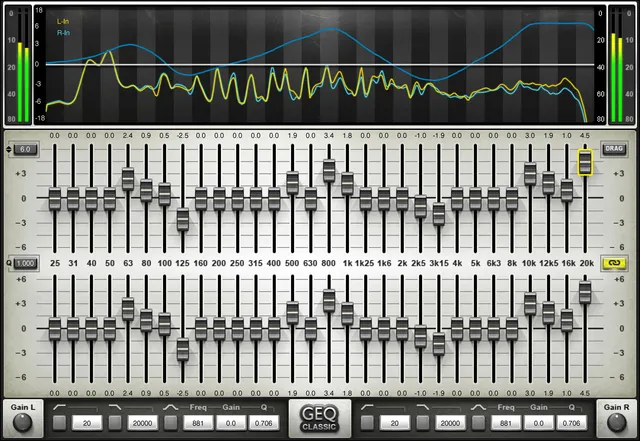
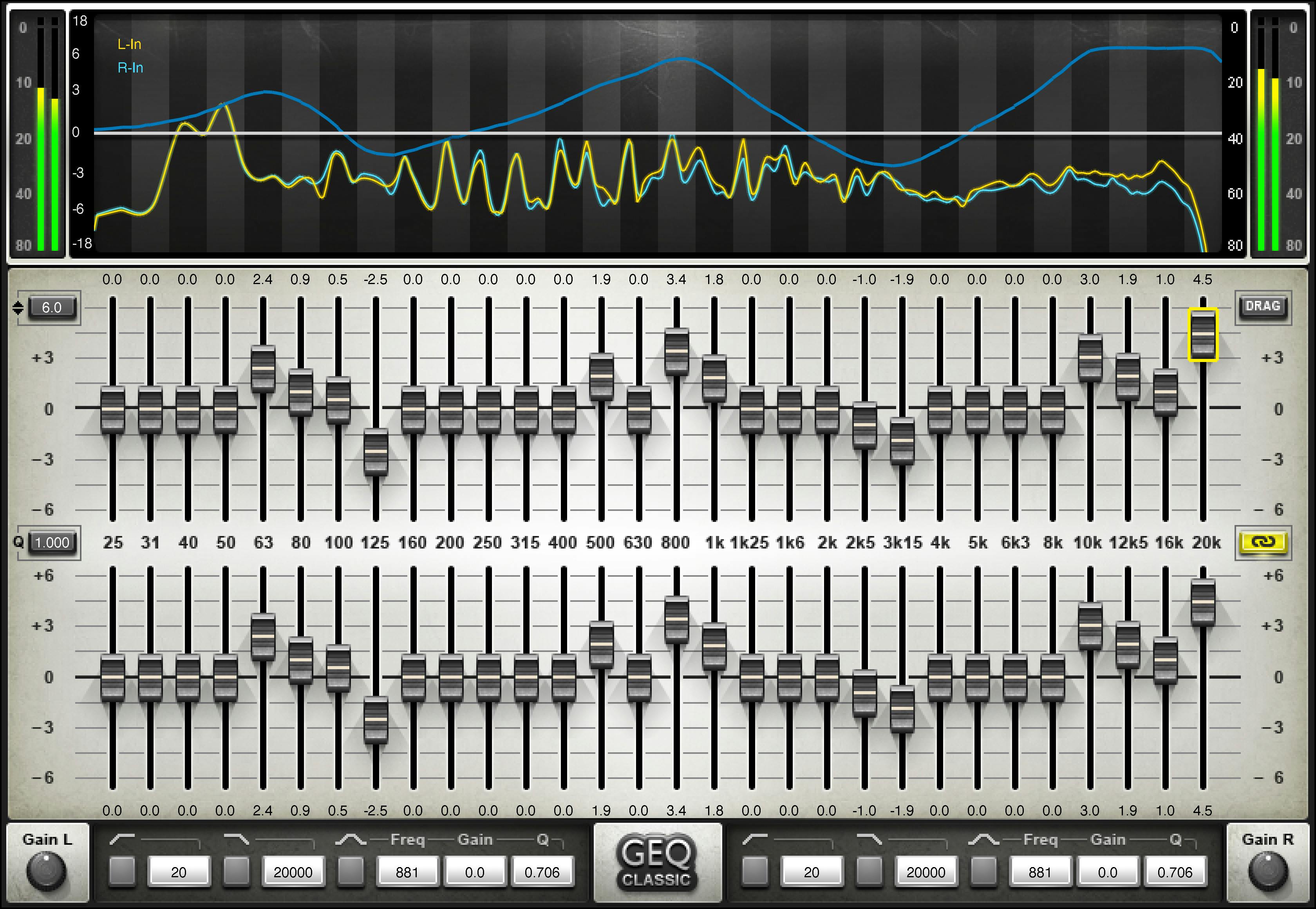
Each ISO Fader changes gain at one fixed center frequency. There are 30 centers—not a continuously tunable frequency control for every fader. The available fader range depends on Scale; the manual gives an overall band-gain range of −18 to +18 dB, with 6, 12 and 18 dB scale choices. It does not specify factory fader values. These band faders are distinct from the floating bell’s frequency, gain and Q controls.
The linked guide lists the following centers in order. The control label column includes the interface shorthand visible in the Classic Stereo Graphic Library artwork where it differs from the spelled-out value.
| ISO center | Graphic fader label | Control anchor |
|---|---|---|
| 25 Hz | 25 | #band-25-hz |
| 31 Hz | 31 | #band-31-hz |
| 40 Hz | 40 | #band-40-hz |
| 50 Hz | 50 | #band-50-hz |
| 63 Hz | 63 | #band-63-hz |
| 80 Hz | 80 | #band-80-hz |
| 100 Hz | 100 | #band-100-hz |
| 125 Hz | 125 | #band-125-hz |
| 160 Hz | 160 | #band-160-hz |
| 200 Hz | 200 | #band-200-hz |
| 250 Hz | 250 | #band-250-hz |
| 315 Hz | 315 | #band-315-hz |
| 400 Hz | 400 | #band-400-hz |
| 500 Hz | 500 | #band-500-hz |
| 630 Hz | 630 | #band-630-hz |
| 800 Hz | 800 | #band-800-hz |
| 1 kHz | 1k | #band-1-khz |
| 1.25 kHz | 1k25 | #band-1-25-khz |
| 1.6 kHz | 1k6 | #band-1-6-khz |
| 2 kHz | 2k | #band-2-khz |
| 2.5 kHz | 2k5 | #band-2-5-khz |
| 3.15 kHz | 3k15 | #band-3-15-khz |
| 4 kHz | 4k | #band-4-khz |
| 5 kHz | 5k | #band-5-khz |
| 6.3 kHz | 6k3 | #band-6-3-khz |
| 8 kHz | 8k | #band-8-khz |
| 10 kHz | 10k | #band-10-khz |
| 12.5 kHz | 12k5 | #band-12-5-khz |
| 16 kHz | 16k | #band-16-khz |
| 20 kHz | 20k | #band-20-khz |
In Drag mode, move individual faders vertically. In Draw mode, move from a fader up/down and continuously across the row to sketch a curve. These are editing gestures, not alternate filter designs. The manual does not document a per-band Q setting: Classic’s global Q shapes its proportional-Q band behavior, while Modern’s graphic section has no such control.
Classic proportional Q and Modern Flat-Top
For the 30 main bands, the manual describes Classic as using proportional-Q filters inspired by DN-series one-third-octave equalizers. Increasing a band’s gain narrows that filter’s width. Close to 0 dB, it says these bells are relatively wide, so neighboring boosts can overlap and interact. Q is a Classic-only multiplier for this proportional-Q algorithm, with a documented range of 0.250–4.000. The guide does not state a factory default or give a numeric relationship between multiplier value and bandwidth.
The Modern component uses Flat-Top filters. Waves describes them as avoiding the band-interaction artifacts of the Classic design and producing plateau or stair-stepped responses; its example says that boosting adjacent bands by 6 dB yields a 6 dB plateau. Treat this as the manual’s design description, not an independently measured result or a promise about every signal. Modern omits the Classic global Q control, but the floating parametric bell retains its own PARAMETRIC BELL Q.
Scale, Link and Flat
SCALE selects 6, 12 or 18 dB as the maximum range for the graphic faders. The manual’s example is consequential: a 25 Hz band set to +5 dB at the 6 dB scale becomes +10 dB when the scale changes to 12 dB. Scale therefore rescales the stored band gains, not just the graph display. Check the curve and band values after changing it.
LINK is available in stereo components and relatively links left and right settings for all 30 bands, HP and LP, the floating parametric bell and Master Gain. It is a relationship between channel controls, not a mono/stereo converter. The guide does not specify a factory state or further offset rules.
FLAT snaps the 30 ISO band gains to 0 dB. The manual explicitly says it does not affect the floating Parametric EQ section, so it is not a full-plugin reset. The guide does not document a separate reset control or undo behavior beyond the shared toolbar.
Floating HP, LP and parametric bell
The floating parametric section supplements the fixed ISO faders. HP switches the high-pass filter on or off; HP FREQUENCY ranges from 20–990 Hz. LP switches the low-pass filter on or off; LP FREQUENCY ranges from 1,000–20,000 Hz. The manual does not state the filter slopes or factory states. Do not treat the HP/LP controls as extra graphic-band faders.
PARAMETRIC BELL switches the floating bell on or off. PARAMETRIC BELL FREQUENCY ranges from 20–20,000 Hz, letting the bell center sit between the fixed ISO centers. PARAMETRIC BELL GAIN ranges from ±18 dB, and PARAMETRIC BELL Q ranges from 0.250–50 to set the bell’s width. The manual does not specify defaults for these controls. This bell’s Q is not the Classic global proportional-Q multiplier: the bell Q is documented for both designs, while the global graphic-band Q is Classic-only.
Analyzer display, Difference and Calibration
GRAPHIC DISPLAY / ANALYZER can show the EQ curve, the RTA1 and RTA2 input RMS frequency responses, or their Difference. The manual gives a frequency display range of 20–20,000 Hz and analyzer level range of −80–0 dBFS. Its legend identifies brown as the mono/left EQ curve, blue as the right EQ curve, yellow as RTA1, cyan as RTA2 and red as the difference. These are display traces, not additional EQ bands.
The read-only INPUT METER and OUTPUT METER display peak level from −80–0 dBFS. The guide does not document a meter reset, clip-hold behavior or a separate output-measurement mode.
RTA1 assigns the first analyzer input and RTA2 the second. The source choices are component-specific:
| Component | RTA1 and RTA2 source choices |
|---|---|
| Mono | Off, In, SC-In, Out |
| Stereo | Off, L-In, R-In, LSC-In, RSC-In, L-Out, R-Out, L+R |
The manual does not expand the internal stage represented by stereo L+R. SC-In and LSC-In/RSC-In depend on the host’s sidechain routing; GEQ’s analyzer selectors do not themselves create that route.
DIFFERENCE toggles between On and Off. When On, GEQ displays the frequency-response difference between RTA1 and RTA2 instead of their individual analyzer curves. The manual presents it for comparing a measured post-system response or matching left and right responses. The display does not automatically match sources or change output audio.
CALIBRATION opens the analyzer calibration view. The RTA1 and RTA2 FADERS adjust the analyzer input/display levels only; the manual explicitly says they do not affect output. RTA CALIBRATION selects Fast or Slow response; when DIFFERENCE is on, response is Slow regardless of that setting. RTA1 DELAY aligns RTA1 to RTA2 and ranges from 0–341 milliseconds. It is analyzer alignment, not a documented audio-output delay control. The manual does not specify analyzer fader bounds or a calibration default.
The quick-start describes routing RTA1 to the output and RTA2 to a sidechain fed by a microphone measuring the signal after a PA, then using Calibration and Difference before manually adjusting GEQ. That workflow depends on the host routing and an external measurement setup. GEQ does not document automatic room correction, automatic EQ matching or microphone calibration, and none was performed here.
Master Gain and WaveSystem toolbar
MASTER GAIN controls the output level of the plugin over ±18 dB. The stereo interface labels separate controls Gain L and Gain R; LINK relatively connects them when enabled. No factory default is stated.
The shared WaveSystem toolbar saves and loads presets, compares settings, undoes or redoes steps, resizes the plugin and opens the WaveSystem Guide from its help icon. The GEQ manual does not specify shortcuts or defaults for these shared utilities; they are not added GEQ processing controls.
A cautious equalizing and analysis workflow
- Choose the mono or stereo component that matches the host track, then select Classic or Modern according to the filter behavior described above.
- Set SCALE before making band moves. Because a scale change alters actual gains, avoid changing it mid-adjustment without checking the curve and values again.
- Use Drag for individual bands or Draw to sketch a curve. Keep in mind that the centers are fixed; use the floating bell when you need a documented center frequency between them.
- If comparing routed sources, assign RTA1 and RTA2, verify the host’s input/sidechain routing, then use CALIBRATION to adjust analyzer display levels and alignment. DIFFERENCE presents a comparison view; it does not make the EQ correction for you.
- In stereo, decide whether the relative LINK behavior is appropriate for all the linked controls. Use FLAT only when resetting the 30 ISO band gains is what you intend; inspect HP/LP and the floating bell separately.
- Make conservative adjustments and judge the result in the production context. The manual offers no universal curve, measured outcome or automatic correction claim.
Best for and when to skip it
GEQ is a documented option when you want 30 fixed ISO band centers plus a separate floating bell and HP/LP filters. The guide describes both live-sound and studio use, and includes an analyzer workflow for comparing routed sources. Its component choices let you compare Classic proportional-Q and Modern Flat-Top designs without assuming they produce the same response.
Consider a different tool or workflow when you need continuous frequency selection on every graphic band, a documented HP/LP slope, automatic room correction, a current verified compatibility guarantee or measured system alignment. The manual does not provide those claims or details. For another equalization approach, see the Waves F6 Floating-Band Dynamic EQ guide; for a broader post-production starting point, see the Waves Audio Post Resources hub. If the next stage is dynamics rather than another EQ, the Waves Renaissance Compressor guide covers a different processing task.
Sources and source limits
Primary sources checked October 18, 2026.
- Waves GEQ Graphic Equalizer product page, for product identity, current page details and the currently linked guide. The page lists mono and stereo channels; it does not establish an installed build or host/OS compatibility here.
- Waves GEQ User Guide, 16 pages. The extracted guide’s PDF metadata identifies the title as “Waves GEQ User Guide,” created April 22, 2013 and modified May 13, 2021. Product overview and terminology are on pp. 3–5; components p. 6; quick start pp. 7–8; interface p. 9; analyzer and meters p. 10; RTA sources and Difference p. 11; Calibration p. 12; Scale and Classic Q p. 13; ISO bands, Drag/Draw, Link and Flat p. 14; HP/LP and bell controls p. 15; bell Q, Master Gain and toolbar p. 16.
- Waves Graphic Library GEQ image, the original interface image. Its source filename ends in
.png, but the fetched 3,360 × 2,320 original is a progressive JPEG/JFIF. The Library terms require attribution and a link back to the relevant Waves product page.
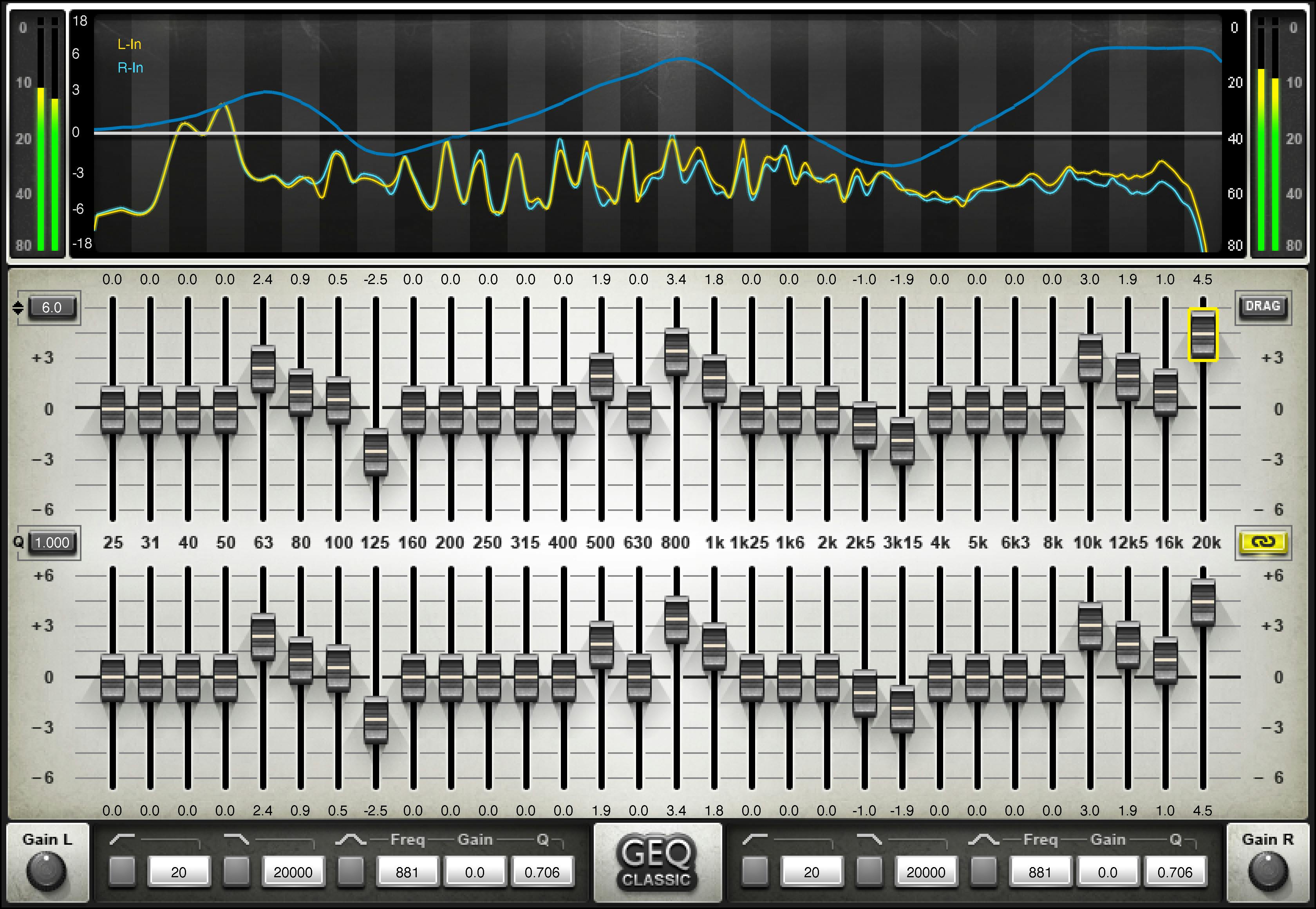
The guide does not specify factory defaults, RTA fader bounds, meter reset/clip-hold behavior, HP/LP slopes, or the detailed internal stage of stereo RTA L+R. The Library image is an example, not default-state proof: displayed gain values, the Q value and analyzer curves must not be treated as defaults or a measured result. The product page’s currently linked manual is historical; an installed/current build, compatibility, audio result and latency were not verified. No material control conflict was found in the inspected sources; the Library artwork’s omission of toolbar-row controls is disclosed below.
FAQ
What is Waves GEQ Graphic Equalizer?
The Waves guide describes GEQ as a graphic equalizer with 30 ISO bands, high- and low-pass filters, a floating parametric bell and a real-time analyzer. It lists Classic Mono, Classic Stereo, Modern Mono and Modern Stereo components.
What is the difference between GEQ Classic and GEQ Modern?
The manual says Classic uses proportional-Q filters that narrow as band gain increases, while Modern uses Flat-Top filters intended to avoid the described band interaction and form plateau responses. These are vendor design descriptions, not measured listening comparisons.
What are GEQ’s 30 ISO band frequencies?
From lowest to highest, the guide lists 25, 31, 40, 50, 63, 80, 100, 125, 160, 200, 250, 315, 400, 500, 630, 800 Hz; 1, 1.25, 1.6, 2, 2.5, 3.15, 4, 5, 6.3, 8, 10, 12.5, 16 and 20 kHz. The centers are fixed; the faders adjust their gains.
Does SCALE only zoom the GEQ graph?
No. The guide says SCALE has 6, 12 and 18 dB options and changes the actual ISO band gains. Its example says a +5 dB band setting at 6 dB scale becomes +10 dB after switching to 12 dB, so recheck the curve after changing scale.
How are the two GEQ Q controls different?
The manual’s 0.250–4.000 Q multiplier applies only to Classic’s proportional-Q graphic bands. The floating PARAMETRIC BELL Q is a separate 0.250–50 width control documented for the bell in the parametric section; Modern omits the global Classic Q but retains the bell Q.
What does GEQ DIFFERENCE do?
DIFFERENCE displays the frequency-response difference between RTA1 and RTA2 instead of their individual analyzer curves. The guide describes it for comparing a measured post-system response or left/right responses; it does not automatically match them or change audio output.
Do GEQ’s Calibration faders and delay affect the output audio?
The manual says the RTA1 and RTA2 calibration faders affect only analyzer display levels, not output. RTA1 DELAY ranges from 0–341 ms and aligns RTA1 to RTA2 in the analyzer workflow; the guide does not describe it as an audio-output delay.
What does FLAT reset, and what does LINK connect?
FLAT returns the 30 ISO band gains to 0 dB but does not reset the floating parametric section. In stereo components, LINK relatively connects both channels’ bands, HP/LP filters, floating bell and Master Gain. The manual does not state factory defaults for either control.

About the Author
Joseph Nilo has been working professionally in all aspects of audio and video production for over twenty years. His day-to-day work finds him working as a video editor, 2D and 3D motion graphics designer, voiceover artist and audio engineer, and colorist for corporate projects and feature films.