

Waves Greg Wells MixCentric is a mix-bus and group processor designed with producer Greg Wells, built around one large Intensity control that coordinates EQ, compression and harmonic processing. The exposed controls are deliberately simple: calibrate the input, set processing intensity, watch gain reduction, compensate the output, and optionally enable modeled analog noise. [1][2]
The important limitation is just as simple: Waves does not publish the internal EQ frequencies, compressor threshold/ratio/timing, harmonic curve or exact order of the hidden processing stages. This article explains the controls Waves actually documents instead of inventing an internal channel strip behind the single knob. [1]
My Short Version
Put MixCentric on the mix bus or a group bus, then play the loudest representative part of the song. Adjust Input until the Sensitivity LED is solid yellow. [1]
Turn Intensity up until you have the amount of processing you want while watching the gain-reduction meter. Waves' quick-start section says roughly 1.5–2 dB of gain reduction on the loudest passage is a useful setting to experiment with; that is vendor guidance, not a rule or a result measured for this article. [1]
Use Output to compensate level so bypass comparisons are not dominated by loudness. MixCentric is not a limiter; Waves recommends following it with your limiter of choice when final peak limiting is required. [1][2]
I did not audition MixCentric or measure its internal stages for this article.
What MixCentric actually does
Waves describes MixCentric as combining EQ, compression and harmonic distortion under the Intensity control. It is intended for stereo mixes as well as grouped instruments such as drums, guitars, keyboards or vocals. [1][2]
The plugin is designed as a macro processor rather than a conventional mastering chain with individually adjustable EQ bands, compressor timing and saturation amount. Changing Intensity changes multiple internal parameters together. [1]
That makes it fast, but it also means you cannot use the published interface to independently set the internal EQ curve or compressor behavior. If a mix needs a specific corrective EQ notch, a precise attack/release choice or a separately controlled saturation stage, use dedicated processors for those jobs.
Components
The user guide documents two components: [1]
- Greg Wells MixCentric Mono — mono input to mono output
- Greg Wells MixCentric Stereo — stereo input to stereo output [1]
The exposed processing controls are the same basic system in both components. The manual does not publish a separate stereo-link control or mid/side mode, so none is invented here.
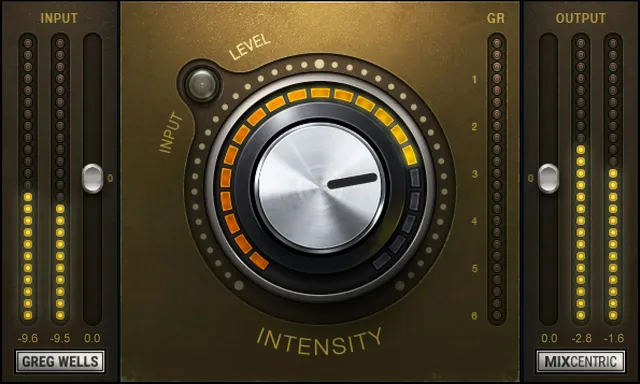
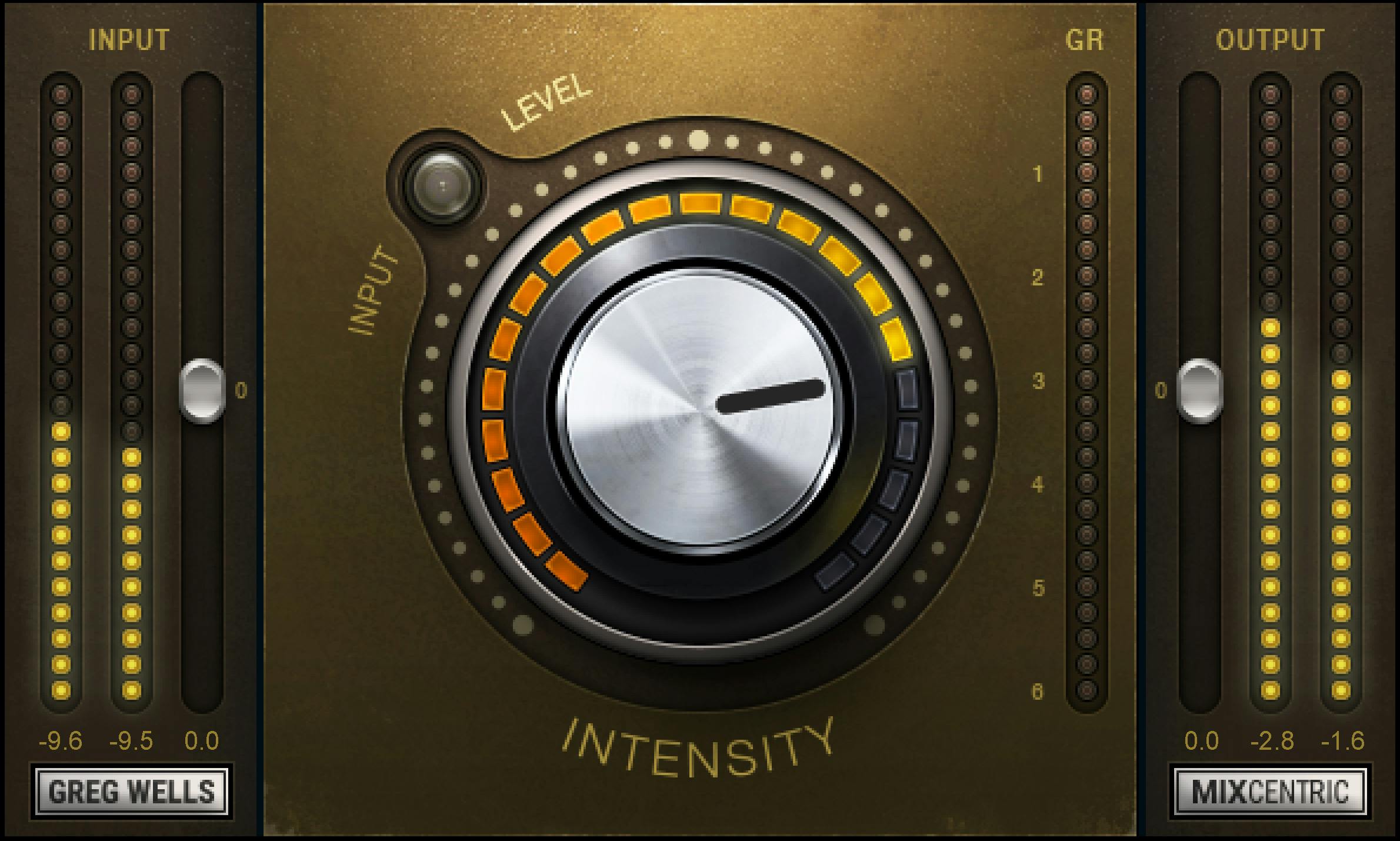
Input
Input sets the signal level feeding MixCentric's processing. [1]
- Range: -18 dB to +18 dB
- Resolution: 0.1 dB
- Default: 0 dB
- Reset: 0 dB [1]
The Input setting is not changed when a preset is loaded, which matters because Waves expects you to calibrate the source level independently of the creative preset choice. [1]
Input is shown with input meters and works directly with the Sensitivity LED described below.
Sensitivity LED
The Sensitivity LED is the setup indicator for the level reaching MixCentric's internal process. [1]
Waves documents four states: [1]
- Off: input is too low
- Green: good operating level
- Yellow: optimal operating level
- Red: very hot input [1]
Waves' quick-start instruction is to play the loudest part of the song and adjust Input until the LED is solid yellow. [1]
This is an operating-level guide, not a user threshold control. The manual does not publish exact dBFS boundaries for the four LED states, so none is inferred from the interface.
Intensity
The large Intensity knob sets the overall amount of MixCentric processing. [1]
- Range: 0 to 100
- Resolution: 0.1
- Default: 0
- Reset: 0 [1]
Increasing Intensity simultaneously changes the hidden EQ, compression and harmonic-processing settings. Waves does not expose separate controls for those underlying stages. [1][2]
The quick-start guide suggests trying an Intensity setting that produces about 1.5–2 dB of gain reduction on the loudest passage. Treat that as a vendor starting point. A mix can need less, more, or no MixCentric at all.
Gain-reduction meter
The Gain Reduction meter indicates the gain reduction applied by the Intensity control. The guide gives its range but does not say that it isolates a separate compressor stage. [1]
- Range: 0 to -6 dB
- Resolution: 0.25 dB [1]
The meter gives you one of the few direct windows into the internal macro processing. It does not expose an internal compressor threshold, ratio, attack or release value, and its reduction reading should not be used to invent those hidden parameters.
Output
Output adjusts the plugin's output level. [1]
- Range: -18 dB to +18 dB
- Resolution: 0.1 dB
- Default: 0 dB
- Reset: 0 dB [1]
Like Input, Output is not changed when a preset loads. [1]
Waves recommends adjusting Output by an inverse amount to keep equal loudness and to make up for gain changes from processing. This is vendor guidance, not proof of automatic or perceptual loudness matching; the guide does not specify Output's exact internal signal-flow position or its detailed interaction with the hidden stages. [1]
Analog Noise
The WaveSystem/toolbar menu includes an Analog Noise setting. [1]
- Choices: On / Off
- Default: Off [1]
Waves says the modeled analog path contains a small amount of noise. Turning Analog Noise off gives a clean output, though the manual notes that the sound can be slightly different with noise disabled. [1]
That is vendor documentation. I did not measure the noise floor or audition the tonal difference for this article.
Presets and the WaveSystem toolbar
The WaveSystem toolbar saves and loads presets, compares settings, undoes and redoes steps, and resizes the plugin. Its upper-right icon opens the separate WaveSystem Guide. [1]
The important MixCentric-specific preset behavior is that Input and Output do not change when a preset loads. That lets you keep level calibration and compensation intact while trying different preset processing states. [1]
The internal preset values for the hidden EQ/compression/harmonic stages are not published and are not reverse-engineered here.
Why input calibration matters
Waves recommends setting Input while observing the Sensitivity LED on the loudest part of the program; the guide labels yellow as optimal. It does not publish numeric LED thresholds or describe a detailed input-level response for the hidden processing stages. Use this as the documented setup instruction, not a claim about an unmeasured internal mechanism. [1]
A practical mix-bus workflow
Insert MixCentric on the mix bus or chosen group. Play the loudest representative section and adjust Input until Sensitivity is yellow. [1]
Raise Intensity gradually and watch the GR meter. Waves suggests experimenting around 1.5–2 dB of gain reduction at the loudest point. Then reduce Output enough to make the processed and bypassed levels reasonably comparable. [1]
If final peak control is needed, place a limiter after MixCentric. Waves explicitly says MixCentric is not itself a limiter. [1][2]
That workflow comes from the documentation. It is not a recommendation to master every song to the same gain-reduction amount.
Using MixCentric on groups
Waves also positions MixCentric for instrument and vocal groups. [1][2]
The same calibration logic applies: feed it an appropriate level, use Intensity for the amount of the fixed macro process, and compensate with Output. A group that needs detailed surgery may be better served by separate EQ/dynamics processors before or instead of MixCentric.
MixCentric versus a normal mastering chain
A conventional mastering chain gives you independent control of EQ, compression, saturation and limiting. MixCentric trades that independence for speed: its Intensity control changes several internal decisions together. [1][2]
That can be useful when the macro curve suits the source. It is less suitable when you know exactly which frequency, compressor timing or harmonic behavior needs to change. There is no contradiction in using MixCentric alongside dedicated processors when each has a distinct job.
Best for / skip if
MixCentric is best for mixes or groups that already work fundamentally and need a fast, broad finalizing treatment rather than detailed repair. Its simple setup also makes it useful for quick alternate processing when you want to hear what a coordinated EQ/compression/harmonic macro does to a bus. [1][2]
Skip it when the mix needs surgical correction, when you need explicit compressor timing/ratio control, when you need a transparent peak limiter, or when the hidden macro behavior makes troubleshooting harder than using separate processors.
Limitations and evidence boundary
This is a documentation-led article. I did not process a mix through MixCentric, measure its internal EQ, compression or harmonic stages, measure its analog-noise floor, test latency/CPU use, or compare it against another mastering processor.
The current official interface and control pages were visually inspected. The control values in this article come from the current product-linked user guide. The guide does not publish the internal EQ frequencies, compressor threshold/ratio/attack/release, exact harmonic distortion law, or a complete internal signal-flow diagram, so those remain intentionally unspecified.
Related guides
For another Waves mix-bus processor, see the official CLA MixDown product page. For product details, see the official Greg Wells MixCentric page.
Bottom line
Greg Wells MixCentric is intentionally a macro processor: calibrate Input with the Sensitivity LED, set Intensity while watching gain reduction, compensate with Output, and use a separate limiter when final peak limiting is needed. [1][2]
Its simplicity is the feature. Choose it for coordinated bus processing, not for independent access to hidden EQ, compressor or harmonic settings.
Sources
Checked October 18, 2026. No listening, native-host, noise, latency or measurement test was performed.
- Waves Greg Wells MixCentric User Guide, current product-linked guide; interface and material control pages visually inspected.
- Waves Greg Wells MixCentric product page, current product identity and documented EQ/compression/harmonic/group/mix-bus positioning.
- Waves Graphic Library, current MixCentric listing and reuse rule for product images on that page with a backlink to the relevant Waves product page.
FAQ
What does Greg Wells MixCentric do?
Waves describes MixCentric as combining EQ, compression and harmonic distortion under a simple Intensity control for mix-bus or group processing. The exact internal settings and processing order are not published in the guide.
Is MixCentric a limiter?
No. The guide explicitly says MixCentric does not include a limiter and recommends placing a separate limiter after it when final peak limiting is needed. This review did not test that processing chain.
How does Waves recommend setting Input?
The quick-start guide recommends playing the loudest part of the program, adjusting Input until the Sensitivity LED is solid yellow, and adjusting Output by an inverse amount for equal loudness. This is vendor guidance, not a tested result.
What do the Sensitivity LED colors mean?
The guide labels Off as too low, Green as good, Yellow as optimal, and Red as very hot. It does not publish numeric dBFS boundaries for those states.
What does Intensity control?
Intensity determines how much processing is applied. Its documented range is 0–100 in 0.1 increments, with default and reset at 0. Waves describes the hidden combination as EQ, compression and harmonic processing.
How much gain reduction does Waves suggest?
The guide suggests experimenting with about 1.5–2 dB of gain reduction at the loudest part of the program. This is a vendor starting point, not a universal target or a result from this review.
What does the Gain Reduction meter show?
It indicates gain reduction applied by Intensity and is documented from 0 to -6 dB in 0.25 dB increments. The guide does not say that the meter isolates a separately adjustable compressor stage.
What does Analog Noise do?
The toolbar menu can turn the modeled analog noise On or Off; its documented default is Off. Waves says the noise-off version is clean but slightly different. This review did not audition or measure that difference.

About the Author
Joseph Nilo has been working professionally in all aspects of audio and video production for over twenty years. His day-to-day work finds him working as a video editor, 2D and 3D motion graphics designer, voiceover artist and audio engineer, and colorist for corporate projects and feature films.