
Greg Wells ToneCentric combines harmonic distortion and compression behind a Tone knob, with separate Input and Output gain. Its I/O Link counter-moves those gain controls, while a Sensitivity LED helps you judge the level reaching the processor.
The useful distinction is drive into the processor, processing amount, then output level. These are related decisions, but they are not interchangeable controls.
This guide follows the complete official manual and authentic panel. I have not auditioned the processor or tested an installation; sonic descriptions attributed to Waves are vendor descriptions, not listening results.
My Short Version
Input sets the level entering the processor. Use the loudest material when following the manual's Sensitivity LED advice.
Tone adds harmonic distortion and compression as it turns clockwise. Its 0–100 scale has no stated unit. It is not a set of separate compressor controls.
I/O Link moves Input and Output equally in opposite directions. It does not measure loudness or guarantee a level-matched comparison.
Preset loading preserves Input and Output. Analog Noise is a separate toolbar-menu option, defaulting to Off.
Best for and when to choose another tool
Best for: a compact processing stage when you want to explore a combined distortion-and-compression character without adjusting a full compressor or EQ panel.
Waves describes applications on instruments, vocals, individual tracks and master tracks. That broad intended use is not a promise that one setting suits all of them.
Choose another tool when: you need independent compressor timing, ratio and threshold, a specific EQ curve, or an explicit clipping ceiling. ToneCentric's documented panel does not provide those controls.
The artist's analog-equipment inspiration does not establish a literal internal sequence of particular compressors, tape machines or consoles.
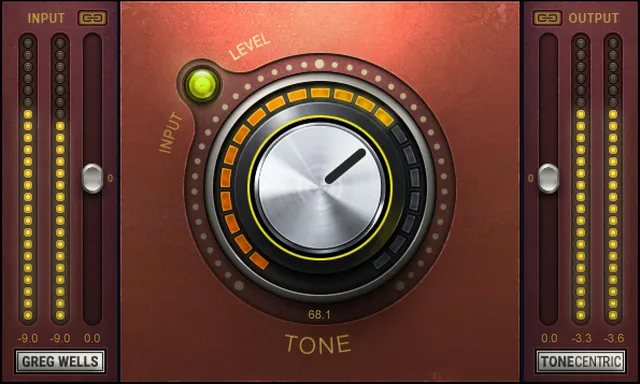
Mono, Stereo and the panel
The guide lists ToneCentric Mono, for mono-to-mono use, and ToneCentric Stereo, for stereo-to-stereo use.
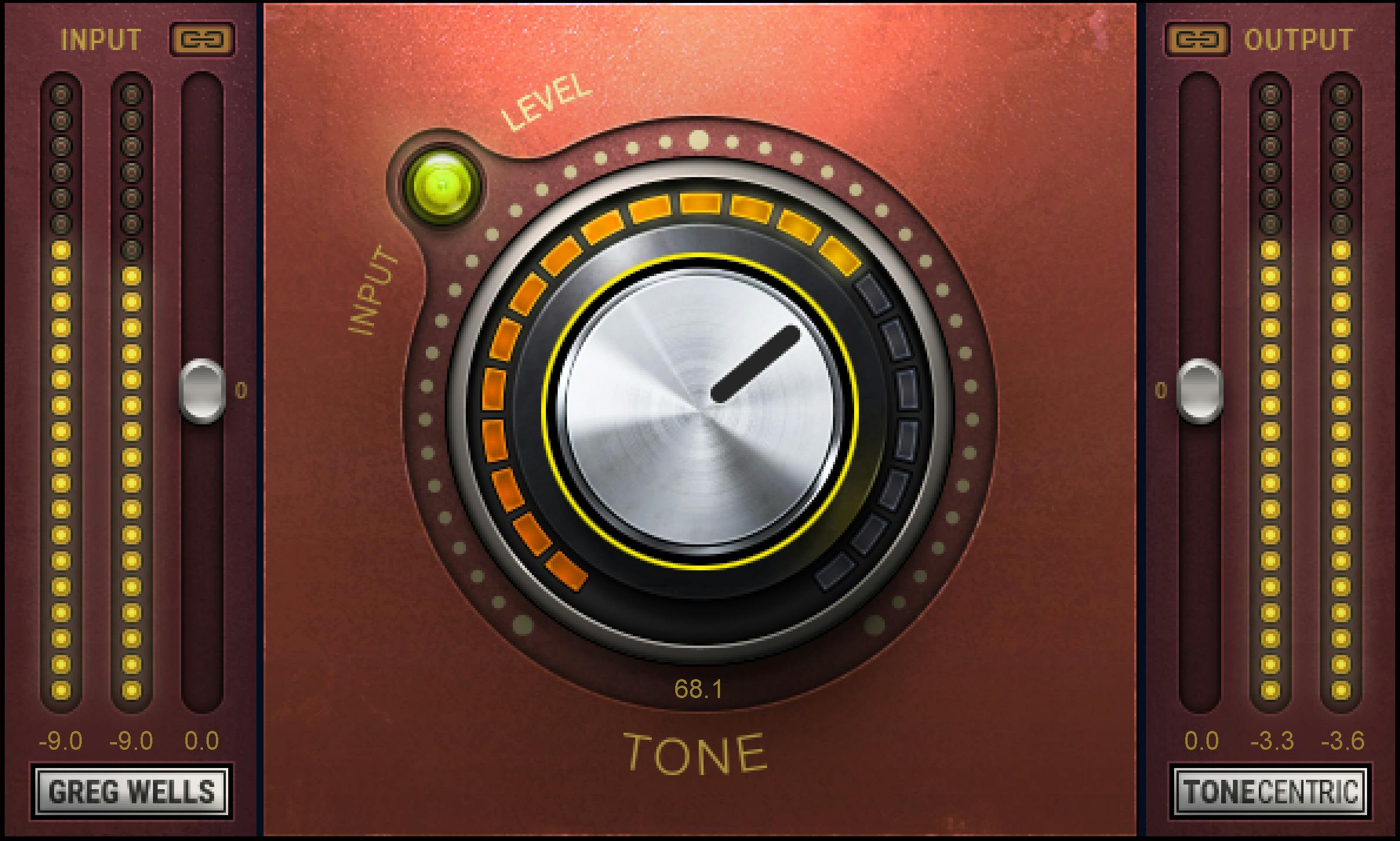
It does not list a mono-to-stereo or Mid/Side component. The authentic Library image shows the main panel and paired meters; it is not a separate demonstration of every component.
The panel places Input on the left, Tone in the middle and Output on the right. I/O Link buttons sit at the ends, and the Sensitivity LED is above Tone.
The Library image is a panel crop without the WaveSystem toolbar. The guide separately illustrates that toolbar; the crop does not establish that utilities have been removed.
Input: gain before processing
Input ranges from −18 to +18 dB in 0.1 dB steps. Its documented default and reset value is 0 dB.
Waves' quickstart recommends adjusting Input until the Sensitivity LED is solid yellow during the loudest passage. The purpose is to establish the signal level entering the modeled processing before deciding how much Tone to use.
Input is preserved when a preset loads. A processing preset therefore does not overwrite this gain setting.
That does not mean the audible result or output level will remain unchanged when the processing changes. Input preservation and level matching are different functions.
Sensitivity LED: qualitative input guidance
The manual assigns four states:
- Off: input too low.
- Green: good input level.
- Yellow: optimal input level.
- Red: very hot input level.
These are qualitative descriptions. The guide supplies no numeric thresholds, calibrated headroom reference or clipping guarantee for the colors.
Follow the loudest-section recommendation as the vendor's starting method, not as proof that every transient is protected or that yellow is a universal loudness target.
Tone: combined processing amount
Tone runs from 0 to 100 in 0.1 increments, with a documented default and reset value of 0.
The quickstart says clockwise movement adds harmonic distortion and compression. No percent, decibel or other unit is assigned to its scale.
The manual does not provide separate threshold, ratio, attack, release, harmonic selection or frequency-shaping controls behind this knob. Nor does it publish a transfer curve from a Tone value to a measured amount of compression.
Tone at zero is not documented as a transparent bypass. Use the host's appropriate comparison method when you need to compare processed and unprocessed audio rather than assuming the scale's endpoint proves transparency.
I/O Link: opposite gain movement
I/O Link is On or Off, with both default and reset set to Off.
When enabled, a change to Input moves Output by the same amount in the opposite direction. Moving Output similarly counter-moves Input.
For example, the linked relationship counteracts a gain increase with a corresponding decrease at the other control. It does not analyze the signal or calculate perceived loudness.
This matters because changing Input can change how the processor responds. Equal-and-opposite gain movement does not undo the distortion and compression produced between the two controls.
Output and meters
Output ranges from −18 to +18 dB in 0.1 dB steps. Its documented default and reset value is 0 dB.
Use it to adjust the level leaving the processor. Like Input, Output is not affected by preset loading.
The authentic interface includes meters beside the gain controls. The guide does not specify meter ballistics, complete calibrated display ranges, peak-hold/reset behavior or a separate clip-light threshold.
Do not treat the Sensitivity LED as an output meter, or the paired meter columns as independent left/right gain controls.
For independent level and loudness analysis, use a suitable meter such as the one covered in the WLM Plus guide.
Analog Noise and shared utilities
Analog Noise is an On/Off option in the upper-right toolbar menu. Its default is Off.
It is separate from choosing how much Tone processing to use. Waves describes the processor as usable without the modeled noise; the guide's description of a slightly different clean sound is not a listening conclusion from this article.
No noise-level adjustment, spectrum or measured noise-floor value is supplied.
The WaveSystem toolbar provides preset load/save, setting comparison, undo/redo, resizing and guide access. Previous/next preset arrows are visible in the illustrated toolbar.
The menu illustration shows 75%, 100%, 125%, 150% and 200% UI sizes, an Apply as Default to All item beneath the size choices, Analog Noise On/Off, User Manual and Waves System Guide.
Those illustrated size options are not additional DSP settings. The guide does not establish a special global audio-reset action for the UI-size default item, or an undocumented reset gesture for each knob.
A deliberate evaluation workflow
Start with the appropriate Mono or Stereo component and identify the loudest material you intend to process.
Set Input using the guide's LED recommendation. Then explore Tone as a combined processing control rather than trying to read it as a compressor threshold.
Adjust Output for the resulting level. If you enable I/O Link, remember that it links gain movement, not a loudness target.
Make any level comparison independently. Presets preserve both gain settings, but changing the processing can still change the result.
This is a conceptual workflow, not a tested preset or a promise of a particular sonic improvement.
Related Waves guides
For independently adjustable compressor parameters, see the Renaissance Compressor guide. That is a different control approach, not a claim that the two processors sound equivalent.
The Waves Audio Post Resources hub collects other live guides. Read subscription versus perpetual licensing separately from this control explanation.
Sources and documentation limits
Checked October 19, 2026, America/New_York. The official Greg Wells ToneCentric product page links the complete eight-page guide, read in full.
Pages 4–5 cover components and quickstart; pages 6–8 establish the panel, gain/link behavior, Tone, noise menu and utilities. The genuine Graphic Library original corresponds to the main panel.
The source does not establish hidden processing order, a Tone unit or transfer law, LED thresholds, detailed meter behavior, a noise spectrum or transparent bypass at Tone zero. No installed compatibility or measured audio result is asserted.
FAQ
What does Greg Wells ToneCentric do?
ToneCentric is a harmonic-distortion and compression processor with Input, Tone and Output controls. Waves describes it for individual tracks and master tracks. It does not expose separate compressor threshold, ratio, attack or release settings, and this guide does not establish a particular hidden signal chain or measured sonic result.
What does the Tone knob change?
The guide says turning Tone clockwise adds harmonic distortion and compression. Its documented range is 0 to 100 in 0.1 increments, with a default and reset value of 0. No percent or decibel unit is stated, and zero is not documented as a transparent bypass.
What does I/O Link do?
I/O Link moves Input and Output by equal amounts in opposite directions. Moving either gain control changes the other inversely. It defaults and resets to Off. This is a linked control movement, not an automatic loudness measurement or a guarantee of equal perceived level before and after processing.
Which settings stay unchanged when I load a preset?
The manual says Input and Output are not affected by preset loading. Both have a range of −18 to +18 dB, 0.1 dB steps, and default and reset values of 0 dB. Preserved gain settings can still interact with a newly loaded processing setting, so preservation is not automatic level matching.
How should I read the Sensitivity LED?
Off means the input is too low, green means good, yellow means optimal and red means very hot in the guide's descriptions. Waves recommends adjusting Input for solid yellow during the loudest part of the material. No numeric color thresholds or guaranteed clipping boundary are supplied.
Can I turn the analog noise off?
Yes. Analog Noise is an On/Off setting in the upper-right toolbar menu, and its documented default is Off. The modeled processing does not require the added noise to be enabled. The guide does not specify a noise level, spectrum or calibrated noise-floor measurement.
Does ToneCentric offer mono-to-stereo or Mid/Side processing?
The guide lists ToneCentric Mono for mono-to-mono use and ToneCentric Stereo for stereo-to-stereo use. It does not document a mono-to-stereo or Mid/Side component. The paired meters in the official panel image do not establish separate left and right gain controls.
What is a sensible way to evaluate the controls?
Choose the appropriate component, use the loudest material to set Input according to the guide's Sensitivity LED advice, then explore Tone and adjust Output as needed. I/O Link can help counter-move the gain controls, but it does not replace an independent level comparison. This is a suggested workflow, not a listening test performed for this guide.

About the Author
Joseph Nilo has been working professionally in all aspects of audio and video production for over twenty years. His day-to-day work finds him working as a video editor, 2D and 3D motion graphics designer, voiceover artist and audio engineer, and colorist for corporate projects and feature films.