

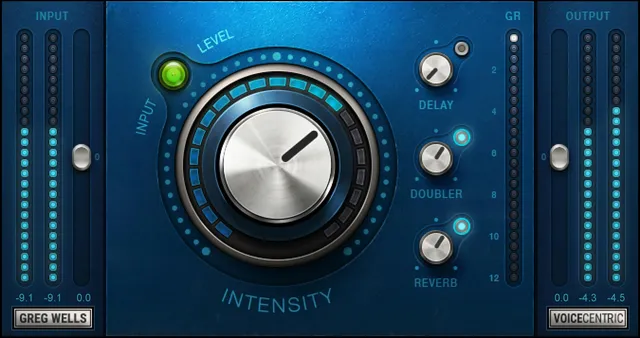
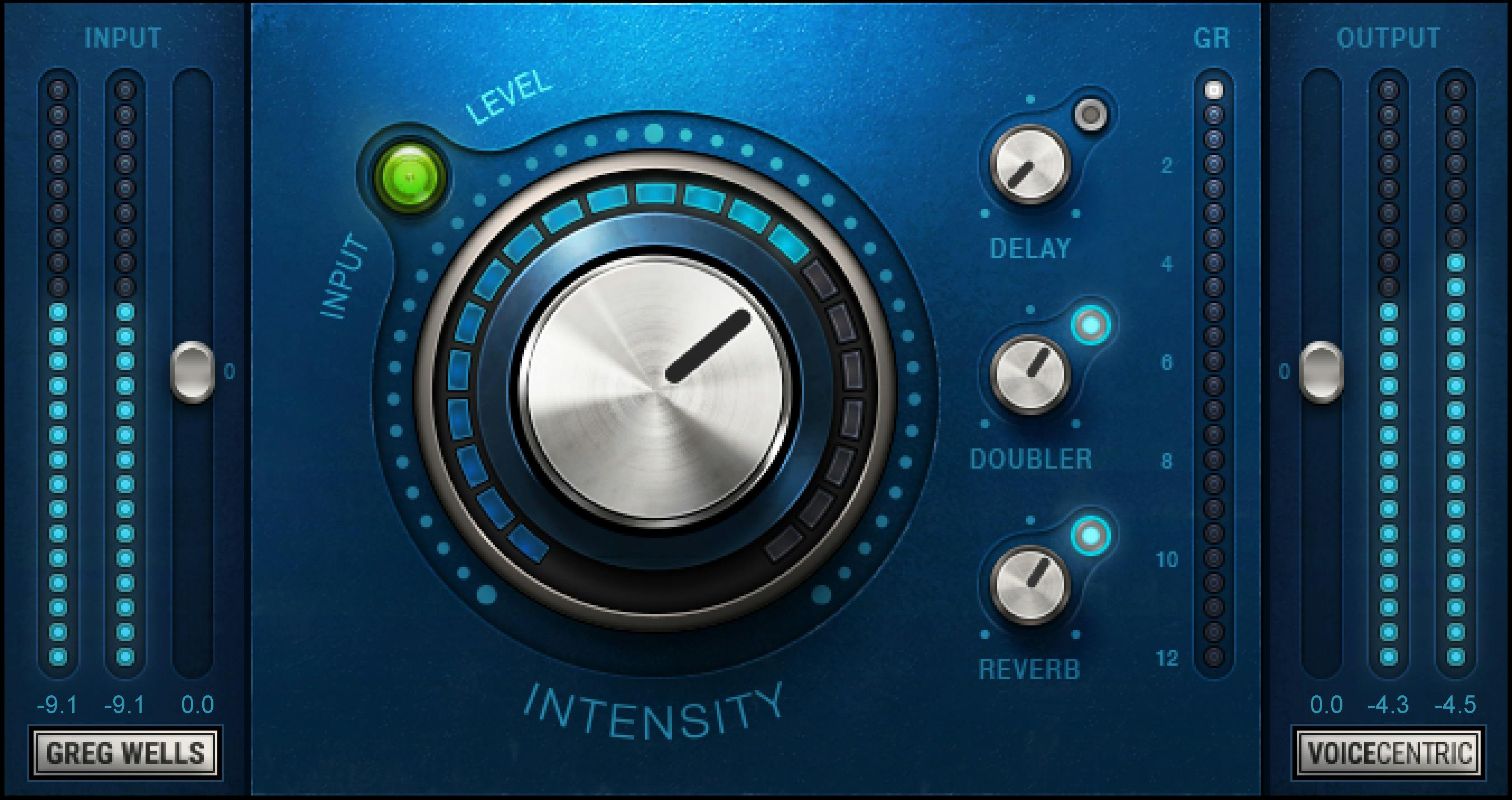
Waves Greg Wells VoiceCentric is a simplified vocal-processing plugin built around one main Intensity control plus parallel Delay, Doubler and Reverb returns. The current Waves guide shows that the simple front panel hides a fixed signal chain of EQ → DeEsser → Fast Compression → Slow Compression, followed by the three parallel effects before the final output. [1][2]
That hidden architecture is the key to understanding the plugin. You are not adjusting a conventional compressor, EQ and de-esser one by one. You set the input level, decide how far to push the combined processing with Intensity, then blend the three auxiliary effects separately. [1]
My Short Version
Start by setting Input so the Sensitivity LED reaches yellow on the loudest peaks. Waves calls yellow the optimal input zone. Keep Output moving in the opposite direction if you need a fairer level comparison. [1]
Then raise Intensity until the vocal is getting the amount of processing you want. Waves' own quick-start suggestion is to experiment around the point where the gain-reduction meter reaches roughly 3–4 dB on the loudest parts, but that is a vendor starting point rather than a rule for every voice. [1]
After that, treat Delay, Doubler and Reverb as parallel returns. Their On/Off switches decide whether each return is active, and their Level controls set how much of that effect is mixed back in. [1]
I did not audition the plugin for this article. Any workflow advice below is based on the documented routing and controls, not a claimed listening result.
Components
VoiceCentric has three documented components: [1]
- VoiceCentric Mono — mono input to mono output.
- VoiceCentric Mono-to-Stereo — mono input to stereo output.
- VoiceCentric Stereo — stereo input to stereo output. [1]
Waves specifically notes that the Delay, Doubler and Reverb can behave differently between mono and stereo components because those effects have stereo-dependent characteristics. [1]
That means component choice is not merely a host-format formality when you use the parallel effects.
What is behind the Intensity knob?
The current manual's signal-flow diagram shows this main path: [1]
Input → EQ → DeEsser → Fast Compression → Slow Compression → Output
Delay, Doubler and Reverb branch from the processed path and return in parallel before Output. [1]
The product page summarizes Intensity as combining complex EQ and compression chains, while the manual's diagram additionally identifies the DeEsser stage. [1][2]
Greg Wells' note in the guide also says some internal elements do not turn on until around 60% or even 80% Intensity. So although the front-panel control runs from 0 to 100, it should not be interpreted as a simple linear percentage of one processor. [1]
Waves' current product table lists latency as 65 samples at native 44.1 and 48 kHz, and 0 samples at native 88.2 and 96 kHz. These are vendor-published specifications, not independent measurements; the table does not establish behavior for every host or configuration. [2]
Input
Input adjusts the plugin's input level. [1]
- Range: -24 dB to +24 dB
- Increment: 0.1 dB
- Default: 0 dB
- Preset behavior: the Input value does not change when a preset is loaded. [1]
Because the internal processors react to level, Input is part of the processing setup rather than just a cosmetic trim.
Input meters
The official interface labels input meters beside the Input fader. The current guide visually identifies them but does not publish a numerical range or reset behavior for those meters. [1]
Use them as level feedback, but do not infer a meter scale or ballistics that Waves has not specified in this guide.
Sensitivity LED
The Sensitivity LED is the main gain-staging guide. Waves documents four states: [1]
- Off — too low
- Green — good
- Yellow — optimal
- Red — very hot [1]
Waves recommends setting Input while the loudest section and highest peaks are playing. This is a level-target indicator for the internal chain, not a clipping meter with a published dBFS threshold. [1]
Intensity
Intensity determines how much processing is applied to the vocal signal. [1]
- Range: 0 to 100
- Increment: 0.1
- Default: 50 [1]
The control governs a multi-stage chain rather than one compressor parameter. The guide says internal elements can enter at different positions in the knob's travel, including around 60% and 80%, so moving from 40 to 80 is not necessarily equivalent to simply doubling one effect amount. [1]
Waves' quick-start guidance suggests trying a setting that produces about 3–4 dB of gain reduction at the loudest part of the track, then adjusting by ear for the material. [1]
Delay On/Off
Delay On/Off turns the return of the parallel delay process on or off. [1]
- Default: Off [1]
This switch controls the effect return, not the main vocal chain.
Delay Level
Delay Level controls how much of the parallel delay return is added to the signal. [1]
- Range: -30 dB to 0 dB
- Increment: 0.1 dB
- Default: -30 dB [1]
Waves notes that the delay sounds different between mono and stereo components because of the effect's stereo characteristics. [1]
Doubler On/Off
Doubler On/Off enables or disables the parallel doubler return. [1]
- Default: On [1]
The doubler is therefore active at the documented default even though its return is set below unity.
Doubler Level
Doubler Level sets the amount of doubled signal mixed back in. [1]
- Range: -30 dB to 0 dB
- Increment: 0.1 dB
- Default: -11.3 dB [1]
As with Delay, the manual warns that mono and stereo components can produce different doubling behavior. [1]
Reverb On/Off
Reverb On/Off controls the return of the parallel reverb process. [1]
- Default: On [1]
Reverb Level
Reverb Level sets how much of the reverb return is added. [1]
- Range: -30 dB to 0 dB
- Increment: 0.1 dB
- Default: -11.3 dB [1]
The manual again notes that mono and stereo components can differ because of the reverb's stereo characteristics. [1]
Gain Reduction meter
The Gain Reduction meter shows the reduction applied by the processing governed by Intensity. [1]
- Range: 0 to -12 dB
- Increment: 0.5 dB [1]
The guide does not describe a click-to-reset function for this meter, so none is claimed here.
Output
Output adjusts the final plugin output level. [1]
- Range: -24 dB to +24 dB
- Increment: 0.1 dB
- Default: 0 dB
- Preset behavior: Output does not change when a preset is loaded. [1]
That preset behavior makes Input and Output useful as persistent gain-staging controls while you audition different VoiceCentric presets.
Output meters
The official interface includes output meters beside the Output fader. The current guide labels them visually but does not publish their exact numeric range, ballistics or reset behavior. [1]
The article therefore does not infer those details from pixels.
WaveSystem toolbar
The shared WaveSystem toolbar provides preset save/load, comparison, undo/redo and interface resizing. [1]
Those are plugin-management functions rather than additional vocal-processing parameters.
A practical workflow
First, play the loudest section and adjust Input until the Sensitivity LED reaches the zone you want—Waves identifies yellow as optimal. If you raise Input substantially, pull Output down by a similar amount so louder is not automatically mistaken for better. [1]
Next, raise or lower Intensity while watching the gain-reduction meter. The documented 3–4 dB quick-start target is useful as a reference point, not a requirement. [1]
Only after the core vocal processing is where you want it, turn to Delay, Doubler and Reverb. Because they are parallel returns, you can disable each one independently or trim its return down without changing the main Intensity chain.
These are conservative workflow suggestions derived from Waves' documented routing. They are not a claim that one Intensity setting or effect blend is ideal for every vocal.
What VoiceCentric does not expose
VoiceCentric deliberately hides the individual EQ, de-esser, fast-compressor and slow-compressor settings. The manual identifies those blocks in the signal flow but does not expose their frequencies, ratios, time constants, thresholds or other internal values. [1]
That is a design feature of this simplified processor, but it is also its main limitation if you need surgical control. If you need to choose the de-essing frequency, set independent compressor attack/release, or reshape the EQ curve manually, use separate processors or a more fully adjustable channel strip instead.
Best for / skip if
VoiceCentric is best for a vocal workflow where you want one macro control over a predefined vocal chain, plus independently blendable ambience and doubling. [1][2]
Skip it when you specifically need to see and tune every stage. The hidden EQ, de-esser and two compression stages cannot be edited independently from this interface. [1]
Related guides
If you want to adjust individual stages instead of a macro chain, see Sibilance for focused de-essing and Renaissance Compressor for separate compression controls. For current VoiceCentric documentation, visit the official product page.
Bottom line
Greg Wells VoiceCentric is a macro-style vocal processor: set the level with Input and the Sensitivity LED, use Intensity to drive a hidden EQ/de-essing/two-stage-compression chain, then blend Delay, Doubler and Reverb in parallel before final Output. [1][2]
Its strength is speed and a small control surface. Its tradeoff is that the internal EQ, de-esser and compressor settings are not individually exposed.
Sources
Sources checked October 18, 2026. No listening, native-host, CPU, compatibility or latency measurement test was performed; latency figures above are Waves' published product-table specifications.
- Waves Greg Wells VoiceCentric User Guide, current product-linked guide. The interface/control page and signal-flow diagram were visually inspected.
- Waves Greg Wells VoiceCentric product page, current product identity and feature summary.
- Waves Graphic Library, reuse permission for product images on that page requires a backlink to the relevant Waves product page.
FAQ
What does the Intensity control change?
Waves describes Intensity as controlling how much processing is applied. Its guide's signal-flow diagram names EQ, DeEsser, Fast Compression, and Slow Compression; Greg Wells' note says some internal elements engage only at higher settings. The internal parameters are not individually exposed.
How should I set VoiceCentric's input level?
Waves recommends using the Sensitivity LED while playing the loudest section and highest peaks: Off is too low, Green is good, Yellow is optimal, and Red is very hot. The guide does not give a numerical dBFS threshold for those colors.
Do Input and Output change when I load a preset?
The guide says neither Input nor Output changes when a preset is loaded. Both controls are documented from −24 to +24 dB in 0.1 dB increments, with 0 dB defaults.
Are Delay, Doubler, and Reverb part of the Intensity chain?
The manual's diagram shows them as separate parallel returns branching after the main EQ, DeEsser, Fast Compression, and Slow Compression path and returning at Output. Each effect has its own On/Off and Level controls.
What are the documented default effect settings?
Delay is Off with a −30 dB Level; Doubler is On at −11.3 dB; Reverb is On at −11.3 dB. Each Level control is documented from −30 to 0 dB in 0.1 dB increments.
Why does the guide distinguish mono and stereo components?
Waves documents Mono, Mono-to-Stereo, and Stereo components and says Delay, Doubler, and Reverb can sound different with mono and stereo components because of their stereo characteristics.
What does the Gain Reduction meter show?
The manual says it indicates gain reduction applied by Intensity and documents a range from 0 to −12 dB in 0.5 dB increments. Waves' 3–4 dB suggestion is a Quick Start point to experiment with, not a required target.
What latency does Waves list for VoiceCentric?
Waves' current product table lists 65 samples at native 44.1 and 48 kHz, and 0 samples at native 88.2 and 96 kHz. These are vendor-published figures, not an independent measurement or a guarantee across hosts and configurations.

About the Author
Joseph Nilo has been working professionally in all aspects of audio and video production for over twenty years. His day-to-day work finds him working as a video editor, 2D and 3D motion graphics designer, voiceover artist and audio engineer, and colorist for corporate projects and feature films.