
Waves H-Delay is a delay processor with three time-setting modes—Host, BPM and milliseconds—plus feedback, stereo Dual and Ping Pong operation, modulation, filtering, LoFi processing and four Analog character settings. The current product page documents delay times from 1 to 3500 ms, while the manual exposes the exact control relationships and component differences. [1][2]
The central idea is simple: set when the repeat happens with Delay and Sync, set how repeats evolve with Feedback, then shape those repeats with modulation, filters and the optional LoFi/Analog processing.
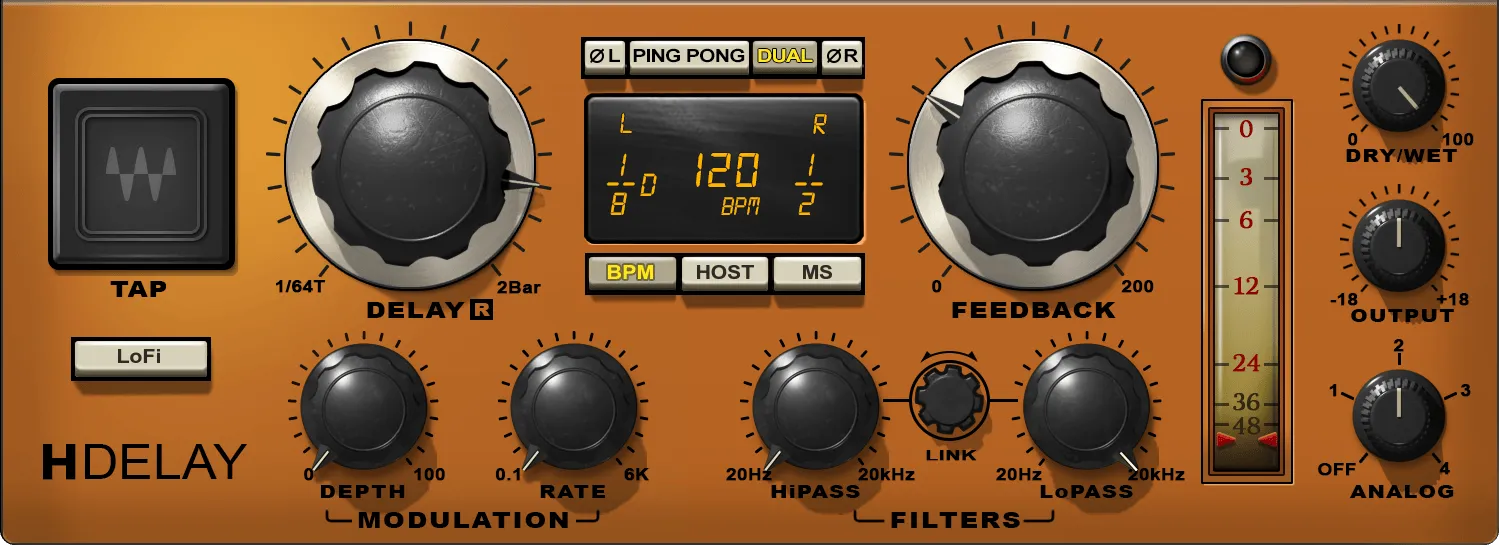
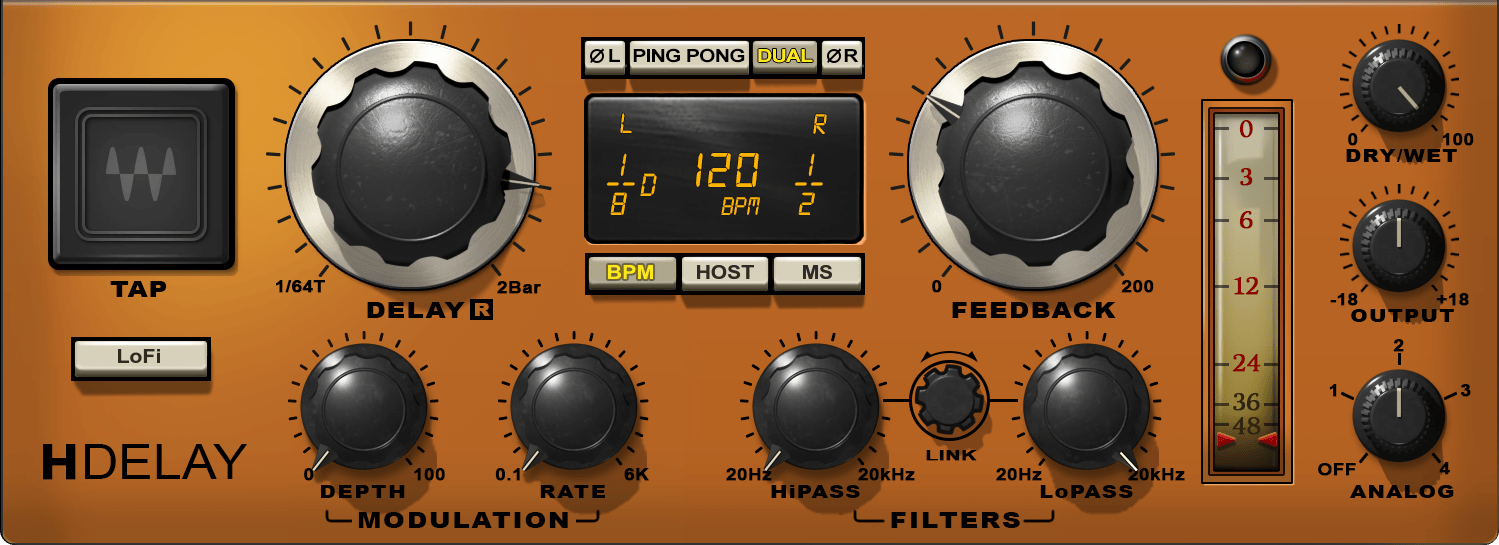
About the imagery: the cover is an editorial illustration. The plugin interface is official Waves product artwork, not a capture of a listening or compliance test.
My Short Version
Use Host when the delay should follow your DAW tempo, BPM when H-Delay should use a manually set tempo, and MS when you want a literal millisecond value. Delay runs from 1 to 3500 ms or the corresponding note-value choices. [1]
Set Feedback below 100% for decaying repeats. The manual says values from 100–200% create build-up and can get very loud very quickly, so treat that range as a deliberate effect rather than a normal echo setting. [1]
For stereo movement, Ping Pong cross-feeds the two delay lines. Dual instead gives independent left/right delay times while leaving Feedback, Modulation and Filters common. Use the HP/LP filters to limit the repeats' spectrum, then decide whether LoFi or Analog modes belong in the sound. [1]
Delay
Delay sets delay time from 1 to 3500 ms or a tempo-relative note value. The documented default is 1/8D in Host sync. [1]
The manual also describes tape-delay-style pitch behavior when delay time is changed while signal is already in the delay path. That is documented behavior of the time control, not a new listening observation; no listening test was performed. [1]
Time/BPM display
The central display changes meaning with Sync mode:
- in MS, it shows milliseconds;
- in Host and BPM, it shows note units tied to tempo. [1]
You can edit the display directly as well as use the large Delay knob. When moving between MS and tempo-based modes, H-Delay shows the nearest approximate value rather than promising an exact reversible conversion between every free-time value and note division. [1]
In Dual mode the display exposes separate left and right values; selecting one side lets the Delay knob address that channel. [1]
Sync: Host, BPM and MS
Sync decides where the timing reference comes from. The three documented states are:
- Host — follows the host application's BPM; default
- BPM — uses a tempo set manually inside H-Delay
- MS — uses a manual millisecond delay time [1]
This distinction also changes Tap behavior. In Host mode a tap-derived time is quantized to the nearest note value. In BPM mode tapping establishes the BPM itself. In MS mode the last two taps define the delay interval directly. [1]
Tap Pad
The Tap Pad derives timing from the interval between the last two clicks. [1]
Its result depends on Sync mode:
- Host: quantized to the closest note value;
- BPM: sets the BPM;
- MS: sets the delay interval from the taps. [1]
This makes Tap useful for approximating a rhythmic delay quickly, but the display remains the authoritative visible value after quantization or mode conversion.
Dual mode
Dual gives independent left and right delay times in BPM, Host or MS operation. Feedback, Modulation and Filters remain shared. [1]
The two delay times can be edited by dragging their display values, or by selecting the left or right display and then using the main Delay knob. [1]
The current Waves product page calls Dual a newer mode and the current manual explicitly documents it and shows its button in the inspected interface, so this guide treats it as part of the current public control set. [1][2]
Dual is different from Ping Pong: Dual changes independent delay times; it does not by itself describe the cross-feeding stereo motion used by Ping Pong.
Ping Pong
Ping Pong creates the stereo bouncing effect by using two delay lines that feed each other. It is available in Stereo and Mono-to-Stereo components and defaults Off. [1]
When enabled, the display shows one delay-time value and a value box chooses the initial motion direction, left-to-right or right-to-left. [1]
Waves says Ping Pong requires Feedback greater than 1. The manual also cautions that using phase reverse on one channel in Ping Pong can cause cancellation with mono sources. [1]
Feedback
Feedback controls how much delayed signal is returned to the delay path. Its range is 0–200%, default 60%. [1]
The manual divides its behavior into two broad regions:
- 1–100: controls decay of the repeats;
- 100–200: controls build-up and can be used for an endless-loop style effect. [1]
Waves warns that Feedback above 100% can become very loud quickly. [1]
Left/right phase reverse
The L and R phase-reverse controls invert the phase of each delay line in Stereo and Mono-to-Stereo components. Each defaults Off. [1]
In the Mono-to-Stereo component the two phase controls are linked. Waves specifically warns that reversing one channel in Ping Pong may cause cancellation when the source is mono. [1]
Do not describe these switches as stereo-width controls; they change delay-line phase polarity.
Modulation Depth
Depth sets the amount of delay-time modulation. Range 0–100, default 0. [1]
The manual describes the modulation as an LFO with a triangle waveform acting on delay time, capable of effects spanning flanging, chorus and frequency-modulation-like movement depending on timing and depth. [1]
Modulation Rate
Rate sets the LFO cycle rate. The manual documents 0.1 to 6000 Hz, default 0.1. [1]
The conceptual section also says modulation oscillation time can be set using Hz, BPM multiples or note values. The retrieved control table presents the Rate range in Hz, while the current product page advertises modulation with sync-to-tempo. This article therefore documents both official statements without inventing an undocumented rate-mode selector or additional numeric note-value table beyond what the interface/current version actually presents. [1][2]
HiPass filter
HiPass removes low-frequency content from the delayed path below its cutoff. The documented range is Off or 20 Hz–20 kHz, default Off. [1]
Raising it reduces low-frequency energy in the repeats. This shapes the delayed signal; it is not the same as a sidechain detector filter.
LoPass filter
LoPass removes high-frequency content above its cutoff. The range is 20 Hz–20 kHz or Off, default Off. [1]
Lowering the cutoff darkens the repeat path by restricting high-frequency content. No slope value is published in the retrieved guide, so this article does not assign one.
Filter Link
Link moves the HP and LP filters together by the same amount, producing band-pass-like movement. Waves documents a 20 Hz–20 kHz range for linked movement. [1]
There is one automation detail worth preserving: Waves says automating Link movement requires Write Automation enabled for both HP and LP filters. [1]
That is a documented host-automation requirement; it was not tested across hosts.
LoFi
LoFi is an On/Off mode, default Off. Waves describes it as emulating the reduced-frequency-range behavior associated with early digital delays that lowered sample rate to extend available delay memory, while H-Delay's actual maximum delay time remains unchanged. [1]
Waves does not specify a target sample rate or bit depth for LoFi.
Analog
Analog offers Off plus Modes 1–4, with Mode 2 documented as the default. [1]
Waves describes the four modes as different sound qualities associated with analog character. The current product page similarly says the plugin provides four analog characters or cleaner digital operation. [1][2]
No transfer curves, noise levels, harmonic spectra or circuit identities are published in the retrieved manual. This article therefore does not rank the modes or describe measured distortion characteristics.
Dry/Wet
Dry/Wet controls the balance between unprocessed and processed signal. Range 0–100, default 100. [1]
Waves' quick-start guidance is straightforward: on an aux/send return, use 100% wet and set the effect balance in the host mixer; as an insert, use H-Delay's Mix control itself. [1]
That is routing guidance from the manual, not a rule that every production must use the same setup.
Output
Output trims final level from -18 to +18 dB, default 0. [1]
Use it to keep the delay return at a controlled level after feedback and effect choices. This becomes especially important when Feedback is driven into the build-up region above 100%.
Output meter and peak indicator
The output meter covers 0 to -48 dBFS and the interface labels a Meter and Peak Indicator. [1]
The retrieved guide does not document a click-to-reset behavior for H-Delay's peak indicator. Do not infer one from other Waves plugins.
MIDI Learn
Waves documents a MIDI node and says all H-Delay controls except the Output Meter support standard MIDI Learn procedures, with host-specific MIDI handling in Apple Logic and Ableton Live. [1]
The current product page also advertises MIDI Learn. No MIDI mapping was performed; this is documentation-only coverage. [1][2]
Components
H-Delay is documented in three channel configurations:
- Mono — mono-to-mono
- Stereo — stereo-to-stereo
- M>S — mono-to-stereo [1]
Ping Pong and independent L/R phase behavior depend on the stereo-capable components. In Mono-to-Stereo the phase-reverse controls are linked. [1]
WaveSystem toolbar
The shared WaveSystem toolbar provides preset save/load, settings comparison, undo/redo and plugin resizing. [1]
These interface-state controls are separate from the audio-processing parameters.
A practical setup order
Choose Host, BPM or MS first so the Delay control means what you expect. Set the repeat spacing, then decide whether the stereo job calls for normal, Dual or Ping Pong behavior.
Set Feedback conservatively before moving into the 100–200% build-up region. Then shape the repeat spectrum with HiPass and LoPass and add modulation only if movement is part of the effect.
Finally decide whether LoFi or an Analog mode belongs in the sound, set Dry/Wet for insert versus send use, and trim Output. This sequence is editorial guidance based on documented relationships, not a listening-tested recipe.
Best for / skip if
H-Delay is a good fit when you want tempo-linked or free-time delay with high feedback, modulation, filtering, stereo movement and optional character processing in one interface. Waves explicitly positions it for slapback, ping-pong, chorusing, flanging, phasing and more. [1][2]
Skip it when the task requires a multi-tap delay with independently editable tap levels/panning, a convolution echo environment, or a processor where every saturation/noise characteristic is numerically specified. Those are different feature requirements, not deficiencies established by a listening test here.
Related guides
The live Abbey Road J37 guide covers tape-machine processing with delay features from a different design. The live Vocal Rider guide addresses level automation rather than delay, and the live F6 guide is the better reference when the task is dynamic spectral control rather than repeat filtering.
The Waves Audio Post Resources hub collects existing Waves workflow and licensing references.
Bottom line
H-Delay's core is Delay + Sync + Feedback. Dual and Ping Pong determine the stereo timing behavior; modulation and filters reshape the repeats; LoFi and Analog decide whether extra character is added.
Sources
Checked September 20, 2026. No listening, MIDI, host-automation, CPU, latency or native control test was performed.
- Waves H-Delay Hybrid Delay User Guide, especially pp. 4–12. The official numbered interface image on p. 7 was visually inspected.
- Waves H-Delay product page.
- Waves Graphic Library, current H-Delay Hybrid Delay entry and attribution/backlink requirement.
Frequently Asked Questions
When should I choose Host, BPM or MS in H-Delay?
Host follows the DAW's tempo, BPM uses a tempo entered inside H-Delay, and MS uses a manual millisecond delay time. Choose the timing source first because it changes how the Delay display and Tap Pad behave.
What does the Tap Pad do in each Sync mode?
It uses the interval between the last two taps. In Host it selects the nearest note value, in BPM it sets the tempo, and in MS it sets the delay interval directly.
How are Dual and Ping Pong different?
Dual gives independent left and right delay times while Feedback, Modulation and Filters remain shared. Ping Pong cross-feeds the two delay lines to bounce repeats between channels; it is available in Stereo and Mono-to-Stereo components.
What happens when H-Delay Feedback goes above 100%?
Waves says the 100–200% range creates build-up rather than normal decay, and levels can become very loud quickly. Start below that region for ordinary decaying repeats and use higher values deliberately.
Does LoFi change H-Delay's maximum delay time?
No. Waves describes LoFi as an early-digital-delay character effect, but says H-Delay's actual maximum delay time stays the same. The guide does not publish a specific LoFi sample rate or bit depth.
Can I automate the linked HiPass and LoPass filters together?
Yes. Filter Link moves the two cutoffs together. Waves says Write Automation must be enabled for both the HP and LP filters when automating Link movement; that is a documented requirement, not a host test performed for this article.

About the Author
Joseph Nilo has been working professionally in all aspects of audio and video production for over twenty years. His day-to-day work finds him working as a video editor, 2D and 3D motion graphics designer, voiceover artist and audio engineer, and colorist for corporate projects and feature films.