
Waves H-EQ Hybrid Equalizer is a seven-band EQ with vintage-inspired, modern and digital filter choices, linked stereo, dual/unlinked and mid/side modes, and a note-based frequency keyboard. The manual also describes analyzer and Analog controls, while leaving a Full/Lite component wording conflict unresolved below. The important idea is not simply that it has seven bands. It is that the filter type can change the shape/behavior of each band, so two bands at the same frequency, gain and Q can still represent different EQ models. [1][2]
The manual lists Mono and Stereo components for both H-EQ and H-EQ Lite, and describes Lite as lower-CPU. It says Lite omits the Spectrum Analyzer and Analog section, but a later component sentence conflicts in scope; see the note below. Linked/Stereo, Dual/Unlinked and MS are channel-processing modes, not component names. [1]
My Short Version
Start with the band and shape you need, then adjust Frequency, Gain and Q where the selected filter provides them. Q is not universal: Digital 1's asymmetrical bell uses it for tilt rather than conventional width. Then choose the Filter Type deliberately rather than leaving it as decoration. The filter families give H-EQ different response options, which Waves recommends auditioning for the material; this article does not rank them by sound. [1]
Choose Stereo/Linked for shared stereo processing, Dual/Unlinked for independent left/right EQ, or MS when you actually need separate Mid and Side treatment. Use the analyzer as a diagnostic display, not as a substitute for listening or delivery metering. [1]
The Analog section is optional coloration. If you want clean EQ behavior, turn it off. If you use it, Level controls the modeled noise/hum contribution and THD Level controls harmonic distortion level. I did not audition or measure those models for this article. [1]
Full H-EQ vs H-EQ Lite
The manual lists Mono and Stereo components for H-EQ and H-EQ Lite. It describes Lite as lower-CPU and says Lite omits the Spectrum Analyzer and Analog section. Later in the same component section, however, it states: “The H-EQ components do not include the Spectrum Analyzer or the Analog section.” That sentence does not specify Lite, so the guide's wording leaves the scope unclear. This article preserves both statements without calling either a typo or using interface artwork to resolve the conflict. [1]
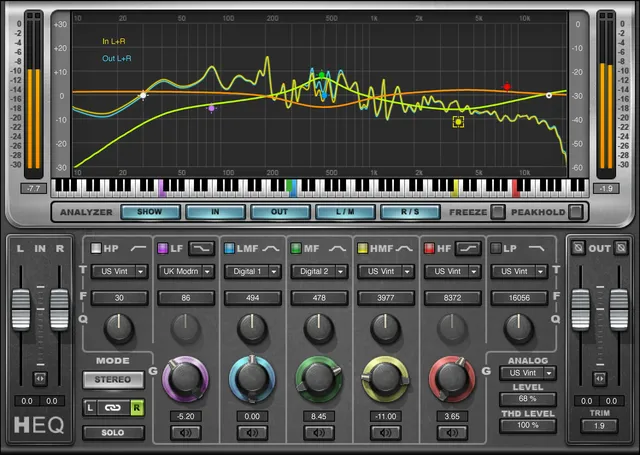
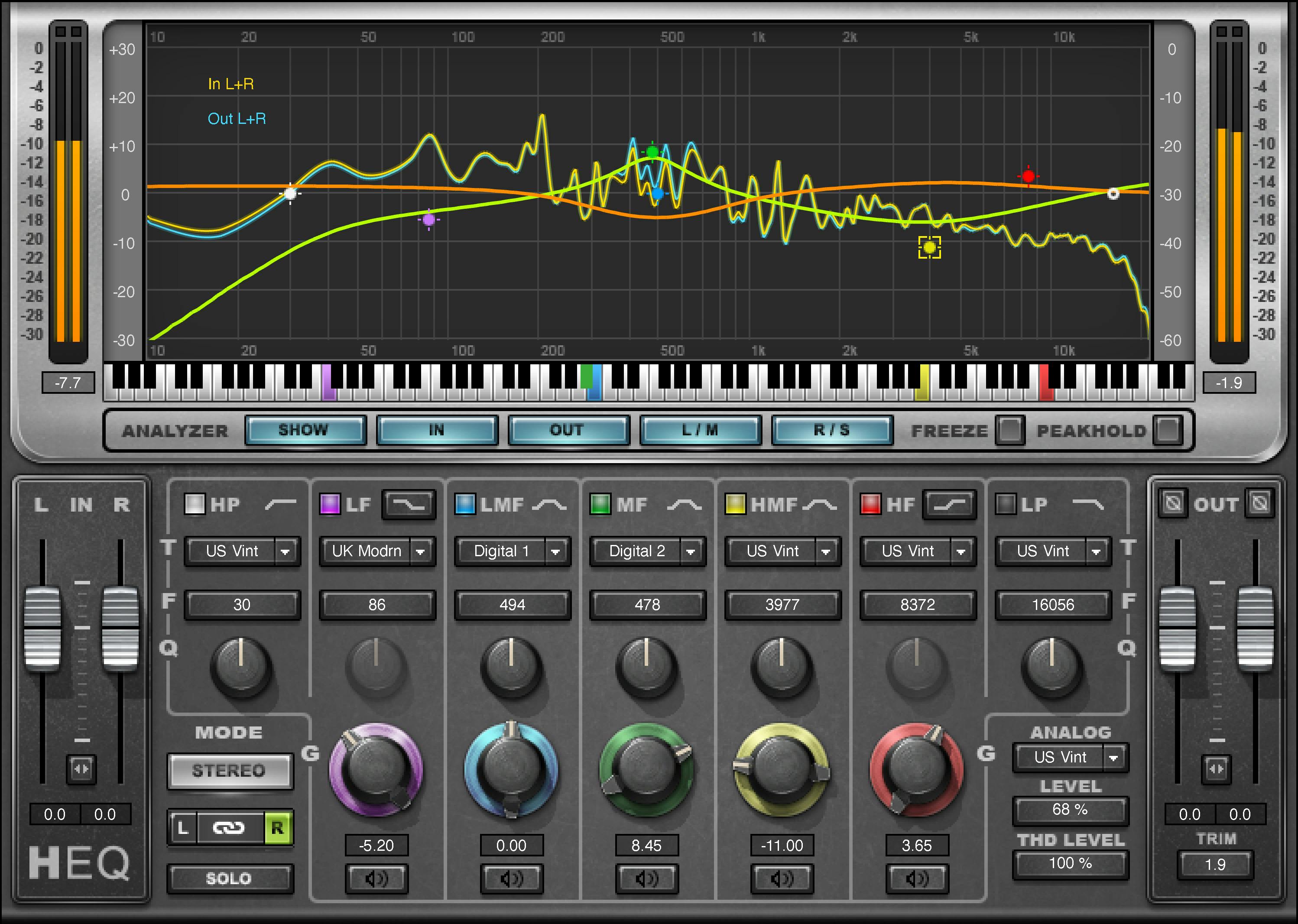
Input section
The Input fader sets incoming level. The manual prints a range of +12 to -30 for this control; it does not restate the unit in that range line, so this article does not add a unit that is not printed there. [1]
In the Stereo component, left and right input faders are available. In MS mode, the left-side input control represents M (Mid) and the right-side control represents S (Sides). Full-scale input meters sit above the faders. [1]
Input level matters before interpreting the analyzer and output readouts. The analyzer’s In trace is explicitly post-input-fader. [1]
Stereo/Linked mode
In Stereo/Linked, left and right channels receive the same EQ processing. This is the conventional stereo-EQ mode when both sides should share band settings. [1]
The separate channel faders remain visible in the Stereo component, but the EQ curve itself is linked. Use this when there is no need for different left/right tone shaping.
Dual/Unlinked mode
In Dual/Unlinked, the left and right channels can receive different EQ processing. Input and output faders are unlinked, and the L/R selectors determine which channel the EQ section is editing. The manual identifies the left curve as orange and the right curve as light green. [1]
This is not M/S processing. Dual mode works on left and right channels directly.
MS mode and Listen
MS mode matrixes a stereo input into Mid and Side so the two components can be EQ’d independently. The manual represents Mid with the orange curve and Side with the light-green curve. [1]
In MS mode, the control below the mode selector becomes a Listen control. Listening to M sends the Mid information to both output channels as mono; listening to S does the same for the Side information. The side-selection buttons determine which component the EQ section is editing. [1]
M/S EQ is useful when a tonal problem belongs mainly to center information or mainly to stereo-side information, but it can alter stereo balance quickly. Use it because the mix problem is spatially specific, not just because the option exists.
Global Solo and band Solo
With Global Solo enabled, touching or moving Cue, Frequency, Q or Gain can momentarily solo one of the five parametric bands—LF, LMF, MF, HMF or HF. Each band's separate Solo button remains latching. [1]
That distinction matters during adjustment: touching a control can create a temporary audition, while the band Solo button remains engaged until you change it.
HP and LP are filter bands rather than the five parametric bands covered by this Global Solo behavior.
Seven EQ bands
H-EQ has seven bands: HP, LF, LMF, MF, HMF, HF and LP. Each band has an On/Off state, and the corresponding band marker in the graph can also toggle the band. [1]
The available filter algorithms are US Vintage, UK Vintage 1, UK Vintage 2, US Modern, UK Modern, Digital 1 and Digital 2, with some availability differences by band. Waves' manual describes Digital 1 as an asymmetrical bell whose Q controls the curve's tilt rather than its conventional bell width. The algorithm labels are Waves' names; this article did not independently verify a hardware match or measure the response. [1][2]
HP high-pass filter
The HP band offers all seven filter types: US Vintage, UK Vintage 1, UK Vintage 2, US Modern, UK Modern, Digital 1 and Digital 2. Its published Frequency range is 16–21096 Hz. [1]
Q is published as 1–100 where available. The manual says Q is not available for UK Vintage 1, UK Vintage 2, US Modern or Digital 1 in the HP band. [1]
Because this is a high-pass filter, Gain is not the same bell/shelf gain control used by the parametric bands.
LF low-frequency band
The LF band offers all seven filter types and can switch between Shelf and Bell. Its Frequency range is 22–21096 Hz. [1]
For Bell shape, Q is 1–100 except that UK Vintage 2, US Modern and UK Modern do not expose Q. For Shelf shape, Q is available only with Digital 1 and Digital 2. [1]
The parametric Gain range is ±18 dB. [1]
LMF, MF and HMF bands
The LMF, MF and HMF bands are Bell-only. Each offers the seven documented filter families and a Frequency range of 22–21096 Hz. [1]
Their Q range is 1–100, except the manual says Q is not available in US Modern. Gain is ±18 dB. [1]
These three bands provide frequency and gain adjustment, with Q subject to the selected type's exceptions. Digital 1's asymmetrical bell uses Q for tilt, not conventional bell width. The filter-type selector changes the response family.
HF high-frequency band
The HF band offers all seven filter types and can switch between Shelf and Bell. Frequency is 22–21096 Hz. [1]
For Bell shape, Q is 1–100 except in UK Vintage 2 and US Modern. For Shelf shape, Q is available only in Digital 1 and Digital 2. Gain is ±18 dB. [1]
LP low-pass filter
The LP band offers US Vintage, UK Vintage 2, US Modern, UK Modern, Digital 1 and Digital 2. UK Vintage 1 is not available for this band. [1]
The manual prints the LP Frequency range as 21096–16 Hz; this article preserves that order without inferring what it means for knob direction. Q is 1–100 where available and is not available in UK Vintage 2, US Modern or Digital 1. [1]
Gain and band markers
Each parametric band provides Gain ±18 dB. The graph’s color-coded markers can manipulate band settings directly. [1]
The current manual documents these marker shortcuts: Option/Alt modifies Q while locking Frequency/Gain; Control/Ctrl dragging vertically changes Gain and horizontally changes Frequency; Command/Win-click toggles filter type; right-click solos the band. [1]
Those interactions are useful because they turn the graph into an editing surface, but the numeric control readouts remain the authoritative place to check exact values.
Note keyboard
The keyboard lets you choose frequency by musical note instead of entering a number. The published keyboard range is F0–E10. [1]
This is not a pitch-correction function. Clicking a note sets the selected EQ band’s frequency to the corresponding pitch frequency, which can be useful when a resonance is clearly tied to a musical note.
Analog type
The manual's Analog section lists Off, US Vintage, UK Vintage 1, UK Vintage 2, US Modern and UK Modern. That section says it does not appear in Lite; the contradictory component sentence remains unresolved as described above. [1]
This section adds modeled noise/hum and harmonic distortion characteristics. It is separate from the EQ band filter-type selection, even though some names overlap. Selecting an EQ type does not automatically mean the Analog section is engaged.
Analog Level and THD Level
Level controls the modeled noise/hum contribution from 0–200%, with a documented default of 100%. The manual identifies US Vintage hum at 60 Hz and UK Vintage 1/2 at 50 Hz; it says hum is not available in US Modern/UK Modern and the Analog section is not part of the digital types. [1]
THD Level controls the added harmonic-distortion level from 0–1000%, default 100%. [1]
These percentages are model-intensity controls. They are not statements about measured total harmonic distortion in percent at the output, and this article does not reinterpret them as such.
Spectrum Analyzer
The manual describes an analyzer that displays the input spectrum, output spectrum or both along with the EQ curve; its component-scope conflict remains as noted above. The manual says the analyzer is before the Analog section, so changes caused only by Analog coloration do not appear in this graph. [1]
Show turns the analyzer on/off. In displays the post-input-fader spectrum in yellow. Out displays the post-output-fader spectrum in blue. L/M chooses left in Stereo mode or Mid in MS; R/S chooses right or Side. Switching both L/M and R/S off turns the analyzer off. [1]
The manual says turning the analyzer off or closing the graphic interface removes its CPU load. It also says Lite omits the analyzer; this is the specific statement, not a resolution of the conflicting component wording. [1]
Freeze, Peak Hold and display scales
Freeze stops the live frequency graph until you click Freeze again or another analyzer control. Peak Hold holds the highest measured peak trace. [1]
The Analyzer Scale range is printed as 0–60, without a unit in that range line; no additional unit is assumed here. The EQ Scale is ±30 dB linear, with an extended view that still spans ±30 dB but uses ±3 dB for the first two-thirds of the visual scale for finer low-gain adjustments. [1]
The analyzer is not a calibrated loudness meter. It visualizes spectrum/energy and EQ shape; it does not replace LUFS, true-peak or delivery-compliance measurement.
Output faders and phase
The Output fader controls output level. In Stereo there are separate left/right faders. In MS and Unlinked modes the faders can move independently, with a momentary link control available when you want to change both together. [1]
Phase flips the signal by 180 degrees. In Stereo, left and right have separate phase controls. [1]
The manual does not publish a separate numeric output-fader range in the Output section, so this article does not infer one from the interface.
Trim: peak-distance readout and gain application
Trim displays the maximum output peak and its distance from 0 dBFS. Clicking the Trim value resets that readout to zero and applies the differential to the input level. [1]
That makes Trim more than a passive peak reset. It also changes input level by the displayed differential. Clicking what looks like a meter reset can therefore change the input level, not just clear its display.
Full-scale output meters with clip indicators sit above the output faders. [1]
Smooth
The manual says older H-EQ versions may produce noise when controls move, including under automation, and that Smooth addresses this. Smooth should normally be On for new instances and sessions containing instances of the new H-EQ version. When a session created with an older H-EQ version loads, its Smooth setting automatically turns Off to avoid changing the sound. If control noise occurs, the manual says Smooth can be enabled, with a chance it may slightly alter the sound. Smooth is a toolbar behavior switch, not an EQ-band smoothing amount. [1]
WaveSystem toolbar
The manual says the WaveSystem toolbar lets you save and load presets, compare settings, undo and redo steps, and resize the plugin. Its upper-right icon opens the separate WaveSystem Guide. [1]
A practical H-EQ workflow
Choose the processing mode first: Stereo/Linked, Dual/Unlinked or MS. Then solve the EQ problem with the simplest band type and modest Gain/Q moves before auditioning alternate filter algorithms. That keeps the filter-model choice tied to an actual tonal goal rather than turning the session into random model browsing.
Use band Solo briefly to identify the region, then judge the result in context. If you use the analyzer, verify that you are looking at the intended In/Out and L/M or R/S trace. Remember that Analog coloration occurs after the analyzer and therefore will not be visible in that spectrum display. [1]
Add Analog noise/THD only when that coloration is wanted. If a clean result is the goal, leave Analog Off rather than compensating for it elsewhere.
Limitations and documentation boundaries
H-EQ gives unusually broad frequency ranges, but not every algorithm exposes Q on every band. The article lists those exceptions explicitly rather than presenting a single universal Q rule.
The current manual contains the unresolved Full/Lite wording conflict described above. Its printed interface figures show different Full and Lite layouts, but those static illustrations do not resolve the manual's sentence scope or establish an installed plugin version.
No hardware comparison, null test, frequency-response measurement or listening test was performed. “Vintage,” “Modern” and “Digital” are Waves’ documented algorithm names, not independent verification of specific console transfer curves.
Best for / skip if
Best for: a flexible seven-band EQ that can move between linked stereo, independent dual-mono and M/S work; users who want multiple filter-response families per band; and sessions where a note keyboard/analyzer can speed frequency identification.
Skip or simplify it: when you need only a basic clean high-pass plus a couple of bell bands, when analog noise/THD modeling is unwanted and the extra options slow you down, or when a dedicated dynamic EQ—not static H-EQ processing—is the actual problem solver.
Related Waves equalizer
For a separate Waves equalizer, see the F6 Floating-Band Dynamic EQ product page.
Sources
Sources checked October 18, 2026.
[1] Waves, H-EQ Equalizer User Manual, current product-linked guide; printed pages cited in this article.
[2] Waves, H-EQ Hybrid Equalizer product page, product identity and public product information.
[3] Waves, Graphic Library, official product image and attribution/backlink conditions.
FAQ
What components does the H-EQ manual list?
It lists Mono and Stereo components for both H-EQ and H-EQ Lite. It describes Lite as lower-CPU, but a later sentence says that “The H-EQ components” omit the analyzer and Analog section without specifying Lite. The manual's wording is unresolved; the article preserves both statements rather than silently assigning the sentence to one component family.
Are Stereo, Dual and Mid/Side separate H-EQ components?
The manual lists Mono and Stereo as the components. Stereo/Linked, Dual/Unlinked and MS are channel-processing modes described within the interface, not additional component names.
Does every H-EQ band provide the same Q choices?
No. Q availability differs by band and filter type. For example, the manual lists no Q control for HP with UK Vintage 1/2, US Modern or Digital 1, and LF shelf Q is available only with Digital 1 and Digital 2. Check the selected band's documented exceptions.
What does Q do in the Digital 1 asymmetrical bell?
The manual says Digital 1 Q controls the asymmetrical curve's tilt rather than its conventional bell width. This is Waves' description; no independent response measurement was made.
What happens when I click H-EQ's Trim value?
Trim displays the maximum output peak and its distance from 0 dBFS. Clicking the value resets the readout to zero and applies the differential to the input level, so it is not just an output-meter reset.
Does the H-EQ analyzer show changes made by the Analog section?
The manual places the analyzer before Analog, so changes caused by Analog are not shown in that display. It describes In as post-input-fader and Out as post-output-fader; it is a spectrum display, not a loudness-compliance meter.
How do H-EQ's momentary and latching Solo controls differ?
With Global Solo enabled, touching or moving Cue, Frequency, Q or Gain can momentarily solo one of the five parametric bands. A band's separate Solo button is latching. The manual does not include HP or LP in the Global Solo band list.
When does Smooth turn on or off?
The manual says Smooth should normally be on for new instances and sessions containing the new H-EQ version. When a session created with an older H-EQ version loads, its Smooth setting automatically turns off to avoid changing the sound. It also warns enabling Smooth to address control noise may slightly alter sound.

About the Author
Joseph Nilo has been working professionally in all aspects of audio and video production for over twenty years. His day-to-day work finds him working as a video editor, 2D and 3D motion graphics designer, voiceover artist and audio engineer, and colorist for corporate projects and feature films.