
Waves IDX Intelligent Dynamics is a frequency-dependent compressor that changes how much reduction is applied across the spectrum instead of applying one identical threshold to every frequency. The main Threshold sets overall processing depth, while the Priority Band lets you bias that threshold toward or away from selected frequency areas. [1][2]
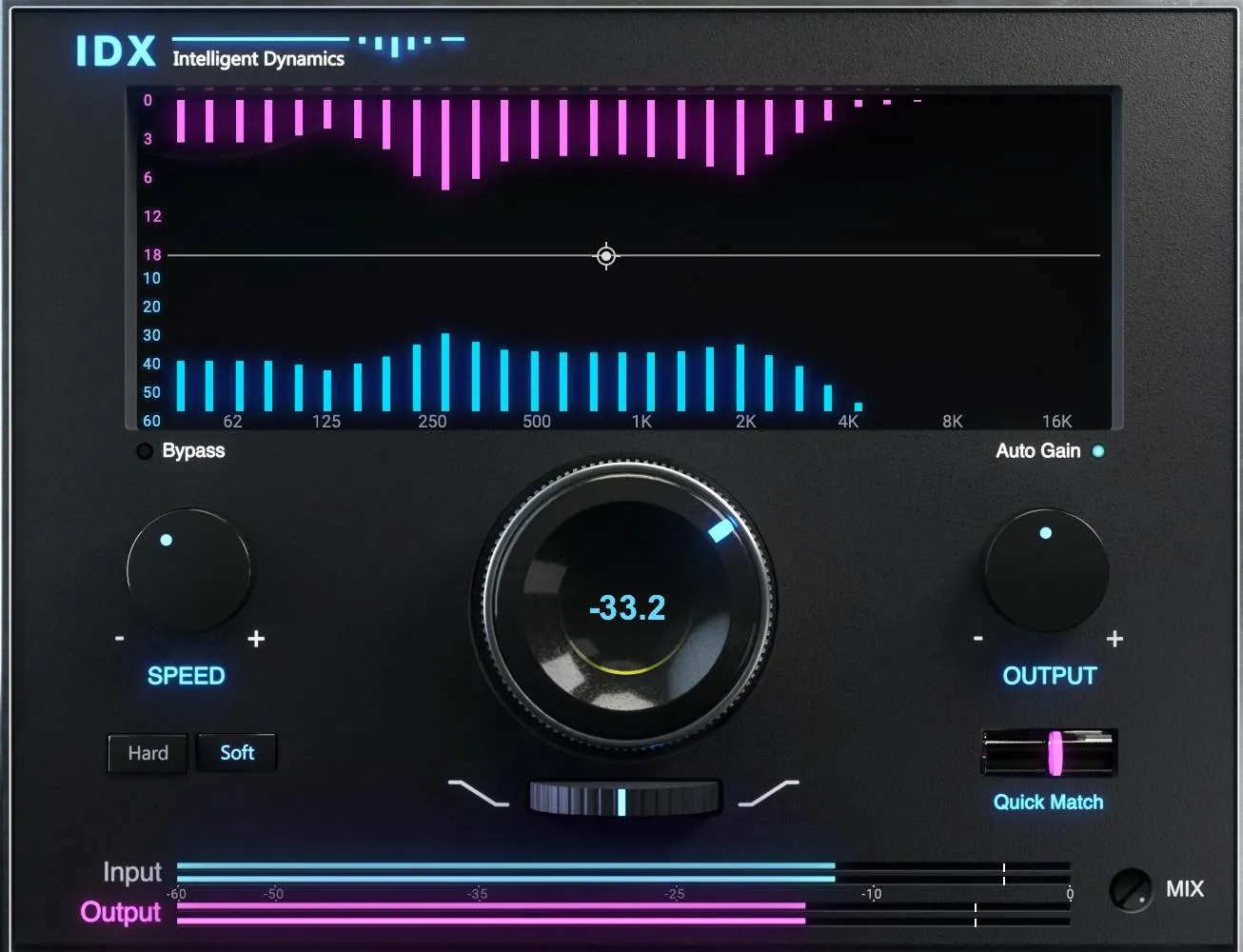
IDX is deliberately compact. Its interface combines two graphs, a main Threshold control, Priority Band shaping, Speed, Hard/Soft Knee, Output, Auto Gain, Quick Match, wet/dry Mix and Bypass. It also ships in standard and zero-latency Live variants for mono and stereo use. [1]
About the imagery: the cover is an editorial illustration. The plugin interface is official Waves product artwork, not a capture of a listening or compliance test.
My Short Version
Start by checking input level. Waves says the processor needs enough signal to work but recommends reducing DAW gain if the input VU meter is regularly reaching the far right. Then lower Threshold until the reduction graph shows useful activity. A Threshold setting of 0 means no processing. [1]
Use the Priority Band only when you want certain frequency regions to cross the effective threshold more or less easily. Move its handle to choose the pivot frequency/amplitude, change its shape among bell/high-shelf/low-shelf, and use Tilt to favor low- or high-frequency processing. [1]
Choose Speed and Hard/Soft Knee for the response character, then use Auto Gain, Output and Quick Match to manage level. Quick Match is a momentary input/output level-matching aid; it is not an automatic bypass or listening-test result. [1]
Input signal graph
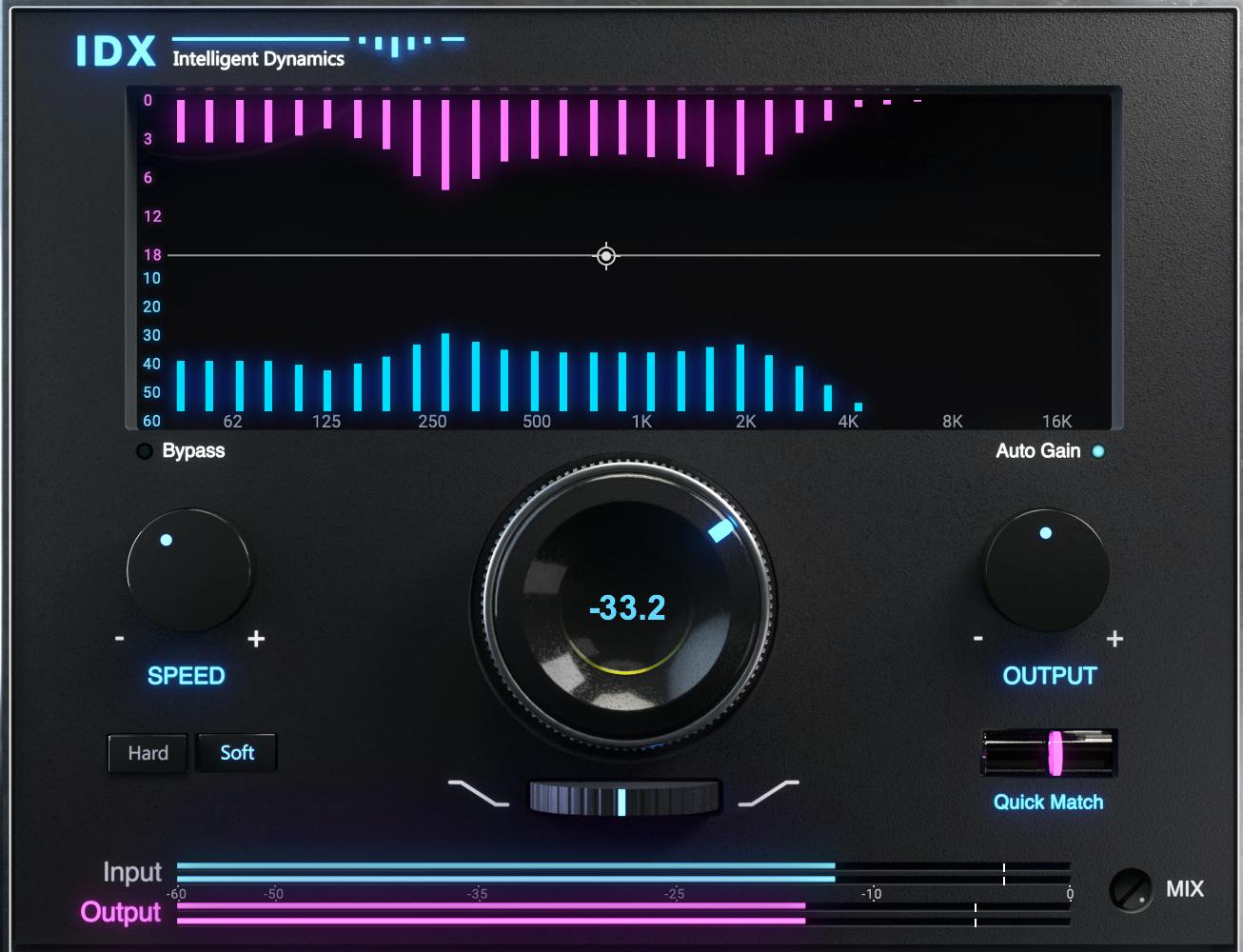
The Input Signal Graph is the lower blue spectrum-style display. Waves states that it shows the input signal and is not changed by the Threshold setting. [1]
That makes it a useful visual reference for where energy exists in the incoming signal rather than a picture of the processed result.
Reduction graph
The upper magenta Reduction Graph shows where IDX is applying dynamic reduction and approximately how much. As Threshold is lowered, this display makes the frequency-dependent action visible. [1]
The graph is an operational readout. This manuscript does not reinterpret it as a measured frequency-response plot or claim accuracy beyond what Waves documents.
Threshold
Threshold is the main depth control. Waves says turning/lowering it clockwise increases reduction, while a setting of 0 produces no processing. [1]
The current user guide does not publish a formal numerical minimum, unit or default for Threshold. The interface can display numerical values, but this article does not infer a range from a screenshot.
Priority Band
The white line through the center of the display is the Priority Band. It changes the focus of the threshold so some frequency regions receive more or less gain reduction. [1]
This is not a conventional static EQ band. It changes the detector/threshold emphasis that governs dynamic processing.
Priority Band handle
Move the Priority Band handle left/right or up/down to set the frequency and amplitude of the point around which the Priority Band pivots. [1]
The manual does not publish a numerical frequency/amplitude range or default position for this handle, so those values are left undocumented here.
Priority Band shape
Command-click on macOS or Control-click on Windows changes the Priority Band shape among bell, high shelf and low shelf. [1]
Because the shape belongs to the threshold-priority curve, changing it alters where IDX is encouraged to process, rather than directly boosting or cutting the audible signal like an ordinary EQ.
Priority Band Tilt
The Tilt control see-saws the Priority Band to favor high or low frequencies in the threshold relationship. Waves' example says tilting so more lows fall below the threshold causes more low-frequency processing and can make the result feel brighter. [1]
The product page similarly describes Tilt as a bright-versus-dark balancing control. That is vendor-described behavior, not a new listening observation. [2]
Speed
Speed adjusts attack and release together. Waves says higher settings are generally sharper, potentially at the expense of some attacks/transients. [1]
The current guide does not publish attack/release times, a numerical Speed range or a default, so this article does not invent millisecond values.
Hard / Soft Knee
IDX offers Hard and Soft knee choices.
With Hard Knee, compression is applied abruptly once the threshold is reached. With Soft Knee, compression starts before the nominal threshold and does not reach full compression until the signal is well above it. [1]
This switch changes the transition into compression; it does not change the Priority Band shape.
Output
The Output control sets plugin output level. Waves explains that IDX's controlled reduction can reduce overall energy, so Output is available to restore or set final level. [1]
The guide does not publish a numerical Output range/default. No range is inferred from the knob graphic.
Auto Gain
Auto Gain automatically compensates output level as Threshold is driven deeper. [1]
That behavior is tied to the processing amount. It is separate from Quick Match, which is a user-triggered level-matching control.
Quick Match
Quick Match tracks the positive or negative output offset needed to match the momentary input and output levels. [1]
The button uses two colors. When its bar is white, clicking it reduces Output by the required amount. When it is purple, clicking raises Output accordingly. Waves states that plugin output is limited to -0.01 dB. [1]
Quick Match is useful for reducing simple level bias when comparing settings, but this manuscript did not perform or claim a matched listening test.
Input and Output VU meters
The horizontal Input and Output VU meters at the bottom of the interface show level, with small white lines indicating peaks. [1]
Waves recommends reducing source gain in the DAW if the input VU is regularly touching the right side. The manual does not document a click-to-reset peak-marker action, so none is claimed here. [1]
Mix
The Mix control adjusts the wet/dry balance between processed and unprocessed signal. [1]
The user guide does not publish a numerical range or default for this control. Treat its endpoints operationally as dry versus wet rather than assigning undocumented percentages to intermediate positions.
Bypass
Bypass bypasses the IDX processor without removing it from the plugin chain. [1]
This is the appropriate control for comparing the inserted processor on versus off. It is different from setting Threshold to 0, even though Waves says Threshold 0 produces no processing.
Standard vs. Live components
The manual documents four components:
- IDX Intelligent Dynamics — mono
- IDX Intelligent Dynamics — stereo
- IDX Live Intelligent Dynamics — mono
- IDX Live Intelligent Dynamics — stereo [1]
The IDX Live components provide zero-latency performance according to Waves, with a slightly different sound that the manual says is most noticeable in the low frequencies. The current product page also identifies the Live version as the zero-latency choice. [1][2]
That zero-latency statement is documentary, not a host measurement from this article.
What IDX is actually doing
Waves describes IDX as frequency-dependent compression or progressive attenuation that identifies areas of less useful/excess energy and reduces them dynamically. [1][2]
The practical distinction from a normal broadband compressor is that the Priority Band and frequency-dependent behavior can make reduction stronger in some parts of the spectrum without requiring a conventional multiband crossover interface.
It is also different from static EQ: the displayed reduction changes with the incoming material rather than remaining a fixed boost/cut curve.
A practical setup order
First check the Input VU meter and reduce DAW gain if it is consistently pinned toward the right. Leave Priority Band neutral initially and lower Threshold until the reduction graph shows the amount and frequency areas you intend to control.
Next use Speed and Hard/Soft Knee to shape the dynamics response. If reduction is concentrated in the wrong part of the spectrum, move or reshape the Priority Band and use Tilt to bias the detector behavior.
Finally use Auto Gain, manual Output or Quick Match to manage level, and set Mix if you want parallel processing. This sequence is editorial guidance derived from the documented control relationships; no listening test was performed.
Best for / skip if
IDX is a sensible candidate when you want frequency-dependent dynamic cleanup or energy control with fewer controls than a traditional multiband compressor or dynamic EQ. Waves positions it for individual instruments/voices and also says it can be used on the mix bus. [1][2]
Skip it when you specifically need published crossover frequencies, independent per-band ratios/attack/release, exact static EQ gain values, or fully numerical timing controls. IDX intentionally exposes a higher-level Threshold/Priority/Speed workflow instead.
Related guides
The live F6 guide covers a more explicit dynamic-EQ approach with individually controllable bands. The live Renaissance Compressor guide explains conventional broadband compression controls.
The live MV2 guide covers a different simplified dynamics design for bringing up low-level information and controlling peaks. The Waves Audio Post Resources hub collects the site's existing Waves workflow and licensing references.
Bottom line
IDX is a compact frequency-dependent dynamics processor: Threshold decides how deeply it works, the Priority Band decides where it is more or less sensitive, and Speed/Knee decide how the reduction responds. Output, Auto Gain, Quick Match and Mix handle the level-management side of the workflow.
Its documentation clearly explains every visible control's role, but does not publish formal numeric ranges/defaults for several knobs. Those values are deliberately left unspecified rather than reverse-engineered from the interface artwork.
Sources
Checked September 20, 2026. No listening, host, latency, CPU or automation test was performed.
- Waves IDX Intelligent Dynamics User Guide, especially pp. 2–5. The official interface on p. 3 was visually inspected.
- Waves IDX Intelligent Dynamics product page.
- Waves Graphic Library, current IDX Intelligent Dynamics entry and attribution/backlink requirement.
Frequently Asked Questions
What do the two graphs in Waves IDX show?
The lower blue Input Signal Graph shows the incoming signal and is not changed by Threshold. The upper magenta Reduction Graph shows where IDX is applying dynamic reduction and approximately how much; it is an operational display, not a measured frequency-response plot.
Does IDX Threshold have a published numerical range?
The guide says that lowering Threshold increases reduction and that a setting of 0 produces no processing. It does not publish a formal numerical minimum, unit, or default, so a range should not be inferred from the interface.
Is the IDX Priority Band a normal EQ band?
No. The Priority Band changes the threshold emphasis so selected frequency regions receive more or less gain reduction; it is not a static audible boost or cut. Its handle sets a pivot point, and the curve can be a bell, high shelf, or low shelf.
How do IDX Speed and Knee affect compression?
Speed adjusts attack and release together; Waves says higher settings are generally sharper and may affect some attacks or transients. Hard Knee applies compression abruptly at threshold, while Soft Knee begins before the nominal threshold and reaches full compression above it. The guide does not give Speed times or a numeric range.
How are Auto Gain and Quick Match different in IDX?
Auto Gain automatically compensates output as Threshold is driven deeper. Quick Match is a momentary control that tracks the offset needed to match input and output levels: its white bar lowers Output, and its purple bar raises it. Quick Match is not a listening-test result.
What is different about IDX Live?
Waves describes the IDX Live mono and stereo components as zero-latency versions, with a slightly different sound that the manual says is most noticeable in the low frequencies. This is the manual's description, not a host latency measurement.

About the Author
Joseph Nilo has been working professionally in all aspects of audio and video production for over twenty years. His day-to-day work finds him working as a video editor, 2D and 3D motion graphics designer, voiceover artist and audio engineer, and colorist for corporate projects and feature films.