
Waves Immersive Wrapper runs a mono-to-mono Waves processor separately on the channels of a multichannel component. It adds relative control linking, channel groups and, with a suitable hosted processor, shared sidechain mixes.
The important separation is the audio being processed, the controls moving together, and the key signal driving a dynamics processor. Wrapper lets those relationships differ.
This guide follows the complete official manual and authentic interface. I have not processed an immersive session or tested a host installation. Response and latency descriptions below are qualified vendor specifications, not measurements.
My Short Version
The hosted plug-in supplies the processing. Wrapper is not a separate compressor or EQ algorithm, and its example processor is not proof of an included license.
Linked does not mean identical. Normal linked changes preserve relative parameter offsets; explicit copy operations can align them.
Sends build six sidechain mixes; receives choose what reaches a channel. Mix 1 has an important LFE exception in its send defaults.
Weight changes the key signal, not the wet/dry audio output. Global groups extend these relationships across Wrapper instances and affect freeze/commit scope.
Best for and when to choose another tool
Best for: applying a compatible mono Waves processor across a supported multichannel layout while retaining channel offsets, grouping related channels or coordinating dynamics through shared keys.
The guide also covers mono and stereo objects and an example with discrete live outputs. The format list is not restricted to one delivery format or a single Atmos bed.
Choose another approach when: you need a processor's own purpose-built multichannel algorithm, independent channel processing without Wrapper's grouping layer, or a hosted processor that does not meet its mono-to-mono requirements.
Internal sidechains additionally require a processor with external-key support. Loading a processor does not automatically establish that all of its sidechain features are active.
The 25 components and exact channel order
Page 7 lists the following 25 components. Channel order matters; this table preserves the guide's order rather than substituting a different surround convention.
| Component | Channels in guide order |
|---|---|
| Mono (object) | O |
| Stereo (object) | Ol, Or |
| LCR | L, C, R |
| LCRS | L, C, R, S |
| Quad | L, R, Ls, Rs |
| 5.0 | L, C, R, Ls, Rs |
| 5.1 | L, C, R, Ls, Rs, LFE |
| 5.0.2 | L, C, R, Ls, Rs, Lt, Rt |
| 5.1.2 | L, C, R, Ls, Rs, LFE, Lt, Rt |
| 5.0.4 | L, C, R, Ls, Rs, Ltf, Rtf, Ltr, Rtr |
| 5.1.4 | L, C, R, Ls, Rs, LFE, Ltf, Rtf, Ltr, Rtr |
| 6.0 | L, C, R, Ls, Cs, Rs |
| 6.1 | L, C, R, Ls, Cs, Rs, LFE |
| 7.0 | L, C, R, Lss, Rss, Lsr, Rsr |
| 7.1 | L, C, R, Lss, Rss, Lsr, Rsr, LFE |
| 7.0.2 | L, C, R, Lss, Rss, Lsr, Rsr, Lt, Rt |
| 7.1.2 | L, C, R, Lss, Rss, Lsr, Rsr, LFE, Lt, Rt |
| 7.0.4 | L, C, R, Lss, Rss, Lsr, Rsr, Ltf, Rtf, Ltr, Rtr |
| 7.1.4 | L, C, R, Lss, Rss, Lsr, Rsr, LFE, Ltf, Rtf, Ltr, Rtr |
| 7.0.6 | L, C, R, Lss, Rss, Lsr, Rsr, Ltf, Rtf, Ltm, Rtm, Ltr, Rtr |
| 7.1.6 | L, C, R, Lss, Rss, Lsr, Rsr, LFE, Ltf, Rtf, Ltm, Rtm, Ltr, Rtr |
| 9.0.4 | L, C, R, Lw, Rw, Lss, Rss, Lsr, Rsr, Ltf, Rtf, Ltr, Rtr |
| 9.1.4 | L, C, R, Lw, Rw, Lss, Rss, Lsr, Rsr, LFE, Ltf, Rtf, Ltr, Rtr |
| 9.0.6 | L, C, R, Lw, Rw, Lss, Rss, Lsr, Rsr, Ltf, Rtf, Ltm, Rtm, Ltr, Rtr |
| 9.1.6 | L, C, R, Lw, Rw, Lss, Rss, Lsr, Rsr, LFE, Ltf, Rtf, Ltm, Rtm, Ltr, Rtr |
The object Mono label is the letter O, with Ol/Or for Stereo objects. Do not read it as the numeral zero.
The product listing and the guide do not present identical format lists: the guide explicitly includes LCRS. This is a documentation-scope difference, not evidence of a failed component or a tested compatibility result.
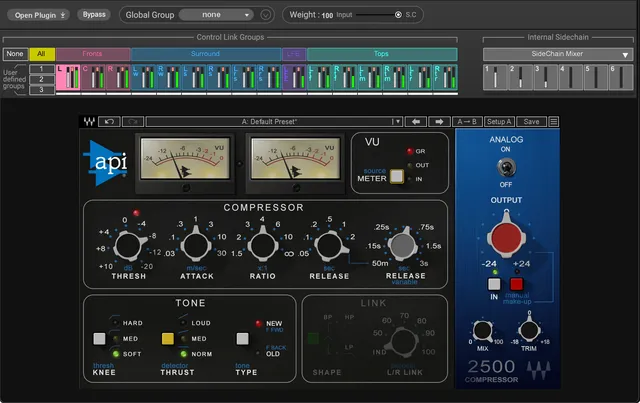
Load Plugin, channel view and meters
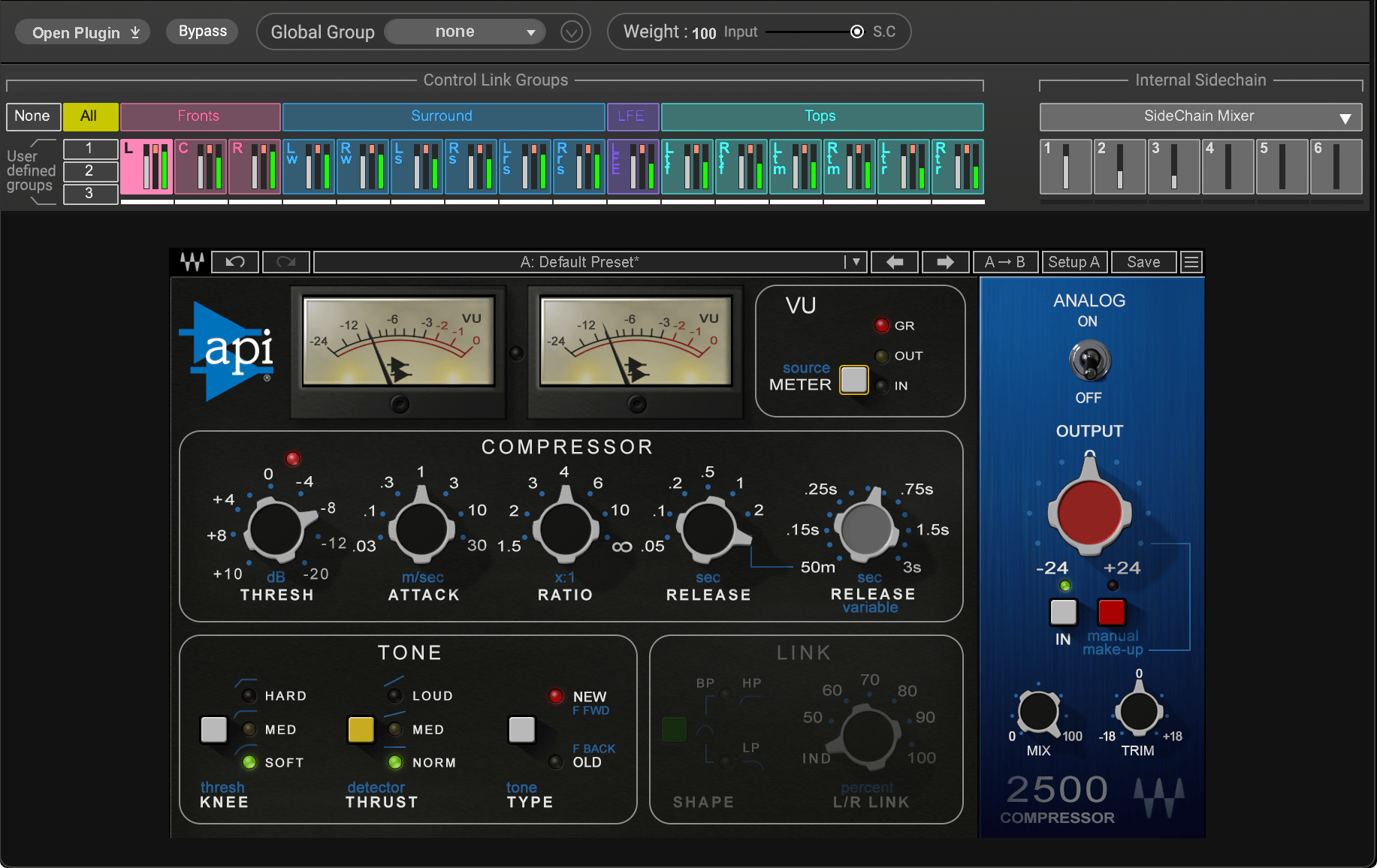
Load Plugin chooses the hosted processor; the authentic Library header labels the selector Open Plugin. Wrapper loads a separate mono instance for each channel.
Changing the hosted processor preserves Wrapper's settings but initializes the newly selected processor with its defaults. In a global group, that processor change also affects the other members.
Click a Channel View Selector button to show the corresponding hosted instance. Viewing a channel is different from deciding which channels are control-linked.
The meters identify input in green, gain reduction in red and the internal sidechain key in gray. The guide does not specify their complete numerical range, ballistics, peak-reset procedure or clip threshold.
Bypass affects the viewed channel and its control-linked channels. It should not be described as an unconditional bypass of every channel when the relevant channels are unlinked.
The API 2500 panel in the official image is a hosted example. Its knobs belong to that processor, not to a second set of Wrapper parameters.
Relative linking and preset changes
The default All group links all channels. If you make a separate channel adjustment, returning to All retains that relative offset while subsequent linked movement changes the channels together.
White bars identify linked channels or faders. They are relationship indicators, not meters.
The guide identifies linked automatable processor parameters, Bypass, sidechain receive faders, Weight and Summing Mode. Non-automatable controls are not linked. Do not assume that every visible widget, or every sidechain send, automatically follows this list.
Loading or pasting a hosted-processor preset applies it to linked channels. That is different from a normal relative knob movement.
For deliberate alignment, use the explicit copy/paste operations described below. They can eliminate the relative differences you previously maintained.
Channel groups and membership modifiers
The five predefined groups are:
- All: all channels.
- Fronts: L, C and R.
- Surrounds: ear-level surround channels.
- LFE: LFE channels across the global group.
- Tops: height channels.
None deactivates the control-link groups for individual adjustment. User 1, User 2 and User 3 start empty.
The predefined memberships are editable. Command-click on Mac or Control-click on Windows adds or removes a channel from the selected group, and a channel may belong to multiple groups.
That membership modifier is not the same gesture as selecting several sidechain faders. The latter uses Shift or a mouse click-drag selection.
No separate numeric range or initial global-group membership should be inferred from the names or a screenshot.
Sidechain prerequisites and the six mixes
An internal sidechain is available only when the hosted processor offers an external key input. Some processors also require that key to be enabled within their own panel.
The guide suggests using sc in the plug-in search to find sidechain-capable processors. That is a selection aid, not an instruction to install or activate software.
The six Sidechain Mix selector buttons reveal the send bank for Mix 1 through Mix 6. Each mix has a meter.
A send controls how much of a source channel contributes to a mix. A receive controls how much of that mix reaches the selected channel's key path. These are two different stages, not interchangeable names for one fader.
Send levels, defaults and selection
Each channel's send to the selected mix ranges from 0 to −100 dB.
For Mix 1, the detailed control section states a default of −24 dB for all channels except LFE, which defaults to −100 dB.
For Mixes 2–6, all sends default to −100 dB. The documented send reset value is −24 dB.
This qualifies the introduction's broader statement about channels initially sending to Mix 1. LFE is not initially assigned the same contribution as the other channels in the detailed defaults.
White bars show grouped faders. Use Shift or a mouse click-drag to select multiple faders for adjustment.
The send value is a contribution to a key mix, not the channel's main audio output gain.
Receive levels and the mixer bar
Select the destination channel, then click the Sidechain Mixer bar to open its receive faders. These control the contribution from the six mixes to that channel.
Receive faders also range from 0 to −100 dB. Mix 1 defaults to 0 dB; Mixes 2–6 default to −100 dB.
The guide does not establish a separate receive-reset value. Do not transfer the sends' −24 dB reset to receives.
Receives follow the control-link relationships described earlier. Switch the viewed channel to inspect another destination; click the bar again to close the receive view.
Monitor and Summing Mode
Monitor auditions the selected channel or mix through the Center output, according to the guide.
The manual does not explain the alternative route for a component without a Center channel. It does not support inventing a phantom-center fold, another speaker assignment or guaranteed silence.
Summing Mode offers RMS and Max. Max is the documented default.
Waves describes RMS as conventional bus-like summing, with slower response and possible out-of-phase concerns. It describes Max as using the momentary maximum level and responding faster, including for limiter-style behavior.
Those are vendor descriptions of the key calculation, not measurements of response or a guarantee that a limiter cannot clip. The labels do not establish an additional published transfer equation.
External Key and Weight
After an external key is assigned in the DAW, an Ext Key meter and fader become available. That key can feed a sidechain mix send or a channel's receive path.
To share one external key across global-group members, the guide routes it through a shared mix. This is distinct from assigning the DAW key separately to every Wrapper.
The source does not state a separate Ext Key fader range or default. The ordinary send/receive values should not silently become its specification.
Weight runs from 0 to 100 and defaults to 100.
At 0, the processing key is the channel's own input. At 100, it is the internal sidechain mixer. Intermediate settings combine those key signals.
Weight follows control links. It is not an output wet/dry mix, a direct compression-amount control or an audio crossfade between the original and processed main signals.
The hosted processor still determines how the resulting key affects its processing.
Global groups and the instance panel
The Global Group menu offers None, +New and existing group names.
Members of a global group use the same hosted processor type. An empty Wrapper joining the group adopts its processor. An already populated Wrapper can join only a group with the matching type.
Changing the hosted processor in one member changes it across the global group. Control-link and sidechain-mix organization, including user groups, are shared across members.
Audio sent to a particular mix is summed with the audio sent to that same mix by the other group members. A channel can therefore receive a key assembled from several Wrappers, not just its local instance.
These shared relationships do not erase the distinction between relative offsets and identical settings.
The arrow to the right of Global Group opens the Instance Panel. It shows group members, groups using the same processor type and unpopulated Wrappers.
Drag and drop instances to move them into or out of groups. Toggle the colored-dot buttons to link mono/stereo instances to the main control-link groups from the list; the dots match the group colors.
When freezing or committing tracks that use a global internal sidechain, include all tracks in that global group. Treating one track as isolated can omit part of the relationship described by the guide. No freeze or export was performed for this article.
Copy menus: intentionally remove offsets
In the normal channel view, right-click a channel to open the Paste Preset Menu. It provides channel-setting copy/paste operations, including applying the hosted settings to all channels or a control-link group.
The guide distinguishes these alignment operations from relative linked changes: copying settings can eliminate existing offsets.
With the internal sidechain mixer open, the right-click context changes. The channel menu includes Bypass, Copy SideChain, Paste SideChain, and paste destinations All, Fronts, Surrounds, Tops, LFE and Custom 1/2/3.
Right-clicking a Mix selector instead offers Copy SideChain, Paste SideChain and paste destinations Mix 1–6.
The channel context concerns receive settings; the mix-selector context concerns send settings. Choose the context deliberately rather than assuming both copy the same bank.
These explicit copies align the targeted settings. They are not a promise that ordinary linked movement keeps all channels equal.
Presets, visible utilities and hosted controls
The guide explains loading/pasting the hosted processor's presets and the Wrapper context-copy operations. The hosted plug-in also has its own toolbar, visible in the official example.
A Wrapper toolbar is visible in guide figures, with preset navigation/save, comparison and undo/redo utilities. The guide does not fully define an independent Wrapper-preset transfer scope for every global relationship.
Do not infer from a shared icon that a preset transfers the entire session, every global member or a processor's license. The documented processor-change, link and copy rules are the useful boundaries here.
A practical routing plan and live qualifications
Begin by choosing the correct component and channel order. Load the required mono processor, then decide which channels need linked controls and which need deliberate offsets.
If the processor supports external keying, plan a single sidechain mix before combining several. Check its sends, the destination receives and Weight separately.
Introduce global groups only when the cross-instance relationship is intentional. Keep their all-track freeze/commit scope in mind.
This is planning advice, not a tested immersive mix, preset or compatibility procedure.
The live example uses 16 discrete outputs and mono Wrappers in SuperRack. One processor is hosted per Wrapper; additional processing can use another Wrapper in the chain.
Its sample-rate wording is 44 kHz–96 kHz. The guide's zero-sample latency statement is specifically for SoundGrid applications, including SuperRack SoundGrid and eMotion LV1.
That statement does not establish zero latency for every DAW, the hosted processor or the complete signal chain.
Related Waves guides
For the controls of a separate dynamics processor, see the Renaissance Compressor guide. For frequency-selective processing, see the F6 guide. These explain different processors, not a tested Wrapper compatibility list.
Find other live articles in the Waves Audio Post Resources hub. Licensing is a separate subject in subscription versus perpetual licensing.
Sources and documentation limits
Checked October 19, 2026, America/New_York. The official Immersive Wrapper product page links the complete 21-page v2 guide, read in full.
Pages 3–7 establish the purpose and components; pages 8–11 cover loading, viewing and linking; pages 12–16 cover sidechains; pages 17–20 cover global groups and copying; page 21 qualifies live use and latency.
The detailed LFE send exception takes precedence over an unqualified summary of initial Mix 1 sends. The source leaves Ext Key-specific numeric settings, non-Center monitoring behavior, detailed meter behavior and complete Wrapper-preset scope unspecified.
The authentic Graphic Library image shows an API 2500 hosted example. It does not establish included software entitlement, a measured mix or verified runtime compatibility.
FAQ
What does Waves Immersive Wrapper do?
Immersive Wrapper loads a mono-to-mono Waves plug-in separately for each channel of a supported multichannel component. It can link parameter movement, organize channel groups and share internal sidechain mixes when the hosted processor supports external key input. The hosted processor supplies the processing algorithm; Wrapper is not itself a new compressor or EQ.
Which channel formats does the guide list?
The guide lists 25 components: Mono and Stereo objects, LCR, LCRS, Quad, 5.0, 5.1, 5.0.2, 5.1.2, 5.0.4, 5.1.4, 6.0, 6.1, 7.0, 7.1, 7.0.2, 7.1.2, 7.0.4, 7.1.4, 7.0.6, 7.1.6, 9.0.4, 9.1.4, 9.0.6 and 9.1.6. The article preserves the guide's channel order rather than treating these names as a tested host compatibility matrix.
Do linked channels always have identical settings?
No. Ordinary linked movement preserves relative parameter offsets, including when you return to All after an individual adjustment. Loading or pasting a hosted-processor preset affects linked channels, while the explicit channel-copy operations can align settings and remove offsets. These operations should not be confused with ordinary relative movement.
What are the sidechain send and receive defaults?
Send faders range from 0 to −100 dB. Mix 1 sends default to −24 dB except LFE at −100 dB; Mixes 2–6 default to −100 dB. Send reset is −24 dB. Receive faders also range from 0 to −100 dB, with Mix 1 at 0 dB and Mixes 2–6 at −100 dB by default. No separate receive-reset value is established.
What does Weight change?
Weight blends the selected channel's own input with the internal sidechain mixer signal used to control processing. Its range is 0–100 and its default is 100. At 0 the key is the channel's own input; at 100 it is the internal sidechain mixer. It is not an audio wet/dry output mix or a direct compression-amount control.
When can I use internal and external sidechains?
Internal sidechain routing requires a hosted processor with external-key support, and some processors also require that key input to be enabled inside the processor. An assigned DAW external key adds an Ext Key meter and fader that can feed a mix or a channel receive path. Sharing that key through a mix is distinct from assigning a DAW key separately to every global-group member.
What changes when Wrappers join a global group?
Global-group members use the same hosted plug-in type and share control-link and sidechain-mix organization. An empty Wrapper joining a group adopts its processor; an already populated Wrapper can join only a matching processor type. Changing the hosted processor in a member changes it across the group. Relative parameter offsets are not a promise of identical settings.
What are the freeze and latency qualifications?
The guide says to include all tracks in a global group when freezing or committing tracks that use the global internal sidechain. Its zero-sample latency statement is specifically for SoundGrid applications such as SuperRack SoundGrid and eMotion LV1, not a measurement of every DAW or the hosted processor's entire chain. The live example's sample-rate wording is 44 kHz–96 kHz.

About the Author
Joseph Nilo has been working professionally in all aspects of audio and video production for over twenty years. His day-to-day work finds him working as a video editor, 2D and 3D motion graphics designer, voiceover artist and audio engineer, and colorist for corporate projects and feature films.