
Waves JJP Drums combines a source-specific Main Section with four auxiliary processed returns, a Type selector and a master output. Its guide identifies five source Types and illustrates the signal flow, but does not provide numerical ranges for most controls or a complete per-Type fader map.
This is a guide to Waves’ published documentation, not an auditioned review. I have not run the plug-in or processed audio. The guide’s m>s component means mono input to stereo output; it is not a Mid/Side mode.
My Short Version
Choose among Kick In, Kick Out, Snr Top, Snr Bot and Toms according to the source described in the manual. Then read the panel in the context of that Type: Waves says some faders change with the Type, and it does not list numerical settings for each one.
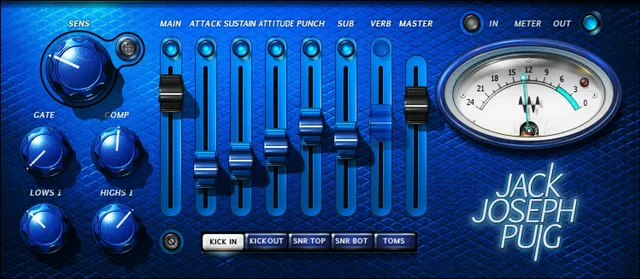
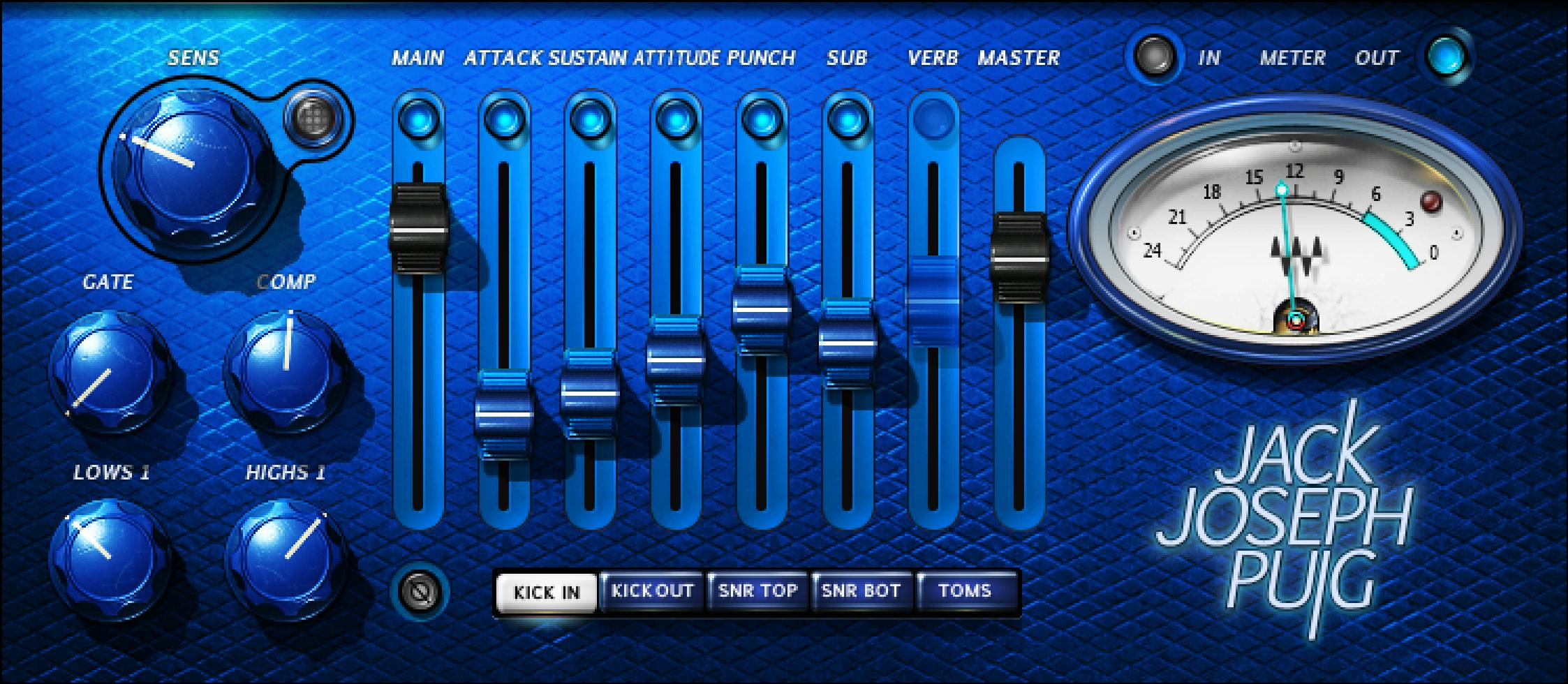
The Main Section supplies basic dynamics and EQ with a Phase reversal switch. Its illustrated controls include Gate, Comp, Lows 1 and Highs 1. Main Fader controls the direct Main Section level. Four Center Section Faders control pre-fader processed returns, with a dedicated mute above each; the returns and direct path sum before Master Fader.
The Meter switch selects IN or OUT monitoring. The Clip LED lights at 0 dBFS and can be clicked to reset. The guide also warns that a good result for a source may occur without the Sensitivity LED showing yellow. Neither the LED nor the pictured fader positions supply missing numeric ranges or defaults.
Components and drum Types
The guide lists Mono (mono in/mono out), m>s (mono in/stereo out), and Stereo (stereo in/stereo out). The m>s component is a channel format, not Mid/Side processing.
The five Types describe sources in the guide’s quick-start: Kick In for a main kick/bass-drum track; Kick Out for the more distant microphone when a kick was recorded with two microphones; Snr Top and Snr Bot for the respective top and bottom snare microphones; and Toms for mounted and floor toms. The manual distinguishes the separate JJP Cymbals & Percussion plug-in for hi-hats, overheads, room and loops; it does not assign those jobs to JJP Drums.
Waves says settings are optimized for each Type but may still need adjustment after Sensitivity is set. The guide does not provide a numerical default table by Type.
Sensitivity and Main Section
The Sensitivity control is set using its LED: off (too low), green (good), yellow (optimal) and red (very hot). The guide suggests using the highest-peak section when setting it, then explicitly cautions that a good result may occur without yellow. It supplies no numeric range, thresholds or calibration.
The Main Section controls basic dynamics and EQ and includes Phase reversal. The interface labels its pictured controls Gate, Comp, Lows 1 and Highs 1. The manual notes that EQ ranges for some drums differ from default settings and use Low 2 and High 2 labels for automation. It does not give a Type-by-Type range list; those automation labels do not establish a full second set of controls visible for every Type.
Direct level, auxiliary returns and master output
The Main Fader controls the direct Main Section level. Center Section Faders represent auxiliary returns with additional processing, tapped before the Main Fader. A dedicated mute sits above each return; some faders change with Type.
The interface illustration shows one fader view labeled Main, Attack, Sustain, Attitude, Punch, Sub, Verb and Master. Treat those as labels in the illustrated view, not as a promise that every Type has the same fader set or processing. The manual does not give fader ranges/defaults.
The signal-flow diagram shows the direct Main Section path through Main Fader, plus four parallel Process → Fader returns. The paths sum before Master Fader, which controls master output. Because the guide does not identify every process for every Type, the diagram is a general structure rather than a per-Type effects map.
Meter, clip indicator and toolbar
The meter switch toggles monitoring between IN and OUT. The Clip LED lights when levels reach 0 dBFS and can be clicked to reset. The guide does not supply meter calibration or ballistics.
The WaveSystem toolbar saves and loads presets, compares settings, undoes and redoes changes, resizes the plug-in and opens the WaveSystem Guide. No separate global reset control is documented.
Reading type-dependent controls
Use the guide’s Type names to identify the source context, and keep the Main Section direct path separate from the Center Section returns. Since the manual says some faders change by Type but does not publish the full map or numeric values, the illustrated control position is not a substitute for a documented preset or a tested result.
Related Waves guides
The live Waves F6 guide explains a separate dynamic equalizer. The Renaissance Compressor guide covers a dedicated compressor, and the Waves Audio Post Resources hub collects current live Waves references. These links address adjacent control tasks, not comparative listening results.
Sources and documentation limits
Checked October 19, 2026 (America/New_York). The official JJP Drums product page lists Mono, m>s and Stereo components. It links the eight-page JJP Drums User Guide, read in full. The guide documents the Type use cases, section roles, generic signal flow, meter and toolbar summarized here, but leaves most numerical ranges and per-Type values unspecified. The Waves Graphic Library requires image attribution and a relevant product-page link when artwork is used. UI artwork is not a live instance or default-state proof. No plug-in, host or audio test was performed.
FAQ
What components does JJP Drums include?
The guide lists Mono (mono in/mono out), m>s (mono in/stereo out), and Stereo (stereo in/stereo out). The m>s component is a channel-format option, not a documented Mid/Side mode.
What do the five JJP Drums Types mean?
Kick In is for the main kick track; Kick Out for a farther kick mic in a two-mic recording; Snr Top and Snr Bot for the top and bottom snare microphones; Toms for mounted and floor toms. These are the guide’s source descriptions.
Does JJP Drums include hi-hat, overhead and room processing?
The manual describes JJP Cymbals & Percussion as a separate plug-in for hi-hats, overheads, room and loops. It does not list those as JJP Drums Types.
What do the Sensitivity LED colors mean?
The guide labels off as too low, green as good, yellow as optimal and red as very hot. It recommends looking at the highest peaks but says a good result may occur without yellow; numeric thresholds are not provided.
What does the Main Section control?
It provides basic dynamics and EQ with Phase reversal. The illustrated panel labels Gate, Comp, Lows 1 and Highs 1; the guide notes Low 2/High 2 automation labels for some drums but does not give a full Type-by-Type range map.
How do the Main and Center Section Faders differ?
Main Fader controls the direct Main Section level. Center Section Faders are pre-fader auxiliary processed returns, each with a dedicated mute; some change with Type. The manual does not publish numeric ranges or a complete per-Type fader map.
How does the signal flow reach the output?
The diagram shows a direct Main Section path through Main Fader plus four parallel Process/Fader returns. They sum before Master Fader, which controls master output. Individual Process blocks are not named for every Type.
What do the meter switch and Clip LED do?
The switch toggles IN/OUT monitoring. The Clip LED lights at 0 dBFS and can be clicked to reset. Meter calibration and ballistics are not specified.

About the Author
Joseph Nilo has been working professionally in all aspects of audio and video production for over twenty years. His day-to-day work finds him working as a video editor, 2D and 3D motion graphics designer, voiceover artist and audio engineer, and colorist for corporate projects and feature films.