
Waves L4 Ultramaximizer is an adaptive mastering limiter that combines conventional Threshold/Ceiling limiting with upward compression, selectable processing modes, user scaling of release and clipping, stereo-link control, oversampling, True Peak protection, dithering and integrated loudness metering. Its engine adapts internal release timing, clipping allocation, lookahead and attack to the incoming signal and selected mode. [1][2]
L4 is not simply “L2 with more controls.” The current manual documents a different adaptive architecture plus an explicit L2 Legacy mode for users who want behavior modeled after the older L2 response. [1]
My Short Version
Set Ceiling for the maximum output target, lower Threshold until you reach the amount of limiting you want, then choose the Mode that fits the job. Use Release and Clip as multipliers that steer L4’s adaptive engine rather than as fixed millisecond or sample-clipping parameters. [1]
Use Upward Compression only when you want quieter material lifted as part of the loudness/dynamic balance. Enable True Peak when inter-sample peak protection matters, select Oversampling according to quality/CPU needs, and use the built-in LUFS/true-peak/LRA panel for monitoring rather than assuming the limiter alone guarantees delivery compliance. [1]
I did not master or audition material with L4 for this article. The descriptions below are based on Waves’ current documentation and visually inspected manual UI.
Threshold
Threshold sets the level above which L4 applies gain attenuation. [1]
- Range: 0 to -30 dBFS.
- Default: 0 dBFS. [1]
Lowering Threshold drives more signal into the limiting process. That can increase loudness, but it also increases the amount of gain management the engine must perform.
Ceiling
Ceiling sets the peak limiter’s output ceiling. [1]
- Range: 0 to -30 dBFS.
- Default: 0 dBFS. [1]
Ceiling is the output target, not the same thing as Threshold. When Gain Match is enabled, the manual says L4 disables Ceiling and removes output gain compensation for level-matched evaluation. [1]
Link gesture
The Link control is a drag gesture that moves Threshold and Ceiling together. [1]
It is useful when you want to change drive into the limiter while preserving their relative offset. It is separate from Stereo Link, which controls how the two stereo channels share gain-reduction behavior.
Upward Compression
Upward Compression raises quieter material without requiring the entire mix to be driven harder into the peak limiter. Waves describes it as mode-aware and adaptive. [1]
- Range: 0–10.0.
- Default: 0. [1]
This is not a second output-gain fader. It changes low-level/dynamic behavior. Use it when quieter sections need support, not merely because a higher number appears louder.
Modes
L4 provides five processing modes. [1]
- Modern — Waves describes it as balanced and punchy for broad use.
- Smooth — a rounder, more relaxed variation on Modern.
- Aggressive — louder/forward behavior intended for hard-hitting material.
- Safe — prioritizes clean/controlled behavior; Waves says it is designed not to introduce audible distortion under heavy limiting.
- L2 Legacy — emulates the original Waves L2 response. [1]
These descriptions are vendor-documented behavior, not listening-test results from this article.
Release
Release scales the release time chosen internally by L4. The actual time is determined adaptively from the input and selected mode; the user control is a multiplier. [1]
- Range: x0.10 (faster) to x10.00 (slower).
- Default: x1.00. [1]
Do not convert these values into milliseconds. Waves does not publish them as fixed release times.
Clip
Clip determines how much adaptive clipping L4 may use as part of its loudness strategy. The engine decides when clipping is applied; the control scales how much is permitted. [1]
- Range: x0.10 (documented as no clipping) to x10.00 (more aggressive clipping).
- Default: x1.00. [1]
This is not simply a hard clip threshold. It is a steering control for the adaptive clipping stage.
Stereo Link
Stereo Link controls how gain reduction is coordinated between left and right channels. [1]
- 100%: fully linked gain reduction; clipping remains per-channel.
- 0%: fully unlinked, with each channel reacting independently in a multi-mono-like manner. [1]
The interface presents this as a percentage control. The current manual defines the endpoints but does not publish a separate default value in the control text. Higher link values prioritize stereo image consistency; lower values allow the two sides to respond more independently. [1]
Oversampling
Oversampling raises L4’s internal processing sample rate and then downsamples back to the session rate. Waves says higher settings can reduce aliasing and improve limiter/clipping accuracy at the cost of more CPU. [1]
- Options: Off, x2, x4, x8, x16. [1]
Higher is not automatically necessary for every job. Choose enough oversampling for the material and processing intensity while accounting for CPU cost.
True Peak Mode
True Peak Mode enables inter-sample peak detection/protection. Waves says L4 uses oversampling to detect peaks that occur between stored digital samples. [1]
The manual specifically points to the True Peak activity indicator in the Loudness Meter window as feedback while setting Clip. It also gives -1.0 dBTP as an example of a strict delivery target, not as a universal ceiling recommendation. [1]
The current manual does not publish a separate default On/Off state for this control.
Dithering
L4 includes final-stage bit-depth quantization, dither type and noise-shaping choices. [1]
Quantize
The Quantize selector cycles through: [1]
- 24-bit
- 22-bit
- 20-bit
- 18-bit
- 16-bit
Waves documents click-to-cycle and an Option-click-hold pop-up list. [1]
Dither Type
The manual documents two dither types: [1]
- Type 1 — the “purist” option in Waves’ wording, intended to avoid low-level distortion and cascade cleanly through multiple processing stages.
- Type 2 — lower added noise, auto-muting at digital black, with a documented tradeoff of slight low-level distortion. [1]
Noise Shaping
Noise shaping moves more dither energy toward higher frequencies. The choices are: [1]
- Moderate — light shaping.
- Normal — Waves’ recommended general setting.
- Ultra — maximum shaping; the manual cautions that it is for final-master use because later processing or poor DACs can make strong HF shaping problematic. [1]
Do not enable bit-depth reduction reflexively. Dither belongs where the delivery path actually calls for quantization to a lower target bit depth.
Loudness Meter
The built-in panel is documented against EBU R128 and ITU-R BS.1770 and provides: [1]
- Integrated LUFS — long-term average;
- Short-Term LUFS — 3-second window;
- True Peak — dBTP;
- Loudness Range (LRA). [1]
These readouts help you evaluate delivery targets. They do not mean one limiter preset is automatically compliant with every platform or broadcast specification.
Gain Match
Gain Match is an audition/evaluation aid. When enabled, Waves says L4 disables Ceiling and removes output gain compensation so you can hear the limiting effect without the louder output bias. [1]
This is useful when asking whether the processing improves the material rather than simply whether the processed version is louder.
Delta
The Delta (Δ) button solos the difference between the processed signal and the input—the material removed/changed by the plugin’s total processing. [1]
Use it as a diagnostic view. Hearing lots of musically important material in Delta is a reason to reconsider the settings, not a numerical pass/fail test.
Graphic Display
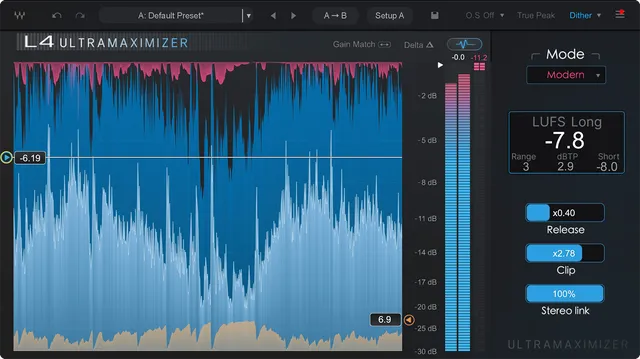
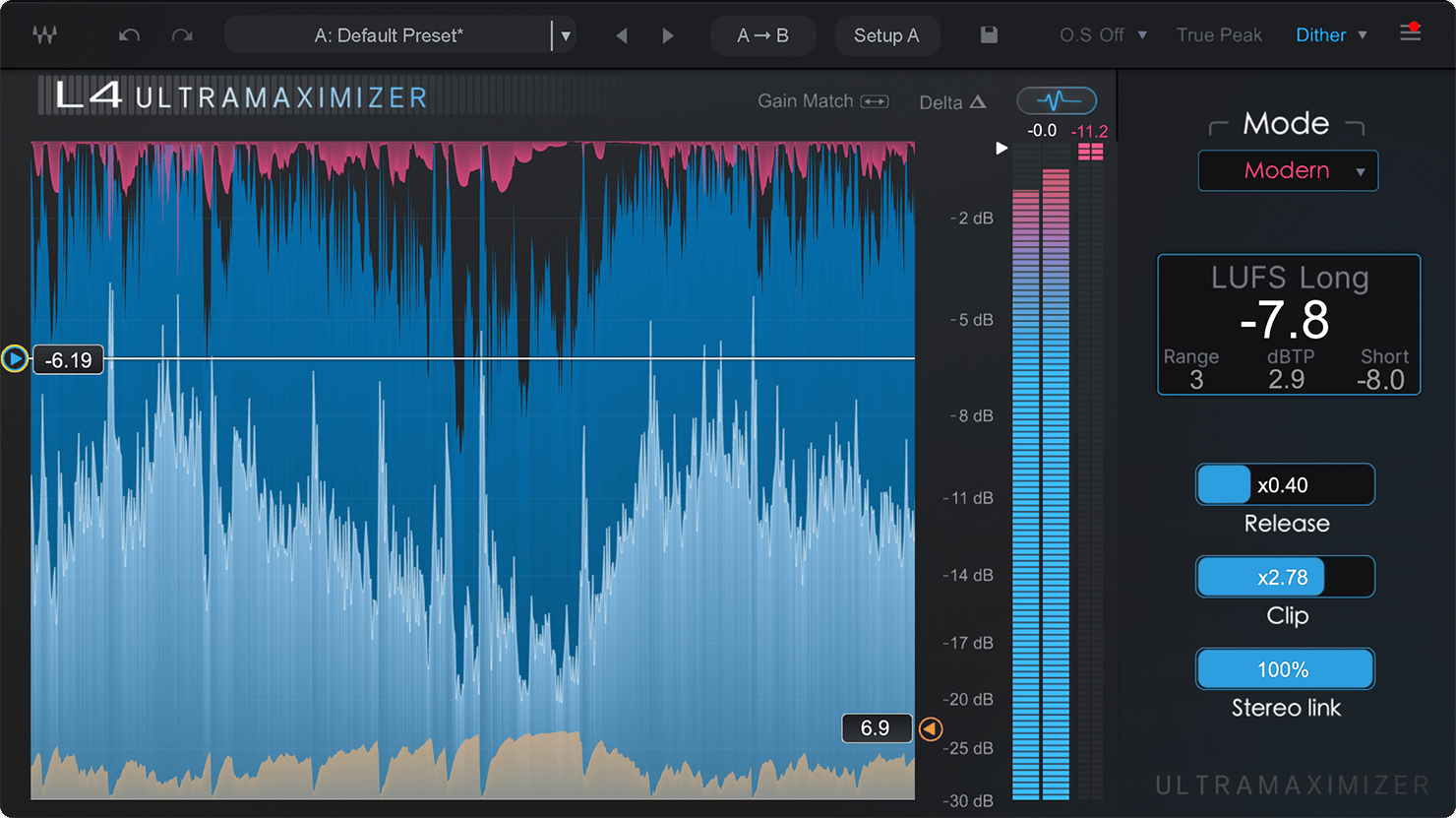
The Graphic Display switches the interface into analyzer view. In that view, Threshold, Ceiling and Upward controls use logarithmic scaling for finer adjustment near 0 dBFS. [1]
The documented color index is: [1]
- Red — attenuation;
- Blue — outgoing/output signal;
- Cyan — incoming/input signal;
- Yellow — upward compression. [1]
The graph is an interface visualization, not a substitute for listening or the numeric loudness panel.
The Main View also shows an Atten readout and a preset/setup toolbar. The manual labels these items but does not separately document the readout’s range, default or behavior, or explain those toolbar items. No product-specific behavior is inferred from the artwork here. [1]
A practical L4 workflow
Set Ceiling first according to the actual delivery/technical target, then lower Threshold until you get the desired amount of limiting. Choose a Mode and keep Release and Clip near their neutral x1 values while you learn what that mode is doing. [1]
Add Upward Compression only if quieter sections need help. If stereo movement becomes distracting, raise Stereo Link; if channel independence is more useful and the stereo image remains stable, lower it cautiously. [1]
Choose Oversampling and True Peak based on final-quality needs and CPU. Check the Loudness Meter for Integrated/Short-Term LUFS, dBTP and LRA rather than evaluating level from the waveform alone. Use Gain Match and Delta to inspect what the limiter is changing. [1]
Apply dithering/quantization only when the export stage calls for it. Avoid stacking multiple unnecessary dither stages.
This workflow is documentation-led. No master was rendered, measured or compared for this article.
Best for / skip if
L4 is best for modern final-bus/mastering workflows where you want adaptive limiting plus controllable clipping/release, upward compression, true-peak protection and integrated loudness feedback in one processor. [1][2]
Skip it when all you need is a basic transparent ceiling limiter with minimal controls, or when a dedicated loudness meter/true-peak limiter in an established delivery chain already does the exact job. More features are not automatically better for every session.
Limitations and evidence boundary
This article is documentation-led. I did not audition the five modes, measure true-peak overs, compare L4 to L2, benchmark CPU at different oversampling settings, validate EBU/ITU meter calibration independently, or render dither tests.
The current manual fully documents the user-facing controls listed here and the relevant interface/display pages were visually inspected. Defaults are stated only where the manual publishes them; no undocumented default is inferred from a screenshot. [1]
Related guides
The L2 Ultramaximizer guide is a useful reference for the older limiter whose response L4’s L2 Legacy mode emulates. For dedicated loudness metering, see the WLM Plus guide.
Bottom line
L4 combines adaptive peak limiting with user guidance over the tradeoff among loudness, release behavior, clipping and low-level dynamics. Threshold/Ceiling set the basic limiter relationship; Mode, Release and Clip shape the adaptive engine; Upward Compression lifts quieter material; Stereo Link governs channel coupling; True Peak/Oversampling address inter-sample/processing accuracy; and the built-in meter/dither tools support final-delivery workflows. [1]
The safest way to use it is to decide the delivery target first, then use Gain Match, Delta and the loudness panel to judge what the added loudness is costing the source.
Sources
Checked October 16, 2026. No listening or native-host test was performed.
- Waves L4 Ultramaximizer User Guide, current product-linked manual; complete controls parsed and Main View, Graphic Display, oversampling/True Peak, dithering and loudness/control pages visually inspected.
- Waves L4 Ultramaximizer product page, current product identity and positioning.
- Waves Graphic Library, current L4 listing and image-reuse rule requiring a relevant Waves product backlink.
FAQ
What does Waves L4 Ultramaximizer do?
L4 is an adaptive limiter/mastering processor with Threshold/Ceiling limiting, upward compression, five processing modes, user scaling of release and clipping, stereo linking, oversampling, True Peak, dithering and built-in loudness metering. [1]
How is L4 different from L2?
The current L4 manual documents an adaptive engine with upward compression, selectable modes, Clip/Release scaling, oversampling, True Peak and integrated loudness tools. It also includes an L2 Legacy mode intended to emulate the original L2 response. This article does not make a measured sonic comparison. [1]
What do Release and Clip mean in L4?
They are multipliers on adaptive behaviors rather than fixed values. Release scales the internally determined release time from x0.10 to x10.00, while Clip scales how much adaptive clipping the engine may use from x0.10 to x10.00. Both default to x1.00. [1]
What does Upward Compression do?
It raises quieter material so low-level sections can gain presence without simply pushing the whole mix harder into the peak limiter. Its range is 0–10 with a default of 0. [1]
Should I enable True Peak and maximum oversampling all the time?
Not necessarily. True Peak is for inter-sample peak protection, and higher oversampling can improve accuracy/reduce aliasing but costs more CPU. Choose them according to delivery requirements and processing intensity. [1]
What does Gain Match do?
Gain Match disables Ceiling and removes output gain compensation so you can compare the limiting effect without the louder output bias. [1]
Does L4 include a loudness meter?
Yes. The built-in panel reports Integrated LUFS, Short-Term LUFS, True Peak in dBTP and Loudness Range (LRA), documented against EBU R128 and ITU-R BS.1770. [1]

About the Author
Joseph Nilo has been working professionally in all aspects of audio and video production for over twenty years. His day-to-day work finds him working as a video editor, 2D and 3D motion graphics designer, voiceover artist and audio engineer, and colorist for corporate projects and feature films.