
Waves Maserati GRP is a group and stem processor that combines EQ and compression behind a small set of controls. It offers seven group types for live drums, programmed drums, guitars, strings, keys, background vocals and the master. You choose a type, set the input Sensitivity, then work with Low, Mid and High EQ, compression amount and output level.
Its appeal is the combined approach. A stack of backing vocals or several drum tracks can be treated as one group without building a separate EQ and compressor chain from scratch. The tradeoff is that GRP does not expose the detailed settings of those processors: you cannot dial in a particular compressor ratio or choose an exact EQ frequency from its documented controls.
This guide draws on Waves' product page, linked manual and official interface artwork. I have not auditioned or measured the plugin, and the artwork does not establish a currently installed build.
My Short Version
Start with the group you already have. If the individual tracks are badly balanced, fix that balance before asking one processor to shape the whole blend. That is practical mixing advice, rather than a feature that GRP provides automatically.
Select the TYPE closest to your source. Play a passage containing the group's highest peaks, then adjust SENSITIVITY. Waves' guide targets a yellow Sensitivity LED; green means good, yellow optimal and red very hot. The guide supplies no level thresholds for those colors.
Use COMPRESS for compression amount and LOWS, MIDS and HIGHS for broad tonal adjustments. Change one control at a time so you can tell which adjustment helps. Then use OUTPUT to make a fair comparison with the unprocessed group. Sensitivity, compression and output level have different jobs; a louder result is not by itself a better balance.
The manual gives numerical control ranges but does not name their units or defaults. Treat them as GRP control scales, not dB, percentages or recipes that translate directly to another EQ or compressor.
What Maserati GRP is designed to do
The official Maserati GRP page describes processing for group channels, including background vocals, drums, layered guitars, strings, loops and stems. Its EQ and compression settings are curated around those uses. Waves also explicitly describes MASTER mode as suitable for full mixes and stems.
In the manual, Tony Maserati describes the design as a finishing touch of EQ and relatively subtle group compression. That explains the intended role; it does not mean every setting will sound subtle on every source. Your arrangement, input level, selected type and control positions still matter.
GRP makes sense when you want to shape several sounds together. For example, a background-vocal group lets one set of tonal adjustments affect the assembled harmony. A drum group lets you assess compression against the kit's overall balance. These are workflow examples, not results from a listening test.
Mono and stereo components
The guide lists Maserati GRP Mono, with mono input and output, and Maserati GRP Stereo, with stereo input and output. Choose the component that matches your track and routing.
The seven group types are choices inside the processor, not seven channel components. The manual does not document a mono-to-stereo component, separate left/right controls or a stereo-link adjustment. It also does not give different control ranges for the mono and stereo versions.
TYPE: the seven group settings
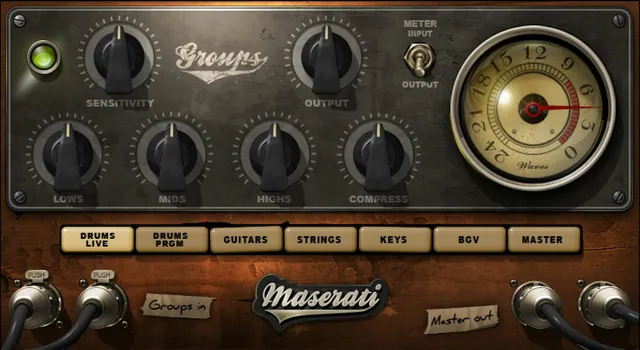
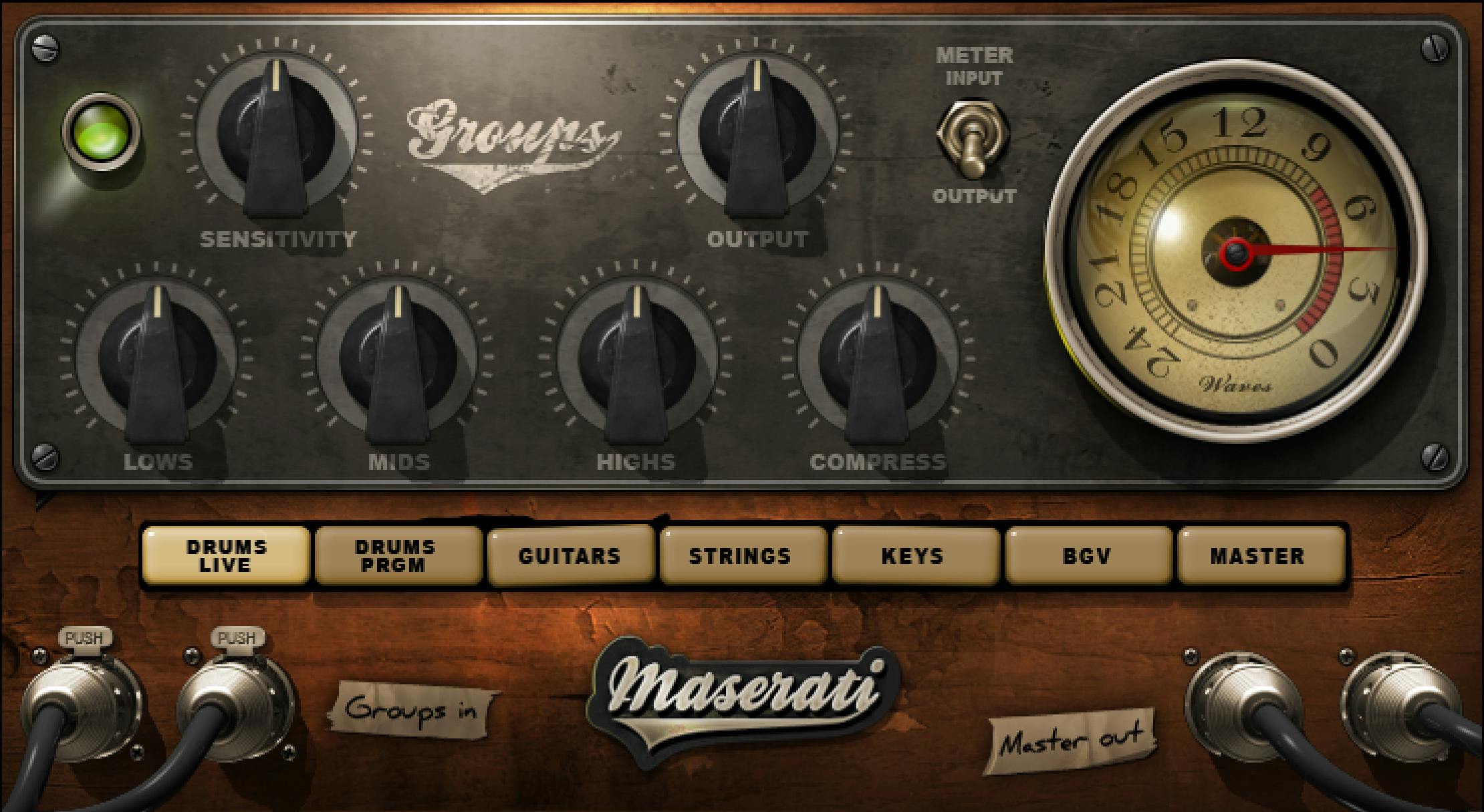
TYPE selects the group setting. It appears as seven buttons along the bottom of the processing panel:
- DRUMS LIVE: the live-drums setting.
- DRUMS PRGM: the programmed-drums setting; PRGM means programmed.
- GUITARS: the guitar-group setting.
- STRINGS: the strings-group setting.
- KEYS: the keyboards-group setting.
- BGV: the background-vocals setting.
- MASTER: the master setting, which the current product page describes for full mixes and stems.
The labels give you a sensible starting choice. If you compare other types, judge them against the actual group rather than treating the names as genre rules. For a group combining several kinds of instrument, the manual does not prescribe a required choice.
Waves does not publish the precise EQ curves, compressor ratios, thresholds, attack/release times or other internal algorithms for each type in these sources. Do not read GUITARS as a known frequency curve or DRUMS LIVE as a specified attack time. No additional control, changed control label or disabled control is documented for an individual type. A default type is not stated.
SENSITIVITY: set the input level
SENSITIVITY controls input level. Its documented range is -50 to +50, in 0.1 steps. The manual does not specify a unit or default value.
Waves recommends setting it while playing the part of the track with the highest peaks. Its quickstart order is to select the group type, adjust Sensitivity until the LED gives the intended level indication, then shape the sound with the other controls.
That order helps keep the jobs separate. Sensitivity sets the level entering the processing; OUTPUT sets the level leaving it. COMPRESS is the documented compression-amount control. Sensitivity is not labeled as a compressor threshold, and the guide does not provide a formula relating its value to compression behavior.
The Sensitivity LED
The adjacent SENSITIVITY LED is a status indicator:
- Off: the input is too low.
- Green: good.
- Yellow: optimal.
- Red: very hot.
Those are the guide's categories. Yellow is its setup target, but no dB boundary is supplied for any color. Red is not documented as proof of digital clipping, and yellow is not a guarantee that every later stage in the DAW has enough headroom. Check your host's meters as well.
COMPRESS: adjust dynamics processing
COMPRESS controls the amount of dynamics processing. Turning it clockwise increases compression. Its documented range is 0 to 100, in 0.1 steps; the manual does not specify units or a default.
Try a small change while listening to the group in the full mix. On drums, pay attention to the relationship between the initial hits and the sustain. On backing vocals, consider whether the voices still sit together naturally. These are useful listening questions, not predictions about GRP's response.
There are no separately documented Threshold, Ratio, Attack, Release, Knee, Mix or sidechain controls. The manual also does not define a compressor-bypass switch or explicitly say that a Compress value of zero bypasses processing. Use your host's bypass for an unprocessed comparison instead of assuming the bottom of the control scale disables the entire plugin.
LOWS: low-frequency equalization
LOWS controls low-frequency EQ. Its documented range is -50 to +50, in 0.1 steps, with no stated unit or default.
For a group containing several instruments, assess a change against the rest of the arrangement. A tonal adjustment that makes a drum group seem fuller in isolation may affect its relationship with the bass when both play. Make the decision in context.
The manual does not specify the frequency, filter shape, bandwidth or Q behind LOWS, nor a different curve for each type. A control value of +10 cannot be described as a 10 dB boost from these sources.
MIDS: midrange equalization
MIDS controls midrange EQ. Its documented range is -50 to +50, in 0.1 steps. Units and the default are unspecified.
When several voices or guitars share a group, a midrange change affects the combined sound. Listen for whether useful detail remains clear in the mix, rather than trying to make every track sound more prominent at once.
There is no separately adjustable center frequency or Q in the documented panel. The source does not give a frequency map for this control. If you need to locate one narrow resonance, GRP's broad description is not enough to select an exact corrective frequency.
HIGHS: high-frequency equalization
HIGHS controls high-frequency EQ. Its range is -50 to +50, in 0.1 steps, again without a specified unit or default.
Check the whole group when changing it. On a background-vocal blend, for example, pay attention to consonants as well as the general brightness. On drums, include cymbal-heavy passages in the comparison. These are suggested checks, not an assertion that HIGHS performs de-essing or noise reduction.
Waves does not specify a shelf frequency, filter shape or Q for HIGHS in the linked guide. It also does not document an individual-type frequency response. Use the sound of your material to make the adjustment; the published scale cannot tell you the exact response curve.
OUTPUT: set the return level
OUTPUT controls the plugin's output level. The manual gives -50 to +50, in 0.1 steps, without specifying units or a default.
After adjusting tone and compression, use Output to bring the processed group to a useful comparison level. Matching perceived loudness is practical advice for evaluating a change; GRP is not documented as doing that matching automatically.
Do not use Output to stand in for input Sensitivity. Reducing the return level and changing the level entering the processor are separate operations. The manual does not document automatic gain compensation or an output limiter, so leave enough headroom for the next stage and check the DAW's own meters.
METER SWITCH and METER
The METER SWITCH, labeled INPUT and OUTPUT on the panel, selects which level the meter displays. It changes monitoring, not the audio route. Use INPUT when checking the incoming group, then OUTPUT when checking the return.
The METER is a read-only display of the selected input or output. It is not documented as a gain-reduction meter. A change in its reading does not by itself tell you how much compression is taking place.
The guide supplies no meter calibration, reference level, response-time specification or default switch position. It does not describe peak hold, a peak-reset action or a clip-reset control. The markings on the illustrated dial should not be assigned undisclosed units.
WaveSystem toolbar
The manual describes the bar above the processor as the place to save and load presets, compare settings, undo or redo steps, and resize the plugin. The upper-right icon opens the WaveSystem Guide. These are shared plugin-window utilities, separate from GRP's EQ, compression and level controls.
The guide's interface diagram shows the toolbar, but the official product artwork omits it. Neither a pictured preset name nor a pictured knob position establishes a factory default. The GRP guide does not specify shortcuts, detailed menu options or ranges for these toolbar actions.
A practical group-processing workflow
The guide's starting sequence is TYPE, Sensitivity, then the remaining sound-shaping controls. The following expands that into a conservative working approach; the comparison and listening steps are practical suggestions.
- Prepare the group. Check the balance of its member tracks, and choose the mono or stereo component to match its routing. Include a passage where the whole group plays.
- Choose TYPE. Begin with the label closest to the source. Use MASTER as an available choice for a full mix or stem; Waves does not document it as a protective limiter or a finished mastering chain.
- Set Sensitivity on the peaks. Play the highest-peak passage and aim for the guide's yellow LED indication. Recheck after a substantial change to the balance feeding the group.
- Adjust Compress. Move it gradually, then listen in the mix. If you need to change a specific attack time or ratio to get the behavior you want, use a tool that exposes those controls.
- Shape the tonal balance. Work with LOWS, MIDS and HIGHS one at a time. Check passages that reveal the consequences of the change, including dense sections and exposed entrances.
- Set Output and compare. Bring the processed level to a useful match with the unprocessed group. Use the meter switch to inspect input and output separately, and check the host meters after the insert.
- Keep only the useful change. Compare in context using the host bypass or an appropriate settings comparison. A group that already works may need little processing. No amount of adjustment is required simply because GRP is inserted.
Best for, and when to choose something else
GRP is a sensible candidate when you want a small control set for combined group EQ and compression. Its type selector and broad controls suit a workflow where you assess the assembled sound and make a few adjustments together.
Choose another tool when you need an exact EQ frequency, an adjustable Q, independently timed compression, a specified ratio, or a gain-reduction display. Those controls and readouts are not supplied by GRP's documented panel. MASTER mode does not establish loudness-targeting, true-peak limiting or automatic level matching.
For a separate compressor with a more explicit control set, see the Waves Renaissance Compressor guide. For frequency-selective work, consult the official Waves F6 page rather than treating GRP's three broad EQ controls as a surgical EQ.
The Waves Audio Post Resources hub connects the wider workflow guides. Questions about how to obtain or maintain a license belong in the separate Waves subscription versus perpetual guide.
Sources and documentation limits
Primary sources checked October 18, 2026.
- Waves Maserati GRP product page: product purpose, group/stem applications, MASTER use and linked User Guide.
- Maserati GRP User Guide, all nine pages: purpose (pp. 3-4), mono/stereo components (p. 4), quickstart (p. 5), interface (p. 6), control definitions and ranges (pp. 7-9), and shared toolbar (p. 9).
- Waves Graphic Library and its original Maserati GRP artwork: official processing-panel reference and image-use condition requiring a link to the relevant Waves product page.

The current product page links an older guide whose PDF metadata records a 2021 modification. Its complete control descriptions remain the basis of this explanation. Neither the guide nor the artwork identifies an installed version. They leave numeric units, defaults and the detailed algorithms behind each TYPE unspecified; those details have not been filled in from appearance or assumption.
FAQ
What does Waves Maserati GRP do?
Maserati GRP combines group-oriented EQ and compression with input Sensitivity and output-level controls. Waves describes it for sources such as drums, background vocals, guitars, strings, loops and stems.
What are the seven Maserati GRP types?
The seven choices are DRUMS LIVE, DRUMS PRGM for programmed drums, GUITARS, STRINGS, KEYS, BGV for background vocals, and MASTER. They are group settings inside the plugin, not seven separate channel components.
How should I set the Sensitivity control?
The manual recommends using the passage with the highest peaks and adjusting Sensitivity toward a yellow LED indication. It describes off as too low, green as good, yellow as optimal and red as very hot, without supplying numerical level thresholds.
Are the EQ and level-control values measured in dB?
The linked guide does not specify their units. It gives Sensitivity, Lows, Mids, Highs and Output ranges of -50 to +50 in 0.1 steps, so those values should not be relabeled as dB. Defaults are also unspecified.
Does Maserati GRP have ratio, attack and release controls?
No separate ratio, attack or release controls are documented. Compress ranges from 0 to 100 in 0.1 steps, and clockwise movement increases compression; the guide does not publish the internal timing or ratio for each type, specify percent units, or define zero as a bypass.
Can the Maserati GRP meter show gain reduction?
The documented meter shows input or output level according to the Meter Switch. The guide does not describe a gain-reduction mode, meter calibration, peak hold or reset action.
Can I use MASTER on a full mix?
Yes. The current product page describes MASTER for full mixes and stems. That does not establish an output limiter, automatic loudness matching or loudness-targeting features, so check the output and the rest of the signal path separately.
Does Maserati GRP have mono and stereo components?
Yes. The manual lists a mono-input/mono-output component and a stereo-input/stereo-output component. It does not document a mono-to-stereo component or different control ranges for the two versions.

About the Author
Joseph Nilo has been working professionally in all aspects of audio and video production for over twenty years. His day-to-day work finds him working as a video editor, 2D and 3D motion graphics designer, voiceover artist and audio engineer, and colorist for corporate projects and feature films.