
Waves MaxxVolume combines low-level compression, gating, leveling and high-level compression in one dynamics processor. These are four separately switchable functions, not four names for the same threshold control.
The useful distinction is what you want to change: quiet passages, the noise between passages, longer-term level, or louder peaks. This guide follows Waves' complete six-page manual. I have not run, auditioned or measured the plug-in.
My Short Version
Start with the job, not the number of faders. Low-level compression raises quieter material. The Gate applies downward expansion below its threshold. The Leveler works on longer-term level, while high-level compression reduces dynamic range above its threshold and adds automatic makeup gain.
Those jobs can pull in different directions. Raising quiet detail can also make unwanted room sound more prominent; deciding whether that is helpful requires listening to your own source. That is practical guidance, not an observation from a MaxxVolume test here.
The Energy Meter is not the output meter. Waves places its reading after the Leveler and before the other dynamics functions. Check the separate Output Meter when assessing the signal leaving the plug-in.
The manual supplies ranges but no numerical startup defaults. Pictured fader positions are not a substitute for that missing information, and the high-level Gain description should not be turned into an untested true-peak or clipping-safety guarantee.
Which component and which job?
The guide documents Mono and Stereo configurations. It does not establish a separate Mid/Side component or an independent left/right control scheme.
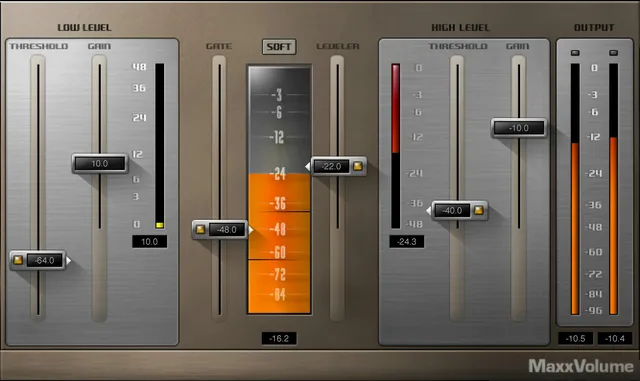
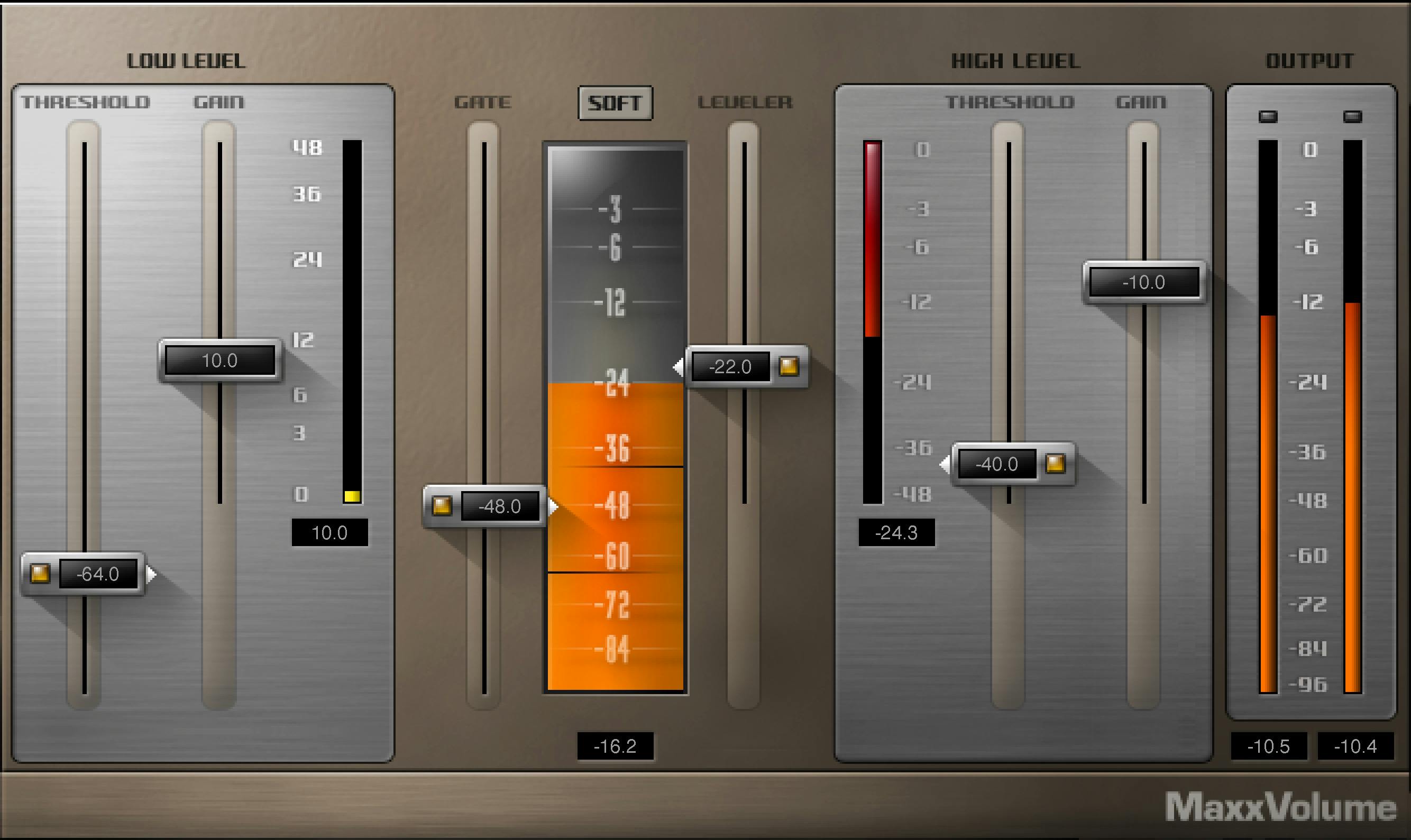
The interface groups low-level functions to the left of the central Energy Meter and high-level functions to the right. That visual organization helps you find controls; it is not a complete internal routing diagram.
Each of the four functions has an On/Off button on its corresponding fader. Use those switches to isolate a function while making decisions. The source does not document a common numerical reset state for every switch and fader.
Choose it for: working through several level-management tasks in one compact interface. Choose a different tool when: you need separately adjustable attack, ratio, knee and release parameters, or a calibrated loudness/true-peak measurement system. Those controls and measurements are not supplied by this guide.
Low-level Threshold and Gain
Low Level Threshold sets where the upward, soft-knee compression begins. The documented range runs from 0 down to −96 dB. Its position appears as a hairline on the Energy Meter, and its fader includes the low-level compressor's On/Off switch.
The important word is below: the function acts on quieter material beneath its threshold. It is different from the high-level compressor, whose threshold addresses louder material.
Low Level Gain controls the maximum makeup gain and compression applied below that threshold. Its range is 0 to +48 dB. The manual does not provide a separate ratio, knee-width or attack control.
Treat Threshold and Gain as different decisions. Threshold defines the level region the processor addresses; Gain limits the amount of upward gain/compression. They are not two interchangeable output-volume controls.
Waves explicitly warns that low-level gain settings can produce levels above 0 dB or clipping. Do not interpret the quiet-source function as automatically safe simply because it works below a threshold.
The adjacent Low Level Gain Meter reports low-level makeup gain over 0 to +48 dB. That reading is gain being applied, not the signal's final output level.
Gate: downward expansion rather than upward detail
Gate sets the threshold below which downward expansion applies. Its documented range is 0 down to −96 dB, with its own On/Off button.
Waves describes a gentle expansion function. The guide does not give a user-adjustable expansion ratio, hard-mute floor, hold interval or attack/release pair. Do not invent those settings or assume that the word Gate means complete silence below threshold.
A useful editorial approach is to evaluate the Gate with low-level compression disabled first. Otherwise, a change in the quieter material can be harder to attribute to one function. This is a suggested decision process, not a measured claim about the precise interaction order.
Leveler: one fader sets threshold and target
Leveler sets both the threshold above which leveling occurs and the level toward which that material is brought. Its range is 0 down to −48 dB, with a separate On/Off button.
There is not a second target-level control documented here. Moving the fader changes the combined threshold/target function.
Waves describes leveling as gain riding with long attack and release behavior, aimed at broader passages rather than individual transient peaks. That explains its intended role; the guide does not give numerical time constants or a guaranteed final level.
The guide suggests using the high-level compressor to compensate for level reduction caused by the Leveler. That suggestion should not be mistaken for a requirement to enable all four processors at once.
For longer sections that feel uneven, consider whether the Leveler is the relevant function before adjusting the two compressor sections. For isolated peaks, its documented long-term behavior is a reason to consider the high-level section instead.
High-level compression, makeup and Gain
High Level Threshold determines the potential amount of dynamic-range compression. It spans 0 down to −48 dB and has the high-level compressor's On/Off button.
As the threshold is lowered, Waves says automatic makeup gain accompanies the resulting attenuation. That means a threshold move is not necessarily a simple quieter-is-more-compressed comparison.
Its position is also shown by a hairline on the Energy Meter. The separate Gain Reduction Meter, spanning 0 down to −48 dB, shows attenuation from the high-level compressor.
High Level Gain is described as controlling the maximum output level, with a range of 0 down to −48 dB. This is not the same job or range as the low-level Gain fader.
The source does not specify an independently adjustable output limiter, a true-peak ceiling, intersample protection or a complete detector specification. Preserve the documented maximum-output description without adding those guarantees.
Waves compares this compressor function with Renaissance Vox. That is a product relationship, not proof that the two products have identical controls, presets or internal behavior. The official Renaissance Vox product page identifies that separate product.
Loud/Soft changes ARC release behavior
Loud/Soft selects between two ARC release behaviors. Waves describes Loud as shorter and more aggressive, and Soft as longer.
The guide associates those choices with louder and softer output character respectively. That is manufacturer guidance, not a loudness result measured for this article.
No numerical release time or startup selection is stated. Do not substitute a particular millisecond value, claim that Loud is a bypass, or describe Soft as a separate ratio setting.
For a practical comparison, hold other controls steady while evaluating the two choices on your own material. If the output level changes, account for that when judging the result; a louder presentation alone does not establish a better setting.
Energy, output and the toolbar
The Energy Meter displays level after Leveler processing and before the other dynamics functions. Its stated range is 0 down to −96 dB.
The Output Meter displays output level over 0 down to −96 dB, including peak and clip indication. The guide identifies clipping as a signal exceeding 0 dB; it does not document a meter reset gesture or calibration procedure.
Read the three other indications according to their jobs: the low-level makeup meter shows added gain, the high-level reduction meter shows attenuation, and the Energy Meter's hairlines indicate threshold positions. None is documented here as an integrated-LUFS meter.
The WaveSystem toolbar saves and loads presets, compares settings, supports undo/redo and resizes the plug-in. Its upper-right icon opens the WaveSystem Guide. The MaxxVolume manual does not describe a global reset operation or numerical factory preset table.
Related guides and a restrained starting point
For another compact control map, see MV2 explained. For a different compressor's controls, see Renaissance Compressor explained. These are alternatives to investigate, not equivalent processing paths or tested rankings.
The Waves audio-post hub can help you choose a guide by task. If you are comparing ways to obtain Waves products, use the separate subscription versus perpetual licensing guide; this control guide makes no current price or entitlement claim.
My suggested sequence is simple: identify the level problem, enable only the relevant function, and then decide whether another function is necessary. Keep checking the separate output indication rather than relying only on the center meter. That sequence is editorial workflow advice, not a test performed here.
Sources and documentation limits
Checked October 19, 2026. The official MaxxVolume product page links the complete six-page MaxxVolume User Guide. Pages3–4 explain the four functions; pages5–6 define the controls, meter placement and toolbar.
The guide supplies the ranges reproduced here but not numerical startup defaults, detector time constants, an exhaustive processing diagram or a loudness-calibration specification. Its older publication metadata is not current installed-version proof.
The Waves Graphic Library supplies authentic interface imagery under attribution and product-backlink terms. Static artwork illustrates controls; it does not prove default settings, a live instance, or measured performance. No plug-in, host, render or listening test was performed for this guide.
FAQ
What does Waves MaxxVolume do?
MaxxVolume combines four separately enabled dynamics functions: low-level compression, gating, leveling and high-level compression. The manual documents Mono and Stereo configurations. The four sections address different level-management jobs and do not need to be treated as interchangeable threshold controls.
How is low-level compression different from high-level compression?
The low-level function applies upward compression below its threshold, with a separate maximum-gain control. The high-level function addresses louder material above its threshold and applies automatic makeup gain. Each has its own switch, and their Gain controls have different documented roles and ranges.
Does MaxxVolume's Gate completely mute quiet audio?
The guide describes its Gate as gentle downward expansion below the selected threshold. It does not specify a hard-mute floor, user-adjustable expansion ratio or hold interval. Complete silence below threshold should not be assumed from the Gate label alone.
Can I set a separate target level for MaxxVolume's Leveler?
The documented Leveler fader sets both the threshold above which leveling occurs and the target toward which it works. No separate target fader is described. Its range is zero down to minus 48 dB; the source does not specify numerical attack and release times or a guaranteed final level.
Why is the Energy Meter different from the Output Meter?
Waves places the Energy Meter after Leveler processing and before the other dynamics functions. The Output Meter instead represents the signal leaving the plug-in. Low-level makeup gain and high-level gain reduction also have their own meters, so these readings should not be interpreted as the same measurement.
What does the Loud/Soft switch change?
It selects between two ARC release behaviors. The guide describes Loud as shorter and more aggressive and Soft as longer, but gives no numerical time constants or startup selection. These are manufacturer descriptions, not loudness measurements or listening results from this article.
Does MaxxVolume guarantee that the output cannot clip?
No such guarantee is established by these sources. The manual warns that low-level gain can cause a signal to exceed zero dB or clip. It describes High Level Gain as a maximum-output control but does not document true-peak protection, intersample safety or an independently adjustable output limiter.
What are MaxxVolume's default settings?
The six-page guide does not provide numerical startup defaults or a complete factory preset table. Static interface positions should not be substituted for that missing information. The documented toolbar can load presets, but a particular preset or pictured state is not proof of a universal default.

About the Author
Joseph Nilo has been working professionally in all aspects of audio and video production for over twenty years. His day-to-day work finds him working as a video editor, 2D and 3D motion graphics designer, voiceover artist and audio engineer, and colorist for corporate projects and feature films.