
Waves NS1 is an adaptive noise-suppression plugin with one main fader. Move the fader upward to increase suppression; the attenuation meter shows how much overall signal energy the processor removes. Its compact design leaves the internal analysis to the plugin rather than exposing a manual noise-profile workflow. [1][2]
The amount of reduction is still your decision. Quieter background noise is useful only when the wanted voice remains usable.
This article explains the published interface and a cautious evaluation method. It does not report a new NS1 listening test.
About the imagery: the cover is an AI-generated editorial illustration. The plugin interface is official Waves product artwork, not a capture of a listening test.
My Short Version
NS1 is a straightforward candidate when you need to reduce background noise without working through a large restoration interface.
Raise its fader gradually, compare with bypass, and listen during speech as well as in the pauses. Stop increasing the treatment when the words start sounding worse.
If you need dedicated room-reverb treatment, precise local repair or a complete restoration toolset, one suppression control is not the same thing.
What NS1 is for
Waves describes NS1 as an automatic, adaptive suppressor for dialogue and other recorded material. It follows the input rather than asking you to capture and manage a separate noise profile. The supplied components are Mono and Stereo. [1, pp.3–4][2]
That can make it convenient to evaluate on an interview, voiceover or other track with unwanted background sound. Convenience does not guarantee that a particular source can be repaired without compromise.
Before applying it to an entire edit, compare a representative phrase, a quiet ending and a pause. The same treatment should not be judged only on the easiest silent section.
The complete interface
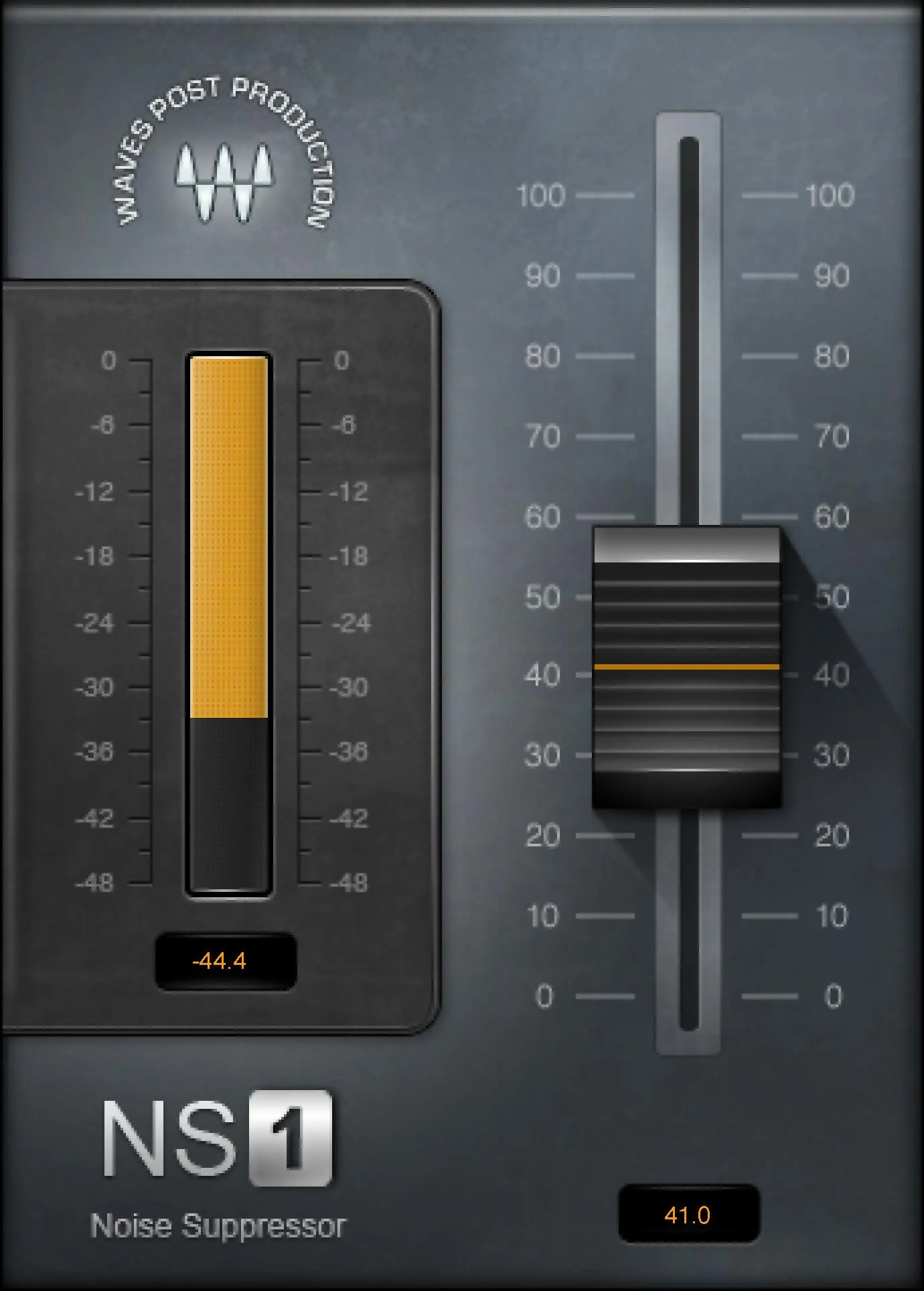
The documented processing interface contains the suppression fader, its numerical value, and an attenuation meter with a numerical reading. The toolbar handles presets and window functions separately. [1, p.6]
That is the complete published control scheme—not a shortened selection from a hidden set of advanced noise parameters.
Every control and readout
Suppression fader
The fader sets the amount of noise suppression. Moving it upward increases the treatment. The manual's interface image shows a 0–100 control scale, but its text does not define that scale as a dB threshold or promise a particular amount of noise reduction at each number. [1, pp.5–6]
A setting of 40 is therefore not a claim that 40 dB of noise has been removed.
Use the lowest useful treatment for the recording. Increase it while listening to the whole phrase, then compare the beginning and ending of words. The official Waves workflow example also recommends increasing the amount cautiously rather than treating maximum suppression as a default. [3]
The manual does not specify a universal starting value, a numerical factory default, or an exact smallest control increment. Those details should not be inferred from the sample setting in its screenshot.
Fader value display
The number beneath the fader identifies its current setting. The screenshot's example value is not a prescribed voiceover setting. [1, p.6]
Record that number when comparing versions so you can return to the same choice. It tells you what you selected, not what the audio sounds like or how much useful speech remains.
General Waves control conventions include value-box editing where supported, but the NS1 manual does not document a unique text-entry or reset behavior for this particular readout. [4]
Attenuation meter
The manual defines this as the amount of overall input energy removed. Its illustrated scale runs downward from 0 to -48. [1, p.6]
This is an activity reading, not a meter that separates unwanted noise from wanted speech. A larger reduction can include material you would have preferred to keep.
Watch the display while listening, but do not use it as a target. There is no useful rule that every voice must show the same number of decibels of reduction.
Numerical attenuation readout
The number beneath the meter is part of its attenuation display. The manual does not establish a held-maximum/reset contract for it. Do not assume that clicking it clears a peak simply because another Waves plugin behaves that way. [1, p.6]
It is also not a loudness reading. NS1 does not provide integrated LUFS, true peak or a measured speech-to-noise ratio in this interface.
Controls NS1 does not expose
There are no documented NS1 Attack, Release, Ratio, Learn, noise-profile or frequency-band controls. The main fader changes the suppression amount; it does not select among separately named Clarity neural networks. [1]
This distinction matters when following tutorials for another processor. A noise-profile instruction from a different application does not become an NS1 feature because both tools reduce noise.
The Mono and Stereo components are chosen in the host's plugin menu. They do not require separate articles, and the manual does not document a user-adjustable stereo-analysis mode. [1, p.4]
Presets, A/B and window controls
NS1 uses Waves' shared toolbar. About identifies the plugin. Undo/Redo revisit recent changes. Previous/Next, the preset menu and Save handle settings. Setup A/B compares two setups, and Copy A/B duplicates one before you adjust the other. The menu also provides window sizing and help. [4]
A/B is not the same as bypass. Both setups can contain suppression, so use the host's bypass when comparing against no NS1 processing.
The newer Waves preset browser provides search and Factory/User/Favorite views, a favorite star, Copy/Paste, Reset to Default and Detach. Its appearance may differ from the older toolbar in the NS1 manual. These are shared preset functions, not added noise-suppression parameters. [5]
A preset cannot decide how important a quiet consonant is to your particular recording. Check the result rather than trusting the preset's name.
A careful first pass
Keep the original recording. Use a duplicate or a nondestructive effects chain so you can return to it.
Select a passage containing normal speech, a quiet word ending and some background sound. Begin with little treatment and increase the fader slowly. Listen to the noise during the words, not only between them.
Compare the treated version with bypass at a sensible playback level. Pay attention to intelligibility and whether the speaker still sounds natural enough for the project. A reduced background is not the only part of that judgment.
Then restore the rest of the processing chain. Compression and other later changes can alter the balance you judged in isolation. Recheck the actual export rather than assuming that the monitored timeline proves every output is correct.
These are proposed evaluation steps, not results measured for this guide. The robotic-sounding noise-reduction article gives a more detailed sequence for identifying the stage that introduces unwanted artifacts.
When to use another approach
An isolated click or interruption may call for a targeted edit instead of processing every sentence.
Room reflections are a different problem from a steady background. A dedicated dereverb tool addresses that category more directly; do not keep raising a suppressor just because the room remains audible.
If the source is acceptable in context and treatment damages quiet words, leaving NS1 bypassed is a valid decision. Buying another tool should follow a clear limitation, not a single unsuccessful preset attempt.
Related plugins
Clarity Vx uses a different voice-separation approach and exposes its own documented controls. This NS1 guide does not declare a winner or reuse the separate Clarity experiment as NS1 evidence.
Clarity Vx DeReverb addresses room-reverb reduction rather than serving as another label for noise suppression.
Z-Noise is another noise-reduction product to investigate when a more detailed interface is relevant. Consult its own guide instead of assuming its controls match NS1.
For a broader decision, use Best Waves Plugins for Voiceover and Dialogue and the Waves resource hub. The subscription-versus-perpetual guide covers licensing, not an obligation to subscribe for one repair task.
Bottom line
NS1 gives you one suppression control, not one automatic definition of a good result. Set it from the recording, compare the actual words and keep the untreated version available.
The meter helps explain how active the processor is. Your decision still depends on what remains—not only on what disappears.
Sources
Checked September 19, 2026. No fresh listening test or product ranking.
- Waves NS1 User Guide, pp.3–6, including the interface diagram.
- Waves NS1 product page.
- Waves: cleaning up noisy audio in videos, practical use example rather than independent benchmark.
- WaveSystem guide.
- Current Waves preset instructions.
- Waves Graphic Library.
Frequently Asked Questions
What does the fader in Waves NS1 control?
The fader sets the amount of noise suppression. Moving it upward increases the suppression applied to the signal.
What does the NS1 attenuation meter show?
It shows the amount of overall input energy being removed. It is not documented as a noise-only meter, so the reading does not prove that only unwanted sound is being reduced.
Does Waves NS1 need a captured noise profile?
No separate noise-profile capture is documented. Waves describes NS1 as an automatic, adaptive processor that analyzes the incoming signal in real time.
Is the NS1 fader value a decibel reading?
The manual defines the control as the amount of noise suppression but does not assign a decibel unit to its value. Do not read a displayed fader number as the number of decibels removed.
Does NS1 have attack, release, or frequency-band controls?
The published NS1 processing interface documents one suppression fader and an attenuation meter, not separate attack, release, or band controls. Preset and window functions live in the shared WaveSystem toolbar rather than adding noise-processing parameters.
Does Waves NS1 come in mono and stereo versions?
Yes. The manual lists NS1 Mono and NS1 Stereo components, so you can choose the channel configuration that matches the track.

About the Author
Joseph Nilo has been working professionally in all aspects of audio and video production for over twenty years. His day-to-day work finds him working as a video editor, 2D and 3D motion graphics designer, voiceover artist and audio engineer, and colorist for corporate projects and feature films.