
Waves Nx Germano Studios New York is a headphone-monitoring plug-in that models listening in Germano Studio One. It provides speaker and room choices, personal head measurements, headphone EQ and optional head tracking. It is a monitoring reference, not an effect intended to become part of the delivered mix.
The manual specifically says to bypass it before bouncing the final mix. That instruction matters more than any description of the virtual room. This guide explains the complete linked manual; I have not tested the plug-in, a tracker, the room model or headphone translation.
My Short Version
Separate three things: the plug-in's monitoring sound, the head-tracking system, and your personal head measurements. They have different controls and different preset behavior.
Turning Head Tracking Off does not bypass Nx sound processing. The manual says the room processing remains active; the soundscape instead moves with you as you turn your head. Do not use that switch as the final-bounce bypass.
For stereo monitoring, the guide offers three speaker choices: GA2, NS-10M and EXIGY. Its surround example uses GA2 speakers without a monitor selector. A diagram labeled 5.1 is an example, not proof of an exhaustive present-day channel-format list.
Treat Headphone EQ, Ambience and the personal measurements as monitoring choices, not guarantees that a mix will translate. The manufacturer describes their intended effect; that is different from an independent listening or calibration result.
Monitoring placement and speaker choices
The quick start instructs placing one instance on the master bus, not on individual tracks. It also explicitly requires bypassing it before the final bounce. The troubleshooting section discusses the last summing bus and headphone routing; keep that monitoring path distinct from the audio you intend to deliver.
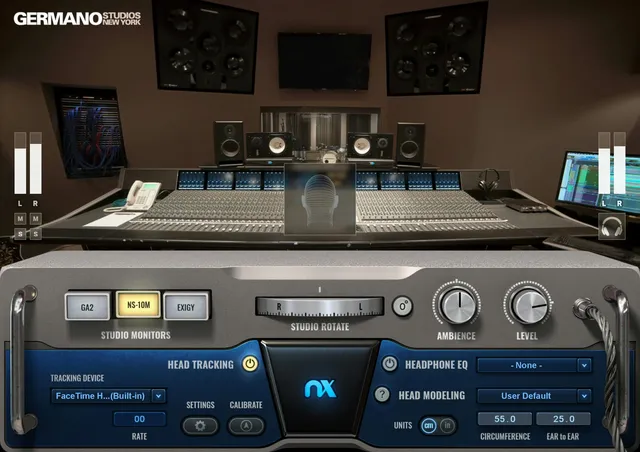
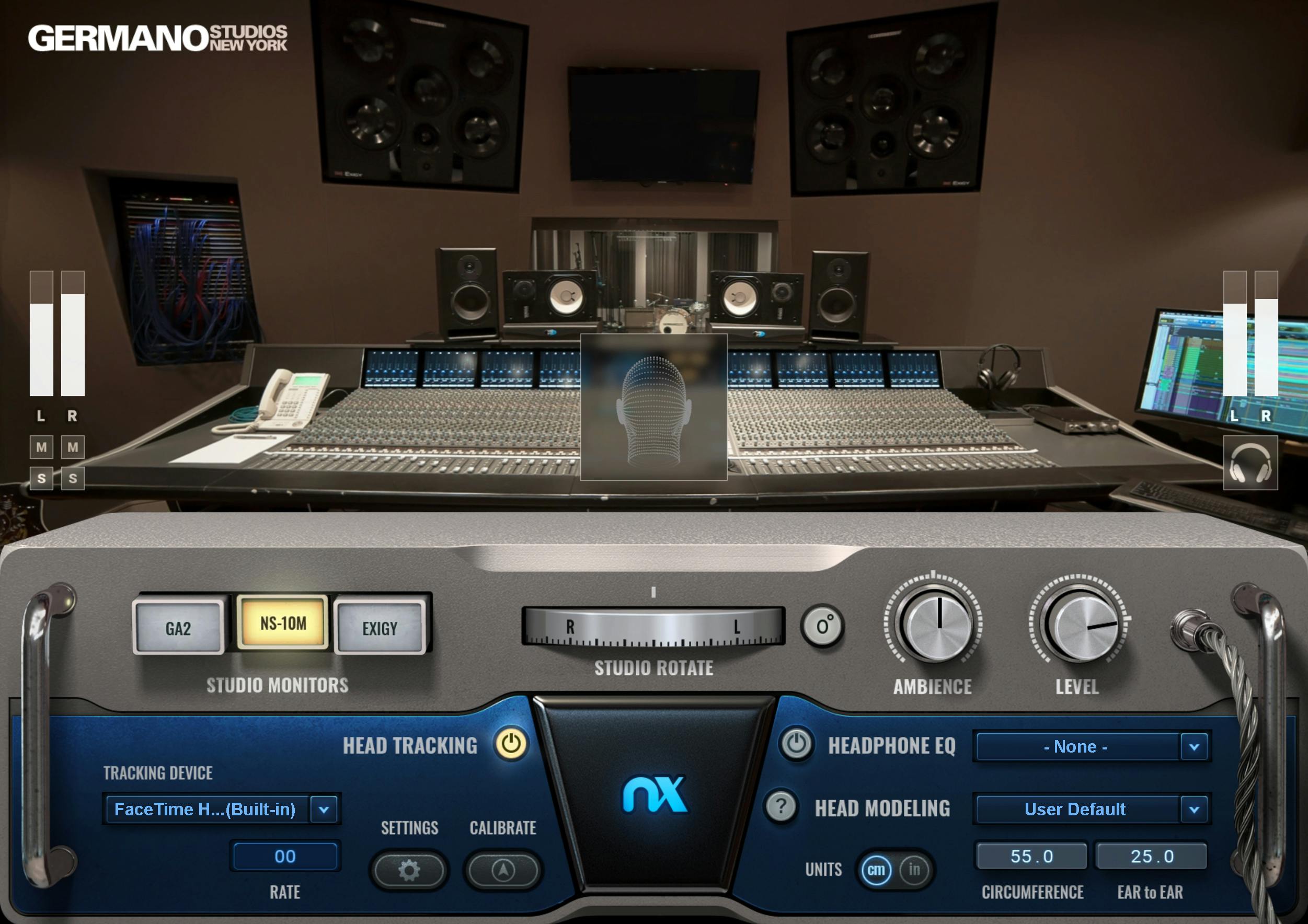
In the stereo component, Studio Monitors selects GA2, NS-10M or EXIGY. The guide identifies GA2 with the APS/Germano Acoustics AEON2 nearfield, NS-10M with that monitor variant, and EXIGY with the custom SGD/Troy Germano design.
Those names identify modeled listening references. They are not evidence that a listener's headphones or playback system have reproduced the physical loudspeakers accurately.
In the documented surround components, GA2 speakers serve front and surround positions and there is no speaker-selection control. The manual's illustration is explicitly labeled as a 5.1 surround example.
The captured product-page data contains internal component flags. Those flags have not been mapped here to a human-readable supported-format list. Neither that metadata nor the example illustration should be expanded into a guessed current channel-support claim.
Input channels, headphone Level and meters
Each input channel has Mute and Solo buttons under its meter. These let the reader distinguish the available channel controls from the output-level control; the guide does not define additional undocumented solo gestures or linking behavior.
The Input Meters span −infinity to 0 dBFS. Their clip indicators hold indefinitely until clicked to reset. The source does not provide a separate calibration procedure or an independently measured meter response.
The binaural headphone output has its own stereo output meter, also −infinity to 0 dBFS, with infinite-hold clip indicators. Level adjusts the headphone monitoring output from −24 to +6 dB, default 0 dB.
Waves warns that Nx can clip at its output, especially when the incoming signal is controlled by a limiter. Reducing monitoring output is the source's remedy. Do not assume an upstream limiter guarantees a safe level after the room-monitoring processing.
Rotate Studio and Ambience
Rotate Studio manually changes the room orientation around the listening position. The guide says to click 0° or Alt-click the wheel to reset its position. It does not specify numerical minimum and maximum rotation bounds.
This manual rotation is different from a tracking device reporting actual head movement. Both affect the monitoring orientation, but their controls are not interchangeable.
Ambience ranges from 60% to 160%, with 100% as the guide's default. Waves describes 100% as the amount of ambience in its captured impulse-response room model; moving away from it personalizes that modeled reference.
That statement concerns the source model, not a verified comparison with the real studio. More ambience is not automatically more accurate, and a personalized setting is not evidence of improved translation.
Head Tracking On/Off and tracking devices
With Head Tracking On, the guide describes a stationary virtual room while your listening orientation changes. With it Off, the soundscape follows your head in the manner described for ordinary stereo headphones.
The important qualification is explicit: the switch does not disable Nx sound processing. The wireframe head is gray when tracking is off, when the head is outside tracking range, or when camera lighting is insufficient.
The Tracking Device menu selects Camera, an Nx Head Tracker, or Sensor Fusion, which combines a selected camera and tracker. Those are tracking inputs, not alternative speaker models.
Settings brings forward the companion HeadTracker application's panel or reopens it. Calibrate defines the current forward-facing head position as the listening center. This is tracking-center calibration, not acoustic measurement of your headphones or room.
The Rate display reports frames per second. The guide's recommended ranges are 25–30 fps for Camera, 35–50 fps for Nx Head Tracker, and 45–80 fps for Sensor Fusion. Its “up to 80 fps” description is not a tested result or a guaranteed frame rate on a particular computer.
Sensor Fusion is documented for one listener at a time. For separate listeners using separate tracking devices, the guide describes multiple plug-in instances with independent headphone outputs; a simple headphone split does not provide independent tracking references.
Personal head measurements and their presets
Units switches between centimeters and inches. These values feed Waves' head model; they are not a loudness calibration or headphone-response measurement.
Circumference is measured around the head, including the back, ears and eyebrows. The documented range is 35–75 cm / 13.8–29.5 in, default 55 cm / 21.7 in.
Ear-to-Ear is measured around the back of the head on a plane parallel to the floor. Its range is 15–40 cm / 5.9–15.8 in, default 25 cm / 9.8 in. Values can be entered by adjusting the value boxes.
The guide recommends leaving the defaults when personal measurements have not been taken, rather than entering unrelated values. It does not establish an individual listener's improvement from measurement; no such comparison was performed here.
The arrow beside Units opens the Head Modeling menu. It saves and loads measurement presets only, and the ? Help button explains head modeling.
The guide says the factory measurement preset loads when the plug-in opens or is enabled, even if the host session includes measurement settings, unless a user default has been saved. It also supports user presets and a separate preset file for moving measurements to another host.
These are not whole-plug-in presets. The WaveSystem toolbar handles general plug-in settings and does not change Head Modeling settings. Keep the two preset systems distinct when documenting or moving a monitoring setup.
Headphone EQ: select a matching reference
The Headphone EQ menu selects a model-specific correction curve. Its On/Off control determines whether that curve applies.
The guide describes a library of more than 250 curves, but that is the manual's dated count, not a current catalog audit. Consult Waves' current headphone-EQ support information for the actual list rather than assuming that any named headphone is present.
If a matching model is not listed, the guide suggests leaving headphone correction off rather than substituting a different headphone. It also acknowledges that experienced listeners may prefer working without correction.
The chosen model is described as becoming the default curve for new instances across Nx plug-ins. Do not confuse that shared headphone selection with this product's separate personal-measurement presets or with a verified physical headphone calibration.
The companion application's Camera tab
The separate Nx HeadTracker application provides camera and Bluetooth tabs. The guide describes automatic opening/closing alongside the plug-in, but includes controls for changing that behavior. Closing the application stops tracking without disabling the plug-in's sound processing.
On the Camera Tracker tab, On/Off controls camera tracking, and Camera Select chooses among connected cameras. Reset Face Detection restarts face detection when the person or detected tracking state changes.
Low Light Mode is described for FaceTime HD cameras built into certain MacBook Pro models. That historical wording is not a promise of compatibility with every current Apple camera or computer.
The Frame Rate indicator shows the current camera tracking rate. Tracking Data reports the camera's head-position axes: yaw, pitch, roll, x, y and z. These are reported tracking values, not independent accuracy measurements.
The manual suggests adequate lighting, a camera distance of approximately 5–6 feet / 150–180 cm, and staying within about 30° left or right of center. These are vendor setup recommendations rather than a tested operating envelope for a particular camera.
Utility menu and Bluetooth controls
The utility icon opens a menu with interface sizes 75%, 100%, 125%, 150% and 200%, Apply as Default to All, plug-in/WaveSystem manuals and More Info. The checkmark beside 125% in the manual is a pictured state, not a documented universal default.
The menu also includes Disable Tracker App Auto-Launch and Disable Tracker App Auto-Shutdown. These labels describe choices in the documented interface; no computer settings were changed for this article.
The Bluetooth Tracker tab's Device List shows detected devices and statuses such as Connected, Disconnected, Connecting and Unavailable. The guide states that up to seven devices can be detected and connected simultaneously. That is not a claim that Sensor Fusion supports seven simultaneous listeners.
Connect selects or deselects a device connection. Refresh Device List clears and rescans the list. Open Bluetooth Settings is identified as a Windows-only troubleshooting control.
Rename changes the device's advertised name. The guide specifies 5–15 characters and describes a process that may take up to three minutes, followed by a restart/reconnection of up to twenty seconds. Those are source estimates, not timed results here.
Update opens the documented firmware-update process when an update is offered; Identify blinks the selected device's light; FW Version shows its firmware version. No firmware or account action was performed for this guide.
Automatic Connect defaults to On according to the manual. When unchecked, devices may still be detected and listed, but the user initiates connection using the list control. Waves suggests manual connection where several systems have nearby trackers.
Bluetooth Tracking Data covers yaw, pitch and roll, unlike the six listed camera axes. Do not transfer the camera's full axis list to the Bluetooth device.
Presets, troubleshooting and related guides
The WaveSystem toolbar saves/loads general presets, compares settings, supports undo/redo, resizes the plug-in and opens its guide. Personal head measurements and headphone model selection have the separate behaviors described above.
The manual's troubleshooting pages group checks by symptom: missing head movement, low tracking rate, lost connections, incorrect movement direction, weak externalization and communication problems. They discuss camera lighting/position, application state, headphone routing, tracker orientation, frame rate and buffer settings. Those are vendor diagnostic suggestions, not fixes validated on your machine.
My practical recommendation is to document the speaker choice, ambience, headphone curve and measurement preset separately before comparing monitoring setups. Confirm your actual delivery path excludes the monitoring effect. That is editorial guidance based on the control structure, not a demonstration conducted here.
For other audio-post decisions, use the Waves audio resources hub. The F6 guide concerns EQ applied to programme material, a different job from monitoring. The separate licensing guide addresses purchase-model questions without implying that this article verifies an entitlement.
Sources and explicit limits
Checked October 19, 2026. The official Nx Germano Studios New York page links the complete 21-page Nx Germano Studios User Guide. Its studio narrative, room-model descriptions, recommended tracking rates and correction claims remain manufacturer statements.
The manual's 5.1 example does not establish exhaustive current format support. Product-page internal flags are not treated as human-readable channel names. Headphone model availability and installed tracker/camera support require their own current checks.
Authentic artwork comes from the Waves Graphic Library, with attribution and a relevant product backlink. The image is not a running instance or proof of default settings. No camera, Bluetooth, acoustic, headphone, host, audio or listening test was performed here.
FAQ
Should Nx Germano Studios be included in my exported mix?
The manual presents it as a headphone-monitoring reference and explicitly says to bypass it before bouncing the final mix. It recommends a master-bus monitoring instance rather than individual-track instances. Turning Head Tracking Off is not the same as bypassing its sound processing.
What happens when I turn Head Tracking Off?
The guide says the soundscape moves with your head in the manner described for ordinary stereo headphones. Nx sound processing remains active. The always-active statement concerns sound processing, not a claim that head tracking continues when its switch is off.
Which studio speakers can I select?
The stereo component offers GA2, NS-10M and EXIGY. The documented surround components use GA2 speakers without a monitor selector. The guide illustrates a five-point-one surround example but does not establish that example as an exhaustive present-day supported-format list.
Is Sensor Fusion the same as using several head trackers?
No. Sensor Fusion combines a selected camera and Nx Head Tracker for one listener, with manufacturer-described rates up to eighty frames per second. Separate listener setups require separate tracking references and headphone outputs; a simple headphone split is not the independently tracked setup described by the guide.
Do Head Modeling presets save the whole plug-in?
No. The Head Modeling menu saves and loads personal measurement settings only. General plug-in presets are managed through the WaveSystem toolbar and do not change those measurements. The guide also distinguishes the factory measurement preset from a saved user default.
What should I do if my headphones are missing from the EQ list?
The guide suggests leaving Headphone EQ off rather than choosing an unrelated headphone model. Its more-than-two-hundred-and-fifty figure is a dated manual description, not a fresh catalog count. Check the current Waves support list for actual model availability; no correction or translation result was independently tested here.
Can Nx Germano Studios clip even if a limiter feeds it?
Yes. The manual specifically warns that the plug-in can introduce output clipping, especially when it receives a limiter-controlled signal. Its documented remedy is reducing headphone monitoring output. The separate Level control ranges from minus twenty-four to plus six dB, with zero as the stated default.
Does Calibrate measure my headphones or the room?
The tracking Calibrate button defines the current head position as the listening center. It is not an acoustic headphone or room measurement. Personal head dimensions, headphone EQ selection and the modeled room are separate parts of the monitoring system, and none was tested or calibrated for this article.

About the Author
Joseph Nilo has been working professionally in all aspects of audio and video production for over twenty years. His day-to-day work finds him working as a video editor, 2D and 3D motion graphics designer, voiceover artist and audio engineer, and colorist for corporate projects and feature films.