

Waves Nx Ocean Way Nashville is a headphone-monitoring plugin designed to simulate an Ocean Way Nashville control-room monitoring environment over ordinary stereo headphones. It provides two modeled monitor choices, room rotation, an ambience control, headphone-correction profiles, personal head measurements and optional real-time head tracking by camera, Nx Head Tracker or Sensor Fusion. [1][2]
The most important workflow point is that its output is binaural stereo for headphones. Waves’ manual says the intended setup is one instance on the master bus, not an instance on every individual track. It also says to bypass the plugin before the final mix bounce when you do not want the virtual-room/headphone-monitoring processing printed into the deliverable. [1]
My Short Version
Insert Nx Ocean Way Nashville on your monitor/master path, choose the headphone model you are actually wearing, enter your head measurements if you have them, and start with the room facing forward and Ambience at its documented 100% reference setting. [1][2]
Choose HR1 or HR5 as the monitor perspective, set the output level so the monitoring chain is comfortable and unclipped, and only then experiment with room rotation or tracking. Head tracking is optional; turning it off does not disable the Nx binaural processing itself. [1]
Before making a final non-binaural mix/export, bypass Nx unless your deliberate goal is to print the headphone binaural rendering. Waves’ current product FAQ explicitly warns that a bounced Nx-processed signal includes the binaural filtering/delay and no longer lets you adjust the head-tracking or personal measurements afterward. [2]
No claim is made here that the virtual room is perceptually identical to the physical room, or that one supported headphone profile is “more accurate” than another. No listening or measurement test was performed.
Intended signal path and binaural output
The user guide describes Nx Ocean Way Nashville as a monitoring processor. In the intended workflow, place one instance on the master bus and monitor through headphones. The plugin produces a binaural stereo signal that contains the virtual-room/monitor and Nx head-related processing. [1]
The current Waves product FAQ reinforces the boundary: if you bounce while Nx is active, the binaural filtering and interaural timing/crosstalk-style processing are printed into the file. That result is intended for headphone playback and the head-tracking/measurement choices are no longer adjustable afterward. [2]
That is why the default editorial recommendation is simple: bypass Nx for the normal final mix bounce unless the binaural print is intentional.
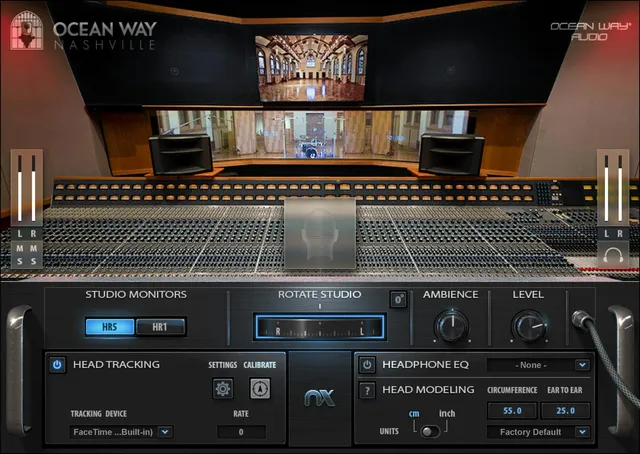
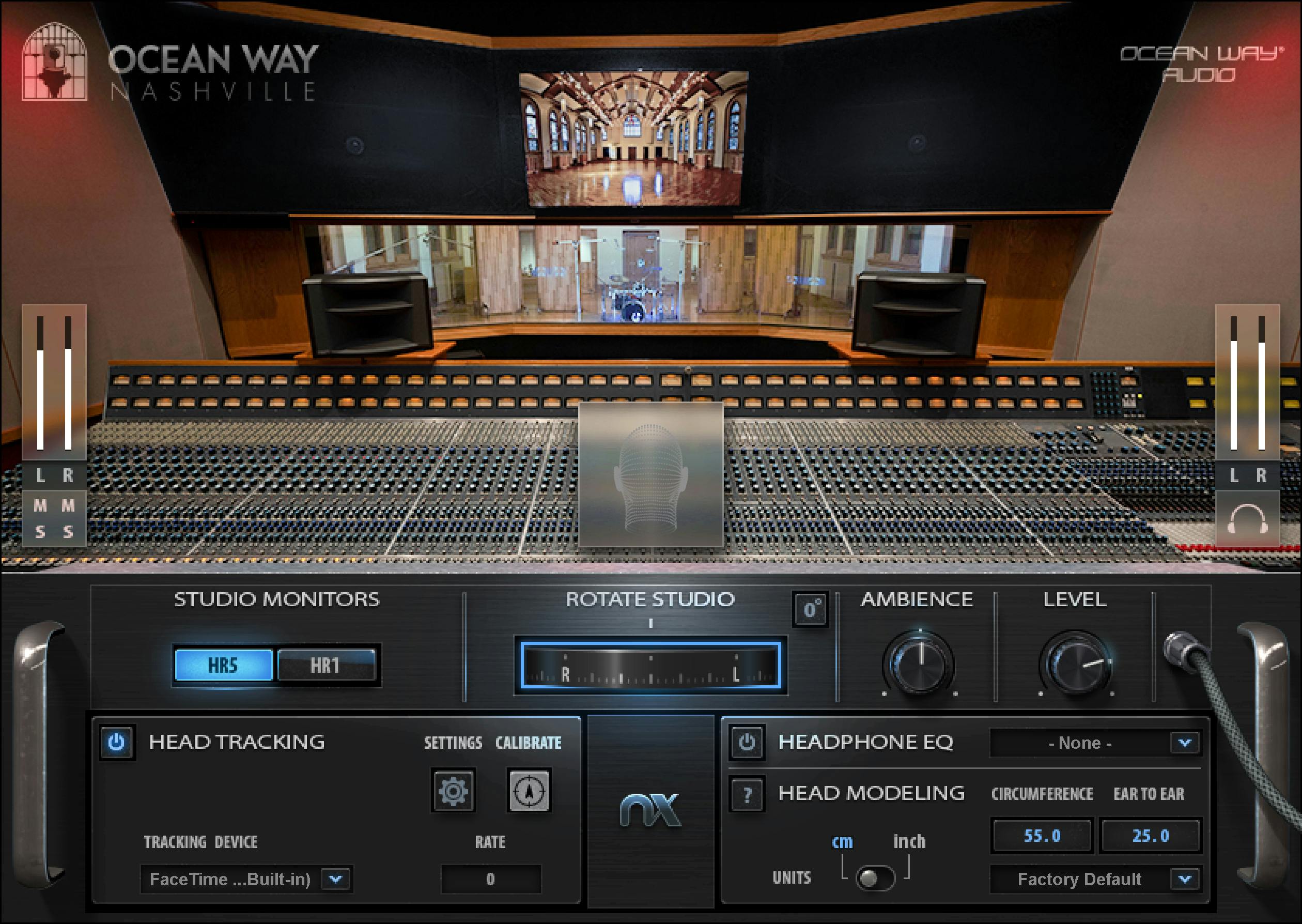
Studio Monitors Select: HR1 and HR5
Studio Monitors Select chooses between the two modeled monitoring systems: HR1 and HR5. [1]
The manual describes them as the two speaker systems available within the virtual Ocean Way Nashville monitoring environment. The plugin does not expose a generic speaker-size parameter; the named monitor selections are the documented choices.
This article does not rank HR1 against HR5 because no listening comparison was performed.
Input meters, mute and solo
The plugin provides left/right input metering from -infinity to 0 dBFS. The manual describes an infinite-hold clip indicator; clicking the clip indicator resets it. [1]
Each input channel also has M and S controls for mute and solo. These act on the incoming stereo channels for monitoring/diagnostic purposes. [1]
That reset behavior is worth distinguishing from the output-volume control: clicking the clip indicator clears the held clip state; it does not change gain.
Output/headphone meters and Level
The output/headphone meters also cover -infinity to 0 dBFS and use an infinite-hold clip indication. [1]
Level controls the plugin output level. [1]
- Range: -24 dBFS to +6 dBFS
- Default: 0 dBFS [1]
Waves notes that Nx processing can cause output clipping, particularly when the source is already heavily limited. Reduce Level when needed to prevent the monitoring output from clipping. [1]
That is a monitoring gain-management instruction from the manual, not a claim that Nx changes the underlying mix dynamics in a desirable way.
Rotate Studio
Rotate Studio changes the apparent orientation of the virtual room around the listener. [1]
The current manual documents a 0° forward/default orientation. Clicking the displayed 0° control or Alt-clicking the Rotate Studio wheel returns the room orientation to the default center. [1]
With head tracking active, physical head movement can drive the virtual orientation instead of relying only on manual rotation.
Ambience
Ambience changes the amount of the captured/modelled room ambience. [1]
- Range: 60–160%
- Default/reference value: 100% [1]
The manual says 100% corresponds to the captured IR ambience, while moving away from that value makes the result less exact to the captured reference. That is the documentary reason to use 100% as a neutral starting point. [1]
This is not a generic reverb wet/dry control and is not evidence that the room model is perceptually exact.
Head Tracking On/Off
Head Tracking enables or disables tracking input. [1]
Turning Head Tracking off does not disable Nx sound processing. The manual says that with tracking off, the soundscape moves with you as it does with normal stereo headphones. [1]
Head tracking is optional on the product page, though the manual recommends using it for the intended immersive experience. [1][2]
Tracking Device
The documented tracking-device choices are: [1]
- Camera
- Nx Head Tracker
- Sensor Fusion
Camera uses a supported webcam/video input for face/head tracking. Nx Head Tracker uses Waves’ dedicated hardware sensor. Sensor Fusion combines camera and Nx Head Tracker data. [1]
The manual describes Sensor Fusion rates up to 80 fps and notes that Sensor Fusion supports one tracked person at a time. [1]
Tracking Settings and Nx HeadTracker utility
The Settings control opens or reopens the separate Nx HeadTracker application/control panel. [1]
In its Camera Tracker tab, On/Off enables tracking or saves CPU; Camera Select chooses among connected cameras; Reset Face Detection resets face detection after a user change or tracking problem; Low Light Mode is available only with certain built-in MacBook Pro FaceTime HD cameras; and Frame Rate Indicator reports the current rate, with the manual describing higher rates as higher tracking resolution and accuracy. Camera Tracking Data displays continuously refreshed yaw, pitch, roll and x/y/z values. [1]
The utility menu can Resize the window, Apply as Default to All, open the plugin or WaveSystem manuals, open More Info, and change launch/shutdown behavior. The app launches automatically with the plugin and quits when the plugin is removed or inactive or the host closes by default; Disable Tracker App Auto-Launch and Disable Tracker App Auto-Shutdown turn off those behaviors. [1]
The Bluetooth Tracker tab’s Device List shows up to seven trackers and the states Connected, Disconnected, Connecting or Unavailable. Connect toggles a selected device; Refresh Device List clears and rescans the list; Open Bluetooth Settings is a Windows-only unpairing troubleshooting step. Rename permanently changes a device name using 5–15 characters; the manual says the rename can take up to three minutes, and a restart/reconnection up to twenty seconds. Update initiates firmware updating when an update is available; Identify blinks the selected device; FW Version displays its firmware version; and Automatic Connect is On by default. When Automatic Connect is Off, detected devices are still added to the list but must be connected manually; the manual recommends Off when multiple trackers or systems are present. Bluetooth Tracking Data displays continuously refreshed yaw, pitch and roll. These are vendor-documented utility controls and status values, not measurements from this review. [1]
For camera setup, the manual recommends sufficient lighting for at least 20 fps, calls 25–30 fps optimal, and suggests sitting no more than 5–6 feet away and within 30 degrees left or right. These are vendor recommendations; actual camera or tracker behavior was not tested. [1]
Calibrate
Calibrate defines the current physical head orientation as the center/reference position. [1]
Use it while facing what you want Nx to treat as straight ahead. Calibration is especially relevant after changing seating position or tracking setup.
Tracking Rate readout
The Rate readout reports tracking update speed. It is a status readout, not a processing-quality knob. [1]
Waves gives these practical ranges in the manual: [1]
- Camera: roughly 25–30 fps is the usual optimal range.
- Nx Head Tracker: roughly 35–50 fps.
- Sensor Fusion: roughly 45–80 fps.
Those are vendor operating recommendations, not performance measurements from this article.
Head Circumference
The personal Head Circumference value is part of Nx head modeling. [1]
- Range: 35–75 cm / approximately 13.8–29.5 in
- Default: 55 cm / approximately 21.6 in [1]
Enter an actual measurement rather than treating the number as a tone control. The purpose is to personalize the head-related model.
Ear-to-Ear distance
The second personal measurement is Ear-to-Ear distance. [1]
- Range: 15–40 cm / approximately 5.9–15.8 in
- Default: 25 cm / approximately 9.8 in [1]
The unit selector supports centimeters/inches. [1]
Head-modeling preset behavior
The manual distinguishes head-modeling data from ordinary plugin presets. Personal head measurements are saved separately, and general plugin presets do not replace them in the same way as ordinary processing parameters. [1]
The guide also notes that factory/default behavior can restore the default measurements when a new instance is opened unless a custom default head-modeling preset is saved. That matters when you expect personal measurements to persist across new instances. [1]
Headphone EQ model selector
The Headphone EQ model selector chooses the correction profile for the headphones you are using. [1][2]
The current product-page text says over 270 headphone correction profiles; the User Guide says more than 250. Keep these as source-specific figures rather than an observed count from an installed plugin menu. [1][2]
Selecting a headphone model makes its correction curve the default choice for new Nx instances according to the manual. [1]
Headphone EQ On/Off
Headphone EQ On/Off enables or bypasses the selected headphone correction profile. [1]
If your exact headphone model is not available, the manual recommends turning Headphone EQ off rather than assuming a different model’s curve is an appropriate substitute. [1]
Headphone EQ is separate from the virtual Ocean Way room/monitor selection.
WaveSystem toolbar
Nx Ocean Way Nashville uses the shared WaveSystem toolbar for preset operations, A/B setup comparison, undo/redo and interface sizing. [1]
The toolbar is not part of the virtual room processing itself, but it is relevant to repeatable setup. Personal head-modeling data has its own persistence behavior as described above.
A practical monitoring workflow
Place Nx Ocean Way Nashville on the monitor/master bus and choose the headphone profile that exactly matches your headphones when available. Enter your head measurements, keep Ambience at 100% initially, choose HR1 or HR5 and set Level for unclipped comfortable monitoring. [1]
If using tracking, calibrate while facing forward and watch the Rate readout. Camera tracking that is unusually slow or unstable should be fixed at the tracking/input level before drawing conclusions about the virtual room.
Use Rotate Studio only when you intentionally want to hear the room from another orientation. Before a standard final export, bypass Nx so the binaural room/headphone monitoring processing is not printed. [1][2]
Those are conservative operating suggestions based on Waves’ documented workflow. They are not a listening-test verdict.
Practical uses
Nx Ocean Way Nashville is useful when you want a consistent virtual control-room perspective while working on headphones, especially when your physical environment cannot provide full-room monitoring. [2]
The headphone correction, head measurements and optional tracking are intended to make that monitoring presentation more personally/contextually appropriate. They do not turn the plugin into a room-correction processor for speakers.
Best for / skip if
It is best suited to headphone monitoring where a modeled room/monitor perspective is useful. [1][2]
Skip it in the final processing chain if your goal is a normal speaker/headphone-neutral deliverable rather than an intentionally printed binaural render. Also skip Headphone EQ when your exact model is unavailable rather than borrowing a mismatched profile. [1][2]
Limitations and documentation boundaries
This is a documentary control reference. I did not measure frequency-response correction, crosstalk, head-related transfer functions, tracking latency, CPU use, translation quality or perceptual room accuracy.
The manual says that the impulse responses use Ocean Way Nashville’s Studio B control room and explains that its Studio A image is shown because it is a unique recording space. These are distinct roles described by Waves, not a conflict about the impulse-response source. [1]
The current product-page text says over 270 headphone correction profiles; the User Guide says more than 250. Keep these as source-specific figures rather than an observed count from an installed plugin menu. [1][2]
Related guides
For more Waves production resources, visit the Waves Audio Post Resources hub. For current product details, see the official Nx Ocean Way Nashville product page. Nx Virtual Mix Room and Abbey Road Studio 3 are related headphone-monitoring environments to consider by their documented room and workflow differences—not a tested ranking here.
Bottom line
Nx Ocean Way Nashville is a binaural headphone-monitoring environment with HR1/HR5 monitor choices, controllable room orientation and ambience, headphone correction, personal head measurements and optional camera/Nx Head Tracker/Sensor Fusion tracking. [1][2]
The key operational boundary is equally important: it is meant to sit on the monitor/master path, its output is binaural stereo, and Waves says to bypass it before a normal final mix bounce unless printing the binaural rendering is intentional. [1][2]
Sources
Checked October 18, 2026. No listening, headphone, camera/tracker, host or measurement test was performed.
- Waves Nx Ocean Way Nashville User Guide, current product-linked guide. Manual p. 3 explicitly distinguishes the Studio B impulse-response source from its Studio A illustrative image.
- Waves Nx Ocean Way Nashville product page, current product identity, over-270-headphone-profile statement and current bounce/monitoring FAQ.
- Waves Graphic Library, product-image entry and attribution/backlink requirement.
FAQ
What does Nx Ocean Way Nashville do?
It processes stereo audio into a binaural headphone-monitoring signal that models an Ocean Way Nashville room and its selected monitors. Waves describes this as a monitoring environment; no room-accuracy or mix-translation test was performed here. [1][2]
Do I need to use head tracking?
No. Waves says head tracking is optional, although the manual recommends it for the intended immersive experience. With tracking off, Nx processing remains active and the manual says the soundscape moves with the listener as in normal stereo headphone use. [1][2]
Where should I place the plugin, and should it stay on for a final mix bounce?
The manual recommends one instance on the master bus, not individual tracks, and says to bypass Nx before bouncing the final mix. The plugin output is binaural stereo for headphones. [1]
What is the difference between the HR1 and HR5 choices?
They select the two modeled Ocean Way Audio monitor types. The manual describes their designs, but this review did not compare how they sound or rank one above the other. [1]
What does Ambience control?
It adjusts the amount of modeled room ambience from 60% to 160%; the documented default is 100%, which the manual describes as the captured impulse-response ambience. No listening comparison was performed. [1]
Which head measurements can I enter?
The manual documents circumference from 35 to 75 cm (default 55 cm) and ear-to-ear distance from 15 to 40 cm (default 25 cm). Use your measurements or the documented defaults; the guide warns that unrelated values compromise the effect. [1]
What if my headphone model is not listed?
The manual recommends turning Headphone EQ off when your exact model is unavailable rather than choosing a different model’s correction curve. It also says some experienced users may prefer EQ off. [1]
What do the meters and Level control show?
Input and binaural output meters run from -infinity to 0 dBFS. The input clip indicator holds until clicked to reset; the output meters also hold clip indications. Level controls headphone output from -24 dBFS to +6 dBFS, with a documented default of 0 dBFS. [1]

About the Author
Joseph Nilo has been working professionally in all aspects of audio and video production for over twenty years. His day-to-day work finds him working as a video editor, 2D and 3D motion graphics designer, voiceover artist and audio engineer, and colorist for corporate projects and feature films.